

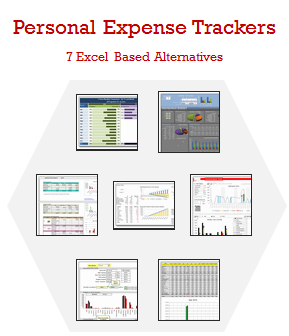
 Keeping track of your expenses is one of the fundamentals of living good life. So I asked you to prepare a personal expense tracker as part of our 10,000 RSS Subscriber Milestone contest. I have received 7 excellent entries in this contest, each capable of making expense tracking a breeze while providing good analytics of the expense data to understand how you spend.
Thanks everyone for participating and making this a huge learning experience for you and I. Personally I have learned several useful formula and tracker related tricks from this.
How to vote?
Each of the 7 entries start with a title including authors name. Each entry includes a small image of the tracker along with few other thumbnails. Click on the images to see them in bigger versions. You can download the source workbooks and play with the trackers yourself.
Tell me which one you liked most by posting a comment with the option number. The winner (option getting maximum votes) will get Toshiba Mini 300 Series Netbook.

That is right. A Netbook. (find out more about the exact model and specs here
Please note that these files are copyrighted to original authors and you cannot use them for commercial purposes.
I have included 3 comments against each entry based on my understanding of the tracker. Please share your opinions and reviews using the comments section of this post.
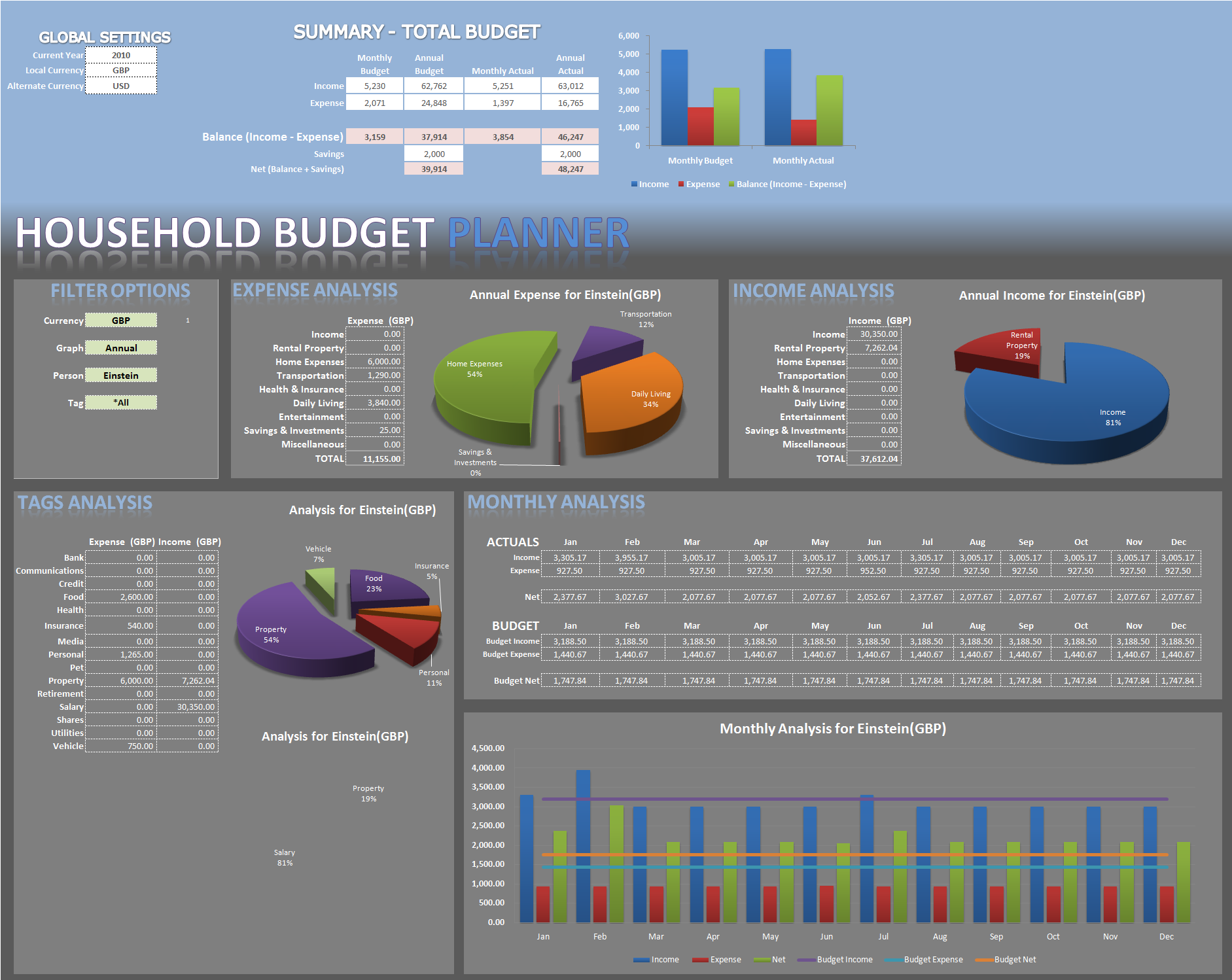
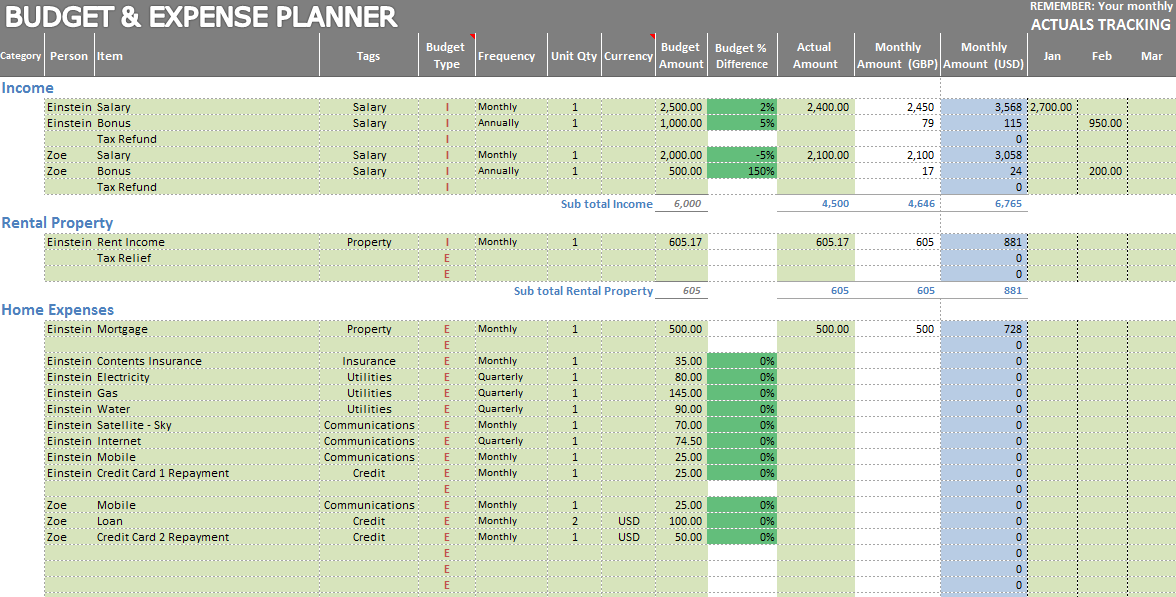
Excel Personal Expense Tracker by Bigtaff [Option 1]

My comments:
- Looks awesome
- Can handle multiple currencies
- Provides excellent analysis on various criteria (by month, monthly, annual, by person, by category etc.)
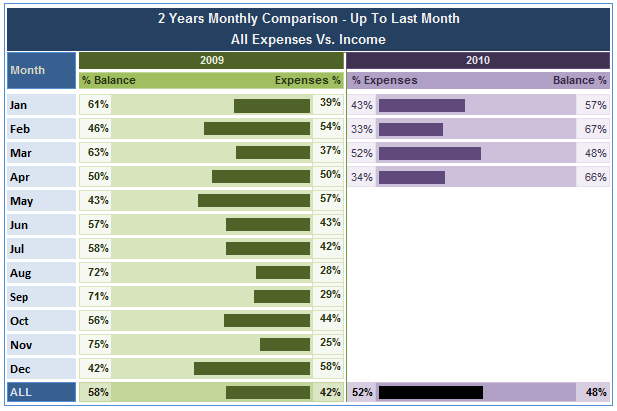
Excel Personal Expense Tracker by Cnat [Option 2]

My comments:
- Very cool frequency analysis of expenses by date
- Good use of in-cell charts to compare income with expenses
- Simple, easy to use tracker
Excel Personal Expense Tracker by Ibrahim [Option 3]

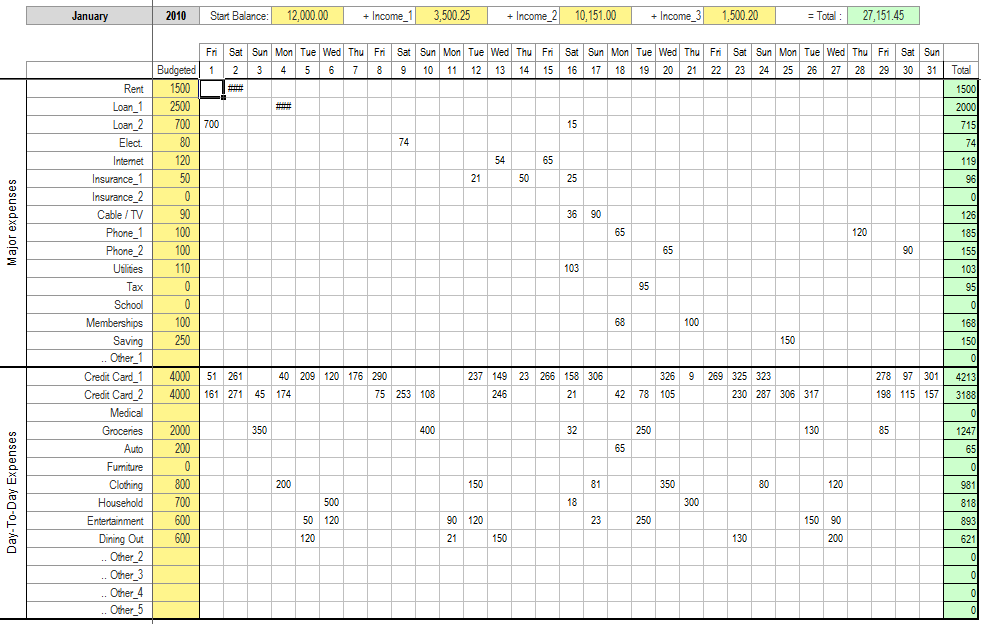
My comments:
- Separate sheets for each of the 12 months, good for yearly tracking
- Analytics by month or by expense category
- Simple Grid like structure for entering data
Excel Personal Expense Tracker by Karthik [Option 4]
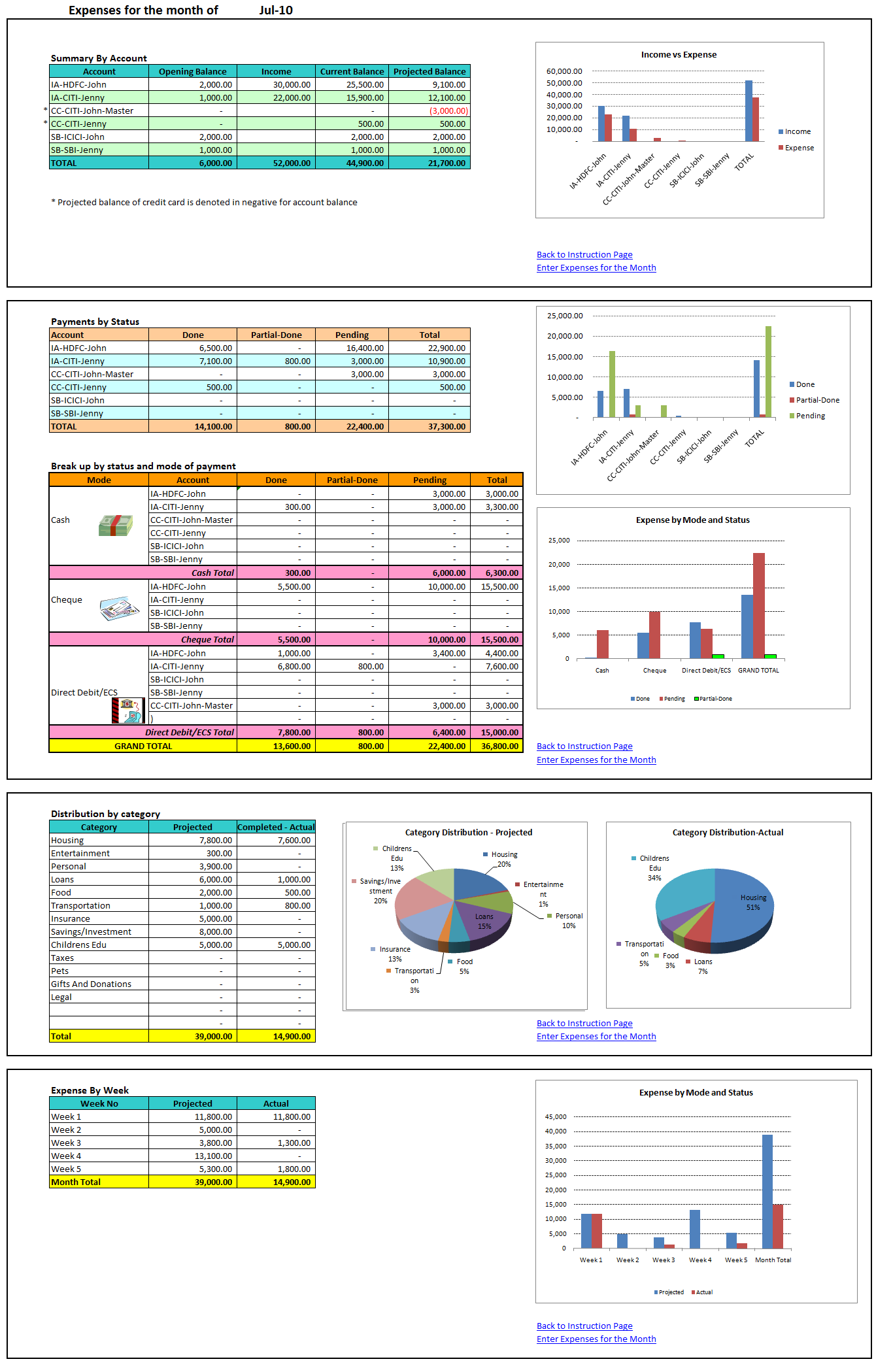
My comments:
- Tracks expenses for one month at a time
- Tracks various payment modes (cash, check, card) and payment due dates
- Nice summary of expenses by account, payment status, category and week
Excel Personal Expense Tracker by Pedrowave [Option 5]
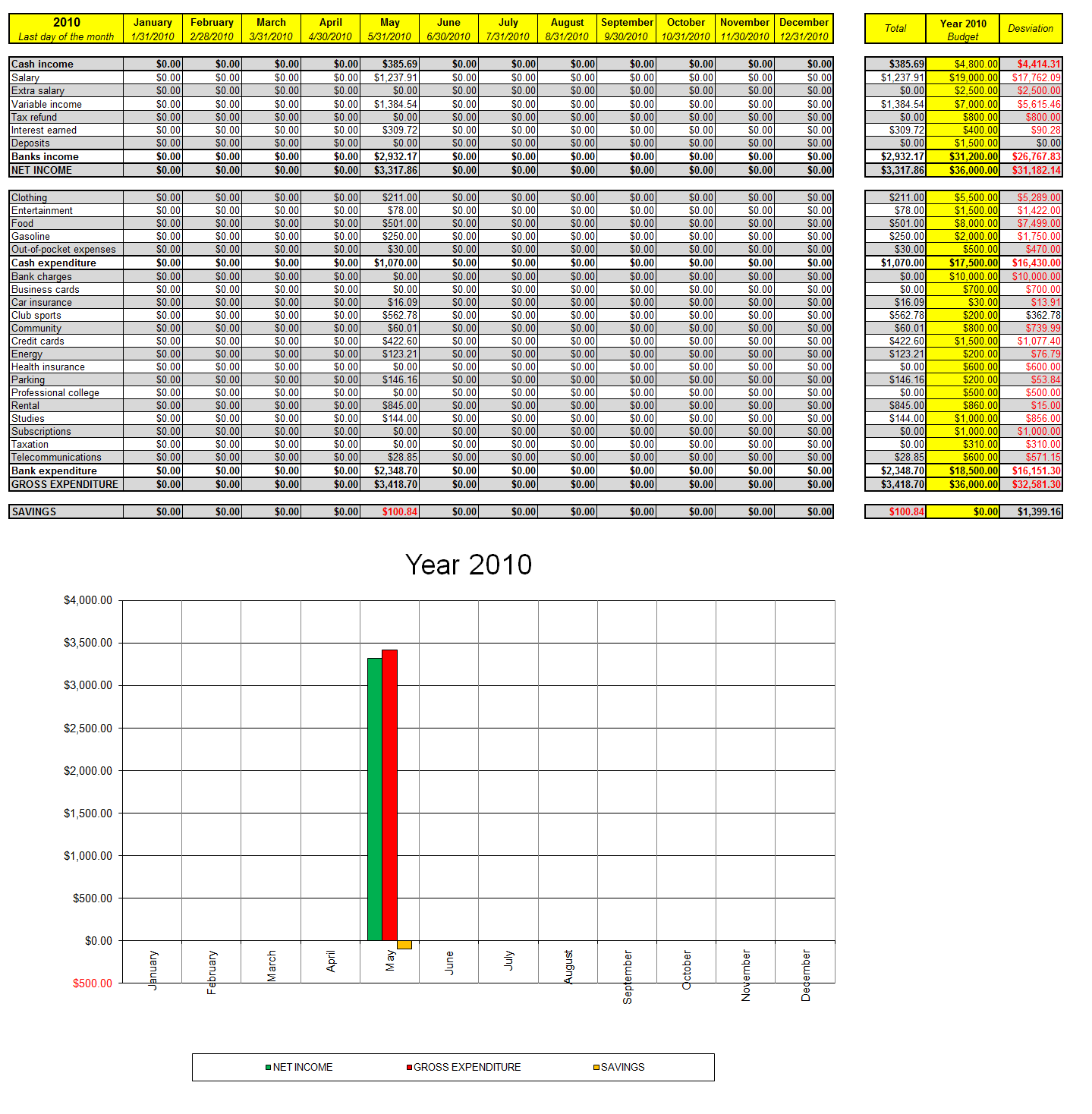

My comments:
- Simple tracker with easy input sheet
- Option to track by month or by day of month
- A simple chart shows income compared to expenses and savings
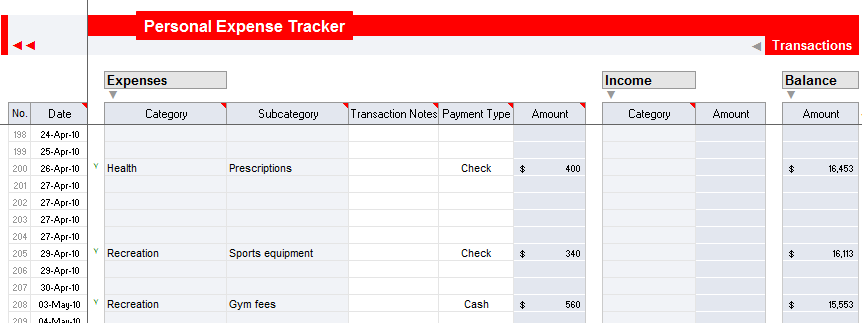
Excel Personal Expense Tracker by Romeog [Option 6]
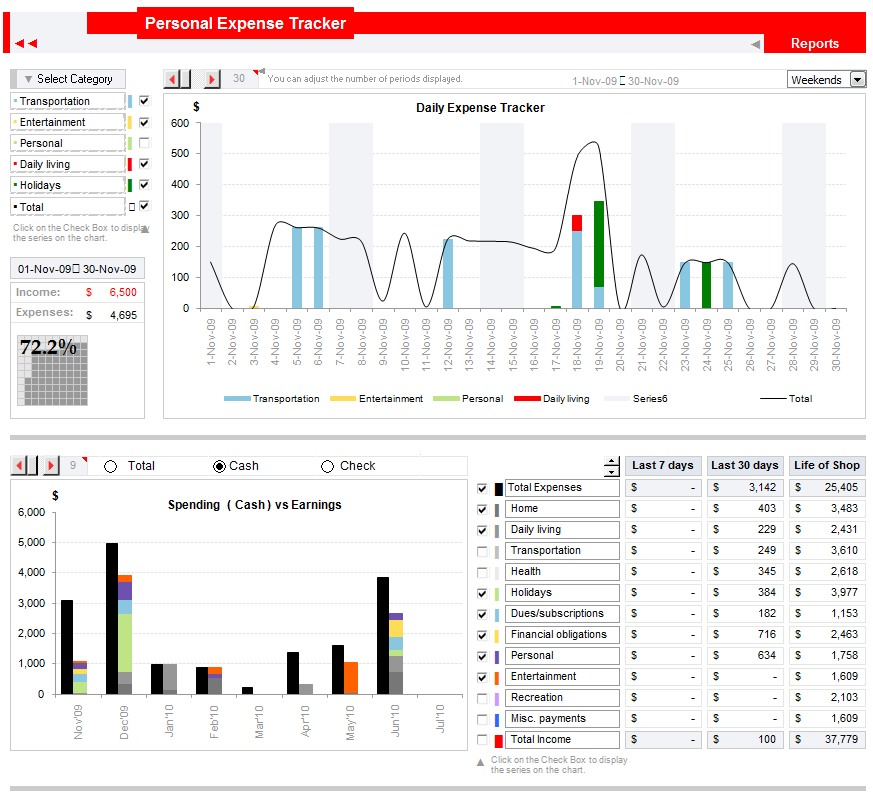
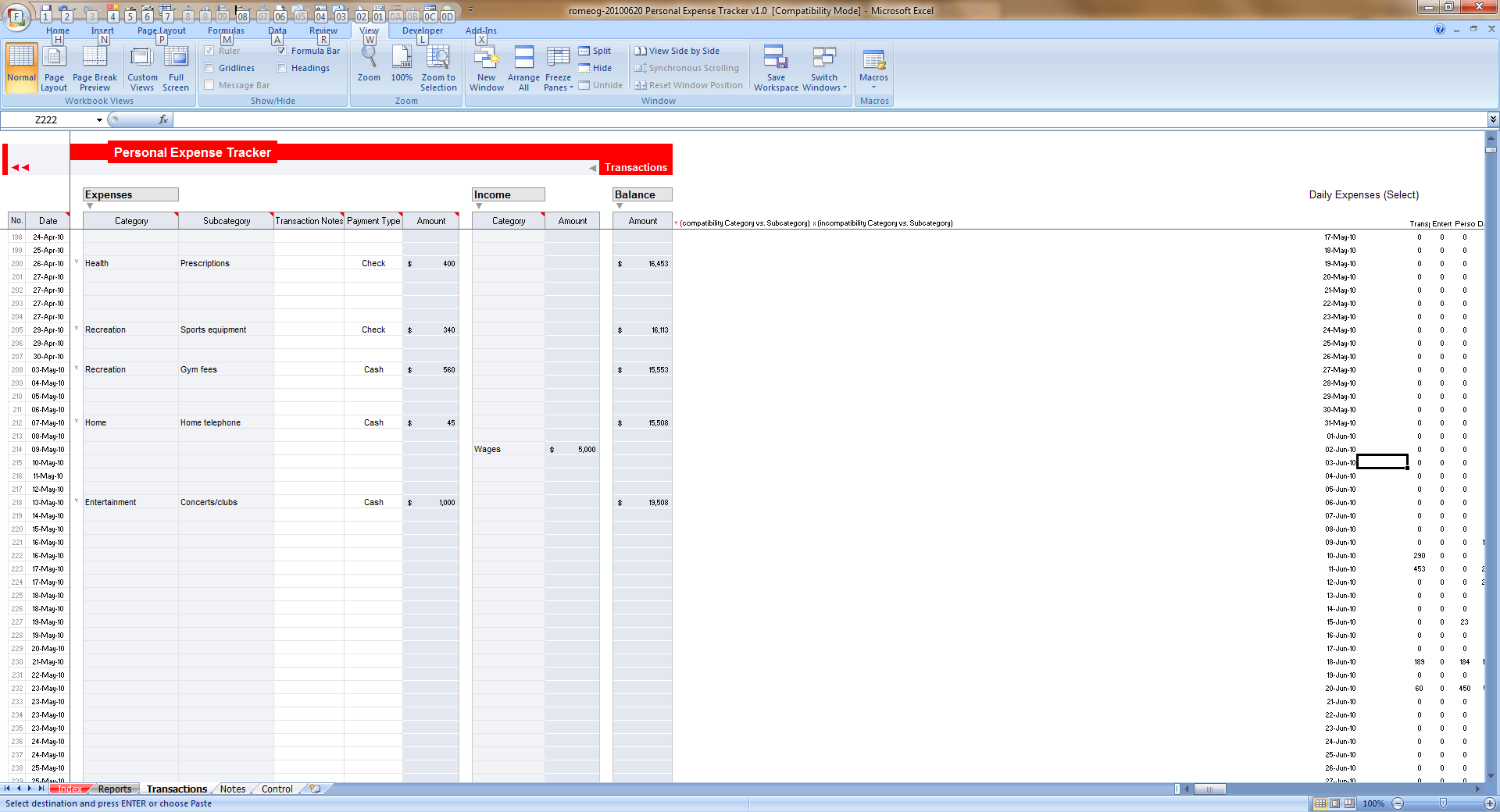
My comments:
- Looks awesome, the expense dashboard is quite versatile with ability to view expense data for any month, any number of days etc.
- Easy to compare categories and choose which categories to include in output
- Simple data entry sheet
Excel Personal Expense Tracker by Tessaes [Option 7]

My comments:
- Clean input sheets, easy to enter the data
- Summaries by category and daily, weekly and monthly statistics
- Simple charts to understand how actual expenses differed from budgets
Please vote for the option you liked most:
Use the comments and tell me which option you liked best. Go!
Thank you
I sincerely thank Bigtaff, Cnat, Ibrahim, Karthik, Pedrowave, Romeog and Tessaes for taking time to participate in this contest and make such beautiful and delightful trackers. Thank you so much for your generosity in sharing what you know.


164 Responses
I like Optiion5 by pedrowave, it’s does not look complicated. Simplicity at its best.
Is there anything out there that can use Quicken data files for input instead of manually entry? THAT would be awesome…
Try Mint.com. It has a download into CSV file which you can import. Absolutely no typing, no tracking, no thinking – just download and use. Keeps track of every bank account, credit card, check, transfer etc. I have been using it for about 5 years with no issues.
#1 – I just like the dashboard!
Really like #1 and #6. Will download it and see them detailed….
I think that the ability to handle multiple currencies is important, but I cannot vote for a dashboard that uses 3D pies, so that rules out Option 1. Also, the decimal points don’t line up in the table. Option 2 uses too many percent signs that make the numbers more difficult to read. Numbers should always be right adjusted. I can’t vote for Option 3 since the numbers are left adjusted. More 3D pies in Option 4. Option 5 uses too many dollar signs and ignores the roughly 8% of the male population that http://www.vischeck.com shows would not be able to distinguish the colors on the graph. Option 6 is out since I don’t like stacked bar charts. Therefore, my vote goes to Option 7. I’d like the labels moved away from zero on the top chart, but I consider that defect less serious than the others.
I admit that the vote should be based on how useful the trackers are and if they contain the information one would want to track. I admit that I did not take the time to evaluate this so I am only voting on the presentation of the results.
My vote goes for option 4 – karthik.
I think it perfectly meets standard family requirements of 2 income, cash and card… added with simplicity to use.
Great work.
Can we have direct contact of the template builder to appreciate the work….
I like #6 in terms of the analysis of actual income and expenditure and the comparison of the two, you can easily see where your money is going and whether you are a net saver/spender. I think to make this complete it needs to have some kind of Budget comparison. If Budget is important then #1 is good. I am sorry but I don’t get #2 and not going to spend anymore time figuring it out.
Overall #1 is best, then #6
My vote goes to option 4. Karthik’s TRacker.
According to me its simple and perfect, as it meets basic personal expence tracker.
Its wonderful to see such good work.
All the best!!
I would have gone for Option 6, but the reports tab gives error(Invalid references).
SO i would go with Option -4 for now.
I just like #1. I’m just wondering how did he/she make the background of each sheet. I tried but Excel applies to each row and not the whole selection area.
Any hint will be thanks.
Best Regards.
Hi everyone,
Sorry about the 3D Pies Naomi, just thought they conveyed the info I wanted and looked good with the style of dashboard. Well spotted on the decimal alignment, I’ll fix that little error that crept in (when the competition is over as that’s only fair). If anybody would like me to fix or alter anything else, send me an email and I’d be happy to oblige.
bigtaff@me.com
All the best
Bigtaff
#1 is the best. Multifunctional and looks fabulous. A very sexy approach to personal finances.
Really like #1 … great dashboard … clear analysis.
My preferences go the option 1 and 4,but got to vote for 1
Option 6
option 6
Ilike Optiion1
I prefer No. 3 or No.6
They are both functional, easy to use, and I can see the how they work.
No.1 is very attractive to the eye, and provides a lot of info. but I cannot vote for something that I cannot dig into, disect, and pick apart, to understand how it works.
One thing is for certain, my excel chart knowledge needs a serious upgrade
Number 6 looks like the best mix of interface, features, and design.
The one i like best and I could see myself using was #5. i like to be able to see the months.
#3 was in second place
My vote for # 6.
Congratulations to all for the excellent Job
Option 1 – Bigtaff.
Do you think it’s more important for the display to be attractive or to communicate the information clearly and accurately?
I really like number one. Even with the pie charts! This one seems to be the best to she you exactly where your money s going and where you can cut back or budget for.
My vote is for number 6. Great work by everyone.
I like Option 1 however reading Naomi comments I can see what she is at so I would be attempted to change the chart myself.
hi,
I liked 1 & 6 the most…………these are realy useful………
Regrads
For me, it was a close contest between option 1 and 4. The winner is option 1
I like the dashboard : personal-expense-tracker-1
Hi Naomi
I appreciate the feedback.
Of course both would be ideal. I visit Chandoo’s blog for exactly the purpose of improving my Excel skills and broadening my experience of how to clearly present the data.
Any feedback is warmly welcome on how I could better present the proportion of Income verses Expense for the relevant Categories & Tags.
Take care
Bigtaff
Definitely option #6, a real masterpiece
Many books say not to use red and green because those with color vision deficiencies cannot distinguish them. This over-simplifies the situation. Both Option 1 and Option 5 use red next to green. However, with Option 5, the red and green are roughly the same saturation and lightness and according to a simulation with www. vischeck.com, will be difficult to distinguish. Bigtaff, in Option 1, uses a dark red and light green. Again, using a simulation, we see that even with color vision deficiency, a person can distinguish this combination of red and green. The bars will not look like the colors those of us with normal color vision see, but they will be distinguishable.
Option 6, Is Best 🙂
My option is for sure no.6. It looks really well and it is helpful. I didn’t have any error in Excel 2003, could be in 2007, but this doesn’t matter, because the terms of the contest were refering to 2003 so… my vote is for 6.
My vote is for number 6. It’s simply brilliant and best design!
My vote is for Excel Personal Expense Tracker by Romeog [Option 6].
I dont know many things about that kind of chart and that make my opinion very realistic. I use his chart and is very good and show me all that I want to see.
option 1, a classic!!
Hello all,
Love the presentation of the Option1, I don’t like the use of blue at the top as it makes the data a bit harder to read but the overall layout is excellent, even if I am not a big fan of dark colours in spreadsheets. I disagree with Naomi, 3d charts work very well here and along with the numerical values can work very well in general too, there is a reason they are included in Excel, if some people find them hard to read doesn’t mean everyone else does too. Option 2 screenshot is not ideal but the template is plain and simple and with good formatting. Option 3 does not give any of the information that I would have chosen for the main sheet. The presentation is simple; however, there is a lot of space wastage and poor symmetry of the layout. Option 4 has the same problem as Option 3 and makes it more confusing for me by adding so many colours, go easy on the colours! Option 4 could do with better summary and presentation. Option 5 is just awesome, wonderfully laid out and readable. Option 6 could also do with better space utilization in my opinion, however, it’s simple and easy to read.
My clear winner is Option 5. A wonderful effort by each and everyone. Would love to take part in the next contest.
el numero 6 me parece el mejor, un saludo
#1 The best beyond doubt. Not just ggod looking – actually functional. Only downside is common to all entries – why not unlock ebty cells and protect sheets so that entry overwrite errors are prevented of non-entry cells.
my vote goes for #6!!
@All.. the voting closes on 23rd July – Friday. Thank you 🙂
All are very good, but No.6 it’s the best.
Congratulations Romeog.
Option 1 – It looks elegant, uncluttered and aesthetically simple to perceive. It captures everything I need and provides enough detail to see, at a glance, whats happening; but not too much so things get over complex.
Although all are great I think Bigtaffy Option 1 has the lead.
Thank you
Thanks Naomi by your good sugestions.
I have used red and green able to seen by 100% of the female population and 92% of the male population. It is my fault and I’ll fix when this contest closes. In your opinion what is the best color combination to colorblind people, knowing we have to avoid these color combinations:
http://wearecolorblind.com/articles/quick-tips/
All of you are authorized to modify and add improvements to my Excel Personal Expense Tracker #5 if you like to use it.
Well done by my rivals!
All of them are very nice but my vote goes to Option 1.
My vote is for No.6
my choice is option 6
Pedro,
There are many useful sites on the Web that suggest color combinations that all can distinguish. I’ve included some links to them on http://www.nbr-graphs.com/trainframe.html. Click on “How to Draw Some Useful Charts Not on Excel Menus” and then scroll down to “Other Useful Links.” In addition to trying to choose colors carefully, it is helpful to vary symbols in addition to colors, and as the site you linked to recommends, to vary the lightness of adjacent colors.
All works presented are great, but 6 and 7 especially caught my eye. If 7 seems rather simplist at a first glance, I think the opportunities offered for the 6th option for further adaptation worth the time invested in it.
My best to all, and definitely I would vote for 6. Slightly, tho 😉
I agree with Naomi, when She pints out that option 1, has many design drawbacks, like Pie Charts in their Dashboard and the color background that turns very difficult to see the numbers in the table (also its very distracting).
But I would like Vote in terms of two items:
1 -Dashboard layout and Design (Graphics, attractive Display, communicate the information clearly and accurately, Colors, like Naomi points out)
2 – Expense Sheet flexibility, usefulness, functionality and Errors.
In term of this two items my vote goes for number 6, although has some reference errors, and I found not very useful the stacked chart , the Dashboard layout , graphic interactivity , and functionality are very good.
I’m liking No 3.
It wasn’t easy to decide, but in the end it seems the most simple and informative.
I take every chart and I put some simply dates and…………………… No.6 work good.
I choose Option 1. It is very flexible, great looking and has tons of features. I will use that.
I like #6. Nice dashboard. I will download it.
Obviously some very clever excel modelling skills out there! I would have to go with Option 1- Bigtaff. The dashboard looks awesome! Reasons are:
1) Easy to use and very clear and succinct visualisation.
2) Ability to enter multiple currency especially in this globalised day and age where income/expense is increasingly crossing currencies.
3) Able to choose different members of the household
4) It has budget information as well which makes it easier to see where one is overspending.
Well done.
I like chart no. 6. Very useful!
I’d say option 6.
Easy to use and it displays the results in a easy way to read.
Hard to pick but I’m liking no. 3 the best.
There are some deceptively clever elements of this which would reward further development work.
For some reason I couldn’t get no 7 to download for me from either link. seemed to put .ods at the end.
Interesting finalists here !!!
I found No. 5 as pretty good,
then No. 1 to be second…
Keep more like these coming in Chandoo !!!
Cheers
I like #1. Dashboards are easy to read and you can get a good feel of what is going on at a glance.
No. 2 has all the elements that a PE tracker will need, and also has the structure necesary for the users. My vote for No. 2.
My choice is #4 – Personal Expense tracker by Karthik. The Expense categories are detailed and captures most of the Household expenses that are pretty common. The payment status gives the user an idea of how much amount is pending at any given point in a month. This is significantly important for a person to have a check on the expenses as well. Not a complicated sheet. Good Job Karthik!!! All the very Best!!!
Hello Chandoo,
My fav is #6, but #1 came close and lose because I don’t like its entry tab (not easy)
#1 is my vote. Ticks all the right boxes in terms of ease of use and functionality.
RP.
I like the design of the dashboard of #6, but it contains errors. My vote goes to #1.
My vote is for number 6.Looks good and is easy to use.
My vote too goes for number 6.
I like number 1 too but the entry for daily transactions is missing there.
Hi, no 6 is the best option, it’s a dashbord easy to understand and read.
My option is #6. It is not to overloaded and has categories. But Error in Excel 2007 (formula error)
This is a reply to the comment by Saman who said,” 3d charts work very well here and along with the numerical values can work very well in general too, there is a reason they are included in Excel, if some people find them hard to read doesn’t mean everyone else does too.”
I lecture regularly on creating effective graphs and often show 3D charts with the labels removed. I ask the audience to estimate the values of the wedges or bars. Then I show them the same charts with the labels included. They cannot believe how inaccurate their estimates were. You can see some of these examples in “Creating More Effective Graphs” http://amzn.to/dpq6Ti.
The reason that they are included in Excel and most other graphing software is that so many users insist on having them there. A salesperson for one of these companies said to me that just as a shoe manufacturer makes what the customers want and doesn’t lecture the customer on the type of shoes that are comfortable and good for their feet, they produce software with the features that the customers want rather than what perceptual studies show are more easily understood.
If you are communicating through the numerical values, why bother including the chart?
All are gut, aber No.6 ist easy to use.
My vote ist for No.6
Option 6 is my favorite.
Option #1.
Option #1 works for me.
Seems he has worked too damn hard to get it to near perfection. Also….it has almost everything that i need.
Thanks all.. the voting is closed now.. Please wait until Friday for results.
I agreed with Martin.
#1 by Bigtaff – more to overall (birdview) reporting.
#6 Romeog – a clik away to see summmary of selective field, and save time, need not required mutiple pages to work on figures.
opps!!! it’s closed. ah damn.. 🙁
By the way, love your blog. =)
I’m not sure if you will see any increased traffic for this page today, but I mentioned this page here:
http://consumerist.com/2010/09/quick-and-easy-excel-budgeter.html#comment-20445582
@Sixseven.. thanks for that.. it did fetch another 178 people to our site 🙂
I like numrber 4 the best!
i like number 6, cause it more simple. and the color is eyecatching
Chandoo
Excellent work and we need more
Constantly I receive your message
thanks Chandoo
6th one is awesome…
Option 6 according to me is the best. Romeo has done an excellent job by bringing dynamics to graphs without macros by exploiting the relationship between form controls and cells. Things like having unique values in each dropdown on the report tab by using a set of logical steps. Simply impressive. There is nothing useless in the sheet. Very very intelligent use of maximum functions aptly used. I’ve not seen any better and effective usage of named ranges either. A classic example of how to use named ranges. Overall – brilliant,classy and intelligently done. The error ‘Formula in worksheet contains invalid blah blah blah..’ is the only flaw I reckon.
Option 1 is the best. Really helpful in term of comparison and tracking. A wishlist is the next version can also include some customizing by the user.
For da creator and the site owner…great jobs and may many more great thing to come from u all.
Option 3rd is the best as per my requirement.all the sheets are useful and simple in understanding.
great job….thanks i will definately use it.
please post some awasome dashboard to useful for MIS
Hi everybody, new version around the corner, so if anybody wants something specific added please let me know. Taufan, what were you thinking of in terms of customising by the user? Naomi will be please to hear I’ve done away with the Pie Charts 😉
All the best
p.s. that’s for option 1….
Bigtaff,
Have you released your new version of option 1. Looking forward to using it. i used above version and couldn’t get my savings amounts to show on the dashboard under income analysis but maybe that’s just me and how i’m inputing the data.
Hi Tam
A new version is still in production, unfortunately delayed due to work commitments. In terms of savings, these are reported in the summary – total budget portion of the dashboard as they’re not seen as income per se, of course any interest from savings can be captured as Income.
Hope that helps and I’ll try to issue a new version in the next week or so!
Bigtaff
not satisfied as more complicated one & not use for household purpose
Hi,
g8 work ….
THE OPTION ONE BY BIGTAFF
IS EXCELENT
I liked #5 due to it being simple seeing i don’t want to spend alot of time at home on the computer after working on it all day.
So who won? anyway, thanks to all the suppliers for such great contribution , making an average joe’s excel experience into a very app-like and very fun time which really helps.
personal-expense-tracker-5 is best
I am looking for a budget template that contains all of the basic features but also links to separate tabs for different items, like groceries, household repairs, auto, etc. that links back to the main sheet.
I like number 6 for it’s ease of use in entering transactions and the simplicity of the reports. #1’s dashboard is really an eye candy.
Vote for Option 3
Liking #1.
Voting ended but stil liking it.
Agree with Saman :p – maybe i’m one of those who insist on having pie charts in excel. I just like them.
i use a free software called spending viewer http://spendingviewer.apphb.com its free upto 2 accounts. easy to upload transactions, it assigns categories
automatically based on your settings, lots of reports to track (Report by category, by month, by year, by payees, by budget).
Setup budget by weekly/monthly. It is really fast, shows years worth of data in less than a second, and all in a single screen with single click.
Option 4, what is the password to unprotect the sheets and workbook?
@$
4b3b1b7b5b3b3
My favorite is #3. I wonder if Ibrahim has any short tutorial on how to easily customize it? I can of course unlock it, but had trouble when I, for example, when I went to insert a field in the “start” tab. It took my field but didn’t populate in the other months. His template has room for 30 items in the tracker, but my household budget needs about 40. How do I add about 10 of them?
I Vote for Option -5
Option # 1 is best. Easy, clear and beautifully designed.
Downloaded 3 & 4 both seem well detailed yet simple… Thanks for the brilliant collection… Cheers
Vote for option 6! Simple to use and very suitable for a single person to record expence
Excellent work by all… !!!
I personally like #1 & #6 more as they are more closer to my personal liking…
#3 is the best.. Veera has got it wrong, and is himself now going for #3.. 😛
I started using #3 as I like the daily transactions that are easily viewed. I have the same problem as Kent Weber where some of the links are wrong. I couldn’t figure out how to fix them. Other than that, it’s great. I just wish it looked more like #1!
hi
I like #1
but is there any user manual !!!!!! am stuckkk and i need to ask couple of questions
Moww
I downloaded personal-expense-tracker-5.xls from “http://chandoo.org/wp/2010/07/16/download-expense-trackers/” Called “Excel Personal Expense Tracker by Pedrowave [Option 5]”
A simple change would simplify the process of adding the next year.
For each tab with a year as the name, in cell B2 replace hard coded year with this formula.
=MID(CELL(“filename”,A1),FIND(“]”,CELL(“filename”,A1))+1,4)
you no longer have to hard code the year. Start with a default year of >= 1900 (1899 does not provide the correct date), drag and copy, then rename the tab and you are done.
William, I appreciate your tip but you must realize that A1 reference is not necessary.
<code>=MID(CELL(“filename”),FIND(“]”,CELL(“filename”))+1,4)</code>
I wish your personal economy is thriving for years.
I like Option #1, #3 & #4
1 for the layout and presentaion, and…. the charts are easlily read, input is pretty straight forward and in laimans terms (for us not so fortunate at accounting).
3 for the eas… I REALLY like having links back to each page right on each page, makes bouncing back and forth much easier.
4 for the layout as well. Its straight forward and easy for us whom know nothing. I also really like being able to put due dates in. Very helpful if you ask me.
#1: fantastic
the others are normal
Really liked # 1.
Option 1 is very good.
Vote for 2. it suits my requirements. The spending trend and expense comparison are very useful and easy to use. Thanks Cnat
Bigtaff’s expense looks professional..and has all the elements needed. It gets my vote
pet number 3. error free, flexible, very good balance between functionality and simplicity.
a great alternative to expensify!
No #3… easy to use and quite complete
Yes agreed but since when does February have 31 days ?
How do I change the year for #4?
I need to change the month dropdown list to 2013 and 2014… The sheet is protected
Wow. I’d just begun to search for ‘personal expense tracker’. Chandoo was, I think, the second option. O – M – G. What a fabulous idea to host a competition. I’m sure I’ve missed the outcome, but I will enjoy exploring the options. Thank you!
@Ellia
Have a look at: http://chandoo.org/wp/2010/08/10/winner-of-excel-expense-tracker-contest/
Number 4 looks like the best mix of interface, features, and design.
Dear,
I like the dashboard number 01.
Hi,
I vote for # 3 ( Excel Personal Expense Tracker by Ibrahim ), its simple and awesome….
Thanks for sharing…
I like #3 the best. If it just had a remarks/comment section for everyday basis, it’d be perfect. Simple yet elegant.
Hi, Good day!
I like Excel Personal Expense Tracker by Ibrahim. This is really awsome. could you please advise how can I add my own expenses in the template. for eg. additional credit card and addition expense I need add little more to add in this.
appreciate your help.
regards
Siva
Hi Chandoo,
Saw this page today(like digging graveyard 🙂 ).
I liked number 3
Its more practical and user friendly.
The currency feature in Option 1 is flawed and is not working correctly when multiple currencies are used in the planner.
Has anyone out there noticed the problem? solution?
The currency feature in Option 1 is flawed and is not working correctly when multiple currencies are used in the planner. Try to play with column H, I, K, L and M
Has anyone out there noticed the problem? solution?
Hi Gui
There is a new version of option 1 that should be available via the link, however if you’re still having problems feel free to email my your xls and I’ll review and correct any errors.
All the best
Bigtaff
I’m just beginning to learn how to create dashboards. I would like to create some illustrating my annual expenses, by categories, so that I can trend from year to year and plan retirement finances accordingly.
Can anyone point me to a model or template that analyzes data over several years?
Thanks.
Trying to use – “personal-expense-tracker-4.xlsx” using off2010, Unable to populate the new data in expenses sheet and where clearing the old data if we try to save The error ‘Formula in worksheet contains invalid…” Can you provide a blank worksheet.
There seems to be a double counting issue on Excel Personal Expense Tracker by Bigtaff when dealing with “one-Off” income. Has anyone found the same problem?
Thanks
BEWARE — any ONE-OFF amount plugged in the Excel Personal Expense Tracker by Bigtaff, will be double counted, hence, overstating income and distorting anything in the spreadsheet tide to Income
Hello Guillaume, I’ll investigate the error you’re reporting and get back to you. Can you confirm are you using v1 or v2 which should also be available in the same location?
Many thanks
Bigtaff
I like the option 1, need clarity to enter the second month expenses details at the earliest.
I am trying to use Tracker by Ibrahim…but its password protected…..lots of columns c=are locked…can you help
Hi,
I was just wondering if you know how to get rid of the second currency. I could use all the other parts but the second currency is unnecessary for me
Right here is the right website for anybody who
really wants to find out about this topic. You realize so much
its almost hard to argue with you (not that I personally will need to…HaHa).
You definitely put a new spin on a subject that has been discussed for decades.
Excellent stuff, just great!
Sir,
I have Two small doubt in the attached sheet for your reference.
Take One Example :
1:
Jan month i have borrowed money from my friend or my relatives.
( How should i mark an entry in the excel sheet)
Take Two Example :
2: In the Month of Feb ( I want to return the money back to my friend or My relatives)
( How should I mark an entry in the excel sheet)
Excel sheet is good, But I Could not make above two entry…..
How should i follow the procedures…
Kindly help me regarding the same above…
Thanks for your support… The excel sheet is very useful…..
Regards,
S.Dhinakar
My choice is #4 – Personal Expense tracker by Karthik. The Expense categories are detailed and captures most of the Household expenses that are pretty common.
Just wanted to check if possible to add more no of saving accounts and credit cards. I tried doing but the sheet is protected.
Please help.
Chandoo
I have been a great fan of your website since 2008? Probably when you started off while employed in US. Have followed you ever since to NZ now.
I have personally benefitted from the treasure hove of knowledge, tips and tricks. I have a suggestion. You should look at rehash/reruns of the contests that are 10 year old. Will be a good opportunity to understand and appreciate how certain concepts and technology have travelled way ahead resulting in smarter way of working, enhanced range of formulae/functions and designs. with Power BI, DAX also thrown in.
Please consider.
# 6 template seems practical for me
Hi Chandoo,
After downloading when I try to save the file after unprotecting with no other changes under a different name, I get an error message stating
“Excel found a problem with one or more formula references in this worksheet.
Check that the cell references, range names, defined names and links to other workbooks in your formulas are correct.”
Do you have an error free version of the same?
Thanks
P.S.: My previous comment is for #6 Template.
#3. The only limitations is that there is no provision to add additional catergories on the start page.
Option 1 by Bigtaff is the best!
Excel Personal Expense Tracker by Bigtaff [Option 1] – Seems to have a formula error I am not able to overcome after many hours of verifying each cell… I am seeing totals on sections when every field is empty on the section… Example formula: =SUMIF(Planner_Category,’Master Data’!$B12,Planner!$I$5:$I$115)
The formula is the same for every other TOTAL field on the other sections… Off course, reflecting the appropriate row number.
I like the first option because it looks the best.