

When planning a meeting, an event or activity, we deal with many individual steps (each taking certain amount of time). Today let us understand how to create an agenda template in Excel using simple formulas.
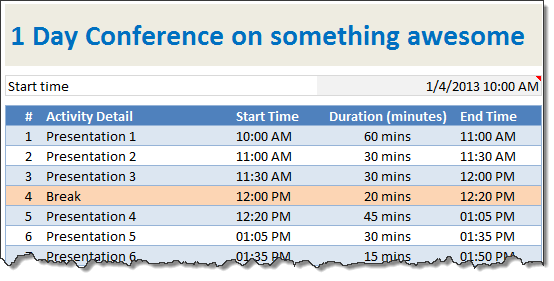
Setting up Agenda Template
In a blank workbook, set up a structure like this:
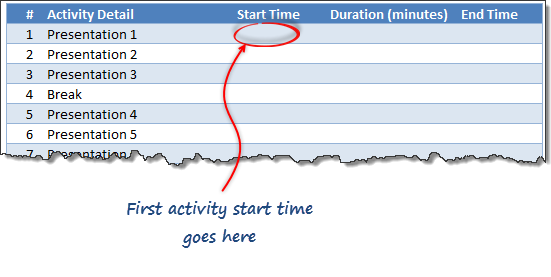
Then,
- Enter the start time of the first activity.
- In fill up durations for all activities in minutes.
- End time = start time + minutes
- So the formula for end time cell is =start-time + duration-minutes / 24 / 60.
Note: We need to divide by 24 & 60 because in Excel each day 1 number, each hour is 1/24th and each minute is 1/24/60th. [learn more about Excel dates]
- The start time for subsequent activities is equal to end time of previous activity.
- Fill down the formulas and your agenda template is ready!
Download Excel Agenda Template
Click here to download Agenda template and use it for planning next big, awesome event 🙂
It contains a ready to use agenda template with built in formulas. The template also highlights any activities marked as break in different color using conditional formatting.
More templates for you
If you like this agenda template, you are going to love these other templates too.
- To do list template
- Issue tracker template
- New year resolutions template
- 2013 Calendar and event planner template
This template is inspired from a question emailed by Renuka, one of our readers.


13 Responses
**KLAXON SOUND**
The template contains merged cells!!
**KLAXON SOUND**
In this day and age, there is no need for merged cells. Ever.
I disagree. There is no harm in having a merged cell in a simple workbook like this. Even in complex workbooks, I rarely notice any performance or macro coding issues with merged cells. Although they may cause certain problems, you should not worry about them unless you are doing some heavy duty programming or constantly referring to merged cells thru your code.
I used it in this template for cosmetic reasons alone and I feel going thru format cells > alignment > center across selection is un-necessary steps for something simple like agenda template.
I understand why people merge cells, it looks better.
But when you go to select one column some 150 rows lower it is maddening that four are selected because of a merge & centre elsewhere!
Given that ‘centre across selection’ (from the ctrl + F1 menu, alignments tab) does exactly the same job, merge & centre should be avoided at all costs.
I think that was what Yard was hinting at!!
🙂
Hi Chandoo
When cell E7 is selected, a comment box pops up.
Can you explain to me how that was done?
Thank you.
This can be applied via Go to Data Ribbon, Than Data Tools Tab, Click on Data Validation. A window will appear Select Input Message Tab and Write your Message in “Input Message Box”. Click OK to be applied.
Thanks,
Regards, RIMZ
Hi Chandoo sir,
When i click on E7 Cell a box pop up can i know how its been done.
Thanks in Advance
Suggestion: use +TIME(0,duration-minutes,0) instead.
It makes it easier to see that there’s a time calculation being made, and just what is being done.
Hello! I work in a role that’s constantly used for planning big and multiple meetings any given day. I actually created this exact agenda on my own, but I’ve always had trouble with sorting. I have researched various blogs and excel sites to figure out how to retain formula/data integrity when sorting on the agenda item #. Things are bound to change at the last moment, so I’m trying to come up with a solution when I have to reorder agenda items but ensure meeting times still reflect accurately based on duration and end times. Any suggestions?
I couldnt open any of the templates. I have Office 2010 and when I saved the link then tried top open there was not .xls or .xlsx files. all was XML which yet couldnt be opened in Excel 2010. Kindly advise…
It’s always interesting to actually receive a sales call,
especially when you work in the sales profession and
have your own goals for sales. These banks are often smaller than their competitors
and focused on a specific geographic niche. Little did she know that three years
later, when she was just 15, she would be called up
for the United States national women.
I want to add a line but not have the time or numbering change. how do i do that.. example
1. Welcome start duration end
a.approve minutes
b.discuss in person meetings
2. topic start duration end
a. bla bla
is there a way i can do this with the template?