

This series of articles will give you an overview of how to manage spreadsheet risk. These articles are written by Myles Arnott from Excel Audit
- Part 1: An Introduction to managing spreadsheet risk
- Part 2: How companies can manage their spreadsheet risk
- Part 3: Excel’s auditing functions
- Part 4: Using external software packages to manage your spreadsheet risk
In the first two articles in this series we highlighted the risks that poorly managed spreadsheet solutions can introduce to a business and outlined the steps companies can take to manage this risk. This article works through the application of some of Excel’s built in auditing functions:
- Error checking (Background and stepping through each error)
- Trace Error
- Circular Reference
- Go To Special
Let’s have a look at an example spreadsheet that is riddled with issues.
The spreadsheet contains four tabs: a simple front page; an Example tab with the report that we wish to audit; a Resolved tab with the corrected report; and a Notes tab which details all of the issues contained within the spreadsheet (if you print the Resolved tab, all of the comments will also be printed for your reference).
If you are up for a challenge you could download the file and work through the report in the Example tab to see how many of the errors you can find yourself.
First off let’s identify the obvious issues
Circular reference
On opening the file you are presented with this warning message:
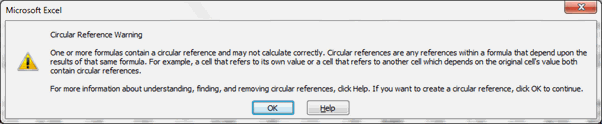
Click OK to continue opening the file. Here is how the report looks:
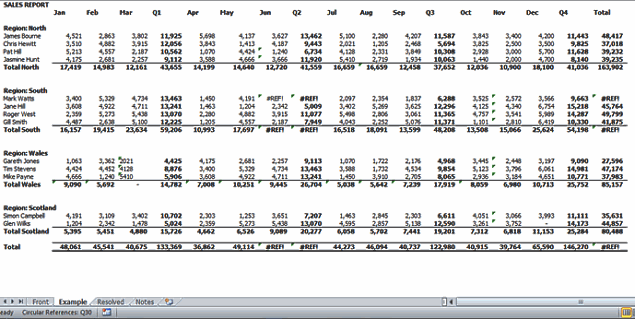
Excel helpfully gives you the location of the first circular reference (Q30) in the bottom left corner of the screen:

An alternative approach to locating circular references is to select Error Checking > Circular References on the Formulas tab of the Ribbon:
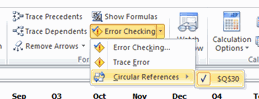
By clicking into the formula on cell Q30 you will see that the formula is =AVERAGE(M30:N30,P30:Q30). This average formula is including the cell Q30, hence the circular reference.
[Related: Understanding & Using Excel Circular References]
#REF error
The next obvious issue is that cells I13, J13, J33, S13, S18 & S33 contain the #REF error. The #REF error is a warning that the formula contains an invalid cell reference (this usually happens when the user deletes a cell/row/column/worksheet that is being referenced by a formula).
To trace the cell originating this error select any cell containing the error (I chose S33 as this would appear to be the main report total), and select Error Checking > Trace Error on the Formulas tab of the Ribbon:

This highlights that cell I13 is the source of the error:
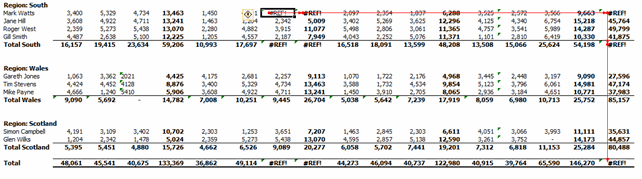
Cell I13 contains the formula =3109+#REF!. To remove the error simply remove the +#REF! within the formula.
It is also however important to try to understand what cell was referenced by the formula originally. The best way to do this would be to talk to the user/previous user (if they are still there) and look back through archived versions of the report (if they exist).
Now that the obvious issues have been identified we are now going to employ some of Excel’s other auditing tools to see if there are any hidden errors.
[Related: Understanding & fixing Excel Formula Errors]
Excel’s error checking function
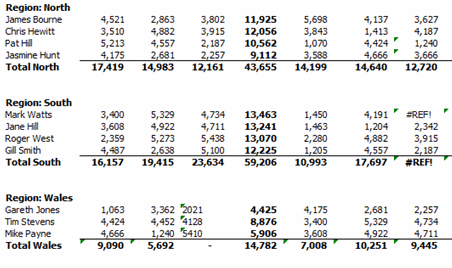
I’m sure that you will have noticed the small green triangles in the top left hand corner of some of the cells. This is Excel’s background error checking function warning you that these cells break one of the predetermined rules.
Firstly let’s have a look at the errors that are being checked for. To open the Error Checking options select File > Options> Formulas (2010) or Office button> Excel options>Formulas (2007).
Below is the default set up:
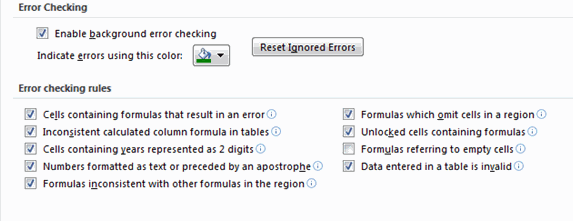
When reviewing a spreadsheet for errors it is always worth a quick check to ensure that the above is set up as you would like it to be. I always also tick the “Formulas referring to empty cells” rule.
Click OK to return to the spreadsheet.
The most systematic way to walk through all of the issues identified by the error checking function is to run Error Checking on the Formulas tab of the Ribbon:

This launches the Error checking dialogue box and allows you to review each error in turn:
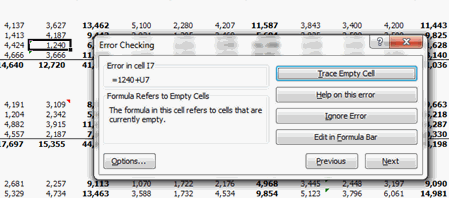
I will leave you to run through the errors one by one to see what Excel picks up.
Please note that this is not a fool proof check as it is simply checking against the predefined rules. This function will not highlight cells that comply with the rules but contain other errors. It can also highlight cells as an error when they are not (eg P13, in this case click on “Ignore Error”). A very useful starting point nonetheless.
Reviewing the report structure
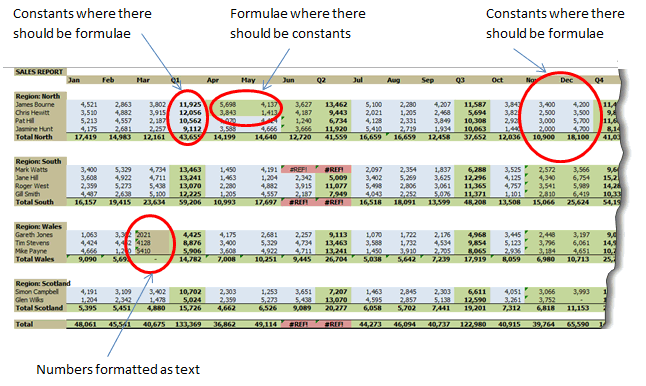
A crucial step to ensuring that a spreadsheet is error free is to understand its structure, and then to ensure that this structure is correct and consistent.
The simplest way to do this is to identify the different types of cells and their relative positions within the worksheet. For this simple example we are looking to identify:
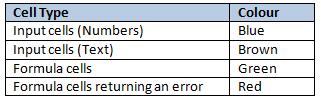
- Input cells (Numbers)
- Input cells (Text)
- Formula cells
- Formula cells returning an error
To achieve this quickly and simply I have built a basic macro which is within the spreadsheet and can be run from the “RUN” button in the Example tab.
This colors each cell type as follows:
This very quickly identifies some structural issues in the spreadsheet:
So how does this work?
The macro above uses Excel’s Go To Special function which helps you to quickly select cells of different types.
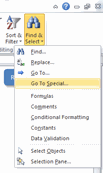
To launch Go To Special, click on Find and Select> Go To Special on the Home tab of the Ribbon:
(Alternatively press F5 or Ctrl + G to launch the Go To dialogue box and then click on Special…)
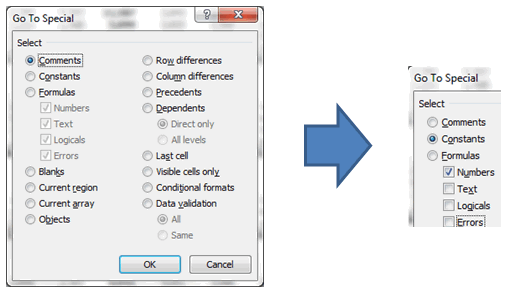
For example, selecting Constants and leaving just Numbers ticked will highlight all numbers on the current worksheet:
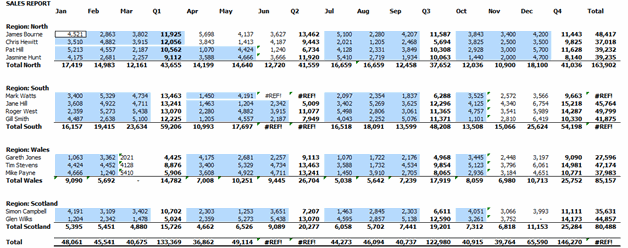
It is worth playing with the options on Go To Special as there are some great functions that I sadly don’t have time to cover here (the precedents, Dependents and Row/Column differences functions are particularly useful).
[Related: More uses of Go To Special in Excel]
And Finally…
As valuable as these initial tests are there are still some issues in the spreadsheet that only a detailed investigation will highlight.
So I’ll leave you to grab a coffee and see if you can find them (they are covered in the Notes and in the Resolved tab).
In the final article of the series we will have a quick look at an example of spreadsheet auditing software.
Also, we are planning to write an article explaining other useful features of Go To Special dialog.
What about you?
Do you use Spreadsheet auditing functions? What is your experience with them? What are your favorite features? Please share using comments.
Thank you Myles
Many thanks to Myles for writing this series. Your experience in this area is invaluable. If you enjoy this series, drop a note of thanks to Myles thru comments. You can also reach him at Excel Audit or his linkedin profile.


18 Responses
Hi Myles Arnott,
I am trying find out macro for the following features .
Please help me in finding this micro .
To achieve this quickly and simply I have built a basic macro which is within the spreadsheet and can be run from the “RUN” button in the Example tab.
Thanks in advance.
This for “Reviewing the report structure” i.e. color coding cells based on the content i.e. Number , Text , Formula and Errors .
This macro would be help as I spend lot of time in cross checking the formulas and values
got it..
Thanks for sharing this post.. a great learning to trace errors easily.
Great Post!
The Macro to highlight cells depending on their input is fantastic.
I’m certain it will be invaluable when taking over someone else’s spreadsheets…
One method I use is to view formulas (in Excel 2003 – my employer is way behind – select Tools, Options and check formulas). Many errors can be found by quickly scanning for consistency. For example, do subtotal and total rows use either SUBTOTAL or SUM? Or do I see numbers where I expect to see a formula? Do relative references in formulas increment correctly as I move down a column or across a row? Do I see a fudge factor tacked onto a formula?
I like to use Excel’s Watch window. It displays specified cells in a separate window. This is useful if you want to test formulas and see what the impact is on a separate cell or cells.
For example, you can tell Excel to watch a cell containing Net Income and then as you change different cells you can see what if any impact there is to that cell containing Net Income which is displayed in the watch window. It is particularly useful if you range name the cells you want to monitor.
It can be found on the Formula Tab in the Formula Auditing section.
I use J-Walk’s PUP Excel addin which includes some great auditing tools, including:
A Map of your worksheet, showing visually the cell type, Text, Number or Formula as well as Formula Complexity
Link and Validation Reports
as well as several other Auditting tools
.
The PUP addin can be found here:
http://spreadsheetpage.com/index.php/pupv7/home
One thing I missed on the Notes sheet is a comment about the use of the SUM function, using the SUBTOTAL(9,…) function would have been far better for this table.
I also have a formula reference auditing tool, which helps analysing references to/from one cell (free demo):
http://www.jkp-ads.com/reftreeanalyser.asp
brettdj’s free Mappit addin is a fantastic tool
http://www.experts-exchange.com/A_2613.html
I love this mappit add-in. However, it does not appear to identify formulae with constants in excel 2013. Also, it was never able to identify a formula involving a constant and a named cell (only addresses like A5). Any idea why, or if brettdj has an update? It’s a really great tool, and I use it in my teaching of undergrads.
Thanks
Hi Jason,
Thanks for the comments. I will look at the xl2013 issue that you have raised – I haven’t updated Mappit! for several years now.
“Also, it was never able to identify a formula involving a constant and a named cell (only addresses like A5). ” No – this wasn’t in my scope 🙂
Brettdj,
Thanks so much! It’s a really cool tool. I teach and Excel-focused Supply Chain Analytics course at a big 10 state school and mappit has been very helpful. There’s really nothing else out there like it that I can find.
Dear All,
Can we able to create a year calendar on the basis of input year, without using macros? if there is any thing pls share…i would be required the same.
@Dharmendra
You may want to consider either a multi-cell calendar construction approach like Chandoo uses every year:
http://chandoo.org/wp/2012/12/26/download-free-2013-calendar/
or A complex array formula as John Walkenbach describes here:
http://spreadsheetpage.com/index.php/file/array_formula_calendar/
graet article sir …it helped me a lot ……..can i get the pdf version of this
I find that Excel’s “predetermined errors” aren’t always useful. I usually end up ignoring the error.
This is intresting, and i just need training if possible.