Sachin Tendulkar ODI Stats – an Excel Info-graphic Poster

Share

Facebook
Twitter
LinkedIn

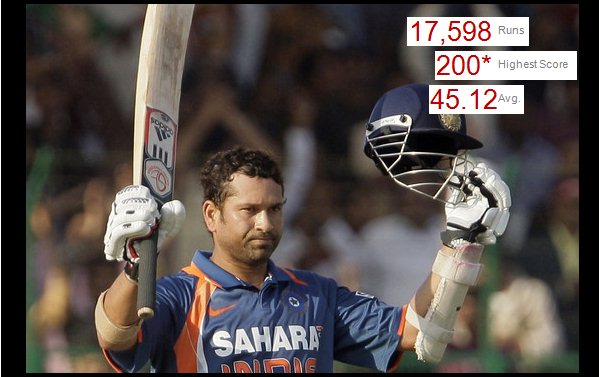
Sachin Tendulkar is undoubtedly the best cricketers to play One Day International Cricket. He is a source of inspiration and joy for me and many others. So, naturally I was jumping with joy when I heard that he scored the highest ever runs in a single match on 24th of Feb. He scored 200 runs (first ever double century in one day cricket), batted for all the 50 overs and remained not out. A true symbol of passion and excellence. [his cricinfo profile, commentary on 200 score]

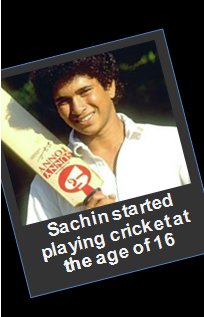
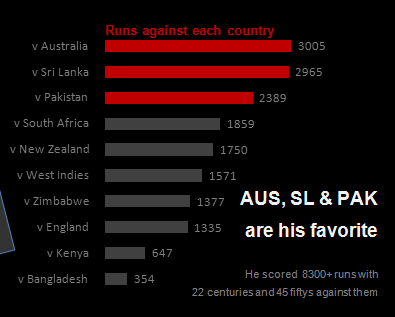
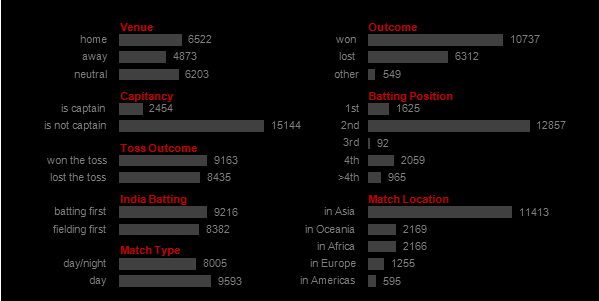
But what has all this got to do with Excel? Well, some of you know that I am fan of Sachin. Last time he became the highest scorer in test cricket, we celebrated that with a dashboard of test cricket statistics. Similarly, now too, I have prepared an info-graphic poster on Sachin showcasing his achievements. See it below,

[if the below image is kind of messed up, click here to see it in full]



Behind the poster:

I have made this poster in Excel 2010 (it has sparklines, that is why). The data is from Cricinfo’s statsguru page.

Download the original poster excel file (you need Excel 2007 or above to play with this).

Also, if you want to see the entire poster as one image click here.

Congratulate Sachin

Sachin is a hero in my world. He has been inspiring me to do better for the last 20 years. I am sure some of you are inspired by his passion, commitment and excellence in the Sport of Cricket. Join me and congratulate him.

Previous Visualization Projects

From time to time, I indulge in some fun visualization projects where we push the limits of Excel to do something awesome. Some of the earlier attempts are,

Flu trends chart in Excel | History of Excel – a timeline | Visualizing Olympic Medals since 1900.

Facebook
Twitter
LinkedIn

Share this tip with your colleagues

Excel and Power BI tips - Chandoo.org Newsletter

Get FREE Excel + Power BI Tips

Simple, fun and useful emails, once per week.

Learn & be awesome.

Welcome to Chandoo.org

Thank you so much for visiting. My aim is to make you awesome in Excel & Power BI. I do this by sharing videos, tips, examples and downloads on this website. There are more than 1,000 pages with all things Excel, Power BI, Dashboards & VBA here. Go ahead and spend few minutes to be AWESOME.

Read my storyFREE Excel tips book

Overall I learned a lot and I thought you did a great job of explaining how to do things. This will definitely elevate my reporting in the future.
Rebekah S
Reporting Analyst
Excel formula list - 100+ examples and howto guide for you

From simple to complex, there is a formula for every occasion. Check out the list now.

Calendars, invoices, trackers and much more. All free, fun and fantastic.

Advanced Pivot Table tricks

Power Query, Data model, DAX, Filters, Slicers, Conditional formats and beautiful charts. It's all here.

Still on fence about Power BI? In this getting started guide, learn what is Power BI, how to get it and how to create your first report from scratch.

12 Responses to “Analyzing Search Keywords using Excel : Array Formulas in Real Life”

  1. Very interesting Chandoo, as always. Personally I find endless uses for formulae such as {=sum(if(B$2:B$5=$A2,$C$2$C$5))}, just the flexibility in absolute and relative relative referencing and multiple conditions gives it the edge over dsum and others methods.

    I've added to my blog a piece on SQL in VBA that I think might be of interest to you http://aviatormonkey.wordpress.com/2009/02/10/lesson-one-sql-in-vba/ . It's a bit techie, but I think you might like it.

    Keep up the good work, aviatormonkey

  2. Andy Pope says:

    Hi Chandoo,

    You might find this coded solution I posted on a forum interesting.

    http://www.excelforum.com/excel-programming/680810-create-tag-cloud-in-vba-possible.html

  3. [...] under certain circumstances.  One of the tips involved arranging search keywords in excel using Array Forumlas.  Basically, if you need to know how frequent a word or group of keywords appear, you can use this [...]

  4. Chandoo says:

    @Aviatormonkey: Thanks for sharing the url. I found it a bit technical.. but very interesting.

    @Andy: Looks like Jarad, the person who emailed me this problem has posted the same in excelforum too. Very good solution btw...

  5. bob says:

    Realy great article

    "You can take this basic model and extend it to include parameters like number of searches each key phrase has, how long the users stay on the site etc. to enhance the way tag cloud is generated and colored."

    How would you go about doing this? I think it would need some VB

  6. Thiago says:

    Hi,
    I found the usage very interesting, but is giving me hard time because the LENs formula that use ranges are not considering the full range, in other words, the LEN formula is only bringing results from the respective "line" cell.

    Using the example, when I place the formula to calculate the frequency for "windows" brings me only 1 result, not 11 as displayed in the example. It seems that the LEN formula using ranges is considering the respective line within the range, not the full range.

    Any hint?

  7. Hui... says:

    @Thiago
    You have to enter the formula as an Array Formula
    Enter the Formula and press Ctrl+Shift+Enter
    Not just Enter

  8. Gary says:

    is there a limit to the number of lines it can analyse.
    Ie i am trying to get this to work on a list of sentances 1500 long. 

    • Hui... says:

      @Gary
      In Excel 2010/2013 Excel is only limited by available memory,
      So just give it a go
      As always try on a copy of the file first if you have any doubts

  9. Sumit says:

    Apologies if I am missing something, but coudn't getting frequency be easier with Countif formula. Something like this - COUNTIF(Range with text,"*"&_cell with keyword_&"*")

  10. Ray says:

    Apologies if I missed, but what is the Array Formula to:

    1. Analyze a list of URL's or a list of word phrases to understand frequency;
    2. List in a nearby column from most used words to least used words;
    3. Next to the list of words the count of occurrences.

Leave a Reply