

Here is a quick Excel tip to kick start your week.
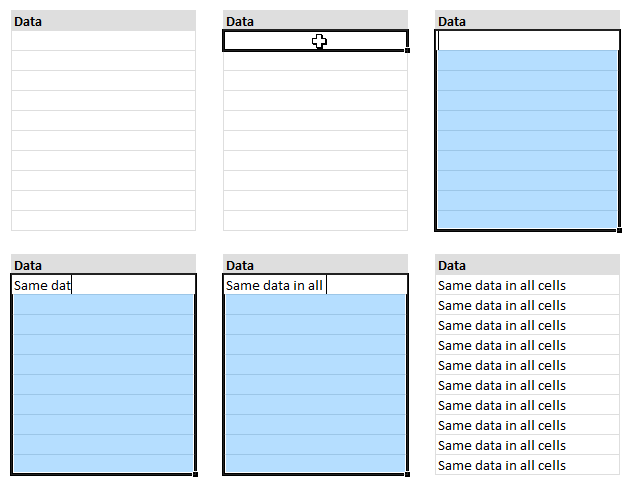 Sometimes, we want to enter same data in to several cells. You can use CTRL+Enter to do this in a snap.
- Select all the cells where you want to enter the same data.
- Type the data
- Press CTRL+Enter
- Done!
See the animation aside to understand how this works.
Using CTRL+Enter to fill blanks with same value
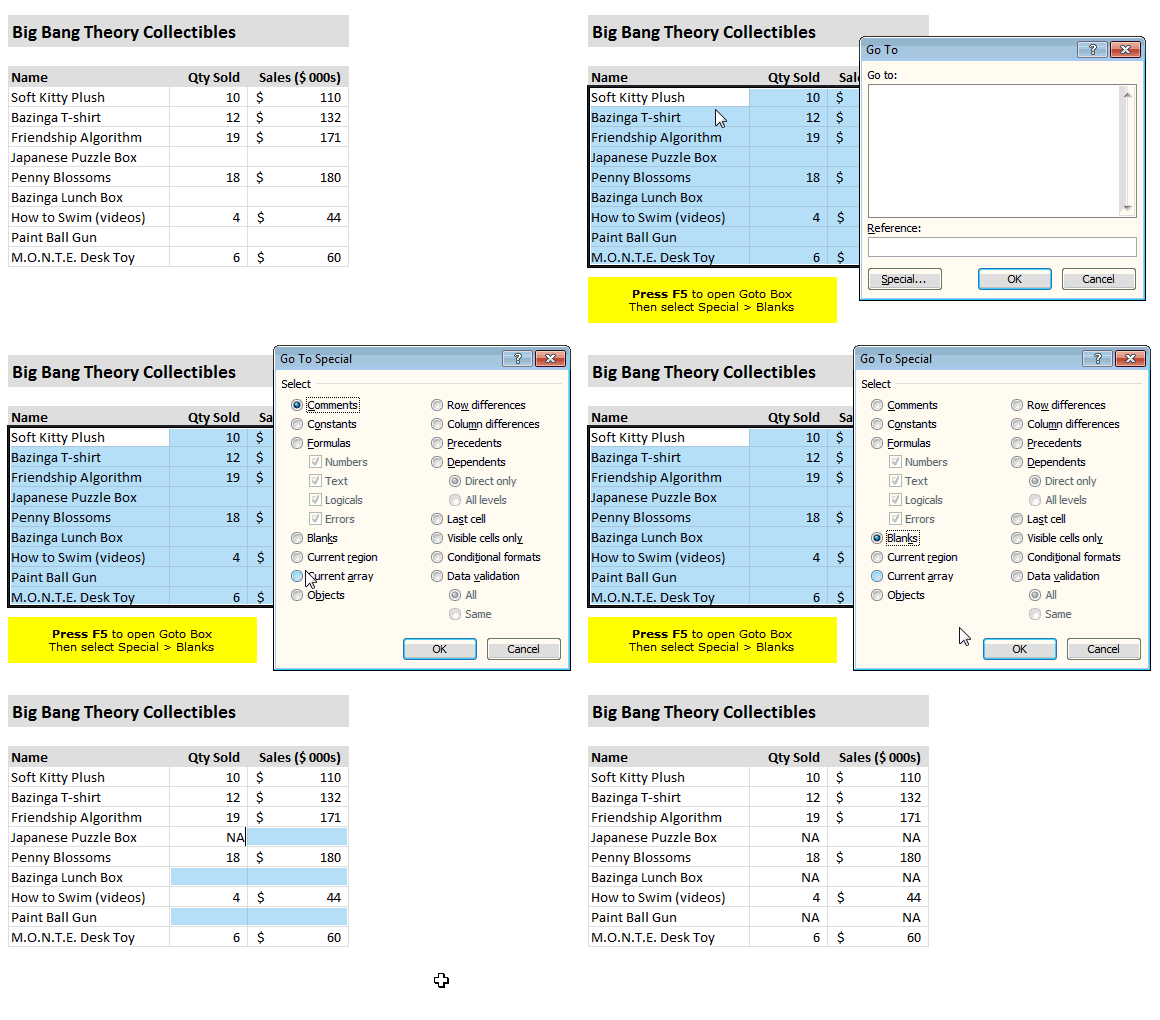
We can use this technique to fill all the blank cells too.
- Select all the cells, Press F5
- Select “Special”
- Select “Blanks” to select all blank cells
- Now type whatever you want
- Press CTRL+Enter
- Done!
See this demo to understand this technique.
That is all for now. I have a lot of work to do since we are re-opening VBA classes this Wednesday (11th Jan). See ya.
Do you use CTRL+Enter? Share your tips & uses?
I use CTRL+Enter often when I need to fill in the same value in multiple places. What about you? Do you use this? How do you use it? Please share using comments.
Some more awesome Excel tips for you:
- Quickly Fill Blank Cells in a Table
- Quick Comparison of Data using Row Differences
- Delete Blank Rows in Excel
- More Excel Quick Tips


53 Responses
Cool tip…
This makes life a whole lot easier when I’m working in R, because I have to mark all null fields “NA” to be able to run stats correctly.
I frequently combine both these techniques to populate blank cells with the values from the cells above them. This is usually required when data from pivot tables is copy-pasted as values for further analysis.
To do this :
Select the range of cells in which you wish to enter values from the cell above them.
Select the blank cells (using Goto Special)
Type “=”, press the UP arrow, press Ctrl + ENTER
That’s it… the selected cells will now contain formulas, that show the values from the respective cells above them.
It’s also advisable to copy-paste values over the same range to avoid problems which may arise due to the ‘live’ formulas (in case you need to sort the data after that).
Also, this trick is not required if you’re using Excel 2010, as it gives the option to “Repeat All Item Labels” (on the tab Pivot Table Design > Report Layout > Repeat All Item Labels”)
Nice tip..chandoo!!
I regularly use this shortcut since I used to work with big data.
This shortcut is not only to enter the data in to multiple cells but also enter the formula into multiple cells. Means, in the same way you can enter the formula after selecting required cells and use Ctrl+Enter, then the formula copied into all the selected cells.
The best use of this shortcut is… sometimes, we enter formula and copy to multiple cells. Again, if we want to edit formula then you can selected all the formula entered cells and edit formula like usual and use Ctrl+Enter then the edited formula applies to all the cells.
Regards,
Saran
lostinexcel.blogspot.com
Good Chandoo…?? Keep it upp…..??? I m already using it.?? Hope it will help to others…?
I use it on a few spreadsheets. It works great.
I also use Ctrl+Enter when I want to stay in the same cell after I’ve entered data or a formula in it. For example, if I want to copy the contents of the cell afterwards.
1) Ctrl+d is equal Ctrl+Enter, but a)type the data; b) select the range; c) Press CTRL+d
2) Alt+”=” auto total cell a) we have a column of numbers in cels b)in the bottom cell (totals) press alt+”=”and we have a =sum(….)
Dmitriy, Ctrl+D may work similar to Ctrl+ENTER in a few situations, but you need take care.
Ctrl+D works depending on which is the active cell, and does not work with non-contiguous selection of cells.
It will also populate the destination cells with the formatting of the source cell (but not comments).
Ctrl+ENTER will only populate the source cell’s formula or value.
Though sometimes (I’ve never been able to figure out why), the formatting is also updated !
And so on… … so, use with care 🙂
ok 🙂 tnx for comment
Another tip if you have data in the top cell you want to fill down.
Select the cells you want (completed cell on top)
F2 to edit (no need to change the data)
CTRL-Enter copy down.
I’ll use this alot. Thanks.
Is there a keyboard short cut to select that would let me start at A and select all the blank cells below:
(underscore represents blank)
A|1
_|2
_|3
_|4
_|5
B|6
_|7
_|8
_|9
_|10
I want it to look like A|1, A|2… A|5, B|6, B|7…
Hell Andrew,
Let my correct if i wrongly understand your question.
Al1..means A in one cell and 1 in Adjucent cell.. right? If the that is the case the following is the solution
Select alphabet column..use F5..go to special..click blank and click ok..it will select all the blank cells…just enter =up allow..then it will take the above cell value.. then click Ctrl+Enter..then that formula applies to all selected blank cells..do Paste Special Values..then the data is looks like
Al1
Al2
Al3
Al4
Al5
Bl1
Bl2
Bl3
Bl4
Bl5
Now our target is to show this data as Al1,Al2,…Bl6,Bl7…Bl10
There is a way to resolve this..
Now enter 1 in the adjucent cell (it looks like) Al1l1 (means three cell adjucently..
Now enter 3 below the above cell …now (it looks like) Al2l3
Then auto fill the data by selecting 1,3…it autofills like 1,3,5,7,9..(just applies auto fill till the original data ends (means till row Bl10)
Now enter 2 under the last value and again enter 4 under the above cell…then apply auto fill per say 100 cells down…
Now, Select whole three columns and do the sorting by third column (entered data).. after sorting the data looks like
Al1l1
_l_l2
Al2l3
__
__
__
Bl6l11
_l_l12
Bl7l13
___
___
___
Bl10l19
Now, copy the first coulmn and paste into the desired place as paste special …transpose…
now the data is looks like A,_,A,_….,B,_,B,_…
Now, copy the second column and paste immediately after the 1st cell…as paster special..Skip Blanks & Transpose…
now the data looks like A,1,A,2,A,3,A,4,A,5,B,6,B,7,B,8,B,9,B,10
Sorry..guys.. explanation occupies more space..
Andrew, if you are not really looking for this.. please forgive me..
Guys, this is one of the quick tip from my side..
Please respond if you have any option to do this..
Regards,
Saran
lostinexcel.blogspot.com
regarding the filling of blank values the range of blank cells selected is limited by the last row and column having the data entry. Thats cool, but is there a way to fill blanks beyond the last row or column containing data.
@ Sumanth,
Yes, there is a simple way to fill the blank data. You can use Ctrl+H for replace. Dont enter anything in Finding what..enter what you want to replace in ‘replace with..’, then use Ctrl+A. Then all the blank cells replaced with the desired data.
Regards,
Saran
lostinexcel.blogspot.com
Cool tip Chandoo. Keep up this really nice work, I always learn a lot 🙂
@Andrew : Have you tried to select the First cell then press CTRL+DOWN Arrow ??
Use CTRL+Enter to Enter Same Data in to Multiple Cells [Quick Tip]
Guys,
How about using CTRL+d for the same??
Looks easier too 🙂
@Saran: Nice one Saran. I use that shortcut a lot, actually more than VLookup function 😉
@Chandoo: I’ve always thought of asking you this – which software do you use to capture the animated screenshot? It is very nice and I would too like to use the same. Hope you do not mind telling me that. 🙂
@Dhakkanz… Its no secret. I use Camtasia Studio to record my screen movements and then produce these animated GIFs. It is a stellar software if you want to do this or produce videos. Get a trial version from techsmith.com
Chandoo, just a small query: is there a way to post replies to individual comments ?
I mean, it gets a bit difficult when people reply to comments, and you have to go back and check what the original comment was.
Chandoo.. you are too fast to act..
This option is cool…
Regards,
Saran
Absolutely correct, Saran ! 🙂
Thanks Chandoo… this should help a lot while reading the comments.
You are welcome Saran, Khushnood.. Still setting the styles for this. So bear with the painful view.
All done… Looks ok now. Let me know if you see any styling or display issues with threaded comments…
Looks good to me 🙂
@Chandoo..
I want to give a quick tip for next week… is it ok for you to post here..
Regards,
Saran
lostinexcel.blogspot.com
We would love to feature it. You can email me the article. I will try to schedule it sometime in next 2 weeks.
I love to hear that..
ll send you soon..
Regards,
Saran
lostinexcel.blogspot.com
I love this tip – but I found some keypad dependencies. I use a Mac wireless keyboard with aftermarket numeric keypad. This tip works with CTRL+Return on my regular keyboard, but does not work with CTRL+Enter on the aftermarket keypad. There might be other keyboards/pads with similar issues.
Cool tips chandoo. I have query regarding Like filling the blank cells with the same value can we able to change a no of cells containing same text or value with single shot like the Ctrl+enter.
For ex:
A1, A3, A6, A10 and A20 containing same text or value. I want to change the existing text or value to a same text. How can I change this with single shot like Ctrl+enter.
@Dhamodaran: and alternative to Hui’s method would be to do the following :
– press Ctrl+H (Find & Replace)
– in the ‘Find what’ textbox, type the text to be changed
– select the option ‘Match entire cell contents’
– in the ‘Replace with’ textbox, type the text to replace it with
– click on the Replace All button
@Dhamodaran
Hold Ctrl and Select A1, A3, A6, A10 and A20
Enter the Value/Text and press Ctrl Enter
does this ctrl+enter tip work when there is a filter ???
I know just enough about Excel to get myself in trouble. If you could help me out I would be so appreciative! It would save me hours of tedious copying…. I need to have a percentage formula to copy down a column, changing the first number and keeping the second number.
Example:
=A1/A14-1
=A2/A14-1
=A3/A14-1
Can you please help me??
Thanks!
Hello from Ukraine Linda!
Try this
=A1/$A$14-1
Thanks for the usefull tip!
I use the following function to copy a range of cells down to a required number of rows:
Select the bottom most cells of the colums you want to copy down e.g.A400:C400 (this must be the last cells in the colum you want to copy to)
press Ctrl, Shift and Up arrow (this will highlite all cells that should be filled with the same data including the cells that need to be copied)
press CtrlD and viola the cells will be filled with the exact same data.
Thanks, this saves me a lot of time!
It doesn’t work on the OpenOffice calc spreadsheet, but the equivalent there is use “Fill” (look under Edit, Fill, and Fill down). So you enter data in the first cell, select all the cells, then fill down to copy.
Respected Sir/Madam,
i m sameer,
my question is —
how to arrange data in a cell….
for example……
(column) A B
register no. 1
sameer
bhavnagar
phone: 9725405432
email: mark@gmail.com
…………/////———////////——–///////——–
now my question is …..
now i wanna move (column) B cell move to A(column)
ex: only i wanna move phone and email by any formula
multiple selected value
How would I take the steps that Khushnood Viccaji lays out using this technique and incorporate it into a macro. Just using the recorder, won’t do the trick.
Mark
You can try the code given below, Mark.
Please also go through the note below the code.
Sub FillBlanksWithValuesFromAboveCells()
Selection.SpecialCells(xlCellTypeBlanks).FormulaR1C1 = “=R[-1]C”
Dim oCell As Range
With Application
.Calculation = xlCalculationManual
For Each oCell In Selection
oCell.Value = oCell.Value
Next oCell
.Calculation = xlCalculationAutomatic
End With
End Sub
Note:
1. Test this code on sample data first. Once you understand how it works, you can use it on ‘live’ data.
This applies to any case where you are using someone else’s code 🙂
2. The code assumes that you have selected the range with blank cells to be filled, before executing the macro.
3. The selected cell range will be converted to values, after the blank cells are updated with formulas to pickup the values from the cell above them.
If you don’t want that to happen, just comment out or delete all the lines below the first line of code.
Hi I have started a new data intensive job, I am currently trying to copy a value (date in my case but any applicable string) into subsequent empty fields that should have the same date. Ctrl + D works for each individual date, but there are hundreds of dates that are required to be copied. The Ctrl + Shift + Up arrow shaved a bit of time off this allowing me to eliminate mouse movement.
However, I am looking to do the coping for all dates in one action. I am looking for a ‘script’? maybe? that takes the first date occurrence and copies it to all proceeding blank fields till it reaches the next populated date and repeat till the end of spreadsheet.
Any help would be great! Thanks!
Here’s a less-discussed or less-known trick of using Ctrl Enter.
https://wmfexcel.wordpress.com/2015/02/07/ctrlenter-wont-let-you-down/
Hope you like it. 🙂
Cheers,
when i had searched with ctrl+f bow to copy all the cells finded at a time
Respected Sir/Madam,
Assume that Cell range A1:D5 has been named as “Source”.
Now in Lotus 123, if we place the cursor anywhere say on cell R10 and execute the command i.e. slash copy source (type source for copy) and hit enter enter, the contents of source gets copied to R10:T14 without highlighting the range A1:D5. Is this possible in excel?
@Pandharinath
Not directly as Lotus does
You could possibly write a macro if required
cntrl + enter not working in excel, when I press the compbination, it takes me to the first cell and selection got unselected.
Hi all
Is there a way to do that on Google sheets.
I tried but it is not working.
thanks
@Zarash
I’d suggest asking this question in a Google Sheets forum
The answer here: http://stackoverflow.com/questions/37229282/enter-the-same-value-in-multiple-selected-cell-of-a-google-sheet
Thanks
Thank you !
You can select a bunch of non-contiguous cells with control-click and give this range a name. Then when you want to fill the cells or change values select the name in the top left dropdown, hit the tab key, then type the value or formula and press control-enter.
hi,
I have an doubt about, how to fill the same data to the cells above