

Since Financial Modeling School 2nd batch is opening next week, things have been a bit crazy at chandoo.org HQ.
So we will start the week with an ultra quick tip. It always surprises me that not many people know this. So here it goes,
Lets say you have some data in 2 columns and you want to compare row by row to spot the differences. Of course you can write a formula or apply conditional formatting. But there is a quick and dirty solution that works just as fine.
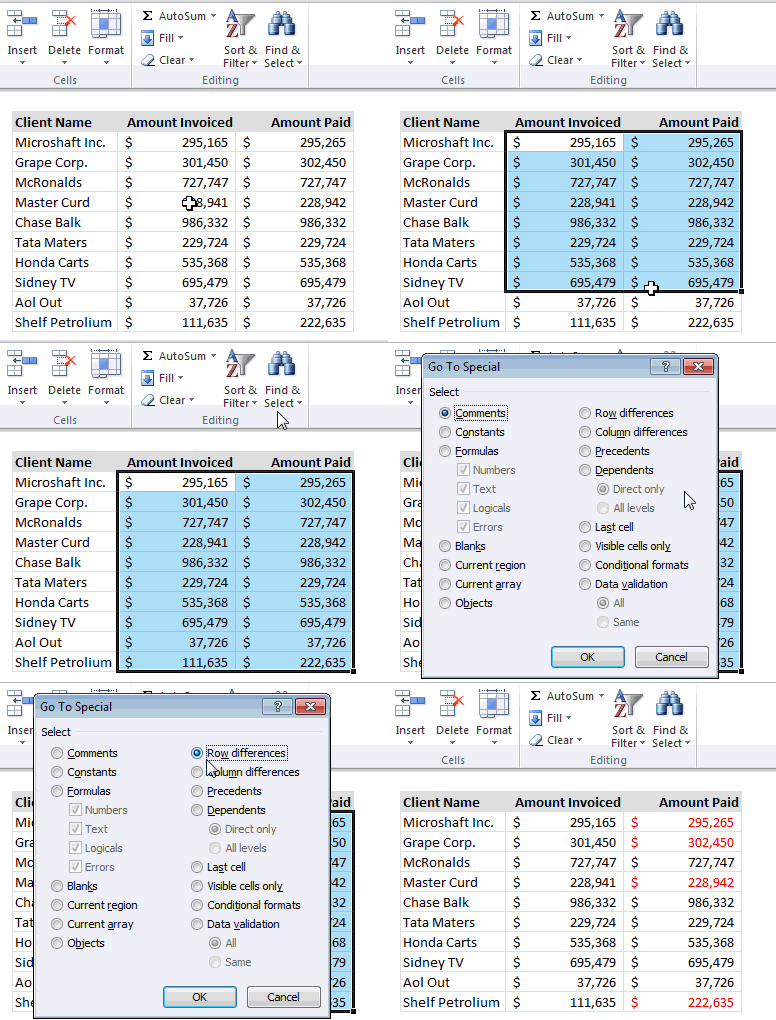
- Select both columns with data
- Press F5 and select special (alternatively, from home ribbon, click on Find & Select and then choose Goto Special)
- Now, click on “row differences” and press OK.
- Excel instantly highlights all the cells in 2nd column that do not match with first column.
- Just change their color or something so you know where to focus your attention.
- Done!
See this demo to follow the steps:
Want more? Here is more:
- A ridiculously fast way to highlight mismatches in data using Conditional formatting
- Learn more quick tips and become an Excel rock-star.


38 Responses
Thanks for the tips! I also found out that if there are 3 or more columns of data, it will hi-light the ones that are not the same as in the first column on the left.
Thank You!
I always wondered what the “row differences” features was about. You’ve solved the mystery. Nice tip.
excellent tip, thanks.
Awesome tip. Time and effort saver. Thanks!
Really, It has been an year or two.. since i am reading this blog.. but never though of commenting on any of the post.. but recently… learnt that by posting I can interact more with the excel lover around the world and learn more and more…
Never saw anything else… “Blank Cell” after pressing goto special or F5…
Thanks.. this is want it makes you higher then others… you explore and explore.. we just do what we know……
Onces again Thanks… would be interacting more often now onwards on Chadooo……..
wow that was oddly specific. there should be to a goto special for everything..
thanks Chandoo..
also works in Excel 2003 (shortcut: CTRL-G, alt-s).
can’t believe I have overlooked this for so many years, never found it mentioned in any Excel courses or manuals. many thanks!
Dear Chandoo…
i got to know about your blog from a newspaper…and since then its been very valuable addition of my daily visits to blogs…..u rock
recently i encountered a small hiccup with my excel work…..it was a long multi thousand rows spreadsheet with a heading on top…and my manager wanted it in print with one top row for headings of each column on each page…..is there a way we can fix some thing to be printed on top or bottom on every page and remaining text gets printed below on excel….
in word its easy as header and footer….but in excel…no header footer.. any suggestions??
hi – there is a header / footer under page set up…. it even gives you preset ones or you can make your own.
If you can find it click the page layout tab on the ribbon and then open the full menu by clicking the little down arrow under print titles.
good luck
I use the Goto Special dialog every day and can honestly say I’ve never even set eyes on this option before, and here’s me thinking I’m pretty clued up in Excel. I guess it only proves that you don’t know what you don’t know! Cheers, Chandoo!
Dear Vineet,
I think your requirement is to have a header and footer on every page for your few thousand rows when they get printed. Its easy…please follow the following simple steps:
1) Arrange your data for the print
2) In Excel 2007, Select Insert Menu and insert Header & Footer from the menu
3) You can now add your desired text in the header and/or footer.
When printing it will be displayed properly on each printed page.
Let me know if you need any further help on this.
Cheers
Ankur
Chandoo you are the Daddy! That is such a great timesaver. Love your site and your spirit which shines through. In answer to the guys query about printing there is also the option in Page setup to select Rows to print on each sheet which might work better than header or footer. Not in front of Excel now so tricky to explain from memory but maybe a post on printing options would be useful?
Thanks
Great tip. How would this work for 2 list of names?
Vineet,
in Excel 2003, click on File >page set up> sheet and in print titles, next to rows to repeat at top, choose your header row, when your report prints this will print your header row on each page
Cheers
Thnks dude for this tip
simply awesome….thanks for nice trick!
I know I’m a little late to the party, but the GoTo Special menu has some real nuggets of gold in there, especially when you combine it with some VBA…for example, if your code is something like this:
For each cell in Range(“A:A”)
‘do something here
Next
A more efficient option would be to use:
For each cell in Range(“A:A”).SpecialCells(xlCellTypeContstants)
‘do something else here
Next
We can use Ctrl +\ after selecting data
Can this be done for 2 columns in different sheets of the same workbook?
Hi Lisa,
Thank You for Your Q.
I tried doing it. But, it could not be done.
Were You able to do it?
Awesome
Please see if you or someone can help me in this.
I have workbook1 with many rows. I have another workbook with few of these rows. Rows in workbook2 are not in any order or as per any sequence with respect to workbook1. These are derived/output from some application. My job is to find uncommon rows in workbook1.
Awesome………………..
THANKS A TON!!!!!!!!!!!!!!!!!
It works so well
Can we have a way in which this tip works for case sensitive data as well?
Meaning if one column has the value ALTER and other has alter, it should still treat it as a difference?
Hi,
I also wrote an article about comparing two data sets using Excel, text editor or database engine. If you would like to check it out, here is the link: http://efficient-work.blogspot.com/2012/10/compare-two-sets-of-data.html
Feedback is welcomed!
In Column “A” is a list of card numbers that have access to a parking lot. Column “B” is a list of card numbers I am billing. It’s a very long list. I can not figure out the formula in excel to find both, cards with access that aren’t being billed AND card being billed that don’t have access.
Can someone please help me out!?
Many Thanks,
I love your tips! You are so helpful and easy to understand.
Thanks! And I may take a look at your courses. Recently suffered through am “Excel” training – it was so boring and not relevant – I just need to learn formulas! Thanks again for being out there!
I can’t tell you how much heartache and time this tip as saved us this morning – Thank you!
it realy usefull tips
Discovered this tip but accident. I wish I discovered early.
Thumbs up Mate!
Keep us excelling!
Hey Awsome website and teacher!
My name is hamler from dominican republic
Thank you so much!! This tip is wonderful, it cut down so much time. You know how to simplify the matter & provide succinct instructions for good results. 🙂
I have noted some discrepancy with in statement # 4 by you above:
“Excel instantly highlights all the cells in 2nd column that do not match with first column”
With row differences it is first column and same row. This will not check for other rows data i guess.
e.g. First row and column # 295,165 will be compared with same row #295,265 in second or other columns with same row and not for other rows. Kindly confirm
Thank You!