

Looking for FIFA World cup 2018 Tracker? Click here.
Today FIFA World-cup 2010 is beginning. For the next 30 days or so, no matter where you go, you are bound to hear about soccer, world cup, teams, points, goals and what not.
As a tribute to this beautiful and lovely sport, I want to showcase some really awesome excel spreadsheets that are designed to track FIFA Worldcup 2010. Follow the links and Enjoy.
Most Comprehensive and Awesomest FIFA Worldcup Tracker – by Graham

This is by far one of the most comprehensive and slickest Excel files on footbal that I have seen. The workbook can play national anthems of teams, show scores from past finals, has team ranks, automated scoring and much more. Just download and play with it. You are going to love it even if you are not a sucker for soccer.
FIFA Worldcup tracker from Excely – 2018
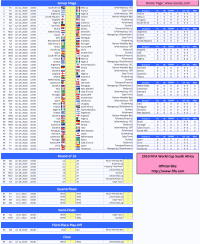
This one page spreadsheet can easily provide team points and help you track everything you want in one place.
Comprehensive World cup Tracker with Live Scores
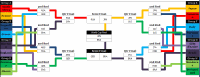
This tracker can update scores from web. Very useful if you want to know where teams stand at any point. Also, this is very comprehensive and provides extensive analysis of matches, goals, shots etc.
A FIFA Worldcup Tracker from Microsoft
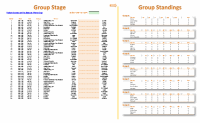
Another football world cup tracker / planner sheet with an added twist of ability to filter the team you want. Interesting stuff.
Worldcup Planner with team points

This is a straight forward tracker with option to track team points and calculate group standings. It uses macros, so enable them to get it work.
An Excel Tracker from Our Reader – Alan

Alan from Computer Gaga shares this excel tracker using which you can find group level standings, track scores and do so much more.
Well designed Excel Tracker and Planner

Another very well designed Excel based football tracker / planner. It doesn’t seem like an excel file, but more like a web page. Check it out.
One Page FIFA 2010 World cup Tracker from ExcelTemplate.net

One page tracker to keep track of scores and more.
Beautiful Flash based FIFA 2010 Calendar [non-excel]
![Beautiful Flash based FIFA 2010 Calendar [non-excel]](http://chandoo.org/img/2010/fifa-2010-planner-tracker-sheet-10.png)
Ok, this is not an excel based thing, but it is very beautiful and easy to use. It is a flash based calendar with clear views of matches and scores by date, group, country.
FIFA Worldcup Excel Files on Chandoo.org
I have posted 2 workbooks related to FIFA worldcup on Chandoo.org. Check them out too,
- Looking for FIFA World cup 2018 Tracker? Click here.
- Balls used in FIFA Worldcup finals since 1930 – An Excel Chart
- FIFA Football Betting Sheet / Office Pool Template
Do you know any more excel based trackers / planners / wall charts for FIFA Worldcup 2010?
Please share using comments. I would love to see more excel files and learn from them.
Happy weekend 🙂


26 Responses
Nice roundup! Do you know of any one-page spreadsheets which will be updated by an administrator after each game? Would be nice to be able to print out the latest results whenever I feel like checking them as I probably won’t be following closely every day.
I actually haven’t tried any of the above ones yet, but I thought I’d mention this one that I found which makes a nice one-page form you can fill in dynamically. http://exceltemplate.net/sports/world-cup-2010-schedule-and-scoresheet/
I would like to recommend you these one: http://www.anotagol.com/
You can choose your interface language (english, spanish, italian, portuguese, german or french) and your country for the timezone of match. I like it very much.
An awesome online world cup calendar in flash.
http://www.marca.com/deporte/futbol/mundial/sudafrica-2010/calendario-english.html
Got one more tracker in excel (one page)
http://cid-b09e57e6e960505c.office.live.com/browse.aspx/.Public
Great!!!
I strongly recommend this :
http://www.en.excel-soccer-2010.de/downloads
Chandoo how you found this …
@Rohit.. really beautiful file. I missed it during my research. Now, I recommend it. 🙂
Hi Chandoo – thanks for the recommandation 🙂 – Regards
Does anybody know how to re-create this(?): http://www.marca.com/deporte/futbol/mundial/sudafrica-2010/calendario-english.html
…or do you know where a template can be found? I am DYING to have something like this on my site. When I found it, I had been looking for the longest time for a circular calendar. I found a couple that weren’t adequate. Then I stumbled upon this one and my eyes nearly popped out of my head. If anyone can lead me in the right direction, I would be eternally grateful!
Thanks in advance!
Robert
@Robert…
Doing something like that is a lot of work. You can probably get it done with some hired help from a flash developer.
@Robert, the World Cup flash in the Spanish Marca newspaper is impresive, but not much as my own animated spreadsheet with the Goals of 2010 World Cup South Africa in Excel that I just published into my blog:
http://pedrowave.blogspot.com/2010/06/goals-of-2010-world-cup-south-africa-in.html
Download from here:
http://cid-6b219f16da7128e3.office.live.com/view.aspx/.Public/Goals%20South%20Africa%20Animated.xlsx
And start to enter the goals of the rest of matches.
Has anyone seen, or made, a Spreadsheet where you can record the scorers and see a ‘top scorers’ chart. Would be a nice enhancement
@Neil… checkout this one http://www.inflexionary.com/sports/world-cup-2010-excel
it uses macros to fetch scores from web (and provides very comprehensive analysis too)
@All.. Thanks for the comments. I have updated the post with few more links now.
Hi,
Check this dashboards too:
http://dashboards.org/world-cup-dashboards-and-visualizations/
😉
Hey, you missed ours! It has everything you need and more, but not a whole pile of silly extras (National Anthems, etc). I’ll be making another one for the 2014 world cup. We had over 4000 hits on it!
@Michael Harwood.
Where is it then? You should have posted a link
Sie sollten an einem Wettbewerb teil zu nehmen für einen der besten Blogs im Web. Ich werde empfehlen Sie diese Seite!
Google translation: You should take part in a contest for one of the best blogs on the web. I will recommend this site!
Calling all football fans around the globe! The biggest football festival will kick off on the 12th June 2014 and everyone is placing their bets of who will have the honour of lifting the golden trophy.
Use our free interactive Excel templatel to predict the World cup finalists ! No macros !
http://www.spreadsheet1.com/world-cup-2014-free-excel-prediction-template.html
I also made a Worldcup-tracker, with MS Access, which can also generate reports in Excel
e.g. a match-schedule with locations on y-axis and dates on x-axis, see:
http://worktimesheet2014.blogspot.com.es/2014/05/excel-with-match-schedule-for-2014-fifa.html
and:
http://worktimesheet2014.blogspot.com.es/2014/05/match-access-app-to-track-world-cup.html
where can i find raw data in excel file format of fifa world cups (1930-2014)
@Vivek
Have a read of: http://chandoo.org/forum/threads/goal-of-world-cup.17637/
The location is mentioned in Somendra’s comments
Free XLSX Prediction Spreadsheet for World Cup 2018 Russia!
https://www.spreadsheet1.com/fifa-world-cup-2018-russia-free-prediction-templates-for-excel.html