As most of you would know, I am re-opening Excel School Online Excel Training Program on June 14th. That means, I am very busy doing behind the scenes work so that new students get best possible excel learning experience when they come rushing next week. (That is why you are seeing less no. of posts on Chandoo.org this week).
But I have few last minute surprises for you. Just read on if you are interested to learn excel and become even more awesome.
1. Find-out if you need a training program like Excel School using this Quiz:
One of the prospective students of Excel School suggested this. However, I couldn’t set up an online quiz. But I could whip up an excel based quiz.
Download the Excel School Assessment Quiz [Excel 2003 version here] and find-out if you would need a program like excel school.
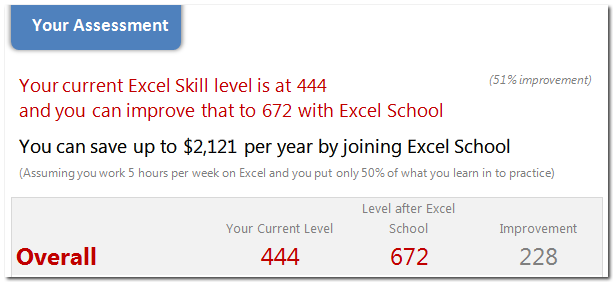
Even if you don’t want to join Excel School, download the file. It is beautiful and has a ton of Excel Trickery. You might end up learning a thing or two about Excel from the file alone.
2. What is it Like to be in Excel School?
I have created a short 7 minute video in which you can get a sneak-peek preview of Excel School.
3. What do Students of Batch 1 think about Excel School?
I have asked my batch 1 students to tell me what is it they like in Excel School. 30 of them enthusiastically responded. I have compiled some of the responses in a page.
Check out student testimonials to know why Excel School is really awesome.
4. Download Excel School Course Guide
This is a small presentation style document with details about Excel School program. You can send this to your boss / manager and easily convince her to sponsor the training cost for you.
Download the Excel school course contents [PDF]
5. Last few days to get 3 free lessons
Only 3 more days before I close the free lesson offer. So go here and enter your name and email id. I will send you 3 free lessons. If you like what you saw, you are going to love what you will see in Excel School.
6. Pricing of Excel School
Excel School will come in 2 flavors
- Online option: you can watch all the lessons online, download example files and do more
- Download option: everything in Online option + ability to download all lessons in HD.
Last time, readers from India asked for special pricing as paying in $s is expensive. So this time, I have special pricing for Indian students. See the below pricing structure to know what it would cost to sign up for Excel School.

Any more questions?
Post a comment or write an email and ask me. I would be very glad to answer your questions.
See you in Excel School 🙂


28 Responses to “Pimp your comment boxes [because it is Friday]”
This borders on Excel soft-cell...er, soft-core...porn. My favorite kind.
Wow, that is pimp-TASTIC! I have a question, as a VBA n00b: additional comment boxes stay plain unless I "run" the macro. Is there a way to change all comments, going-forward?
hi Chandoo, well, I like the macro approach. For those who don't like it, there is another way: just add the "draw" toolbar to the shapes toolbar (via Custom etc), click on "edit comment", click on the auto-shape and then choose "draw" drop-down, --> modify auto-shape --> then you even can have a heart or a banner (I like the horizontal banner in in purple :-)) . in excel 2007, you have to add this custom menu that you choose via Excel Options --> Custom --> it is called "change/ modify auto-shape"!!!
best,
@Chandoo. Great Post 🙂
@Tim : the way the macro is coded, it must be run very time.
@Community: If someone has an idea to perform it when opening an existing excel, it should be nice.
@Community: if someone has some code to revamp the commentboxes on all sheets, please share it. 🙂
@Microsoft Excel-progammers: some pimpoptions for the commentboxes should be great.
Cheerio
Tom
For the auto run, please add the codes in workbook:
Private Sub Workbook_SheetActivate(ByVal Sh As Object)
Call Comments_Tom
End Sub
Wow, that was a lot of fun... Thanks Tom!
@Jeff... Now, 5000 people know about your favorite porn... 😛
@Tim ... you can write an event to handle the new comments. I wouldnt recommend it as it is really painful. another option is to use the macro suggested by Yukikomi. It will update comments everytime you activate the sheet.
@laguerriere: very cool 🙂
@Chandoo ... Thanks! This is good stuff. I combined your tip with a tip from Mark O'Brien, then assigned it to a button on Excel 2010's Quick Access Toolbar, to format comments AS I add them. I also like how Mark's code saves me the trouble of backspacing my name out of new comments:
Sub AppendToExistingComment()
'Source: Mark O'Brien at http://www.mrexcel.com/forum/showthread.php?t=57296
Dim oRange As Range
Dim oComment As Comment
Dim sText As String
'Use object variable to hold range.
Set oRange = ActiveCell
'Use object variable for comment
Set oComment = oRange.Comment
'text to be added to the comment box
sText = InputBox("Type text to be added:", "APPEND TO COMMENT TEXT")
If Len(sText) = 0 Then End
'If Active Cell has a comment then append new text to the end of the comment text
If Not oComment Is Nothing Then
sText = oComment.Text & vbNewLine & sText
oRange.Comment.Delete
End If
'Add a comment with the contents of sText
oRange.AddComment sText
DoEvents
Comments_Tom
End Sub
Thank you very much for the code, it seems to be working for the most part; I am having a problem however. Once the routine makes the corrections to the comment, the comment becomes invisible. By invisible, I mean that when I highlight my mouse over it, nothing appears. However, when I right click the cell and click 'edit comment' then the comment becomes visible and I enter edit mode. Upon clicking out of the comment, it simply vanishes again. I've tried to fix this problem by adding a .shape.visible = msoTrue but then every comment is always visible. o_O please advise...
Thank you,
Nick
@Nick- That is because the font color of the comment is white and when you select the color of selection is also white hence you can not see anything. Try to change the color code in the routine to something else. would work
Thanks for that! The code works perfectly!
[...] look at Format Excel Comment Boxes using VBA Macros | Chandoo.org - Learn Microsoft Excel Online [...]
@ Chandoo - code works great and the comments look super cool. But I have ran into a small issue. In the comments, I am inserting pictures. When I run the macro, for all comments which already have pictures; pictures are deleted. Pls help me retain the pics in comments.
[…] posted some code one of his readers submitted, it "pimps" your comment boxes from those boring black-text-on-yellow rectangles to something more professional and eye-pleasing. […]
love in it
Hi Tom,
This looks really excellent. I am however relatively new to macros / VBA codes so having copy pasted your code in the Developer mode of an Excel file, what are the next steps to use them? Can you please help? Just to recap, I opened a blank Excel workbook, clicked on Developer, copy pasted the comments code and saved the file to the desktop.
Now how do I go about using it to add comments to an existing file? My apologies for asking a question which may be basic to you great geniuses, but I am not there yet and aspire to get there.
Many thanks for helping me with next steps that I need to take so that I can now use the code.
Best Wishes
Deepak Dave, CMA, MBA, PMP
Senior Management Consultant
Dear Dave,
The best thing to do is to copy the macro in the personal.xls(x) file. The personal excel file will always be launched when you open excel so you can use it with every excelworkbook.
Read all about it on the page of Microsoft.
https://support.office.com/en-us/article/Copy-your-macros-to-a-Personal-Macro-Workbook-aa439b90-f836-4381-97f0-6e4c3f5ee566
Once you have the macro in the personal, you can 'call' the macro by the keyboardcombination 'alt+f8' and klik on the macroname.
Hope this clarifies the 'how to'. Good luck with your first steps in the wonderfull world of macro's.
Tom
Hi Tom,
Many thanks. I will try that out. Learning is fun and learning this stuff is even more amazing.
Best Wishes
Deepak Dave
There is a line 'Dim LArea As Long' which does not appear to be used. Have I missed something?
Dear Gary,
Correct the 'Dim LArea As Long' is indeed not relevant and can be deleted.
Tom
Excellent hack!
For some reason when I opened my file after using LibreOffice Calc, all comment boxes had changed to some arrow shape.
So this macro helped me from manually changing more than 5000 comments in a worksheet, or having to install some Excel extension.
I used it with the following attributes to get back old style comments:
It helped me from manually changing more than 5000 comments in a worksheet, or having to install some Excel extension.
.Shape.AutoShapeType = msoShapeRectangle
.Shape.TextFrame.Characters.Font.Name = "Calibri"
.Shape.TextFrame.Characters.Font.Size = 10
.Shape.TextFrame.AutoMargins = True
.Shape.TextFrame.AutoSize = True
Thanks a lot!
This was helpful, thank you
I think this is among the most significant
information for me. And i am glad reading your article.
But wanna remark on some general things, The site style is great,
the articles is really great : D. Good job, cheers
Is there code to add to this that will format a particular part of the comment (i.e. make the last sentence in the comment bold and in italics)?
This is fantastic!
How would I add auto-sizing to it?
I tried adding this:
.Shape.AutoSize = True but it gives me an error and as a novice at VBA I can't figure it out.
.Shape.TextFrame.AutoSize = True
Hello I am so glad I found your web site, I really found you by accident,
while I was browsing on Bing for something else, Nonetheless I am here now and would
just like to say thanks a lot for a remarkable post and a all round entertaining blog (I also love the theme/design), I don’t have time to
read it all at the moment but I have book-marked
it and also added in your RSS feeds, so when I have time I will be back to read a lot more,
Please do keep up the fantastic work.
This is GREAT!
How should the code be changed in order to tun once for all worksheets in a workbook?