

 Today is the first anniversary of Excel Conditional Formatting post (Don’t worry, I am not going to make anniversary posts for all the 150 odd excel articles here). This is the most popular post on PHD. The post has 100 comments and bookmarked on delicious more than 700 times. It is truly a rock star post on PHD.
To celebrate the 1 year of teaching conditional formatting to you all, we have a series of posts, the first of which is “What is excel conditional formatting & How to use it?”
What is excel conditional formatting ?
Conditional formatting is your way of telling excel to format all the cells that meet a criteria in a certain way. For eg. you can use conditional formatting to change the font color of all cells with negative values or change background color of cells with duplicate values.
Why use conditional formatting?
Of course, you can manually change the formats of cells that meet a criteria. But this a cumbersome and repetitive process. Especially if you have large set of values or your values change often. That is why we use conditional formatting. To automatically change formatting when a cell meets certain criteria.
Few Examples of Conditional Formatting
Here are 3 examples of conditional formatting.
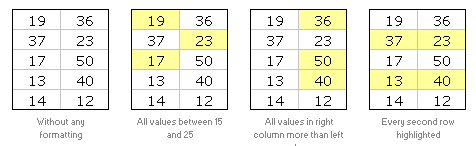
So How do I Apply Conditional Formatting?
This is very simple. First select the cells you want to format conditionally. Click on menu > format > conditional formatting or the big conditional formatting button in Excel 2007.
(we have used excel 2003 in this tutorial, but conditional formatting is similar in excel 2007 with lots of additional features)
You will see a dialog like this:
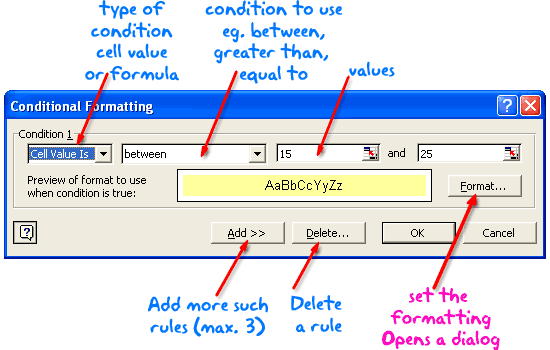
There are 2 types of conditions:
- Cell value based conditions: These conditions are tested on the cell value itself. So if you select a bunch of cells, and mention the condition as between 15 and 25, all the cells with values between 15 and 25 are formatted as you specify.
- Formula based conditions: Sometimes you need more flexibility than a few simple conditions. That is when formulas come handy. Conditional Formatting Formulas are slightly complicated and can be difficult to learn or use if you are new to excel. But they are very useful and intuitive and if you use them once you get a hang of it.
What are the limitations of Conditional Formatting?
In earlier versions of Excel you can only define max. of 3 conditions. This is no longer true if you are using Excel 2007 (read our review of excel 2007)
However, you can overcome the conditional formatting limitation using VBA macros (again, if you are new to excel, you may want to wait few weeks before plunging in to VBA)
Also, you can only use conditional formatting with cells and not with other objects like charts.
Ok, Enough Theory, Time for your First Conditional Formatting
Go ahead, open a new workbook and try few conditional formats yourself. See how easy and intuitive it is. Use it in your day to day work and impress your colleagues. Learn 5 impressive tricks about conditional formatting.
If you have trouble getting started, download the conditional formatting examples workbook.
Tell us how YOU use Conditional Formatting
Share with us how you use CF in your work. I am sucker for conditional formatting and use it wherever I can. What about you?
This post is part of our Spreadcheats series, a 30 day online excel training program for office goers and spreadsheet users. Join today.


11 Responses to “Use Alt+Enter to get multiple lines in a cell [spreadcheats]”
@Chandoo:
One more useful trick.......
In a column you have no. of data in rows and need to copy in the next row from the previous row, no need to go for the previous rows but entering Alt + down arrow, you will get the list of data, (in asending order), entered in the previous rows...
This is another great tip. I use this all the time to make sense of some *very* long formulas. As soon as the formula is debugged I remove the break.
Great tip Chandoo!
I use this feature often and it has even gotten the, "how did you do that" response.
Thanks!
@Ketan: Alt+down arrow is an awesome tip. I never knew it and now I am using it everyday.
@Jorge, Tony: Agree... 🙂
[...] Day 1: Insert Line Breaks in a Cell [...]
how can we merge a two sheet.
excellent idea. Chandoo you are genious
Hi chandoo,
I have used ctrl+enter to break the cell. But I did not get the result.
Please tell me how can i break the cell in multiple lines.
Hi, Ranveer,
Its not Ctrl+enter to break the cell, use Alt+Enter to make it happen.
hi Chandoo....
how we can use Alt+Enter in multiple rows at the same time please reply hurry i have lot of work and have no time and i m stuck in this. 🙁
Alt+J worked once 🙁
So I found another more reliable way:
=SUBSTITUTE(A2,CHAR(13),"")
Where A2 is the cell that contains the line breaks which the code for it is CHAR(13). It will replace it with whatever inside the ""