

Ever wondered how to go from a bunch of cells with text to one big combined text? Like this:
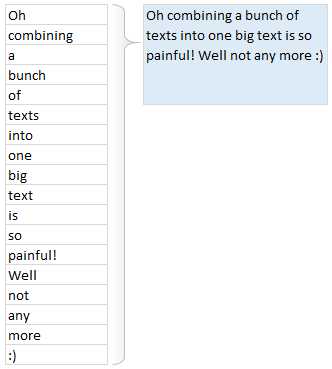
Well, there is a simple trick, shared by Grant with us in the What is the coolest Excel trick you learned in 2013? post.
Quick and easy way to combine bunch of text values
- Let say the cells you want to combine are in B2:B19.
- In a blank cell, where you want to concatenate all the values type
- =CONCATENATE(TRANSPOSE(B2:B19))
- Don’t press enter yet.
- Select the TRANSPOSE(B2:B19) portion and press F9. (related: debugging formulas using F9 key)
- This replaces the TRANSPOSE(B2:B19) with its result
- Now remove curly brackets { and }
- Enter
- Done!
See this demo to understand.

Bonus tricks
- If you cannot use F9 for any reason, use CTRL+=
- If you want to add a delimiter (like space or comma) after each item in the text, you can use TRANSPOSE(B2:B19 & ” “) or TRANSPOSE(B2:B19 & “,”)
- If the range you want to concatenate is across columns (Say A1:K1), then you can skip the TRANSPOSE formula and write =CONCATENATE(A1:k1), Select A1:K1 and press F9, remove {}s.
Keep in mind
Since F9 replaces formulas with values, if your original data changes, then you must re-write the CONCATENATE(TRANSPOSE(…)) again.
If you would rather keep the formulas alive, then use CONCAT() UDF. It takes a range and a delimiter and spits out combined text with ease.
More on dealing with text using Excel
Here are a few more tips on working with text values in Excel.
- Finding patterns in text
- Extracting a portion of text
- Converting text to sentence case
- Separating user names & domains from email addresses
- Sorting text values using formulas
- Initials from names
- More text processing tips, quick tips.
Thank you Grant
Thanks Grant for sharing this trick with all of us. It is a time saver for sure.
If you like this tip, say thanks to Grant. Also, in the comments, tell us how you combine text values and what other tricks you use.


11 Responses
Ciao Hui,
Collecting Excel tricks under the title “Notable Excel Websites (Non-MVP) Edition” is a brilliant idea…
Thank you in the name of all The FrankensTeam.
On our site there is a box with a picture and text highlighting:
This is a no-MVP site
we think ourselves “bad boys” a bit 🙂
For those who would like to know why our site is a no-MVP site, enough to click on the link:
http://goo.gl/lxDszY
Thank you again!
Thanks a lot
I really enjoyed this (newsletter). I must admit that I rarely read an Excel newsletter (and I subscribe to quite a few) all the way though, but this grabbed my attention and before I realized it, I was engrossed in it. I must also admit that most of this I don’t understand, yet. But, it excites me when I do learn something new in Excel. I can’t wait to see how much of this I can implement into my (constantly-evolving) ‘House Budget’ & ‘Family Medical’ worksheets that I have developed over the past few years! I sure hope to see more of these type of newsletters in the future! Thanks!
Thanks for doing this Hui! I appreciate being included.
I like Tom’s tip a lot. I posted about a tool I wrote to automate this at http://yoursumbuddy.com/tables-edit-query-dialog/
EXCELLENT !
Hui, This post is Superb! More over I have always been a fan of Roberto’s work and have learnt a lot from him.
Here are some of my recent contributions
1. Customising markers in a chart – http://www.goodly.co.in/customize-markers-in-a-chart/
2. Charting Hacks to work faster – http://www.goodly.co.in/5-charting-hacks-to-help-you-work-faster/
3. 7 Date formulas to make life easy – http://www.goodly.co.in/date-formulas-in-excel/
4. Customised scrollbar using VBA – http://www.goodly.co.in/customized-scroll-bar-in-excel/
5. Adding Direct Legends – http://www.goodly.co.in/customized-scroll-bar-in-excel/
Hope everyone enjoys!
I like the Excel Ninja Menus.
1. Select a cell or range then move till the 4-way cross appears. Right-Click and drag the selection to another place in the worksheet then, like a ninja, a menu full of skills and throwing stars pops up allowing me to do all kinds of awesomeness.
2. When you click the fill box on a Date and right click and drag it down, a lot of amazing Date options pop up.
I also brand my Excel to remind myself that I’m awesome. In my personal macro workbook I place the following code.
Private Sub Workbook_Open()
Application.Caption = “SuperKrishna’s Awesomeness”
End Sub
My favorite tip goes along with #17. If you try to copy subtotaled data (and in earlier Excel versions filtered data),when you paste it all the data displays instead of just the summarized data.
To get around this, select your summarized data, click on Find and Select tab and then select Go to Special. Click Visible cells Only and click OK. Now paste and you will see that only the summarized data has been copied.
You can also go CTRL+G and then click the Special icon at the bottom of the dialog box.
What a great idea, Chandoo! I’d love to be included in your next edition:) Perhaps a VBA exclusive version?
@Ryan
I will review this concept about 6 months out from the original post and be sure to keep your site in mind
Hui…
That sounds great, Hui:) I just realized I gave credit to Chandoo for the idea and I should have attributed it to you.
Sorry about that!