

Ever wondered how to go from a bunch of cells with text to one big combined text? Like this:
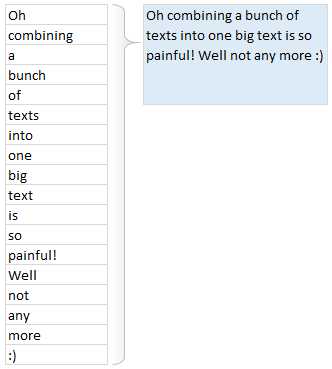
Well, there is a simple trick, shared by Grant with us in the What is the coolest Excel trick you learned in 2013? post.
Quick and easy way to combine bunch of text values
- Let say the cells you want to combine are in B2:B19.
- In a blank cell, where you want to concatenate all the values type
- =CONCATENATE(TRANSPOSE(B2:B19))
- Don’t press enter yet.
- Select the TRANSPOSE(B2:B19) portion and press F9. (related: debugging formulas using F9 key)
- This replaces the TRANSPOSE(B2:B19) with its result
- Now remove curly brackets { and }
- Enter
- Done!
See this demo to understand.

Bonus tricks
- If you cannot use F9 for any reason, use CTRL+=
- If you want to add a delimiter (like space or comma) after each item in the text, you can use TRANSPOSE(B2:B19 & ” “) or TRANSPOSE(B2:B19 & “,”)
- If the range you want to concatenate is across columns (Say A1:K1), then you can skip the TRANSPOSE formula and write =CONCATENATE(A1:k1), Select A1:K1 and press F9, remove {}s.
Keep in mind
Since F9 replaces formulas with values, if your original data changes, then you must re-write the CONCATENATE(TRANSPOSE(…)) again.
If you would rather keep the formulas alive, then use CONCAT() UDF. It takes a range and a delimiter and spits out combined text with ease.
More on dealing with text using Excel
Here are a few more tips on working with text values in Excel.
- Finding patterns in text
- Extracting a portion of text
- Converting text to sentence case
- Separating user names & domains from email addresses
- Sorting text values using formulas
- Initials from names
- More text processing tips, quick tips.
Thank you Grant
Thanks Grant for sharing this trick with all of us. It is a time saver for sure.
If you like this tip, say thanks to Grant. Also, in the comments, tell us how you combine text values and what other tricks you use.


14 Responses to “How to Add your Macros to QAT or Excel toolbars?”
We have only just got excel 2007 so this is helping me navigate my way through the differences cheers.
For Macro's i always add a Command Button, rename it something obvious, change the colour of it and finally add the following to its View Code section.
Application.Run "MAcro1"
This way anyone opening the file knows what to do if i ever win the lottery and dont make it in 🙂
Hi,
Good article. But I have this problem.
1) Customized QAT with a macro. Macro name = MacroX
2) Runs OK from original location (e.g. C:\TestLoaction1\TestFile.xls)
3) Copy past file to new location (e.g. C:\TestLoaction2\TestFile.xls)
Menu button now fails:
Cannot run the macro "C:\TestLoaction1\TestFile.xls'!MacroX' The macro may not be available in this workbook...
Of course the code is there, and macros are enabled.
Could get it to work after deleting and recreating macro custom buttons. So have to re-assign macro to QAT button every time I move the file?
If I put a form button on he worksheet and assign the macro to that, it's location independent.
Any ideas?
Thanks
@Ron
What you have said is correct
Macros within a worksheet are stored within the worksheet and hence follow it.
Macros referenced by a button in the QAT or elsewhere are locaed in a file and if that file is moved the linkages don't follow.
The easiest way around this is to store all your macros in a location that doesn't move and is in fact reloaded everytime that Excel starts and that is called the Personal.xlsx/b file.
These are refered to several time at Chandoo.org or have a read of
http://www.rondebruin.nl/personal.htm
or
http://office.microsoft.com/en-us/excel-help/deploy-your-excel-macros-from-a-central-file-HA001087296.aspx
In Excel 2003 and prior versions, a button added to the Toolbar maintained a DYNAMIC link to the file (e.g. Personal.xlsb) holding the assigned macro, such that if the file was relocated for any reason (by using Excel's native Save As command rather than just moving it via Windows Explorer), the link between the button and the file was updated.
I expected the same to occur with Excel 2007+, but alas, Microsoft in their infinite wisdom have removed another feature useful to advanced users (just as they did by removing the ability to design your own buttons)!!
So having just done some reorganisation of my files, I now have to remove and recreate every friggin macro button on my QAT (I have lots) - what a pain in the proverbial!!
Hi Hui,
Thanks for the help, that's really useful.
1) The macros I'm adding are for one specific Excel application, so I really wanted the macros to follow the file
2) I didn't want to have to pass other files around too and have users installing those - either Personal.xlsx/b or as an Add-In.
3) I realise now that the QAT additions will appear for other Excel workbooks in which I don't want the macros available.
So, it looks like I need to keep it local, by using a button on the worksheet. Unless you can suggest any way of adding to menus just for a specific workbook.
Thanks again for your help. Great site, so I'll be signing up for the emails.
Ron
I know I'm a little late jumping on this post, but wondering if anyone knows how to add a UDF to the QAT? I've saved my UDF in my personal workbook, but it does not show up in my list when I choose Macros when customizing my QAT. Suggestions? Thanks!!
@Cheryl: UDFs cannot be accessed like Macros. You can use them from other macros or from worksheet cells as formulas...
@David: If you save your macros file and then install it as an add-in then it will be always available for you.
The instructions work great when you are creating a new file, and it is still open. I find that I can't access macros after I've saved a file as an xlam and closed it. When I reopen the xlam, either by browsing to it, or by having it set to open as an addin using Excel Options, the macros are no longer available in the macros list when I go to edit the QAT. Any way around that?
[...] Add this macro as a button to Quick Access Toolbar [...]
I need to create a button that will run a macro. Once you click the button it needs to open up a browser asking you to select a report/file. Once you select the file, it will run the macro on the selected file and then save it as a new report with a name and the current date. I created the macro to sort/modify the report but I do not know how to do what I mentioned above. I hope this makes sense.
I'm having trouble adding a macro to the QAT. I've done everything up to step 5 but my macro isn't showing up. What am I doing wrong?
[...] Add Macros to Quick Access Toolbar (works in Excel 2003 & above) [...]
Hi,
Thank you for the explanation. Very useful for a recent switcher from office 2003 to office 2010.
My follow-up question is: in Excel (or ppt) 2010, can you customize the macro button that you put in the QAT?
In office 2003, once you chose the custom button for your Macro, you could then edit pixel by pixel the said button.
For instance, I've created 2 Macros in PPT that are converting all my slides to either English or French language, so I'd like one button to show EN and the other FR... that would be more meaningful that any of the possible "custom" office 2010 buttons
I read all the post and one important aspect to the QAT was never mentioned. That is, you have a macro driven worksheet that you want to share with other. You have customized the QAT with two icons to run the macros (VBA programs in reality). However, when the others receive the workbook, the icons are no where to be found. It's my understanding those "customized buttons" have been saved to an outside file, Excel.qat. QUESTION: Could one simply attach that file to your email, along with the worksheet, and tell the recipients to copy that file to correct location on their computer - C:\Users\\AppData\Local\Microsoft\Office|\
Would the customize macro buttons then appear in the worksheet and, more importantly, work? Thanks for your thoughtfulness and thanks for well written instructions Chandoo!
MortW