

Welcome back. In final part of Making a Customer Service Dashboard using Excel let us learn how to add macros & VBA code that makes our dashboard interactive.
Designing Customer Service Dashboard
Data and Calculations for the Dashboard
Creating the dashboard in Excel
Adding Macros & Final touches
As you can see, there are 2 important macros in this dashboard.
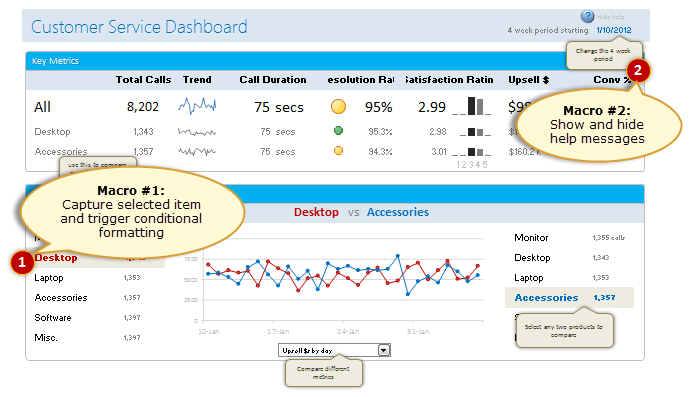
#1: Capturing selected item details
Whenever user clicks on an item in the detail area to compare, there is a small macro running behind that tells us what item is selected so that we can trigger our calculations and conditional formats. How does it work?
Simpler than we think!
We use a macro called as Worksheet_SelectionChange.
Related: Introduction Excel VBA
Understanding Event Macros
There is a special type of macros in Excel called as Event macros (or simple events). For example, if you want to do something whenever user selects cell D14, you can use an event macro. Excel offers various events so that we can initiate certain actions when user selects a cell, clicks on a hyperlink, activates a worksheet, updates a pivot table or finishes some calculation etc.
In our case, we wanted to change the comparison options based on what is selected by user. So we use an event called as Worksheet_SelectionChange
When you add a selection change macro to any worksheet, excel runs whenever you select a cell in that worksheet. Lets look a simple worksheet selection change macro to understand this:

The code for above event:
Private Sub Worksheet_SelectionChange(ByVal Target As Range)

[valSelection] = "You have selected " & Target.Address

End Sub
The range valSelection is linked to text box that you saw in demo.
Event macro in our Customer Service Dashboard
In our dashboard, we have one additional challenge. We need to run our event macro only if one of the two lists (rndSel1 & rngSel2).
This is where we use an additional feature of VBA, Application.intersect() formula. This checks whether given two ranges overlap and if so, returns the region in overlap.
Lets look at our event macro:
Private Sub Worksheet_SelectionChange(ByVal Target As Range)

'This macro is triggered whenever any cell is selected in the Dashboard worksheet
'Step #1: If user clicks on a blank cell then do nothing
If ActiveCell.Value = "" Then Exit Sub
'Step#2: See if the selected cell is in left column
If Not (Application.Intersect(ActiveCell, Range("rngSel1").Cells) Is Nothing) Then
'If so, then call setOption1 macro
Call setOption1
'Step #3: See if the selectd cell is in right column
ElseIf Not (Application.Intersect(ActiveCell, Range("rngSel2").Cells) Is Nothing) Then
'If so, then call setOption2 macro
Call setOption2
End If
End Sub
If you examine the comments, most of what it does should be obvious.
#2: Showing & Hiding help messages
Adding help feature to complex dashboards makes life simpler for end users. So I always recommend it to my students. But how easy is it to add help?
Well, easier than you think. Just follow below steps:
- Add help messages to your dashboard using drawing shape > bubbles
- Once all the messages are added, just select all of them and group (right click > group)
- Select the group and using name box in Excel, give it a name, in our case the name is boxHelp
- In a new module, Write a macro (lets call it showHideHelp) to display and hide the boxHelp group.
- Now add a small text box with label “Help” on it.
- Assign the macro to this help text. (right click on the group, assign macro)
But what do we put in showHideHelp macro?
Simple, When user clicks on Help text, we will just toggle the visibility of boxHelp group using code like this:
ActiveSheet.Shapes.Range(Array("boxHelp")).Visible = Not ActiveSheet.Shapes.Range(Array("boxHelp")).Visible
The Not portion toggles the visibility, thus when you click on help button the help gets turned on if it is off (and vice-a-versa)
Download Customer Service Dashboard
Download final version of our customer service dashboard using below links:
Excel 2010 version: Click here to download the dashboard workbook
Excel 2007 version: Click here to download the dashboard workbook
Examine the VBA Code to learn better.
Future directions for this dashboard…
I am happy how this turned out so far. That said, we can make a few advancements to it like:
- Using Excel 2010 slicers to make the selection of items in comparison area.
- Adding ability to export dashboard as PDF or PPT
- Adding qualitative comments to dashboard (automated a la tweetboard or manual) so that managers can understand what caused the change.
- Adding customizable time windows. Currently the dashboard shows any 4 week window, but it can become even more powerful by adding custom start and end dates.
Note: Make sure you have gone thru previous 3 parts of this tutorial as well.
Designing Customer Service Dashboard
Data and Calculations for the Dashboard
Creating the dashboard in Excel
How would you approach this dashboard?
If you were to analyze and design a dashboard for customer service department, how would you approach it? What metrics, information would be very important for you? Please share your ideas and thoughts using comments.
Learn more about Dashboards
If you are looking for examples, information & tutorials on Excel dashboards, you are at the best. At Chandoo.org we have elaborate examples, tutorials, training programs & templates on Excel dashboards, to make you awesome. Please go thru below to learn more:
- KPI Dashboards in Excel – 6 part tutorial
- Excel Dashboards – Information, Examples, Templates & Tutorials
- Excel Dynamic Charts – Examples, tutorials & inspiration
- Excel School Dashboards Program – Learn how to create this and other dashboards in Excel


7 Responses
I really would like to know how you rounded the corners of your tables. Could you please let me know how you did this?
@Peter
I’m unsure what Tables your referring to, but I will guess and say that Chandoo has added a Shape Object to the table
Goto the Insert, Shape menu and select the Rectangle with Rounded corners
Add to your Table and set the background color to None
Hello Chandoo,
I have really appreciated the dashboard in this tutorial. I have been able to expand upon its functionality in a few cases for my needs, but I am stumped in one area.
With respect to the data selection area for the dynamic charts, my lists of selection criteria are of varying depth and in most cases, greater than the six visible items. I was successful in implementing a scrolling list to handle the depth of the selection items. My trouble spot is dynamically controlling the stop point for the spinner. I am a novice on VBA, but I have to believe there is a way to read the dynamic max value from a cell and set the max in the control.
Any help you can provide in this area would be much appreciated.
Thanks for the wealth of knowledge.
Gary
Hi,
I can’t figure out where setOption1 & setOption2 come from. I didn’t see you mentioned about writing those 2 marcos in the last 4 parts. Could you please kindly advise? Thanks.
Regards,
Adrian
Hi, Sir.
I need an interactive customer complaints dashboard for Six types of different complaints. Can you help?