

Do you know that you collapse or expand excel charts? Don’t believe me? Me neither. When I first realized that we can collapse / expand charts without writing any macros or lengthy formulas, I couldn’t wait to share it with all of you. This is such a simple yet powerful trick. See it for yourself.
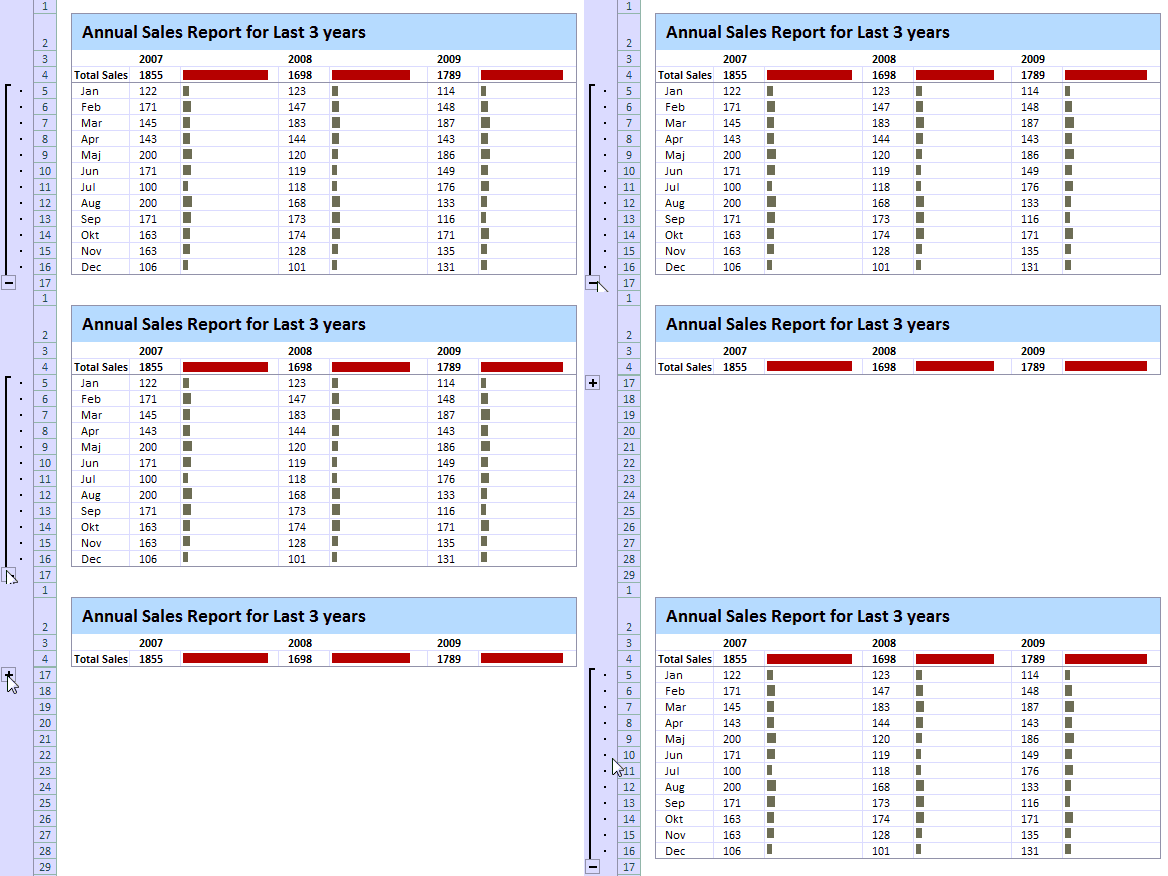
If you want to collapse / expand an excel chart like this, Just follow the below steps.
1. Place your data in rows
Place your data like this.
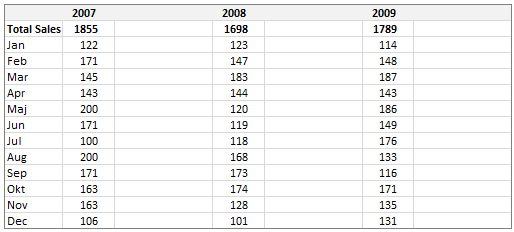
Make sure you have an empty column next to each series of data. You can also place your data in columns instead of rows. Also summary row (in our case – yearly total) is added and calculated using a formula.
2. Make charts and Position them in the extra column
Select data for each year and make one chart. Since the data is in rows, select a bar chart. Make sure you position the charts in blank columns. Remove any chart axis, grid lines etc if you feel like.
At this point our set up should look like this:

3. Now select the detail rows and Group them
Just select all the rows with detailed data (in our case, the monthly sale values) and group them.
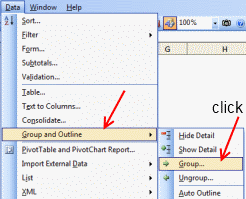
To group rows, go to Data Ribbon > Group in Excel 2007+ or
Data Menu > Group and Outline > Group in Excel 2003. See the below to understand.
| Group Data – Excel 2003
|
Group Data – Excel 2007+
|

4. Finally Adjust Chart Positions so that when you Group the Chart Collapses
This is the tricky part. Depending on excel version, you need to carefully adjust the chart’s size and position (top, left) and data series gap so that when you press “collapse” button from grouping area on left, the chart also collapses neatly.
This step is very straight forward in Excel 2007, but in Excel 2003 it takes some patience. Once you finish it, the collapsible chart is ready.
Go ahead and show it off to your boss or colleague, just wow them.
Download Collapsible Excel Chart Template
Click here to download collapsible excel chart template. This file is tested in Excel 2007, but should work with some minor hitches in Excel 2003 as well.
Learn more:
Show one chart from many – the easiest excel dynamic chart trick
More excel dynamic chart – tutorials and templates
Where would you use Collapsible Charts?
Even though this technique is a bit shaky on earlier versions of excel, I find good uses for this in dashboard reports, financial models etc. where lots of data is the norm. You can also use incell charts instead of regular charts and this technique works just as well.
What about you? Where would you use this trick?


