

This series of articles will give you an overview of how to manage spreadsheet risk. These articles are written by Myles Arnott from Excel Audit
- Part 1: An Introduction to managing spreadsheet risk
- Part 2: How companies can manage their spreadsheet risk
- Part 3: Excel’s auditing functions
- Part 4: Using external software packages to manage your spreadsheet risk
In the first two articles in this series we highlighted the risks that poorly managed spreadsheet solutions can introduce to a business and outlined the steps companies can take to manage this risk. This article works through the application of some of Excel’s built in auditing functions:
- Error checking (Background and stepping through each error)
- Trace Error
- Circular Reference
- Go To Special
Let’s have a look at an example spreadsheet that is riddled with issues.
The spreadsheet contains four tabs: a simple front page; an Example tab with the report that we wish to audit; a Resolved tab with the corrected report; and a Notes tab which details all of the issues contained within the spreadsheet (if you print the Resolved tab, all of the comments will also be printed for your reference).
If you are up for a challenge you could download the file and work through the report in the Example tab to see how many of the errors you can find yourself.
First off let’s identify the obvious issues
Circular reference
On opening the file you are presented with this warning message:
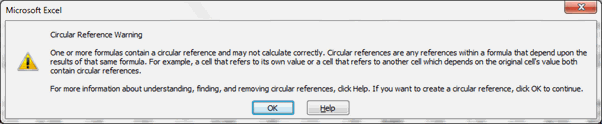
Click OK to continue opening the file. Here is how the report looks:
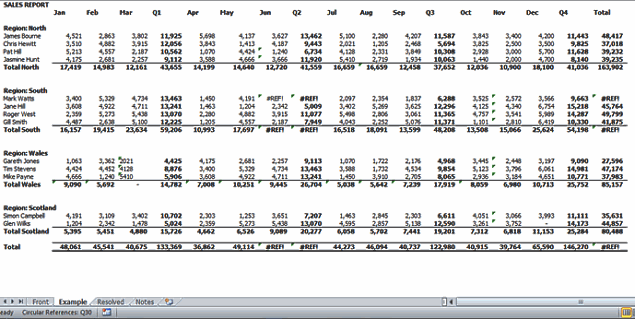
Excel helpfully gives you the location of the first circular reference (Q30) in the bottom left corner of the screen:

An alternative approach to locating circular references is to select Error Checking > Circular References on the Formulas tab of the Ribbon:
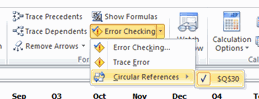
By clicking into the formula on cell Q30 you will see that the formula is =AVERAGE(M30:N30,P30:Q30). This average formula is including the cell Q30, hence the circular reference.
[Related: Understanding & Using Excel Circular References]
#REF error
The next obvious issue is that cells I13, J13, J33, S13, S18 & S33 contain the #REF error. The #REF error is a warning that the formula contains an invalid cell reference (this usually happens when the user deletes a cell/row/column/worksheet that is being referenced by a formula).
To trace the cell originating this error select any cell containing the error (I chose S33 as this would appear to be the main report total), and select Error Checking > Trace Error on the Formulas tab of the Ribbon:

This highlights that cell I13 is the source of the error:
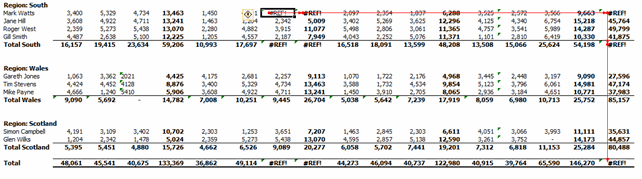
Cell I13 contains the formula =3109+#REF!. To remove the error simply remove the +#REF! within the formula.
It is also however important to try to understand what cell was referenced by the formula originally. The best way to do this would be to talk to the user/previous user (if they are still there) and look back through archived versions of the report (if they exist).
Now that the obvious issues have been identified we are now going to employ some of Excel’s other auditing tools to see if there are any hidden errors.
[Related: Understanding & fixing Excel Formula Errors]
Excel’s error checking function
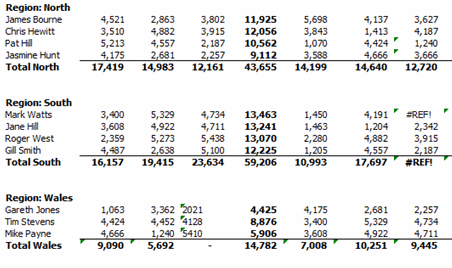
I’m sure that you will have noticed the small green triangles in the top left hand corner of some of the cells. This is Excel’s background error checking function warning you that these cells break one of the predetermined rules.
Firstly let’s have a look at the errors that are being checked for. To open the Error Checking options select File > Options> Formulas (2010) or Office button> Excel options>Formulas (2007).
Below is the default set up:
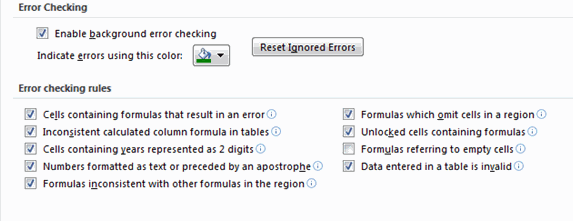
When reviewing a spreadsheet for errors it is always worth a quick check to ensure that the above is set up as you would like it to be. I always also tick the “Formulas referring to empty cells” rule.
Click OK to return to the spreadsheet.
The most systematic way to walk through all of the issues identified by the error checking function is to run Error Checking on the Formulas tab of the Ribbon:

This launches the Error checking dialogue box and allows you to review each error in turn:
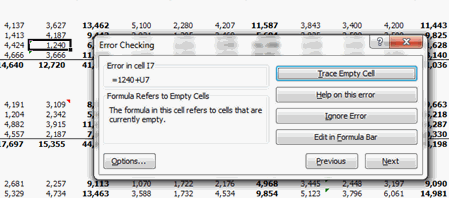
I will leave you to run through the errors one by one to see what Excel picks up.
Please note that this is not a fool proof check as it is simply checking against the predefined rules. This function will not highlight cells that comply with the rules but contain other errors. It can also highlight cells as an error when they are not (eg P13, in this case click on “Ignore Error”). A very useful starting point nonetheless.
Reviewing the report structure
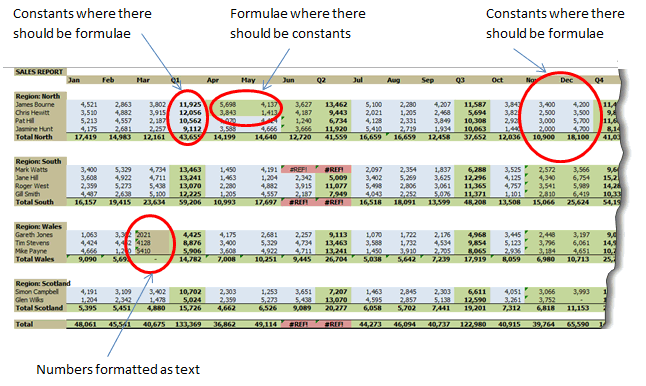
A crucial step to ensuring that a spreadsheet is error free is to understand its structure, and then to ensure that this structure is correct and consistent.
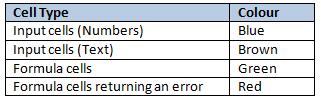
The simplest way to do this is to identify the different types of cells and their relative positions within the worksheet. For this simple example we are looking to identify:
- Input cells (Numbers)
- Input cells (Text)
- Formula cells
- Formula cells returning an error
To achieve this quickly and simply I have built a basic macro which is within the spreadsheet and can be run from the “RUN” button in the Example tab.
This colors each cell type as follows:
This very quickly identifies some structural issues in the spreadsheet:
So how does this work?
The macro above uses Excel’s Go To Special function which helps you to quickly select cells of different types.
To launch Go To Special, click on Find and Select> Go To Special on the Home tab of the Ribbon:
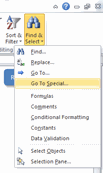
(Alternatively press F5 or Ctrl + G to launch the Go To dialogue box and then click on Special…)
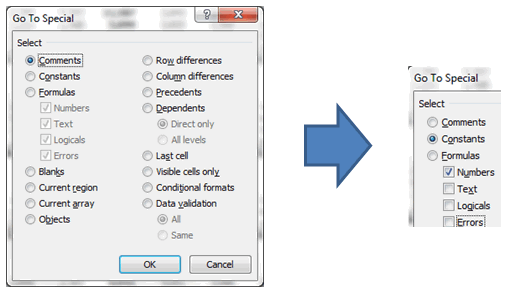
For example, selecting Constants and leaving just Numbers ticked will highlight all numbers on the current worksheet:
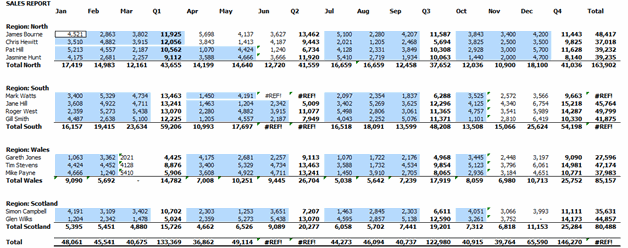
It is worth playing with the options on Go To Special as there are some great functions that I sadly don’t have time to cover here (the precedents, Dependents and Row/Column differences functions are particularly useful).
[Related: More uses of Go To Special in Excel]
And Finally…
As valuable as these initial tests are there are still some issues in the spreadsheet that only a detailed investigation will highlight.
So I’ll leave you to grab a coffee and see if you can find them (they are covered in the Notes and in the Resolved tab).
In the final article of the series we will have a quick look at an example of spreadsheet auditing software.
Also, we are planning to write an article explaining other useful features of Go To Special dialog.
What about you?
Do you use Spreadsheet auditing functions? What is your experience with them? What are your favorite features? Please share using comments.
Thank you Myles
Many thanks to Myles for writing this series. Your experience in this area is invaluable. If you enjoy this series, drop a note of thanks to Myles thru comments. You can also reach him at Excel Audit or his linkedin profile.


12 Responses to “29 Excel Formula Tips for all Occasions [and proof that PHD readers truly rock]”
Some great contributions here.
Gotta love the Friday 13th formula 😀
Great tips from you all! Thanks a lot for sharing! bsamson, particularly you helped me on a terribly annoying task. 🙂
(BTW, Chandoo, it's not exactly "Find if a range is normally distributed" what my suggestion does. It checks if two proportions are statistically different. I probably gave you a bad explanation on twitter, but it'd be probably better if you fix it here... 🙂 )
Great compilation Chandoo
For the "Clean your text before you lookup"
=VLOOKUP(CLEAN(TRIM(E20)),F5:G18,2,0)
I would like to share a method to convert a number-stored-as-text before you lookup:
=VLOOKUP(E20+0,F5:G18,2,0)
@Peder, yeah, I loved that formula
@Aires: Sorry, I misunderstood your formula. Corrected the heading now.
@John.. that is a cool tip.
Hey Chandoo,
That p-value formula is really great for a statistics person like me.
What a p-value essentially is, is the probability that the results obtained from a statistical test aren't valid. So for example, if my p value is .05, there's a 5% probability that my results are wrong.
You can play with this if you install the Data Analysis Toolpak (which will perform some statistical tests for you AND provide the P Value.)
Let's say for example I've got two weeks of data (separated into columns) with the number of hours worked per day. I want to find out if the total number of hours I worked in week two were really all the different than week one.
Week1 Week2
10 11
12 9
9 10
7 8
5 8
Go to Data > Data Analysis > T-Test Assuming Unequal Variances > OK
In the Variable 1 Box, select the range of data for week 1.
In the Variable 2 Box, select the range of data for week 2.
Check "Labels"
In the Alpha box, select a value (in percentage terms) for how tolerant you are of error.
.05 is the general standard; that is to say I am willing to accept a 95% level of confidence that my result is accuarate.
Select a range output.
Excel calculates a number of results: Average (mean) for each week's data, etc.
You'll notice however that there are two P Values; one-tail and two-tail. (one tail tests are for > or .05), the number of hours I worked in week two is statistically equivalent to the number of hours I worked in week one.
So here’s a way you might want to use this. You put up a new entry on your blog. You think it’s the best entry ever! So you pull your webstats for this week and compare it to last week. You gather data for each week on the length of time a visitor spends on your website. The question you’re trying to prove statistically is whether there’s an average increase in the amount of time spent on your website this week as compared to last week (as a result of your fancy new blog post). You can run the same statistical test I illustrated above to find out. Incidentally, it matters very little to the stat test whether the quantity of visitors differs or not.
Anyhow, the Data Analysis toolpack doesn't perform a lot of stat tests that folks like me would like to have access to. In those cases I have to either use different software, or write some very complicated mathematical formulas. Having this p-value formula makes my life a LOT easier!
Thanks!
Eric~
Fantastic stuf..One line explanation is cool.
Thanks to all the contributors
OS
Take FirstName, MI, LastName in access (you can fix it to work in excel) capitalize first letter of each and lowercase the rest and add ". " if MI exists then same for last name:
Full Name: Format(Left([FirstName],1),">") & Format(Right([FirstName]),Len([FirstName])-1),"") & ". ","") & Format(Left([LastName],1),">") & Format(Right([LastName],Len([LastName])-1),"<")
I teach excel, access, etc etc for a living and i have my access students build this formula one step at a time from the inside out to show how formulas can be made even if it looks complicated. Yes I know I could just do IsNull([MI]) and reverse the order in the Iif() function but the point here is to nest as many functions as possible one by one (also I illustrate how it will fail without the Not() as it is)
Extract the month from a date
The easiest formula for this is =MONTH(a1)
It will return a 1 for January, 2 for February etc.
if in a column we write the value of total person for eg. 10 if we spent 1.33 paise each person then how we get total amount in next column and the result will in round form plzzzzz solve my problem sir................... thank u
@Anjali
If the value 10 is in B2 and 1.33 paise is in C2 the formula in D2 could be =B2*C2
If the values are a column of values you can copy the formula down by copy/paste or drag the small black handle at the bottom right corner of cell D2
kindly share with me new forumulas.
How to convert a figure like 870.70 into 870 but 871.70 into 880 using excel formula ? Please help.