

This is a guest post by Faseeh, one of the Excel Ninja’s at our forum.
Triangular plot…! What is it?
Recently, a Chandoo.org forum member asked this,
I want to be able to make a graph that, in some aspects, looks like below, but I have no idea how to do it at all.
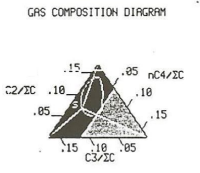
After seeing it, I said to myself in Barney Stinson’s tone, ‘Challenge Accepted!‘
The final plot is like this:
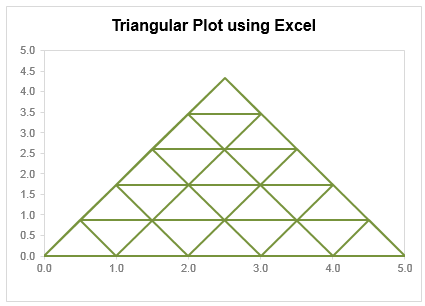
Making triangular plot in Excel – Tutorial
The first step to create such a chart starts from a manual drawing of how your chart will be looking like; at least you need to mark some important connecting points that will make smaller triangles.
The trick in this chart is simply to locate points in all three sides of the triangle and connect them in a way that results in smaller triangle. Here is a step by step approach to make this chart:
- Make a rough sketch of the triangle. Divide each side of the triangle roughly into the number of segments that you want, each side with equal number of segments (in this case 05 segments). And give each of them a number including corners of the triangle
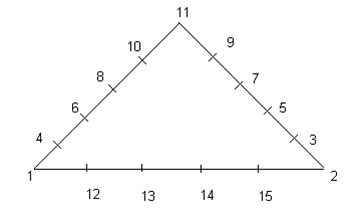
- Now we can split this chart into three types of lines, horizontal, tilted towards right, tilted toward left.
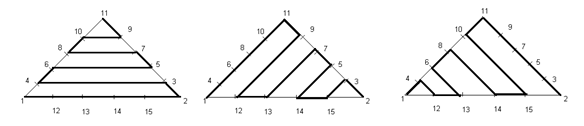
- For each of these lines we need to join certain points and when we combine these lines into a single series we will get our desired chart. So let’s list down the points in each line.
Horizontal Lines (L1): Point 01, 02, 03, 04, 06, 05, 07, 08, 10, 09, 11.
Right Lines (L2): Point 01, 11, 09, 12, 13, 07, 05, 14, 15, 03, 02
Left Lines (L3): Point 02, 11, 10, 15, 14, 08, 06, 13, 12, 04, 01 - Now we need to setup a table where the coordinates of these points are listed in tabular order, like this:

This can be done by using trigonometric ratio of sine and cosine, by representing each point in terms of Polar Coordinates [ These coordinates represent each point in terms of a distance “R” and an angle represented by Greek alphabet Theta (q), Line 01 makes an angle of 0° from X-Axis, Line 02 of 60° and Line 03 of 120° from +ive X- Axis, these details can be simply skipped if you don’t like math 😉 ]
Avoiding the details of trigonometry you can simply use following two formulas to get these values…For Value of X (Ordinate) you can use the following formula:
=IF(O6=”H”,N6*COS(RADIANS(Q6)),IF(O6=”L”,N6*COS(RADIANS(Q6)),$D$5+N6*COS(RADIANS(Q6))))For Y (Abscissa) you can use following:
=IF(O6=”H”,N6*SIN(RADIANS(Q6)),IF(O6=”L”,N6*SIN(RADIANS(Q6)),N6*SIN(RADIANS(Q6)))) - Once this Lookup Table is created we need to create another table where we list points in accordance to the Lines that we have already created. We will use VLOOKUP () to fetch the corresponding coordinate through this formula and we will do this for all the three Lines. The VLOOKUP() simply looks for the point in the left most column of the first table and bring the corresponding values from the 3rd and 4th column to form the point in second table.
- When we are done with bringing the coordinates of all of these points we just need to plot a Scatter Chart. Now use a XY scatter chart to plot the data. You need to add only one series, actually there are three types of lines but we can accommodate them in just one series. When they overlap, they will give smaller triangles in result.
Download Triangular Plot workbook
Click here to download the chart. Examine the formulas & chart series to understand how this is made.
Added by Chandoo
Do you make such complex charts for your work?
I will be honest. I never had to make a triangle plot. But then, I never had to make Ratatouille either. That doesn’t make me appreciate both of them any less. I think this chart shows fantastic technique. It also proves that Excel is highly flexible if you know which bolt to turn and which screw to tighten.
What about you? Do you make such complex charts or visual analysis for your work? What is the most challenging chart you have worked on? Please share using comments.
Shape up your Chart skills – Charts + Shapes
If your job involves making charts in all shapes and sizes, then you are in luck. Check out these tutorials to learn how to bend Excel charting rules to get any shape you want:
- Simulating a pendulum movement using Excel charts
- Wall hygrometric physics – modeling wall thickness in Excel chart
- Stars and lights using Excel Charts, VBA & animation
- Mustache shaped chart to measure your stash
- Spoke chart | 5 star chart
- Making various country flags using Excel charts
Thank you Faseeh
Many thanks to Faseeh for sharing this tutorial with all of us. I really enjoyed this and learned a few tricks from it.
If you like this chart, say thanks to Faseeh using comments.


12 Responses
I did something similar for a cascade – a pain to set up but the template goes on forever
Sounds interesting. Can you share your template with our readers?
Well done, thanks for sharing!
I occasionally use graphs like this for mixture experiments. Each side represents the range of a different material in a formulation. In its simplest form, the three materials will add to 100% of the formulation. A variation would be when other materials are present, but the quantities are fixed and only the three items in the graph are varied. Graphs like this are handy when describing the experimental design points.
The original graph also had areas marked, possibly for material characteristics (solid / liquid maybe?).
Thanks For Sharing sir !!
Regards
–Easyaptitudes.blogspot.com–
Check out Dplot (http://www.dplot.com) — DPlot adds what you are looking for to Excel.
I just ran off a quick example of this that could be dressed up. The calcs sheet has a breakdown more or less of how it was derived. Now I can’t attach it.. only option is to attach an image???
http://chandoo.org/forum/threads/triangular-plot-gas-data-plot.12591/
Great work Faseeh
Great.
I understand how to draw the triangle but how do you plot the lines as in the black and white “original diagram” (circled)?
Hello,
I’m looking at your example on how to develop this triangular plot and I’m a little confused. In developing your table I can see where the points are coming from for the horizontal segment. However when you look at the “tilted to left” points you identify those ad 1, 4, 5, 8, 9, and 11. Should that be 2, 3, 5, 7, 9, and 11?? the same goes for the points identified for “tilted to right” If you can clear this up for me I would appreciate it.
Thanks,