

You have been there before.
Trying to compare last year numbers with this year, or last quarter with this quarter.
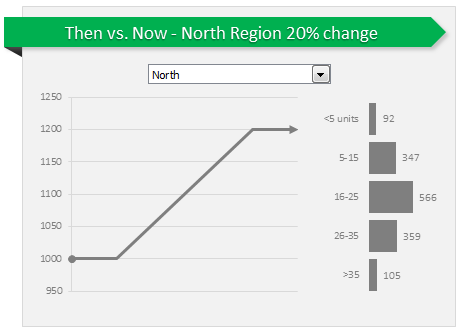
Today, let us learn how to create an interactive to chart to understand then vs. now.
Demo of Then vs. Now interactive chart
First, take a look the completed chart below. This is what you will be creating.
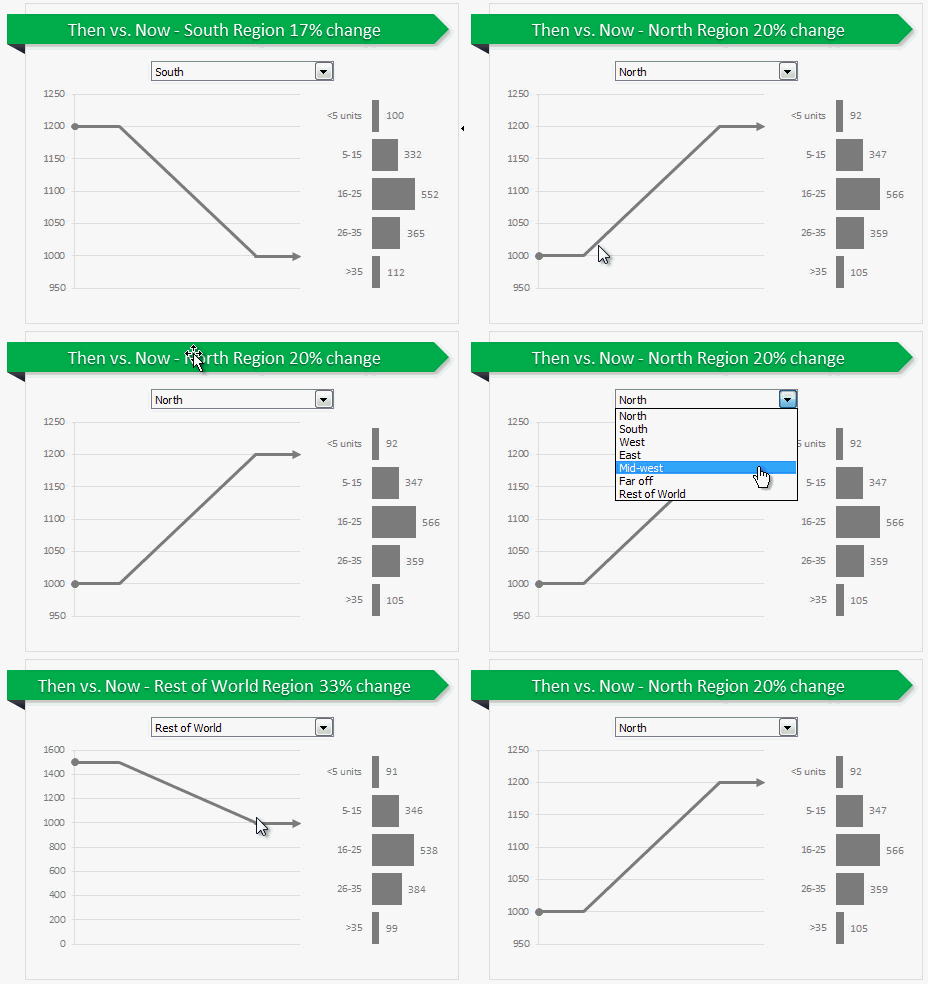
Inspiration for this chart
Before we jump in to Excel and understand how this is done, let me thank NY Times for providing the inspiration for this chart. I saw a similar chart in their climbing income ladder visualization.
Creating Then vs. Now chart in Excel
1. Arrange data
As usual, the first step is to get the data in to Excel. Structure your data like this.
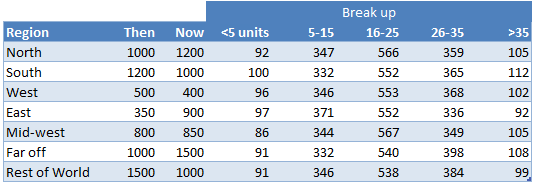
2. Insert a combo box control to select a region
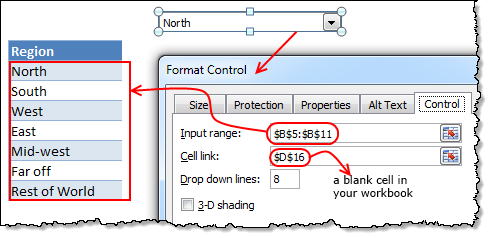 Since our chart will display values for one region at a time, we need a mechanism to let user control which region is displayed. We will use a combo box control do this. Follow these steps.
- Go to developer ribbon and insert combo box form control.
- Right click on the combo box and go to format control.
- Set up input range to list of regions in your data.
- Set up cell link to a blank cell in your workbook.
Related: Introduction to form controls.
3. Fetch selected region’s data
Now that we have a combo box to select which region to show in the chart, next step is to fetch data for selected region. You can use either VLOOKUP or INDEX formulas to do it.
Using VLOOKUP formula:
Assuming region name is in D17, and data is in values table, write:
=VLOOKUP(D17, values, 2, false)
to get 2nd column (then sales) value.
Using INDEX formula:
Assuming region number is in D16, and data is in values table, write:
=INDEX(values[then],D16)
4. Create a chart showing then to now movement
Next step is to create a chart that would show a line going from then value to now value. Lets take a closer look the line to understand how to make it in Excel.
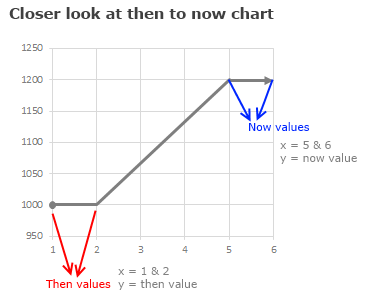
We can create this chart with either XY (scatter) plot or line chart. Lets go with scatter plot.
In your workbook, set up a table like this:
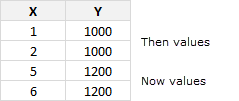
Then, select the above and create a scatter plot. Select the scatter plot with connecting lines.
5. Formatting the chart
Since we want to show a thick circle at the beginning of then value and arrow at the end of now value, lets go ahead and do the formatting song and dance.
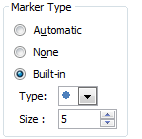 Formatting the first point:
- Select the first point of then values (you need to click once on it, take 3 deep breaths, click again and sacrifice a goat).
- Press CTRL+1 to format the data point.
- Go to Marker options and select built in marker and use the circle symbol.
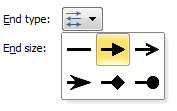 Formatting the last point:
- Select the last point (same as above, but this time sacrifice a chicken)
- Format the data point.
- Go to line style, select End type and choose arrow.
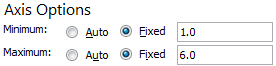 Formatting the horizontal axis:
- Select horizontal (x) axis and press CTRL+1
- Set axis minimum to 1, maximum to 6.
- Click ok and delete the axis as we do not need it on the chart.
6. Adding “Break-up” of now values chart
This is easy, Just select fetched break-up values for selected region and create a bar chart. Format it as per your fancy.
7. Put everything together
Place the combo box, scatter plot and bar chart together in a nice fashion. Add a surrounding box shape so that everything looks like one report.
Add a descriptive title on the top. If possible, make chart title dynamic so that you can show the selected region name and % change in it.
8. Your Then vs. Now chart is ready
That is all. Your Then vs. Now chart is ready. Go ahead and flaunt it.
Download the chart workbook
Click here to download the chart workbook and play with it. Examine the formulas, chart settings and shapes to understand how this is set up.
Do you make then vs. now charts?
I think about half the charts made businesses around the world fall in to this category. I make these type of charts all the time. I use a variety of chart types to convey this information. Thermometer chart, waterfall chart and conditionally formatted tables are some of my favorite techniques.
What about you? Do you create then vs. now charts? what type of charts do you use? Please share your techniques and ideas using comments.
Learn more…
If you are not working in a cave or behind a huge stack of desks, chances are your job involves communicating for a living. Go ahead and read-up below articles to learn how to communicate with charts better, when it comes to then vs. now situations.


28 Responses to “2010 Calendar – Excel Template [Downloads]”
[...] Download and print the calendars today. You can add notes to individual dates or complete … [...] Uni Ego / Free 2010 Calendar – Download and Print Year 2010 Calendar today [...]
Any chance on a 2016 calendar?
Afternoon,
I have one similar calander that I added conditional formatting to so that I could highlight any planned factory holidays. I think i "borrowed" the formula from another calander so I won't post it here.
I also added week numbers to it using the formula =WEEKNUM(MAX(C6:I6)) Where C6:I6 is the range of dates in that give week. It works fine on most of the months but return strange values on other months (Week 6 in October?) I can't see any logic behind why it does this.
Any suggestions for an alternative formula to give the week numbers?
Regards,
William
Hi Chandoo,
I've added a new feature on your spreadsheet.
This control can be useful for all the sheets where you need to check dates.
Cheers
http://cid-69a78592a23a8438.skydrive.live.com/self.aspx/.Public/2010-calendar%5E_Miguel.xls
Hi Chandoo,
Nice calendar.
Till now whichever calendar I saw in Excel, it contained only the outline sheet.
Good to see monthly views and the mini view too.
Liked the mini view much. 🙂
-Nimesh
@William: This weeknum may be because the input dates to max are not properly formatting as excel dates.
Good tip on the conditional formatting and holidays btw...
@Migueal: Now that is super awesome. This is the reason why I love to blog. Readers will always one up me with such cool alternatives. Thank you for sharing this with us.
@Nimesh: You are welcome 🙂
is it possible to get the Notes section on the outline page to display the notes added to the month page for a specific date?
So if you add thing for January 2nd, and then select January 2nd those notes appear on the outline page
@Shish... You can do that using some formula magic. I would not recommend pushing excel to that as outlook / google calendar / icalc etc. do exactly that much more elegantly.
[...] Perpetual Excel Calendar – Free Downloadable Template [...]
Happy christmas to all of you!
This is really awesome. The nicest calender I've seen for Excel. I also like Miguels version of the sheet.
Just one "feature" is missing to me. As I live in Germany - where weeks start on Monday - I'd like to change this. Could someone please give me a hint how to do this?
Thanks in advance
Jörg
Hi Chandoo, I’ve added some new features on your spreadsheet with your permission.
Check it here:
http://cid-6b219f16da7128e3.skydrive.live.com/self.aspx/.Public/Calendar%5E_Pedro.xlsm
Miguel, this calendar is translated to Spanish language.
Jörg, this new approach allows us to start weeks on Monday.
Also it's possible to start weeks on Sunday if you enable Excel macros and push the arrows.
Best Regards,
Pedro.
@Pedro.. superb stuff.. thanks for sharing the file with all of us.
Hi Chandoo, for dates before March 1, 1900 our calendars are wrong.
In Microsoft Excel, DATE, EOMONTH, WEEKDAY functions return an incorrect result between Monday, January 1, 1900 and Wednesday, February 28, 1900.
See this page: http://support.microsoft.com/kb/214326/en-us/
Microsoft Excel incorrectly assumes that the year 1900 is a leap year in all Excel versions.
That's the reason why our calendar versions only work from March, 1, 1900 until December, 31, 9999.
Your comments are welcome.
Pedro.
@Pedro.. Thanks for pointing that out. wow... This reminds me of the Joel Spolsky's first BillG review - http://www.joelonsoftware.com/items/2006/06/16.html (read it, I am sure you would love it.) when Bill out of blue asks about date time implementations for VBA (which Joel is the program manager for...)
Thanks for sharing the URL too... Here is a specially made, chocolate sprinkled, extra fluffy donut for you 🙂
Hi Chandoo, thanks a lot for the donut but I prefer it without chocolate!
Always it's good to know a little history of Excel.
The Joel Spolsky’s last BillG Excel review was about the "Hall of Tortured Souls"
(See this Excel 95 Easter Egg here: http://www.eeggs.com/items/719.html)
Do not miss the humor!
@Chandoo.. I just return with a new calendar version.
http://cid-6b219f16da7128e3.skydrive.live.com/self.aspx/.Public/calendar-pedrowave.xltx
It helped me to practice conditional formatting, formulas to show check boxes, data validation drop down list, find out Thanksgiving Day's date for any year, how to find dates of public holidays using Excel, all reading your wonderful posts!
Perpetual Calendar Spanish version starting weeks on Monday:
http://cid-6b219f16da7128e3.skydrive.live.com/self.aspx/.Public/calendario-pedrowave.xltx
Main characteristics:
- Not macros.
- Select a year from 1900 to 9999 with a dropdown listbox.
- All date fields with the real date format.
- Easy language change of day of the week and month names because are also dates.
- Hide Saturdays and/or Sundays.
- Week starting on Sunday or Monday.
- Week and month numbers.
- Hyperlink between sheets.
- Consistent colors to Holidays, Diary and Events dates.
- Easy change of Holidays by country.
- Include 80 World Days and you can add more.
- A diary with my birthday and 50 more programable appointments.
- Check box to hide individual dates or all.
- Holidays, diary and events text are showed on each month's sheet.
- Ranges defined with Name Manager variables.
I'll appreciate if you make me some suggestions to improve this calendar.
Pedro.
Please, I need help!
I like all calendar from Pedro, thank you for them. Let me show my problem:
I have 2 excel cells (for example AE12 and AE13) which mean the starting and the ending date of my duty. I need a macro to insert sheets with label YEAR. MONTH (for example 2010. August or similar) with the proper datas between the two dates. Is it possible?
Thank you for reading me and sorry about my terribel english! 🙂
Hello Pedro,
Thanks so much for the modified calendar template. I love the extra functionality you added. Is there any way you could upload an unlocked version? I wanted to change some of the comments and data validation so I could use it for one of my applications.
As for feedback on potential improvements, with all the additions you made the file runs pretty slow. I'm sure this has to do with all the interconnectivity between the various tabs, but if there is a way to use less memory via more efficient formulas or something else I think this would make it easier to use. I have a brand new computer and with it running alone the response was pretty slow. One of the changes I'm making is changing the order of the months to match my company's fiscal year, so maybe something to automate a change like that could be useful.
Cheers,
Peter
Peter, my calendars are unlocked but you need Excel 2007 and 2010 versions to open them.
Now I return with a new Programmable Task Calendar:
http://cid-6b219f16da7128e3.office.live.com/view.aspx/.Public/Calendario%20de%20Tareas.xlsx
Wath an introductory video here:
http://pedrowave.blogspot.com/2010/10/programmable-task-calendar.html
This new calendar allows to select the start month to match the school and fiscal year.
This is great stuff Chandoo and company
Wanted to know if someone had built something similar
I need to store one Excel Sheet on this calendar that has all the holidays
US Holidays appear in RED
UK Holidays appear in Blue
Meetings appear in Green
Submissions appear in Orange
Is there a way I can store the list in a separate worksheet and all the calendars get updated with this?
Thanks
[...] Calendars: Year 2010 Excel Calendar | Year 2009 Excel [...]
please tell me "how to convert Rs.10000/- in to words through excel formula
[...] is all! http://chandoo.org/wp/2009/12/11/2010-calendar-excel-template-downloads/ See more Templates at http://www.vertex42.com/ Share this:Like this:LikeBe the first to like this [...]
Greetings,
Thanks for this wonderful excel vacation tracker. I notice that the tracker only has three months November, December and January 2015, however, I would like to add the other ten months for 2014. Can you please instruct me on how I can add the other months?
Thanking you in advance.
Hi Chandoo,
Calendar: can this be printed as single sheet 8.5x11 inch per month
kanu
@Kanu
Yes,
You can resize it to fit
WOW! I just searching some of like this, that help me.
Thank you for sharing.