

This is the fourth installment of project management using excel series.
Preparing & tracking a project plan using Gantt Charts
Team To Do Lists – Project Tracking Tools
Project Status Reporting – Create a Timeline to display milestones
Part 4: Time sheets and Resource management
Issue Trackers & Risk Management
Project Status Reporting – Dashboard
Bonus Post: Using Burn Down Charts to Understand Project Progress
 Timesheets are like TPS reports* of any project. Team members think of them as an annoying activity. For managers, timesheets are a vital component to understand how team is working and where the effort is going. I will not get in to the merits and pitfalls of timesheets. However, I feel that by using Microsoft Excel capabilities you can create a truly remarkable timesheet tracking tool and still leave your team members un-annoyed.
In this tutorial we will learn 3 things about timesheets and resource management using Excel
- How to setup a simple timesheet template in excel?
- How to make a more robust timesheet tracker tool in Excel?
- How to use the timesheet data to make a resource loading chart?
1. Make a Simple Excel Timesheet Template
According to Wikipedia, timesheets are used for
Timesheets may record the start and end time of tasks, or just the duration. It may contain a detailed breakdown of tasks accomplished throughout the project or program. This information may be used for payroll, client billing, and increasingly for project costing, estimation, tracking and management.
By defining a simple and straight forward template in Excel and using it to track time (or efforts) in your projects, you can easily consolidate the data, compare efforts and make any necessary analysis.
At its simplest form, the timesheet is nothing but list of team members and list of activities in a matrix. Look at the below example:
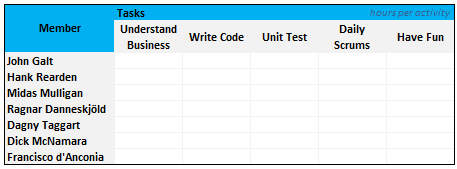
You can easily create such template in excel.
2. A More Robust Excel Timesheet Tracker
While the time sheet format shown in the above section is good, it is a wrong format if you need to analyze the timesheet entries of a 100 member project. Also in large projects usually members do few activities at a time. That means the above format (in section 1) will result in a sparse matrix.
Using a tracker log format is much more convenient to both record and analyze timesheet entries. Look at the example below:

We can use excel features like data validation drop downs, shared workbooks to make the timesheet entry and management a breeze.
3. Create a Resource Loading Chart – Project Management
Resource loading charts are a good way to show how busy the team members are in a project. At the outset the resource loading chart is nothing but a heatmap.
Look at an example resource loading chart below:

You can make a resource loading chart in MS Excel by following the below steps:
- The pre-condition for the resource loading chart is that we have clear data available to make one. This is where the robust timesheet tracker shown in section 2 of this post comes handy.
- First create a blank table in excel with team member names in first column and week numbers in first row. (Please note, you can make other types of resource loading charts by changing the Row and Column headers. For eg. You can show resource loading by Project and Team member)
- Assuming we have the time sheet data in the format shown in Section 2,
- Assuming “log_member_names” refers to the member name column and log_weeknum refers to the last column in the timesheet, we can write a simple COUNTIFS formula like this =COUNTIFS(log_member_names, “John Galt”, log_weeknums, 3)
- Once we calculate values for all team members using the above formula, we can apply conditional formatting to make the heat map. In Excel 2016 / 365, this is one step.

- That is all.
Download the Excel Timesheet & Resource Loading Chart Templates
You can download the excel time sheet template, timesheet tracker log template and resource loading chart template from here. Click the below links:
- If you have Excel 2016 / 365 or 2007 or above, download the .xlsx template
- If you have Excel 2003 and earlier, download the .xls template
- Download 24 Project Management Templates for Excel
What Next?
Timesheets are a great way to understand how the effort is spent. Even though project estimation models have become more and more effective, still lots of projects are overshooting budgets and timelines. And this is where timesheets can help you as a manager. While estimation looks in to future, timesheets look at past. Timesheets give feedback to your estimation models. This can help you in making better estimates in future.
In the next installment of this series, learn about tracking issues and risks using excel spreadsheets.
If you are new to the series, please read the first 3 parts as well.
- Preparing & tracking a project plan using Gantt Charts
- Team To Do Lists – Project Tracking Tools
- Project Status Reporting – Create a Timeline to display milestones
- While at it, also check out the bonus post about Burn Down Charts.
Resources for Project Managers
Check out my Project Management using Excel page for more resources and helpful information on project management.
Your thoughts and suggestions?
What are your ideas about timesheets using excel? Does your organization use excel as a way to manage timesheets or do you use some time tracking software? What is the granularity of detail captured in timesheets? As a project manager, what use do you find in time sheet data?
Share your ideas and experiences using comments.
*PS: If you are wondering what the heck TPS reports are, then you are spending way too much time with Excel buddy. And while at it, you missed the greatest comedy of all time. Go watch office space, now!
PPS: the TPS report image is from wikipedia.


33 Responses to “Excel Time Sheets and Resource Management [Project Management using Excel – Part 4 of 6]”
[...] Gantt Charts Team To Do Lists - Project Tracking Tools Show Project Milestones in a Time Line Chart Excel Timesheets and Resource management Part 5: Tracking issues and risks [upcoming] Part 6: Project Status Reporting - Dashboard [...]
I never thought of Ragnar as someone who would use a timesheet. 🙂
Personally, I use a timesheet simply to record my in and out times, for overall time logging purposes. I posted a more complicated version on my site, which is similar to what you've done above.
I like the idea of using conditional formatting to generate the heat map. This is very difficult to read when you display just the numbers - the colors really draw your attention to the problem areas.
Love this !!
@JP.. "I never thought of Ragnar as someone who would use a timesheet. "
Shrugs! that is why he did less number of tasks. Did you look at the resource loading for his name?
@Mathias: Conditional formatting alone got me as much appreciations from my bosses as most of my MBA skills did. It is such a powerful and fun tool.
@Jon.. you are welcome 🙂
in the resource and timesheet templates, Can you also include the working hours a resource is taking, so that in week calender I do not only see the number of tasks of each week but also the total working hours.
Great idea and I like the heat chart. Just have to think how to apply this to my team....thanks!
Good one!!! this helps to understand the load of the task for the resources..
[...] – Project Tracking Tools Project Status Reporting – Create a Timeline to display milestones Time sheets and Resource management Issue Trackers & Risk Management Part 6: Project Status Reporting – Dashboard [upcoming] [...]
[...] – Project Tracking Tools Project Status Reporting – Create a Timeline to display milestones Time sheets and Resource management Part 5: Issue Trackers & Risk Management Part 6: Project Status Reporting – Dashboard [...]
[...] – Project Tracking Tools Project Status Reporting – Create a Timeline to display milestones Time sheets and Resource management Issue Trackers & Risk Management Part 6: Project Status Reporting – Dashboard Bonus Post: [...]
[...] Project Tracking Tools Part 3: Project Status Reporting – Create a Timeline to display milestones Time sheets and Resource management Issue Trackers & Risk Management Project Status Reporting – Dashboard Bonus Post: Using Burn [...]
thanks,
i was trying to understand resource mgmt..
this helped
[...] Project Tracking Tools Part3: Project Status Reporting – Create a Timeline to display milestones Part4: Time sheets and Resource management Part5: Issue Trackers & Risk Management Part6: Project Status Reporting – Project Management [...]
How could this heat chart be edited to count total hours rather than a count of activities?
@Chandoo
@JP
Who is John Galt?
LOL!
Superb!
Good morning
I was trying to buy the timesheet spreadsheet and my paypal account is not working.
Do you have a different way of paying for it??
[...] Timesheet ???????????? [...]
i need to timesheet
As a suggestion (or feedback) I would really recommend you to learn about demo of this product - http://fmsystems.ru/dru/?q=EXCEL3PEn - and introduce the MS Project like hierarchy features in your templates. That's awesome! And that's what standard Excel lacks.
The Hierarchy of tasks - that's, imho, what makes an application to be truely "project management" software.
Thanks for the Info. Great Job.
I'm not able to download the Download the Excel Timesheet & Resource Loading Chart Templates. Is there another website that I can try? Thanks, Sharon
Hey there! I simply want to offer you a huge thumbs up for your great information you have got right here
on this post. I am coming back to your website for more soon.
I was looking for formulas to average my productivity.
i love the names you wrote on the spreadsheets above...
I am a Big Atlas Shrugged fan... Love it...
We are John Galt!!!
I loved the names used here too.
I'm trying to use the resource allocation template, but I would like to show total usage per week via %, not total tasks.
That way I can tell how much time someone would have available per week based on external estimate of how long a task would take. If they have 10 tasks or 1 task is irrelavent, it's the percentage of time the task will take per week that matters 🙂
So the heat map would be based on total percentage occupied per week.
Thank you!!
Evening
Howdy!
i recently bought off you the program management template set. It is exceptionally good. i was wondering if you had by any chance a resource tracking template which i could use.
i am looking to schedule in several teams across a portfolio of projects and record who is working on what project and for what duration of time. It will be helpful too if this provided a "hot spot" view for projects in stress or behind schedule.
Do you have any thing perchance and if so how much is it?
Thanks in advance
Darren
I find good website for learn excel 🙂
Hey Chandoo,
So I have a problem with understanding resource requirements for a project and reporting the same. Most of our projects are mainly non-IT, huge impact, part of a bigger program. I need to report manpower availability and utilization. note that the project teams comprise of employees who have other day to day work and they are also aligned to projects. We have a big problem assessing if we need more or less resources.
It'll be great to see if you can suggest some way to a) present resource availability b) resourse utilization c) (in effect) resource planning.
best wishes
Pallavi
I noticed that if I convert those cell with SUMPRODUCT formula into Excel Table Style, the formula will break and no values will be displayed. Not sure anybody having this problem.
Hi,
I have pretty much no knowledge on excel, but , having said that I have a way of finding the answers to my problems online and adapting them to fit my needs. I am slowly learning stuff but not fast enough.
Anyway onto my issue, is there a fairly simple way to create a staff job allocation thingy when there are 4 teams on one shift pattern and 3 on a different pattern, only one team from each are in on any given day or night. 5 jobs, one needs 2 ppl so i guess I should say 6 jobs, to be covered by 8 people (from 2 teams) and most people only have the skillset to cover one of 2 jobs. Oh and they like to be on the same job for their full shift set. ?
I guess the answer is no as it's all a bit complicated but thought I'd ask someone that knows about this kind of thing.
TIA
Midders
Hello, I want to subscribe for this web site to obtain newest updates, so where can i
do it please assist.