

Starting this week we are starting a new series of posts on project management using Microsoft excel. I have been working in various projects in the last 6 years and almost in all cases we have been using excel to manage, measure and track various aspects of project. These posts represent few of the things related to project management using excel that I have learned over the years.
Part 1: Preparing & tracking a project plan using Gantt Charts
Team To Do Lists – Project Tracking Tools
Project Status Reporting – Create a Timeline to display milestones
Time sheets and Resource management
Issue Trackers & Risk Management
Project Status Reporting – Dashboard
Bonus Post: Using Burn Down Charts to Understand Project Progress
Excel, because of its grid nature provides a great way to prepare and manage project plans. In this part of the project management using Microsoft excel series we will learn how to prepare and track a project plan using gantt chart in excel.
Preparing a project plan
Not all project plans are same. But most of the project plans have a list of,
- All activities / phases of project
- Planned start date of the activity
- Planned duration of the activity
From tracking perspective, we can add the following,
- Actual start date of the activity
- Actual duration of the activity
- % of the activity completed as of date
As you can see, excel provides a great way to manage such plan. Look at an example project plan made in excel.
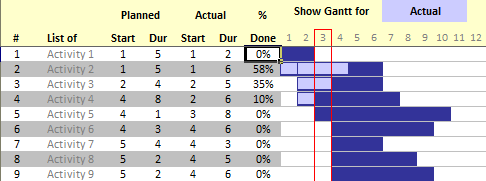
But the above plan is more or less static. Using Excel’s features we can make a dynamic gantt chart that can,
- Update the Gantt chart when dates change
- Display a separate bar that will grow based on the % completion of each activity
- Highlight current week / day in a subtle way
In essence, we will create something like this:
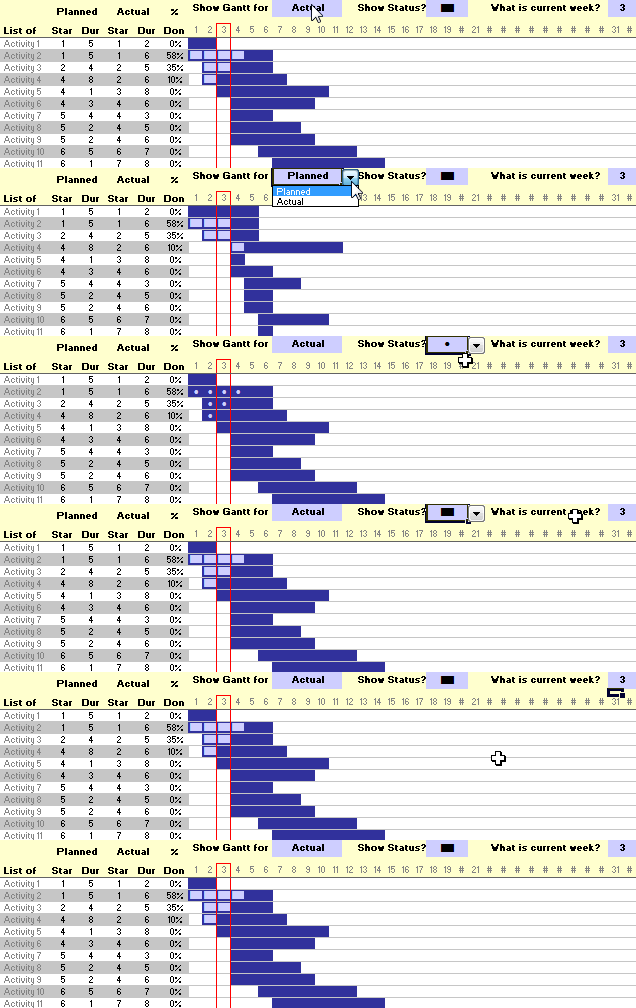
Steps for preparing an Gantt Chart
- First make the above layout in a new excel sheet
- Then we will add several columns in the end, one for each day (or week or month) of the project
- We will also designate 3 cells say $N$5, $Y$5, $AL$5 where we will maintain the following values,
- In cell $N$5, a selection option that will change the plan between “planned” and “actual” dates
- In cell $Y$5, a symbol that we can use to display finished portion of work
- In cell $AL$5, where we can enter the current week (or day or month)
- Now we will do some conditional formatting (ahem!) that will highlight a particular cell in the grid,
- If $N$5 has “Planned” and cell is between planned date and planned date + planned duration
- Else, cell is between actual date and actual date + actual duration
- We will also write formulas in all the cells (same formula pasted over the entire range) which displays a symbol like solid rectangle. For finding out if we should fill in the symbol or not, we use the % completed column of the gantt chart. Figuring out this formula is part of your home work. 😉
- Finally we will adjust formatting like column widths, fonts, colors etc. and freeze top row so that it is easy to scroll and still know what you are looking at.
Once you prepare such plan it is easy to track, find out the status of individual activities and take necessary corrective actions as needed.
Download Excel Gantt Chart Template and Make your own project plan
Feel free to download gantt chart project plan template and make your own project plans using Microsoft Excel.
Download 7 Gantt Chart Templates and 17 other Project Management Templates for Excel – Click here
What next?
In the next part of this series we will understand how to manage day to day activities of projects using to do lists in excel.
Resources for Project Managers
Check out my Project Management using Excel page for more resources and helpful information on project management.
Also check out below pages:
- Project Status Dashboard – Excel template
- Project Portfolio Dashboard
- Gantt Box chart – for showing uncertainty in project
- Excel Risk Map Template
Your Thoughts and Suggestions
Do you work a lot on project management activities? Do you find this content useful? share your feedback and experiences through comments.


7 Responses to “Project Dashboard + Tweetboard = pure awesomeness!!!”
I would like to see actual hash-tagged DM tweets go out to the specific information consumers. That would be an interesting way to communicate the key daily data to interested parties.
A Twitter-like secure application like Yammer might be a good fit with this.
For example, how about daily tweets to selected user groups (secure) that would display sales, bookings, cash receipts, cash disbursed and a second version that would show the same info for MTD, QTD or YTD figures.
@Dan, it would be great. I did not taught about implementing it on this dashboard because twitter is blocked to the whole intranet here. However, there's a discussion here about how can we send these tweets to blackberries (probably through e-mail) automatically. (I'd like to see this implemented on a jabber restricted network as well, but here it'll probably not happen)
The wrap-up versions you mentioned doesn't apply to my particular scenario, but on a sales tweetboard it would be a great tool indeed - choosing who will receive which message according to hashtags. I'll think on something, thanks for the advice. 🙂
(Ah, btw, I'm Fernando... 🙂 )
@Dan: That is a fun idea. Instead of tightly integrating twitter functionality with a dashboard, i think it would be cool if we have a "tweet this" button that users can click after selecting a range of cells. We can easily show a dialog with the concatenated output of the selected cells and ask user to edit the text and eventually "send to twitter".
For eg. you can select the annual sales figure cell and click on "tweet this" button upon which a dialog will show the value. Then you can pre-pend it something like "DM @boss look at our sales this year: "
@Aires.. thanks once again.
Wow it looks really good. Not sure though how much the tweet facility would help in real world project management, but certainly having a dashboard on a project should be a key deliverable when learning how to manage a project
The other use of this is during the software development life cycle especially when you have parallel streams of development and testing going on. Using a dashboard is a quick way for everyone on the team to see where the project is at and how it all fits together.
Regards
Susan de Sousa
Site Editor http://www.my-project-management-expert.com
Hi Chandoo,
I purchased the project management toolkit but the dashboard shown above with the imbedded scroll bars. Is it included in the project pack??
Thanks
Sue
The gantt chart section of this dashboard is similar to one I have recently created: http://xlcalibre.com/hr-dashboard-gantt-chart-traffic-light-reportIt has a similar approach with scroll bars, but has a couple of additional features. I've tried to incorporate a traffic light report element, and also allow the timescale to adjusted so that can view it by days, weeks or months.I really like the other tables that you've incorporated, I may well try to replicate them to improve my version!
I am a monitoring and evaluation consultant in international development, and one of the services I offer is to help non-profits and foundations develop performance dashboards. I often advise them to develop dashboards for ongoing programs, rather than for one-time or pilot projects, because of the time involved. I am trying to find out from a few people how long it takes you to develop a project management dashboard, and to what extent the indicators vary from one project to the next.