

Here is a very quick tip if you ever want to hide a cell’s contents in excel
Just use the custom cell formatting (more here) code ;;;
How? (see the screencast aside too)
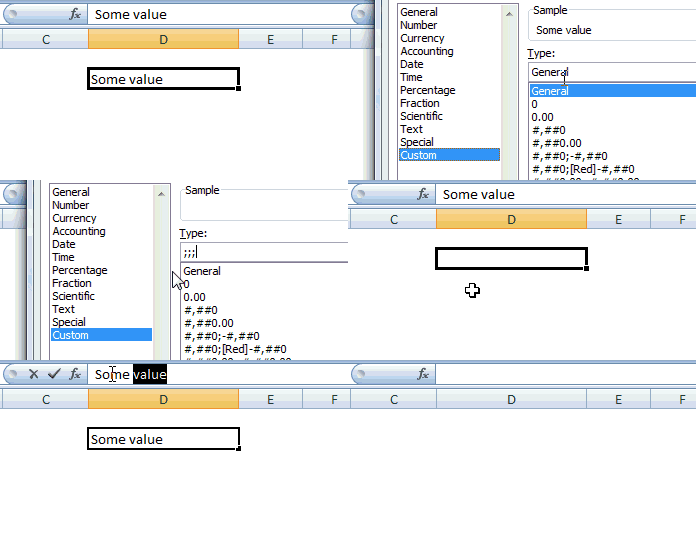
1. Select the cell you want to hide
2. Hit CTRL+1 (or open format cells dialog from right click)
3. Go to Number tab, select “custom” as the type
4. Type the formatting code as “;;;” without double quotes
5. Press OK and your cell contents are invisible now
What is the use of doing this?
1. This might be handy when you are using conditional formatting to highlight / change cell colors
2. This might be handy when you need to calculate intermediate values, but dont want to display them. (But try to use Hide rows / hide columns feature if you can)
Remember: This formatting code only blanks out the cell contents from being seen. They contents are still there and accessible for formulas, charts as such.
Also know how to display colors in chart data labels using custom cell formatting codes
What is your favorite cell formatting trick?


57 Responses to “How to Hide a Cell’s Contents in Excel? [Quick Tip]”
Great tip PHD
thank you somuch great tip..
Hi, Chandoo. I've been reading your posts a fairly long time now, and they're all fantastic. I see you're making a habit of saving my (professional) life. :)) But seriously, this is a great tip. Thanks for sharing it, and many thanks for all your hard work!
Chandoo - this is a neat little trick. I would typically use the color white so the text/numbers do not show. The downside is that someone can highlight the boxes and see the white text. With this trick that issue is solved.
One use that I can think of and do use is for the values in a drop down box (data validation - list). Now you can set the values, but hide them.
thanks Chandoo.
Any idea on how this may work in StarOffice?
@Michael: Unfortunately I haven't used staroffice in a really long time.
@all.. anyone, any sun fans out there who are using star office?
Hi this a great trick but i want the hidden content look (-) this to people not empty is it possible
Great tip, I always forget about this and it's good to have the reminder.
One favorite formatting trick that I have is to right-align numbers when some of them are percentages. Typically, if you had the numbers 6.23% and 7.31 in a column, the decimals won't align because of the percent sign. The percentages get the standard "0.00%" formatting, but for the other numbers, I use: "0.00_%" and everything aligns at the decimal point nicely.
Great tip. But there doesn't seem to be any way to do this with conditional formatting. Too bad. You can do white text.
@Bob.. in 2007 you can do this, but in earlier versions of excel this is not allowed in conditional formatting.
@Michael Pierce: That is a good one.. keeping the alignment right..
@Tony: that is a fun way to use this...
You can't do it within normal conditional formating.
But you can use some of the conditional functions within custom formats.
For example
[<500]0;;
will display numbers smaller than 500. Anything more than 500 will not display. I worked this out from some custom format instructions on John Peltier's site.
@Gerald.. you are right... the three sections of the custom format code can be used to define some minimal conditional formatting. For eg. a code like [<500][red]0;[<1000][blue]0;[green]0; would display red, blue and green text based on the value. I have also described an example of it here: http://chandoo.org/wp/2009/01/29/colors-in-excel-chart-labels-trick/
I am trying to build an invoice and would like to hide the pricing until I have a quantity in it so as to not show all pricing all the time. Is there a way to hide the price cells until you enter a value in the formula?
Thanks for your help,
Greg Brown
@Greg
Yes, use Conditional Formatting
This method highlights the big weakness of Excel's custom number formatting for me: its failure to properly handle logicals and errors. Try the following format on a range of types:
"positive";"negative";"zero";"text"
You'll find that numbers are shown using the "positive etc." labels, (right aligned); text uses the "text" label, left aligned, naturally; errors do not respond to formatting; and logicals are treated with the "text" label, only center aligned. So I'm stuck with using conditional formatting to paint FALSE values white in my spreadsheets (conditional formatting does not allow you to format numbers, only some text and cell attributes)
However, at least I can create an expression that lets me switch FALSE values from invisible to bright red over the whole sheet, for diagnostic purposes, by typing "Y" in a sngle cell 🙂
[...] How to hide a cell’s contents in Excel [...]
“This formatting code only blanks out the cell contents from being seen. They contents are still there and accessible for formulas, charts as such”
Felt like sharing with you this…
Recently, I was witness to a presentation which just had lines all over in the graph, with no clue as to whether the numbers represented %s or values. It seems that the presenter had inadvertently missed to format the value axis in the graph to display the labels (which had source data formatted “;;;”)
savithri
Hi Chandoo... I tried this, but i am getting a error mesage saying "Microsoft Office Excel cannot use the number format you typed. Try using one of the built-in formats. For more information about custom number formats, click Help".
Could you please tell me what is wrong that i have done???
@San, are you sure you have typed three ;;; as shown in the pic above? It should accept the format as is. Let me know if you have typed something else.
Hi,
Thanks for the great tip.. I have one problem though.. you can still see the value if when you enter in the cell in the formula bar.
This is also the case when you protect a worksheet and do not allow selection of locked cells. You can still navigate to the locked cell via the formula bar. Anyway around this ?
Ashish
Thanks for the tip Chandoo.
Initially, I simply changed the font color to white on a white background to make the cell content quasi invisible; then I came across your tip.
Somehow, without knowing why!, I think your tip is more elegant and technically better.
Would you please comment on that? Thanks.
Saeed
@ashish, if you lock the specific cells that you do not want to be seen and then protect the worksheet, it will not allow another user to select the cell whose value you want to not be seen. This still allows you to allow others to select the cells which are unlocked while keeping the sensitive values unseen in the cell and formula bar.
Dear Sir,
I was so keen to learn to hide the cell conmtents but when I use it on my Excel 2003 it does not work. Appreciate if you can help.
Thank you.
Dear Sir,
Is there anyway with which I can hide data from both cells and formula bar???
Regards,
Saif
pls help:
if 47 days working for sales man 5000 salary ..if above 47 days working per day 750 rs every day how to calculate pls help
I want to colour entire row based on the change of value of one cell. i.e suppose i want to apply condition that the value in the cell is greater than 0 the entire row should be green, if the value is greater than 5 the entire row should be yellow and so on...
i have tried conditional formatting -- new rule --Excel: Change entire row colors based on value of one of it's cells? but it is not working... suggest me
You have to add a CF for each Color/Value you want
Lets say it is Row 5 based on the value of Cell D1
Select Row 5
Goto CF
Delete All CF for this area
---
Goto CF
New Rule
Use a Formula
=$D$1=1
Set Format
Apply
Repeat from the --- and add as many rules/formats as there are values / colors
Thanks for the tip Chandoo. It helps me in some unusual ways.
Unfortunately I found that the contents are not accessible for filtering.
The ideia is using, in a large table, a tiny column, to put hidden text, in order to tagging rows and using colors to distinguish the different tags. But all fails because when I try to grouping the rows by some tag, the text doesn't appear in the filter options drop box. Any ideia? Thanks for all.
Thanks, Chandoo. I like this, but what I am really trying to do is display a portion of the cell data because there are so many characters, e.g. "The Division has requested sampling of the data so that..." and then if you hover or click on the cell, you can see all the characters. I can use yours with the instructions that cell data can be viewed in the formula bar, but I'd rather have a "hover" solution.
Chandoo, This tool doesn’t seem to work if it involves a cell that has a VLOOKUP command in it. I have CF for cells that are equal to 0, but when they are not equal to 0, the text still doesn’t show. Is there another way to hide text with cells that have a background pattern?
@Stephen
Can you post a small sample file with an example?
Refer: http://chandoo.org/forums/topic/posting-a-sample-workbook
Update: It appears the cell isn't refreshing. If I go into the formula bar and hit enter, the text appears, and it updates automatically everytime after that, unless I delete the text in Column A. I've checked the Excel Options to make sure it is calculating automatically. Can you think of another issue that would cause this?
@Stephen
Have you setup your table as an Excel Table (Insert Table)?
Once again can you post a sample file with an example?
Hello All,
Can anyone help me to hide in between text...?
for example:
Once again can you post a sample file with an example?
here i want to hide just "sample file"
so please help me out...
Thanks
This is great but if I need to send to a client, they can still click on the cell with the missing info and find out what the value is.
What about PARTIAL text within a cell, i only want a small section of data hidden, can this do it? When i select the text the "format cells" box only gives me the Font formatting, not the custom and one of the options under font formatting is NOT Hidden.
Comprende?
Hi I want to know how to hide the formulas in cell,but i want to see the result in the particular cell. if i edit the data relating to that formula in another cell it should be updated in the formula cell also.
Thank you
Venki.K
I is a unayversity students. THANKING OF YOU! life solved, grate help x
Just curious if anyone knows.. when you put in a formula with the sum of multiple other cells how do you make the cell with the formula appear blank until there is a sum to fill it in (if its dollars rather than having $0.00 to just be blank)???
Thanks!
@Candace
Use a Custom Number Format
Select the cell/s
Ctrl 1 or Right Click, Format cells
Number
Custom
enter #,##0.00;-#,##0.00;;
in the Custom Type box
Apply
The gap between the consecutive ;'s causes Excel to display nothing for a 0 value
Refer: http://chandoo.org/wp/2008/02/25/custom-cell-formatting-in-excel-few-tips-tricks/
[…] By default color scales show the values too. To hide them use ;;; custom cell formatting code (how to). […]
Very Nice....Working
"" does the same as ;;;
by way of excel trivia:-
typing in 'hide' or 'show' (without the quotes) gives an unexpected result if there is a number in the cell
Very good trick. Thanks for sharing
What do we do in a case where, with change in value of a cell, enables or disables the content in other different cells OR hide the contents of different cells. I neede a formula for that
Thnks chandu You are superb!!!
Based on changes in one particular cell, I need to hide or display another cell.
ie; if cell 'A4' is less than one or greater than 5, the contents of cell 'B4' need to hide.
Pls help
@Viban
The formula in cell B4 should be
=If(or(A4 < 1,A4 > 5),"", Your existing B4 Formula goes here)
Using this method causes the data in the cell to be ignored by a filter. The cells are not included in the filter dropdown and when filter is applied.
Hi
How Can I partially Hide A Email On Ms Excel
Example Like ABCDEF@gmail.com to AB***f2gmail.com
Thanks for sharing your thoughts about excel howtos. Regards
hii...
i want to hide data/text in the cell if another cell is empty in the same raw
example: if cell "A1 is empty than data should be hide in cell C1
GREAT TIP! EXTREMELY HELPFUL!
What causes the formula line to only show the last 2 characters when you select any cell?
Thanks Chandoo, I used this to control whether prices showed or not in a contract document, very, very useful.
Landscape Architect
Dunedin, NZ
Hi Chandoo,
this is great, no VBA required, and with conditional formating it is very easy to show/hide the text!
Best wishes,
Elisa