

This is a guest post by Vijay, our in-house VBA Expert.
Often I have thought, if I could have write “Select EmployeeName From Sheet Where EmployeeID=123” and use this on my excel sheet, my life would be simpler. So today we will learn how to do this.
People spend a lot of time thinking whether to use Excel as their database or not. Eventually they start using Access or SQL Server etc.
Today we will learn how to use Excel as a Database and how to use SQL statements to get what we want.
Excel as a Database – Demo
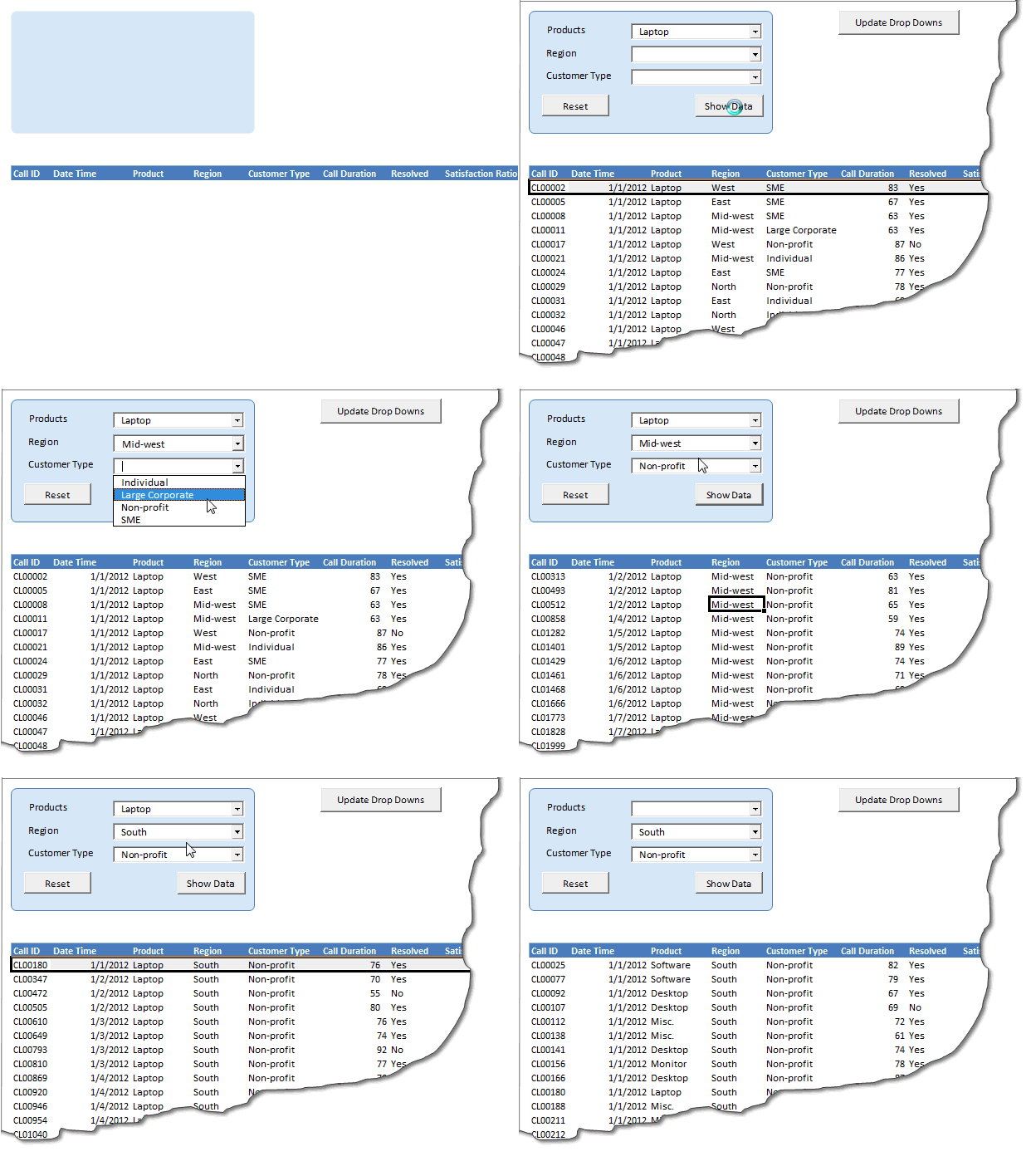
We will learn how to build this:
Before we begin:
- The entire sheet (where the raw data has been stored) will be referred as one single database table by Excel. This is very important to understand.
- This has nothing related with the in-built Table (2007 and greater) / List (2003 and previous) feature of Excel.
- If you know SQL (Structured Query Language) your task becomes much easier.
Setting up Excel as Database
We need some raw data and we will utilize Customer Service Dashboard sample database here.
Let’s get started.
First we will design the structure of what all option we want to present for filtering the data, which you can see in the interface below.
Once the user clicks on Show Data we will use a SQL statement to filter-out the data as per the drop down options selected by the user and the put them in the table below.
We will also use another SQL statement to populate the top right hand side table for calls data when all the 3 drop downs have some options selected.

Adding Active-x data objects reference
We need to add a reference to the Microsoft ActiveX Data Objects Library to be able to use the worksheet as a database table. You can do this from Visual Basic Editor > Tools.

I usually select the most recent version, however if you are developing a product it will be best suited if you are familiar with the operating system and office version used by the end-user’s system and accordingly select the best version available.
Opening Excel as a Database
Once this is done we need to hit the road with some VBA code.
Public Sub OpenDB()

If cnn.State = adStateOpen Then cnn.Close

cnn.ConnectionString = "Driver={Microsoft Excel Driver (*.xls, *.xlsx, *.xlsm, *.xlsb)};DBQ=" & _

ActiveWorkbook.Path & Application.PathSeparator & ActiveWorkbook.Name

cnn.Open

End Sub
The above procedure is the heart of this post, this is where we define how to use the current Excel workbook as our database.
cnn.ConnectionString = "Driver={Microsoft Excel Driver (*.xls, *.xlsx, *.xlsm, *.xlsb)};DBQ=" & _

ActiveWorkbook.Path & Application.PathSeparator & ActiveWorkbook.Name
On this line, we define all the possible file extensions that we are allowed to create an Excel Workbook and then use as our database.
Let’s understand the code module
When you click on the Update Drop Downs button, the VBA code uses the “Data” worksheet as a table and then finds unique values for Products, Region and Customer Types and then populates them as ListItems for the ComboBox controls.
Example for Products drop down
strSQL = "Select Distinct [Product] From [data$] Order by [Product]"

closeRS

OpenDB

cmbProducts.Clear

rs.Open strSQL, cnn, adOpenKeyset, adLockOptimistic

If rs.RecordCount > 0 Then

Do While Not rs.EOF

cmbProducts.AddItem rs.Fields(0)

rs.MoveNext

Loop

Else

MsgBox "I was not able to find any unique Products.", vbCritical + vbOKOnly

Exit Sub

End If
What is important to notice here is how the Table and Fields have been identified using square brackets unlike traditional SQL where we just provide the name, also the table name has to be suffixed with a $ symbol at the end.
As I have suggested earlier, one entire sheet will be treated as one single table, so if you have multiple datasets that were currently organized within one sheet you may have to create multiple sheets to store that data to be able to use them as tables. This would also make maintenance of data easier.
Using Excel SQL to consolidate two sheets in to one
Many people ask, how to consolidate 2 or more sheets which have the similar data. Well I would have adopted this method and wrote a simple query as below.
SELECT ID, FirstName, MiddleName, LastName, Age, DOB From [Table1$]

UNION ALL

SELECT ID, FirstName, MiddleName, LastName, Age, DOB From [Table2$]
This would allow me to use both the sheets as one table and fetch all of my data into a new sheet.
Download Excel As Database Demo File
Click here to download the demo file & use it to understand this technique.
Do you use Excel as a database?
Do you also user Excel as your database? If yes please put in the comment below how do you use the same and what has been your experience. Leave a comment.
More on VBA & Macros
If you are new to VBA, Excel macros, go thru these links to learn more.
Join our VBA Classes
If you want to learn how to develop applications like these and more, please consider joining our VBA Classes. It is a step-by-step program designed to teach you all concepts of VBA so that you can automate & simplify your work.
Click here to learn more about VBA Classes & join us.
About Vijay
Vijay (many of you know him from VBA Classes), joined chandoo.org full-time this February. He will be writing more often on using VBA, data analysis on our blog. Also, Vijay will be helping us with consulting & training programs. You can email Vijay at sharma.vijay1 @ gmail.com. If you like this post, say thanks to Vijay.


23 Responses to “Learn Top 10 Excel Features”
What it looks like if excel without formula?? 🙂
It would be not excel it would just be fancy tables in which you could just use power point. (Chandoo) would Access be an alternative?
Awesome piece of work!!!
Great article.
Chandoo - my biggest interest in the article was the awesome word-graphic at the top - where did you go to get it done into a shape?
@Rich.. thank you. I used http://www.tagxedo.com/ to generate this word cloud. I took all the comments in the original post, pasted them in tagxedo website and set up the shape etc.
Awesome Chandoo.. You need always needs coffee to start up with. BTW , how did u created the Heart Shaped picture filled with High Repetitive text in it .. Please put it on your Next blog ...
Chandoo, good article. I’ve added a link to it from Connexion – our collection of the most useful and interesting spreadsheet-related articles from the web. See http://www.i-nth.com/resources/connexion
Hi,
Just one small question. Where the hell have been I in the past for not discovering this website sooner?
I've lost a job interview recently where even though I had the subject knowledge, I was not upto their mark in Excel.
Thank you for all the free tips, guidance and for creating this forum environment.
[PS: I've just been through the site for the 1st time, and have signed up for the newsletter. You can expect pretty stupid questions from me soon]
Hy Chandoo, you always inspire me with to explore something new in excel. This data structure table is only for excel 2007 or compatible to 2010. I recently installed latest excel version 2013 in my System and experience problems regarding operating according to previous one. I'm waiting your article relates to that excel version.
Thanks
Awesome article Mr. Chandoo and that is a awesome heart shaped pic you created. Great tips as well.
[...] Learn Top 10 Excel Features | Chandoo.org – Learn Microsoft Excel Online. [...]
Chandoo is awesome..
Thanks, i got better, And i always get 90.50 in my grade card but now i get 96.50 i improved because of the tutorials you gave, Thank You Very Much Chandoo Guy.
Hi chandoo, i am intersted in seeing the video or step by step done procedure of analysing the comments and presenting in the data percentage steps. I think this one would be first step in finding out how generally happens data calculation. Thank you.
As well i would like to know how to get that black shape art of your face which i see in chandoo. I am interested in making it for me.
Nice to see the features considered by Excel users to be most useful. It might be a good idea to also analyze StackOverflow Excel questions to see what keywords appear most often.
Here are my top 10 Excel Features (for advanced users):
http://www.analystcave.com/excel-10-top-excel-features/
Thanks a ton for this it totally helped with my homework ????
Very good effort
Thank you for this. Lots of learning in the links you've provided for this septuagenarian.
Pls send me new post
Dude, your humor ? ?
Loved your work.
Hello Sir,
I am Sanjeev Khakre and i from Indore City, India , I am your big follower and i have watch your videos and learnt a lots of excel trick or function and many more . thanks so much for all of your excellent support.
Your excel knowledge is real awesome.
Thanks
Sanjeev
Your work is excellent but pls willing to know more details about the features of microsoft excel
Chandoo Would Access be a better alternative than VB?