

Ok, since excel school 3rd batch is going to open on 15th, I wasnt going to write anything today. I have slept just 4 hours last night, blame it on work (and that funny video on youtube). But I found 30 minutes free time, so here you go, a quick but delicious tip on making your data validation dynamic.
 Dynamic Data Validation?!? What in the name of slice bread and peanut butter is that?
We all know that you can tell Excel to limit the input values in a cell to just a list of possible values using data validation (Here is a tutorial).
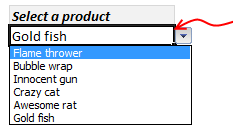
Let us say, you have set up a nice little data validation list to let your users select one of the several products listed. Like shown to the right.
But there is a problem, the list of products doesnt change whenever we add or remove products.
This is where the dynamic data validation thingie comes in to picture. It same as regular data validation, but with the ability to change input list whenever you have new data. See this short demo to understand:

So, how to setup a dynamic data validation list?
if you are running Excel 2007 or above:
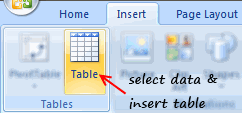
- Select your list of products (or invoices or cats) and make it in to a table. (here is a helpful tutorial on excel tables).
- Now, create a new named range and point it to the table, like this:

- Finally, give the named range as input list in data validation.

- That simple!
if you are running Excel 2003 or earlier:
You are in for a lot of circus now. But be patient and take a sip of coffee. Then,
- Make a dynamic range from your list using OFFSET formula, like this:

- Now, use the range name as input list in data validation.
- Pray to IT infrastructure gods that you should be given Excel 2010, really soon.
Download Example Workbook – Dynamic Data Validation in Excel
Go ahead and download example workbook and understand this concept better. Say goodbye to invalid data!
More resources on data validation & magic:
Some kicks ass stuff to help you do magic in excel thru data validation:
- Excel OFFSET formula tutorial
- Set up data validation in excel
- Advanced data validation tricks
- Excel tables – 10 reasons why you should use them
- …. more data validation tips & tricks
PS: If you like this trick, you are going to enjoy my excel school program. You should sign up, like today.


One Response to “How to compare two Excel sheets using VLOOKUP? [FREE Template]”
Maybe I missed it, but this method doesn't include data from James that isn't contained in Sara's data.
I added a new sheet, and named the ranges for Sara and James.
Maybe something like:
B2: =SORT(UNIQUE(VSTACK(SaraCust, JamesCust)))
C2: =XLOOKUP(B2#,SaraCust,SaraPaid,"Missing")
D2: =XLOOKUP(B2#,JamesCust, JamesPaid,"Missing")
E2: =IF(ISERROR(C2#+D2#),"Missing",IF(C2#=D2#,"Yes","No"))
Then we can still do similar conditional formatting. But this will pull in data missing from Sara's sheet as well.