

Starting this week I will post cool infographics from around the web, 4-5 of them a week to inspire , to give more ideas on presenting information and to provide some eye candy for awesome readers @ Pointy Haired Dilbert.
Go ahead, click through these awesome graphics:
California Walkability Score Heat Map
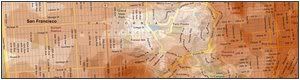
Lee Byron took the Walksocre for california locations and highlighted them on the map to generate this beautiful infographic. [via flowingdata]
Mozilla Firefox vs. Internet Explorer Security Incidents – Cool Square Pie

This chart is nothing but a square pie chart (or totally defragged partition chart), effective, easy on eye and tells one point as Seth Godin suggested 🙂 [via coolinfographics]
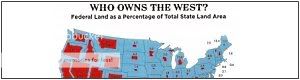
This map shows % of land owned by federal government vs. total land for each state in the US map, pretty cool even though it could be difficult to immediately interpret anything due to varying areas of each state.

This is not entirely a chart, but uses the ideas to tell people how much they will be fined based on their how much their pants sagged. Pretty neat 😀 [via Publication Design]
Visualizing Large Text Data – The trick is in colors
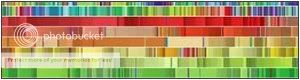
The biggest challenge of the Petabyte Age won’t be storing all that data, it’ll be figuring out how to make sense of it.
well, we are fortunate to have people like Martin Wattenberg who thrive to get the meaning out of all those petabytes. [via FlowingData]
Hope you enjoyed these charts 🙂
Have any neat infographics / charts and want them to featured on this blog? Drop me a comment or email me at chandoo [dot] d [at] gmail [dot] com.


