

First a Quick Announcement
Our VBA Class enrollments will be closed this Friday (Sep 16). If you want to learn VBA & Excel, please consider joining our course. More than 120 students have already joined us in the second batch and are learning VBA as you read this.
Click here to learn more about the VBA Classes and join us.
Moving on…,
As you may know, Chandoo.org offers quite a few Online Excel training programs. Over the last few weeks, many of you have emailed us and asked which training program is best for your situation. This got me thinking. “It should be easy for YOU to know what is best.”
So today morning, I locked my office room, took out my drawing pad and designed the most comprehensive course recommendation engine. It starts with a survey asking you 12 detailed questions. Then we make you go thru an Excel exam with 15 questions to test your proficiency with the tool. Then the engine would do a lot of calculations and finally recommend a list of training programs that suit you.
Then I threw it out.
Because, it was too complex.
Instead, I made a beautiful Excel workbook that asks you only 2 questions and tells you which training programs are best for you.
How our Training Recommender works?
- You tell us about your Excel skill level
- You tell us why you use Excel
- You get a list of recommended courses
- There is no step 4. I just like 4 bullet points for every thing.
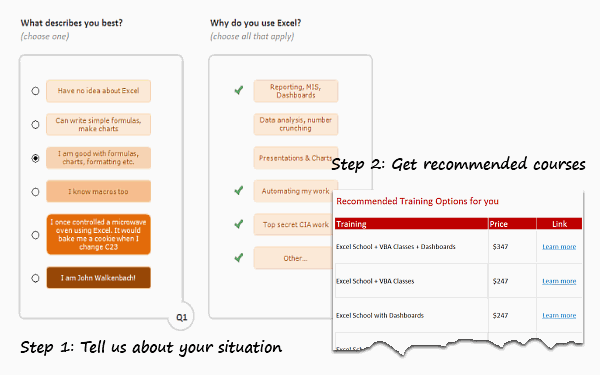
How to get your recommendations?
Simple. Click here to download the tool. Open it using Excel 2007 or above. Just answer the 2 questions to see your recommendations.
How does the Training Recommender Work?
I made a short video explaining how the workbook is constructed. Watch it below or on our Youtube Channel.
Do you like the Training Recommender?
I really enjoyed constructing this. It shows what is possible in Excel.
What about you? Do you like this?
Similar Articles & Ideas
Since I run a small business, I always look for ways to use Excel to enhance areas of my business. Here are some more ideas that you may find helpful.
- Quotation Template made using Excel
- Product Catalog using Excel
- Is Excel School right for me? Assessment Tool
Last but not least…
This is week is the last week to join our ongoing VBA Classes. Next batch will be in 2012.
So go ahead and enroll here.


4 Responses
Can I ever got a check mark to mark the last word I read tonight? Underline specific words. A red marker to high light and stress a word of importance
Hi Chandoo,
Nice concept.
We have a detailed Training Needs Assessment that we use to identify gaps in an individual’s knowledge. We combine the results with details of the individual’s role and industry sector and then build up a bespoke Excel training plan around that.
Happy to share it.
I would love to see your TNA, any chance you could email?
Hi,
Here is a link to our TNA: http://www.bespokeexceltraining.co.uk/TNA.html