

We analysts like to compare. If you ever want to keep an analyst busy, just give her 2-3 options. She won’t return to your desk until the cows come home. My wife uses this trick all the time. Picture this:
[In late 2013]
Me: I want to buy a new phone
She: Do you want Nexus 5 or Galaxy S5 or iPhone 5s?
Its late 2014 and I am not done comparing.
So today, let’s talk about an interesting comparison scenario.
Comparing by letter or word
Imagine you are looking at 2 lists like this and you want to know where items differ. Not which items, but where.
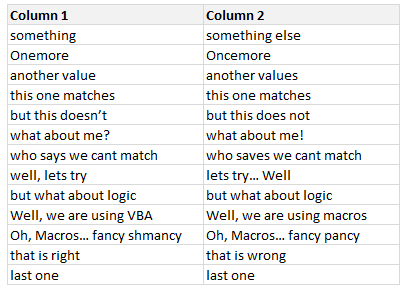
That means, you want to know which letters or words in each line are different.
VBA to the rescue
Unfortunately, none of the standard features of Excel (formulas, conditional formatting, pivot tables etc.) can help us with this situation. But we don’t have to give up. We can use a simple VBA macro to instantly compare 2 lists and highlight mismatched letters or words.
[Related: How to compare 2 lists in Excel, a quick round up of techniques]
A quick demo of our comparison macro:
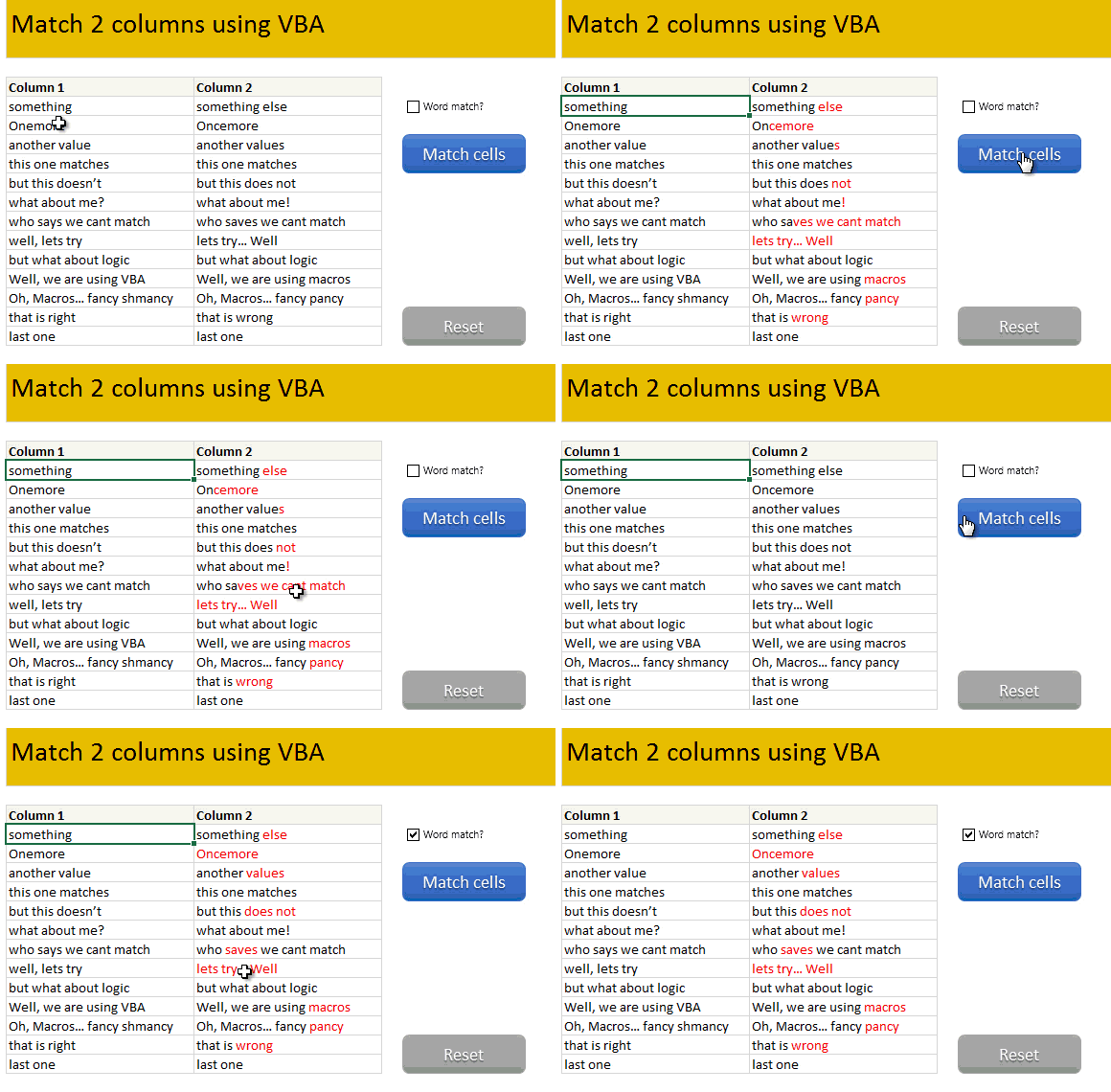
How does this macro work?
When you set out to create macros like this, the first step is to define basic algorithm (logical steps in plain English). To compare 2 sets of data, we need to do below:
- For each item in list 1
- Get corresponding item in list 2
- If they don’t match
- For word match
- For each word in first text
- Get corresponding word in second text
- Compare
- If not matched, highlight in red color
- Repeat for other words
- For letter match
- Find the first mismatched letter
- Highlight all the letters from that point in second text
- Repeat for next item in list 1
- Done
Once you write down this logic, we simply go ahead and implement it in VBA code.
The exact workings of the macro are somewhat complex. So I made a video explaining how the code works & what it can do. Please watch it below.
Video explaining the comparison macro
[see this video on our YouTube Channel]
Download Example Workbook
Click here to download the comparison macro workbook. Examine the code to understand how it is constructed. Feel free to extend it to suit your work needs.
Do you compare lists like this?
Every now and then, I end up having a situation where I need to compare by letter or word. I find VBA macro based solution to be perfect for this.
What about you? Do you compare lists? Where do you struggle with such comparisons? How would you use this macro? Please share your thoughts & tips in comments.
Become incomparable, learn VBA
While VBA is pretty powerful & awesome, not many venture beyond the basic recorded macros. You can transform the work, career & skills by learning VBA. It is not at all difficult and anyone can learn it. Start with below links.
- Introduction to VBA & 5 part crash course
- What is a macro and how to get started with VBA
- 40+ Example VBA macros
- Course: Online VBA Classes from Chandoo


41 Responses to “How to use Excel Data Model & Relationships”
Data is Excel 2013 behaves so much like a OLAP cube when using with PivotTables. And this is actually wow. Consider learning not just DAX but MDX too 🙂 Happy Excel
@Chandoo.. Have a nice and safe time in US. Best Wishes. And when they are publishing your interview in Entrepreneur 🙂
I have been using PowerPivot in Excel 2010. My understanding was (via PowerPivot Pro blog) that Power Pivot would NOT be available in Excel 2013 in all versions; my recollection is that it was only going to be available in certain enterprise subscription editions. Thus, for individual users, it will no longer be available? For that reason I have moved some of my projects to Tableau, and do not expect to upgrade to Excel 2013.
Can you confirm the availability of Power Pivot for all Excel 2013 users , or will it be restricted and unavailable for some users?
@Buzz
I believe that Power Pivot is included with all MS Office installs in 2013.
Have a read of:
http://office.microsoft.com/en-001/excel-help/version-compatibility-between-powerpivot-data-models-in-excel-2010-and-excel-2013-HA103929426.aspx
http://office.microsoft.com/en-001/excel-help/whats-new-in-powerpivot-in-excel-2013-HA102893837.aspx
http://en.wikipedia.org/wiki/Microsoft_Office_2013#Comparison (Note that Excel isn't listed as having Multiple editions)
This is something that Excel is doing very poorly: letting people know what's available with what. It also doesn't help that they have so many packages and versions.
Excel Professional Plus has Power Pivot and Power View. I went through this last week. Spent 4 days upgrading from 365 Home Premium ($99 for the 1-yr subscription) to an additional $7/month for Professional Plus.
Also, one page on Microsoft's site says that their Sharepoint Online Package 2 has Power View. NO! It's not true. Sharepoint Online Package 2 will INTERACT with a spreadsheet that has PP or PV, Package 1 will not.
Just this weekend I upgraded from Home Premium to Professional Plus and spent time with Power View and PowerPivot.
Up to that point I never saw myself in VLOOKUP Hell, and it may not be going away any time soon. I'm surprised to discover how many of my clients are still on Excel 2003. And then I have Mac users who don't have a lot of this great stuff available to them at all.
These are great features and I'm going to dive into the Data Models. Unfortunately, I suspect, for me, the practical use may be limited to blogposts because I can't teach Power View in my workshops or send a client a spreadsheet that has a Power View in it.
Hi OZ,
I think the Microsoft would only upgrade the excel to a certain level instead of making it so powerful that it might threat their BI product. You know these "powerful" stuff can be easily done with a entry level crystal reports version.
Glad to listen to ur opinion on it.
I spent quite some time and energy on Excel and used it a lot, but now I am focusing energy on BI software like crystal reports.
We both know that based on the technology today. All the time we spend on the Macro and advanced function of Excel can be done easily with other softwares which costs only hundreds of bucks.
@Thondom
I don't think Excel tries to be the solver of all problems
It is a generic tool
Which for about 95% of people will do what they want 95% of the time
There will always be specifics where specific custom software will do better than Excel
It is the commonness of Excel which means that I can send a model to you and it will work , most of the time, that is its strength, of course combined with its flexility in being able to be adapted to suit most needs
Hi Hui,
You are right.
But,
for the business and individual, who spend too much resource on Excel to meet their BI requirements and other processing requests.
Should they open their eyes to other ways to do it, in this age? Especially for many people try too much time to process stuff with thousands lines of macro programming.
It is just as when human being created gun fire, the martial arts would not be that effective.
Ppl need to be prodent when they choose their solution.
Hi guys, I just came across your conversation. I have an example of BI vs. Excel stuff. Here in Russia there is an ERP-system called "1C". It became a defacto standart for accounting, planning and BI / analytics. It is positioned as a flexible and powerful system and it really is.
But its reporting abilities aren't user-friendly (or maybe just not me-friendly).
Many reports require programming and all those SQL things, so that is common for a company to have a couple of programmers who develop and code those reports.
So the common solution is to export data to Excel and then process it to be more suitable for further analysis or reporting.
Well, it's obviously not a rule of thumb that special BI software can outperform Excel in day-to-day routine.
Hi Chandoo, thanks for publishing great Excel information. Pardon the ignorance as I havent used Data Model nor PowerPivot. But having seen your video clip on PowerPivot, how does Data Model differ from PowerPivot - the "process" seems familiar? Have a great day! And Excel to new heights! Regards,
@Tris, one main difference is that Data Model is part of Excel Home Premium. You've got to upgrade to ProPlus to get PowerPivot and Power View.
Also, keep in mind that Data model only lets you combine tables. If you want to create powerful measures (for example show % improvement over last year sales), then PowerPivot is the way to go. For a tour of PowerPivot, visit http://chandoo.org/wp/2013/01/21/introduction-to-power-pivot/
Excellent posting, some pride themselves for having sheets with thousands of formulas or complicated formulas, but in the end the important thing is to work as little as possible.
@Nolberto let's not gloat yet. Some people are forced to have thousands of complicated formulas when they don't have the fancy tools. I'm sad for the 2003 users who have to use SUMPRODUCT when the rest of us have SUMIFS available.
In the end, I think the important thing is clean, trustworthy data--however you arrive at it. People survived more than 300 years with slide rules and paper. No PowerPivot for the Wright Brothers.
hi chandoo,
i added 2 column into sales, 1st column vlookup customer ID to CUST sheet to get the male or female, then 2nd column vlookup Product ID to Product sheet to get the product name, then after that i make pivot table out of sales sheet.
but then the result is really different from yours
the purposes is just try to do the vlookup vs add to data model to see if they get same result
thanks
Hi Koi,
We are using gender vs. category in the report. Can you try with that? I am sure the results will match.
ups sorry, didnt see that you're filtering using slicer..then it is good now the result are same with less effort 🙂
thanks
Hi Chandoo, .I am interested to know whether we can build a star schema or snow flake data models through relations in Excel? (trying to correlate with Qlikview)
Hi there,
You can create a Star schema for sure. Snow-flake is possible too. As long as all relationships are one to many (or one to one) anything is possible.
What if customer.profession change its value after sometime?
Supposed we have monthly data for Sales. What if one customer is a doctor in Feb, then a pilot in October, for example?
How to build data model for such that situation?
Thank you.
[...] Introduction to Excel 2013 Data Model & Relationships [...]
Hello ,
I find this option similar to that of MS Access.
In MS Access as well we have relationship concept and once you create a relationship, you can start creating number of queries based on that.
But MS Access is not so user friendly and basically its database. Good that we are getting those options/functions in Excel.
Thanks for sharing this info.
Regards,
Raghavendra Shanbog
What is star schema and snow flake.??? Can we have next article on that if it is useful for us???
Hi there, can anyone help? I tried testing this out in Excel using two tables. When I go to the Data tab the Relationships button does not appear at all. I am using Microsoft version 14.0.4760.1000, Microsoft Office Professional Plus 2010. Does this version have this capability? Or is there an add-in required?
[…] even a layperson can perform if they have the almighty Excel 2010 and PowerPivot installed. Or Excel 2013′s Data Model, which lets you mash up data from Excel Tables and serve them up directly as PivotTables with not a […]
Chandoo/Hui,
The dates grouping feature does not seem to work in Data Model. Is that true or am I making a mistake somewhere?
I don't think this is really for "lookups"...
Try creating a pivot with sale ID and customer name in row fields. It will give you ALL customer names per sale ID.
You'd need to use RELATED function in a new column in powerpivot if you want something equivalent to "vlookup"
Please explain the difference between data model and power pivot, the functions of both of them are different and similar
thanks
[…] Handling large volumes of data in Excel—Since Excel 2013, the “Data Model” feature in Excel has provided support for larger volumes of data than the 1M row limit per worksheet. Data Model also embraces the Tables, Columns, Relationships representation as first-class objects, as well as delivering pre-built commonly used business scenarios like year-over-year growth or working with organizational hierarchies. For several customers, the headroom Data Model is sufficient for dealing with their own large data volumes. In addition to the product documentation, several of our MVPs have provided great content on Power Pivot and the Data Model. Here are a couple of articles from Rob Collie and Chandoo. […]
I need to use a slicer to allow a user to select vendor by name. In the background, I need to obtain the vendor ID to link to multiple datasets where the name may not be spelled consistently. Any advice?
@Bernadette
You can use the technique described here:
http://chandoo.org/wp/2016/05/11/apply-conditional-formatting-using-slicers/
I'd suggest try that and then if you have troubles ask the question in the Chandoo.org Forums http://forum.chandoo.org/
Attach a sample file to simplify the response
I've tried this in Excel 2016. It works great.
I can even create Cube Formulas on the Data model after I've inserted the pivot table.
Just for the fun of it, I tried to see if I could do Cube Formulas without creating the pivot table in advance. I can define Cube members, but it seems as if the measure part is playing tricks on me.
I can't get a Cube Value for Chocolates sold to Male customers.
With the Pivot created the formula looks like this (and works fine)
=CUBEVALUE("ThisWorkbookDataModel";"[Customer].[Gender].&[Male]";"[Product].[Category].&[Chocolates]";"[Measures].[Sum of Quantity]")
Does anyone know how I can solve this, or am I asking the impossible?
I want to see the video on this topic
What if customer.profession change its value after sometime?
Supposed we have monthly data for Sales. What if one customer is a doctor in Feb, then a pilot in October, for example?
How to build data model for such that situation?
Thank you.
In such case, you need to make relationships based on two columns. This kind of feature is not supported in Excel. You can use Power Query to merge tables based on multiple columns and return a consolidated giant table to Excel for reporting.
Is it able in MS Access?
I have never used access before.
thanks chandooo your article is very helpfull for troubling peoples' especially in office environment under boss pressure.
Here is an introduction to PowerPivot.
The link above is broken
Hi. This has really taken my interest.. I have huge data tables to work with...and I use vlookup to fetch certain data. I have different data in different sheets...
Like customer sales (customer code, product code,qty, piece rate, total amount, branch code) data in one sheet
Branch details in another (branch code, branch address, state , region)
Customer Geographical Data in third sheet (region, region name)
Product details in fourth sheet (product code, product description and related)
Now I use a vlookup to get branch name, state and product name respectively into my main sheet.
Now what I want is
customer code, product code,qty, piece rate, total amount, branch code) data in one sheet, branch address, state , region, region name, product description
Can't his be done thru data model... I tried but it's not working... Eitherway, I will gonthru thr session on e again and give a try... Any help, is appreciated. Thankyou
Dear All,
i am striving to do reverse relationship in Power pivot ,
example : -
1 - Data sheet
2. - Source data
step to stops - import first data sheet in power piovt and then source data , made relationship with both sheet , after created relationship i am able to do put related formula in source data sheet only (=releted('Source data'[Amount]), if i go to put formula in data sheet , parameter of Source data are not visible ,
could someone educate me how can i do , and utilize related formula in data sheet.