

Imagine you are a carpenter and you are tasked with laying wooden floor at Gill Bates’ house. Now Gill B has a very big house and he wants to make sure you do a good job. So instead of asking you to lay the floor for entire house, he asks you to finish flooring in the guest bedroom first. Here are the dimensions of that guest bedroom.
- Width: 6ft 3inches
- Length: 24ft 9inches
- Size of individual wooden floor board: 2ft x 4inches
And here is the big question you are facing.
What?!? the guest bedroom width is only 6ft 3inches?
But over the years of chiseling and polishing you have learned to keep quiet and do your work.
So the real question you have is, How many wooden floor boards should you buy?
Of course, you want to find the answer using Excel. Why else would a carpenter read this blog?
Multiplying Feet & Inches using Excel
If the metric system became an universal standard for measuring things, we all can stop worrying and go to that wooden tile store to place order now. Alas, we still have to deal with feet, inches, miles, pounds, ounces and gallons (not to mention irrational numbers like pi, e and eleventeen).
Fortunately, Excel has 2 powerful features to support calculations like this.
Method 1: Using CONVERT()
CONVERT() as the name suggests is an Excel function that can convert values from one base to another, like feet to inches, square meters to square feet, centigrade to fahrenheit, grape juice to wine. Well, not the last one, but it shines in all other scenarios.
So we can use CONVERT() to first convert all the numbers to a common base like meters or inches or feet. Then perform the arithmetic. Once done, convert back to Feet & Inches.
Pretty simple eh?
See this model:
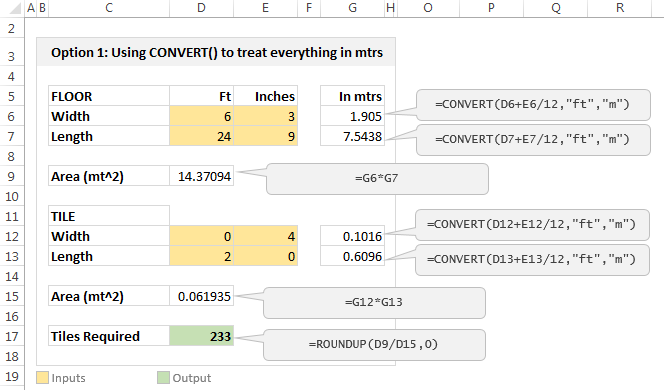
The process is simple:
- First we convert all feet & inch values to meters
- This is done with =CONVERT( feet value + inch value / 12, “ft”, “m”)
- Once we have values in meters, we perform the arithmetic by simple multiplication & division.
Method 2: Using Fraction Cell Format
If you don’t feel so hot for the CONVERT(), then this method works for you. You can use fraction cell formatting to enter fractions like 6 3/12 and 24 9/12 in to cells and let Excel treat them as regular numbers when multiplying, adding or dividing.
See this model:
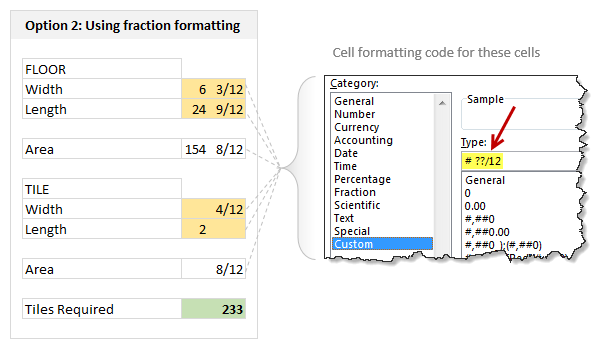
How to set it up?
- Select all the cells where you need values to be shown in feet inches fraction format
- Press CTRL + 1 (or right click and format cells)
- Select Custom and enter the formatting code as
- # ??/12
- This ensures that when you type a fraction like 6 3/12, Excel treats that as number (6.25)
- Rest of the arithmetic is simple.
Related: Custom Cell Formatting in Excel – Tips, more tips, even more tips
Bonus Tricks
Here are few more scenarios where you can use either CONVERT() or fraction formatting.
- If varnishing 1 square feet takes 2 minutes 30 seconds, how much times does it take to finish a 20 ft 6 in x 12 ft 9 in room?
- If average customer call lasts 3 minutes 10 seconds and Cynthia took 400 calls in last week, how many hours did she work?
- If Mr. Gill Bates earns $1000 per every 1 minute 4 seconds, how many days does it take for him to earn $10 million?
- How many teaspoons of honey per gallon?
Download example workbook:
Click here to download example workbook. It shows 3 methods for solving this problem. Examine the formulas and format settings to learn more.
Do you use Excel for these kind of problems?
I am not much of a carpenter. Few years ago, I decided to add a door to my office desk so that my kids (they learned how to crawl around that time) wouldn’t poke the reset button of my CPU. After buying necessary material (a wooden plank, nails, hinges, magnetic door locks) and wasting a day hammering nails in to my fingers, bending one of the hinges, almost breaking the wooden plank in to two, I gave up and closed the shelf-space completely instead (here is a pic of my carpentering disaster). So it suffices to say I do not use Excel for modeling my carpentry jobs.
But I am sure many of our readers are better carpenters, masons, plumbers, knitters or cooks than me. So tell me. Do you use Excel for modeling these kind of problems? What formulas, techniques and tips do you use? Please share using comments.
Now if you excuse me, I have to go look at the leaky faucet my wife is complaining about. I am sure I can ruin it with a pipe wrench.


5 Responses to “Preparing Profit / Loss Pivot Reports [Part 2 of 6]”
[...] Preparing Pivot Table P&L using Data sheet [...]
[...] Preparing Pivot Table P&L using Data sheet [...]
[...] Preparing Pivot Table P&L using Data sheet [...]
I am not getting sound from the videos. I have checked all the settings and spent several hours searching the Internet to no avail.
Has anyone else had this problem?
Is there anyway to get the Grand Total to be broken out in the same fashion as the items above it? For instance, if you have in column 1, widget a, widget b, and have their sales by month in column 2, I'd like to see the grand total also be by month, for widget a & b combined.
I can't get anything other than a single line for the grand total, rather than the same format as the data above.
Widget A Month Sales
Jan 100
Feb 200
Widget B
Jan 150
Feb 250
Grand total - here I would also like to have Jan, Feb.
Jan 250
Feb 450