

 Today I want to introduce a new excel feature to you, called as Picture link.
Well, picture links are not really new, they are called as camera snapshots in earlier versions. They provide a live snapshot of a range of cells to you in an image. So that you can move the image, resize it, position it wherever you want and when the source cells change, the picture gets updated, immediately.
What is the use of Picture Links or Camera Snapshots?
At the outset picture links may seem like a useless feature. But they are pretty powerful. Here are few sample uses for picture links:
- In dashboards & reports: Usually in dashboards, we need to combine charts, tables of data, conditional formatting etc., all in one sheet. When the size of these are not uniform, aligning them on output sheet could be a huge pain. This is when you can use picture links. First create the individual portions of dashboard in separate worksheets. Then, embed picture links to these portions in final dashboard. Re-size them and align as you see fit.
See this in action: Project management dashboard in excel
. - In micro-charts & sparklines: While Excel 2010 has native support for sparklines and other micro-charts, if you want to create a micro-chart in earlier versions of excel you have to use trickery. This is where picture links can help. You can make a regular chart and take a picture link of that. Then resize the picture so that it fits in to a small area.
See this in action: Micro-charts using camera tool.
- In Dynamic Charts: Since picture links are nothing but images with a formula assigned to them, you can easily construct dynamic charts & dynamic dashboards using these.
See this in action: Dynamic chart using camera tool, Dynamic dashboard using camera tool
- In shared workbooks: When you share a workbook with a colleague or boss, a common worry is what if they change formulas or edit something. This is where picture links can be of great use. You can embed a picture link of actual data so that no one can edit it.
How to insert a picture link in Excel – 3 step tutorial:
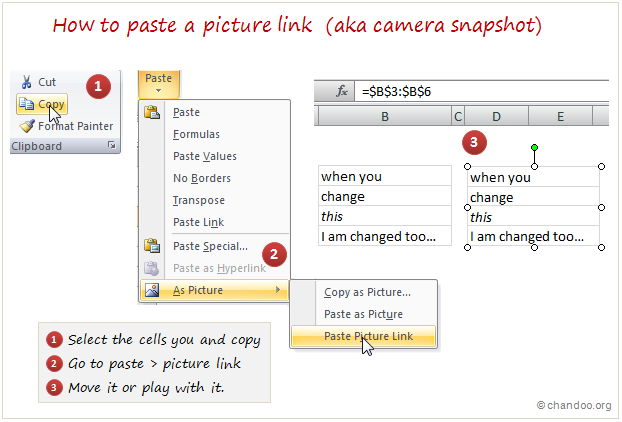
To insert a picture link to your data, just follow these 3 steps:
- Select the cells. Press CTRL+C
- Go to a target cell. From home ribbon select Paste > As picture > Picture link option (see image below)
- That is all. Your picture link is live. Move it or play with it by changing source cells.
Do you use Picture Link / Camera Snapshot ?
I have been a fan of picture links / camera snapshots ever since I learned about them. I have used them in various dashboards, reports, workbooks to wow my clients, bosses and colleagues. However, one problem with picture links / camera snapshots is that, they do not print well. So I avoid using them for workbooks that get printed alot.
What about you? Do you use picture links often? Share your experience, tips and ideas using comments.
Read more quick tips to become awesome in excel, in less than a minute.
PS: Donut to Hui for telling me about Picture links feature.


59 Responses
I love picture links, great for overlaying on graphs, I also find them great for building thermometer graphs by combining shapes, text, conditional formatting, sparklines in creative ways!
Its also a great way to shrink items into a smaller space or even change the aspect ratio of tables!
Nice tip. Thanks, Chandoo. I’m starting to run into some file size issues with my dashboard project (it’s actually a series of dashboards, with one for each department). Do the picture links use more or less data than actual cell contents? It would be nice if you could do this with charts as well.
@Tom
Remember you can save files as an Excel Binary Workbook
They are generally a lot smaller than .xlsx/m files
goto: File, Save As, Excel Binary Workbook
@Hui…
Thanks for the tip. I’ll have to give this a try. What is the tradeoff for saving as an Excel Binary Workbook? What do you lose?
the trade off is that you can’t search for text in the file with windows explorer if it’s an xlsb.
I use these frequently in my workbooks, but I often end up with a flicker effect. Is there a way to eliminate that?
As Rich says, I drop using picture links due to the poor quality of the image, is there any way to choose .bmp to generate them?
Hi cALi, did you get a reply about the poor image quality. I too have this issue but not on all images, only a few in the same workbook.
I’ve never really used picture links, but your suggestion about putting them in a dashboard could be useful. Especially if they aren’t printed regularly.
@Tom
You lose size and load time
my .xlsb file is 70% of original size in my test file and opens in about 70% of time
@Hui…Thanks!
This is an awesome feature. Most of my dashboards are just a series of camera snapshots. I move and re-size them to fit space. It is like having all of the best features of publisher or powerpoint in an excel presentation.
I use pictures a lot in spreadsheets and Powerpoint presentation, but everytime I update or refresh the original date I have to go through the machinations of special copy, pasting and resizing to fit. How can I get the pictures to update automatically once the original data/information has changed? This would help me and my crew of 32 here so much if we could solve this without doing a macro or special gyrations. Help please kind Masters of Excel.
Hi Chandoo,
I have been using this feature till now succesfullly in all my dashboard reports as well as sending snapshots through email (we use Lotus).
Just wanted to share a quick way to take a snapshot as an alternative..Hope you will find it useful-
Excel- 2007
1- Go to customization of Quick access toolbar
2- Go to ‘All Commands’
3- Search and select ‘Camera’
4- Click Add>>
This should add Camera tool to the quick access toolbar. Feel free to use just like any other tool on the quick access toolbar from there on!!
Excel- 2003. This feature is also available in 2003 through quick access toolbar customization.
Do let me know your inputs.
Rohit Jindal (Rj)
Hi Chandoo,
I use this quite regularly, but I can’t seem to figure out how to get my project related snapshot/s to show up when specific project is selected from drop down list. I use the index function for all the other information, but the snapshot/s puzzle me.
Dianne
Hi I am new to the site and doing dashboards. I have 4 sets of tables, formated as tables, with monthly totals for each subsidiary. When I copy and try to paste as a picture link it is greyed out. When I remove the Table format i can create picture links for the tables individually but not as a group.
I am using Excel 07. Any reason why this is happening?
hi Nick
Did you ever get an answer to this? I have the same problem even in Excel 2013.
Hi, thank you for this wonderful site! I am a garden designer and want to have a plant order on one worksheet, and photos in the second with a hyperlink from each plant name on page 1 go to the photo of it on page 2. Any thoughts? Thanks
@Marian
Do you want to just jump to the Photo or Show the Photo on the Order?
Hello Hui, thanks for the quick response, and sorry not to be clearer…I want the hyperlink for, say, day lily (blue writing) on sheet 1 to be clicked and to highlight or select a photo on sheet 2. Eexcel wants a cell address, but the photo “floats,” and I cannot select it. Is this because the photo is an object, maybe? Can I anchor or embed the formatted photo to a cell address, or better, a range? Alternatively, could a hyperlink select just a page tab and I can put one photo per page (less elegant). Thanks, am really excited about the possibilities for Excel.
Thank you so much! (using 2010)
All a feature which I use is the snipping tool rather than the camera tool. Just my two cents 🙂
I have the same problem mentioned by Rich. Is there a way to stop the excel from flickering when using the camera/paste picture link function?
The picture does not appear in the print preview..is there any solution to this??
Dear all,
for a while I have gratefully been making use of the camera tool, within workbooks.
Now i would like to use it to show graphs from a source workbook (containing data) in a ‘display workbook’, without having the source workbook opened.
Every time i open the display workbook, a prompt pops up with the question to update links. Then i got a message that ‘this workbooks contains links that cannot be updated’.
is there any way i can solve this problem, or is it per definition not possible to refer to a closed workbook with the camera tool?
thank you in advance,
Joris
I have read so many posts on the topic of the blogger lovers
but this piece of writing is actually a fastidious post, keep it up.
Hi Chandoo,
I make dashboards for my firm and I took a crash course in dashboard making from your online shop.
Recently I am facing problem in picture link. I am finding that when I am pasting the linked picture to the dashboard, the adjacent cell from the copied range is also getting pasted. This happened only in one of the particular picture. Any idea why this is happening.
Regards,
Adityan KB
This is Awesome! I’ve always thought that the pasted image link would be static. Who knew that it automatically updates when the source changes. I have ideas on applying it to my charts now…
Hi, I have been using this paste as link for quite a while in excel2007. I have recently upgraded to excel 2013. and the paste special doesn’t show up the paste as link feature. can anyone help with a workaround?
@Teja
In Excel 2013
Copy the cell
Move to destination
Right Click
On the menu that pops up there is a Paste Link option at the far right (it has two little chain links)
@Hui..Thank you. The problem was with the file. All the options were disabled some how. Its working now. Thanks the reply though!
Can you display an image in Excel that is linked from a web-page, that updates if the linked image updates?
Hi
Excel 2013. Win7.
Working with formatted tables (Ctrl-T)
Paste picture link does not work when the whole table is copied. It works when just the data rows are copied.
I didn’t see this addressed on this page and I can’t seem to be able to easily Google the answer…
I have multiple dynamic (using OFFSET function) picture links of pivot tables on one worksheet/dashboard. I initially align these pics one right after another from the top to bottom of the page. But as soon as one of my pivot tables expand with more rows, the picture link now starts overlapping the next picture link below it.
Maybe I’m overlooking a simple fix, but can anyone tell me what setting or format I need to change to actually get the other linked pictures to move down automatically and not be overlapped if my picture size changes due to the dynamic nature of it?
I have noticed that any time I use a picture my data validation drop down list stop working. Does anyone have a solution to this?
Hi, i am having the same problem. And the pastepicture link is in grey shade. Is there setting that i might be missing?
I just started using the picture link tool and it appears to have alot of potential. I am running into a problem with the pasted picture. It shos a border on the right and on the bottom. How can I get rid of this? My original does not have any borders.
When I am pasting the linked picture to the dashboard, the adjacent cell from the copied range is also getting pasted. Any idea why this is happening.
Great post!
Hello! Nice post! Please do keep us posted when we can see a follow up!
When I am pasting the linked picture to the dashboard, the adjacent cell from the copied range is also getting pasted. Any idea why this is happening.
Can someone please answer this?
Hi Chandoo
I’m trying to do the chart link but finally its showing reference is not valid. Please advice.
Hello – I am using picture links within an underwriting model. The links provide pertinent info on each input page. The input page has rows 1-13 groups so that the picture link can be collapsed at anytime. I’ve adjusted the picture’s property to “Move and Size with Cells” but when the cells are grouped the picture does not collapse. Any thoughts?
I’m using this feature. My source charts have labels to display the value of a bar chart, however, the linked image is not showing the labels when a new column is added tot he data. Does anyone know how to resolve this?
My picture link option is gone in excel 2013. Just have paste special. How do you add it back. It was there previously.
What if I want the cell on a basic spreadsheet to be able to be clicked on as a link to open a photo? For example…E21 reads blue polo shirt…but when I click on that description I would be able to see the picture of that shirt.
Is that possible?
I used linked picture to create an interactive CV… just for fun 🙂
https://wmfexcel.com/2018/01/27/the-making-of-an-interactive-cv-in-excel/
@MF… Very cool 🙂
Is paste picture link the same as camera snapshot? or are they 2 different?
There is a separate camera option in excel; see QAT.
Hi,
I have a picture (e.g. icon for pdf download) in excel sheet and also have variable cell (say “A1”)wherein the website address is available. The address changes based on various input conditions in same excel. When I click to picture it should use the hyperlink to download the pdf document from online.
Need some formula or VBA code guide.
Hello I am Adnan. I am stuck in this terrible problem. i got a project and get a lot of images. my excel sheet is ready. have to connect the images with the excel sheet in such a way that when i click on a picture it should open the excel sheet. can somebody help please!!!! i will be very thankfull
@Adnan
Please post the question in the Forums
https://chandoo.org/forum/
and attach a sample file so we can check the solution
How do I use this feature for 20,000 images. I have to tie up my sku code with the sku images.