

Welcome back. Did you have a good weekend?
We ate fish, watched a movie, had hilarious moments watching the kids and didn’t even leave the house for anything other than to buy some fish.
Coming back to Excel, I want to share a simple productivity tip with all of you. I accidentally learned this and now I use it often to speed up when I am working on large excel files.
Jump to Any Cell / Worksheet using Name Box
If you want to quickly jump to a named range or another worksheet, here is a quick trick. Just enter that name or address in the name box (top-left corner, next to formula bar). And bingo, you are on the target cell or sheet.
See this short demo to understand this trick:
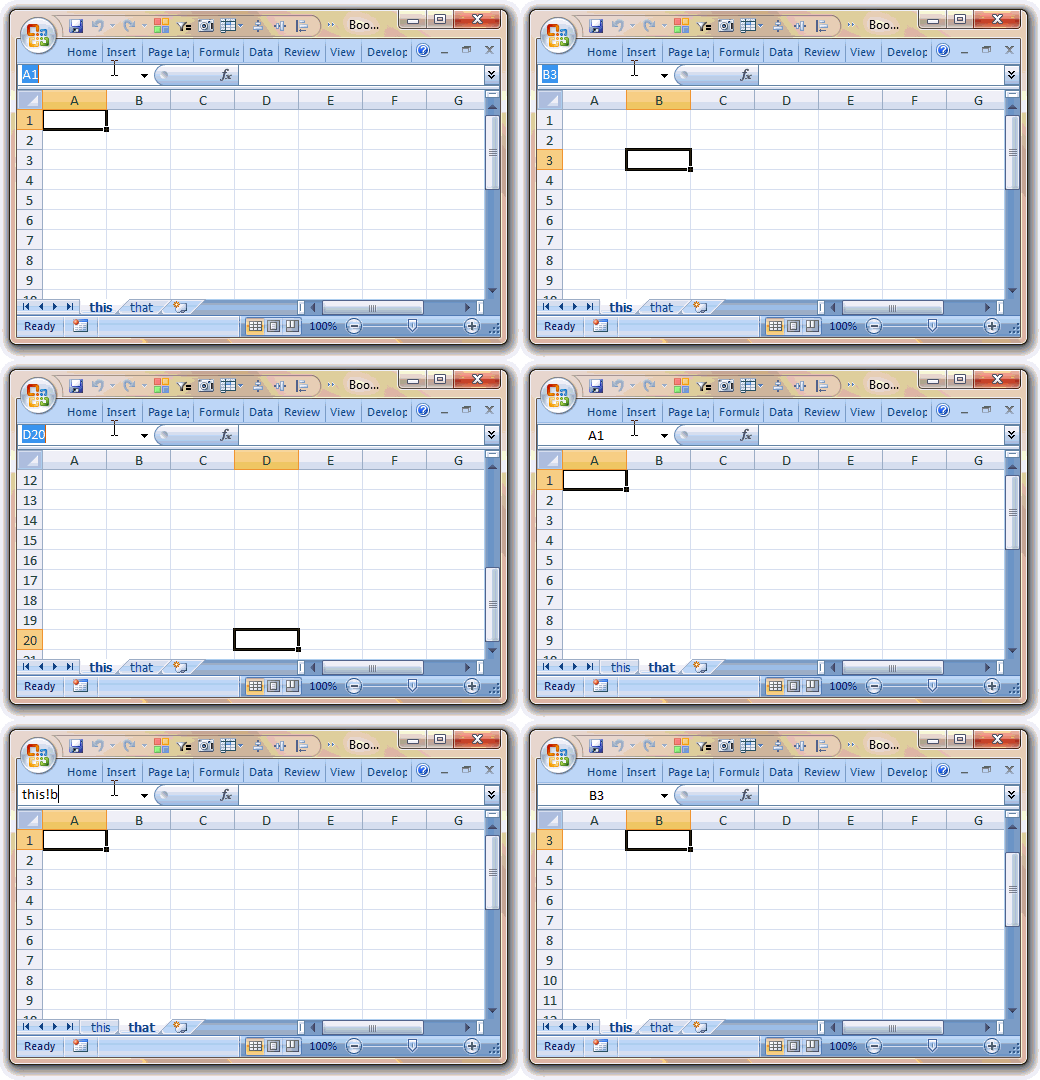
Bonus tip: You can quickly access defined names using the little down arrow symbol.
Now, this would be even more useful, had I knew the keyboard shortcut for accessing namebox. Alas, I end up moving my mouse pointer to the name box instead.
If you know the keyboard shortcut to access the namebox, share it using comments. Also, share with us, how you simplify navigation in excel using various shortcuts and tricks.
Stuff that can make you productive: Quick, bite sized excel tips, excel keyboard shortcuts, using mouse in excel


5 Responses to “Preparing Profit / Loss Pivot Reports [Part 2 of 6]”
[...] Preparing Pivot Table P&L using Data sheet [...]
[...] Preparing Pivot Table P&L using Data sheet [...]
[...] Preparing Pivot Table P&L using Data sheet [...]
I am not getting sound from the videos. I have checked all the settings and spent several hours searching the Internet to no avail.
Has anyone else had this problem?
Is there anyway to get the Grand Total to be broken out in the same fashion as the items above it? For instance, if you have in column 1, widget a, widget b, and have their sales by month in column 2, I'd like to see the grand total also be by month, for widget a & b combined.
I can't get anything other than a single line for the grand total, rather than the same format as the data above.
Widget A Month Sales
Jan 100
Feb 200
Widget B
Jan 150
Feb 250
Grand total - here I would also like to have Jan, Feb.
Jan 250
Feb 450