

Attention brides-to-be, grooms-to-be and everyone believing in “one ring to rule”…,
I am very happy to announce the launch of Excel Wedding Planner Template. The premium version is now available for your consideration. Here is a short sales pitch along with links to purchase it.
[Click here to get a copy or read full sales page]
What is Excel Wedding Planner?
Excel Wedding Planner does exactly what it says on the box. It is one hell of a planner for your wedding. You can set up guest lists, budgets, add vendor details, track payments, events, tasks, arrange table seating and so much more, all with in the familiar Excel interface.
The file, is beautifully designed with simple navigation and works like a charm, all without a single macro or add-in.
Who should buy this?
If you are someone about to be married or responsible for an upcoming wedding, I think this planner is perfect for you. The planner takes care of practically every aspect of wedding, leaving you with precious time to go out and have fun.
How does it look?
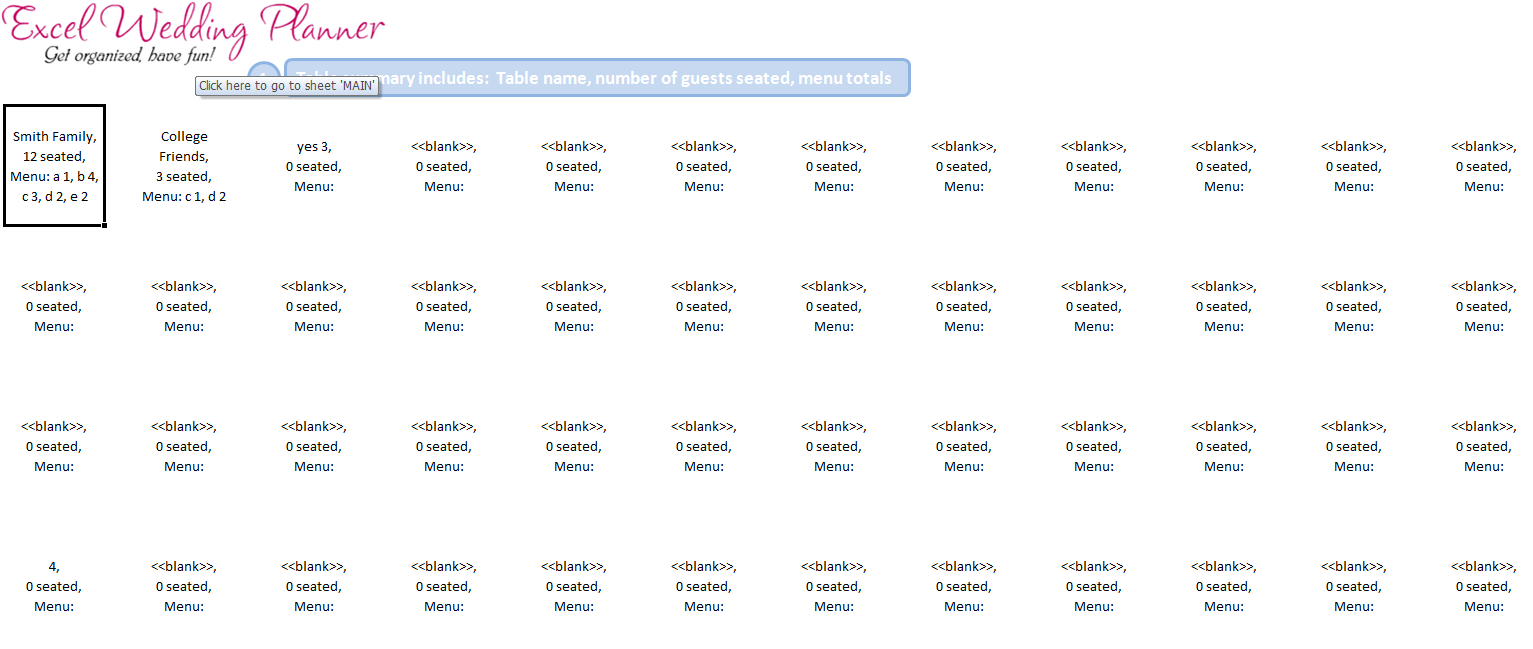
I have taken a bunch of screenshots and posted them at the wedding planner page. Below you can find 3 thumb-nails (click on them to enlarge):


Get Excel Wedding Planner Today
Excel wedding planner is going on sale today. We have priced it at $29.
Click here to pick up your copy or read more about excel wedding planner.
Pro version is no longer offered. Please get free version
Usual Stuff
- You can download the file as soon as you purchase.
- Needless to say, Excel Wedding Planner comes with our standard awesomeness guarantee. If you dont like it for any reason, return it in first 30 days and get full refund. No questions.
- The file is locked with blank password. If you feel like looking under the hood, you are welcome (just don’t touch cell CAT23, it almost bit my mouse!)
- You will get free upgrades, for life time!
- There is a short video (7 min) on the sales page, explaining what the planner is and how it works (also, you can hear Nakshatra laughing in the background)
- Oh yeah, there is a free version too. Check out wedding planner page for details.
Who is behind this?


Wedding Planner is the product of Kevin & Chandoo. We are 2 folks who knew how much tough it is to get married these days. We have ninja level excel skills.
About Kevin:
I am not kidding about this: “Kevin has worked on thousands of spreadsheets.” Kevin, shown at left, likes building Excel models / templates that can be used to increase productivity. Other than Excel, Kevin enjoys spending time with family or playing board games.
About Chandoo:
I am not kidding about this either: “After my wife said ‘I do’, I just said F4!”. I like to write, teach and learn about Excel, visualization and design. In free time, I play with my twin kids, run or enjoy a book.
PS: Of course, I am joking about cell CAT23


16 Responses
—–
We both are married (not to each other 😉 )
—–
Bad form.
@Dan.. do you mean grammatically? well, I removed it anyway, I am not sure if that joke was worth it.
Ehhhh—-It’s a ‘touchy’ issues here in the States.
I read it and I may have interpreted it in a fashion in which you did not mean it. I apologize.
@Dan… I agree. I dont mean it in that way either. I was just playing with words.. that is all.
Hi Guys! I lovee this wedding spreadsheet. I am giving a hand to my cousins to organise their wedding and would like to use your spreadsheet. As in the other comments, since there isnt a version available for purchase, could I beg for the password for the free version???? 🙂
Thanks for letting me know!
Great work!
Cheers,
Keke
Hi,
Sorry for boring but had you had chance to get the password ?
Can please reply with this,
Regards,
Hallo Kevin & Chandoo,
Nice excel sheet. I like to make some tamplates like you are doing. Very Cool.
I wonder which tool you are using to make the tamplates.
Can you email me how to get/buy these tools.? Documentations?
Thanks very much.
Chandoo,
‘F4’ big belly lol!
Thank you for brightening my day.
Very nice template chandoo. Loving your blog.
@Wt.. Thank you so much. We dont use any tools to crate the templates. We use excel’s native functionality to get what we do.
@Sarah: 🙂
@Learn Excel: Thank you…
F4, LOL
Hi guys, I love your spreadsheet. Thank you for building it! Since there isn’t a version available for purchase, would you be willing to give us the password for the free version? Thanks!
BTW, love the F4 comment!
I really love your spreadsheet. Since there cannot find the premium version, so I could not plan anything with free one. Could you provide me a solution to use this tool with full specs.
Thanks.
We really like the free version of Wedding Planner and would like to upgrade to the full version. Can you direct us on where or how this would be possible.
Thanks
I love the free version, but you are not selling the full version anymore. Is there any way to get the full version?
Hi Folks,
Is there any chance to get the password ?
Regards,