

We all know that legend can be added to a chart to provide useful information, color codes etc.
Today we will learn how to make the chart legends smarter so that they provide more meaning and context to the chart, like this:

To make your chart legends legendary, just follow these simple steps:
Step 1: Make a regular chart
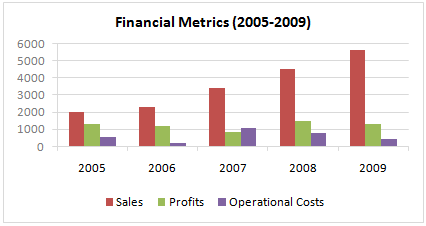
Step 2: Create legend messages in separate cells
Now, for the above chart, there are 3 series. So, we need 3 legend messages. Let us say we want to show how much the % change has been since 2005 in each of the three series. The message pattern can be like this:
[arrow symbol] [label] by [% change]
We can find up and down arrow symbols from Insert > Symbol menu.
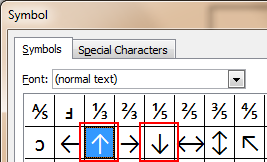
Let us write a simple formula like this to create the message.
(assuming data is in table B1:D5)
=IF(B5>B1,"up arrow symbol","down arrow symbol")&" Sales by "&TEXT(B5/B1-1,"0%")
Now repeat similar formulas for other 2 series as well.
Step 3: Add three text boxes to the chart area.
This is simple. Select the chart. Now go to Insert > Textbox (ALT+NX in Excel 2007+). Type anything in it.
Now, color the text boxes in such a way that the background colors match chart series fill colors.
Step 4: Assign legend message cells to text boxes
Select first text box. Go to formula bar, press = and then select the first legend message cell. See this screencast to understand.
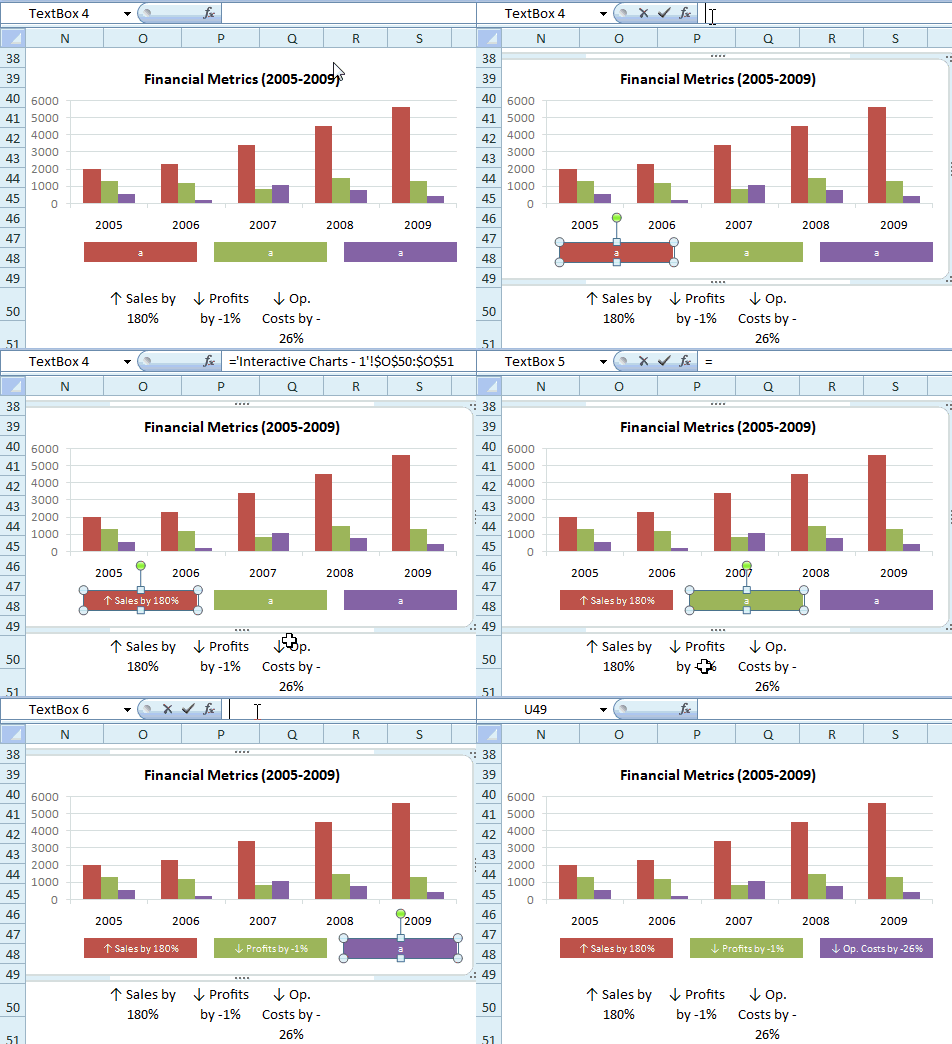
Repeat the same step for other 2 text boxes
Step 5: Show off your chart
That is all. Now your chart legends are legendary. Go ahead and show off.
Download the example chart and play with it
Click here to download the excel file containing this example. Play with it to understand this trick.
Related Charting Tricks & Ideas:
> Show colors in Chart Labels, Axis Labels
> Show symbols in Chart Labels, Axis
> 5 Chart Formatting Tricks
> More charting tutorials and tips


