

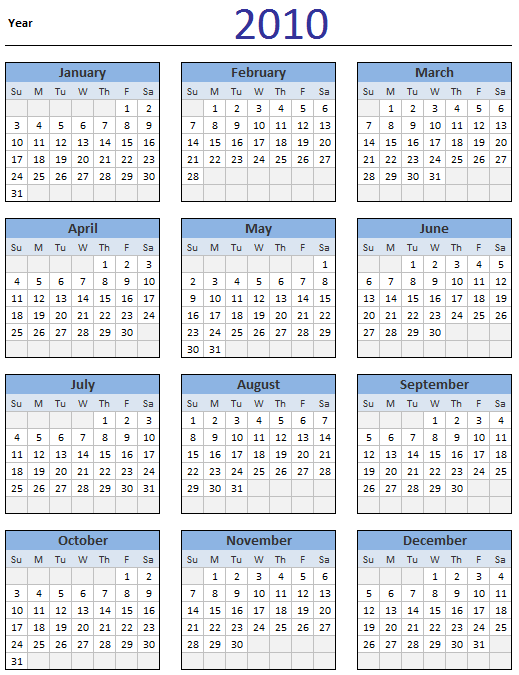
Here is a 2010 new year gift to all our readers – a free 2010 calendar template.
(a little secret: just change the year in “outline” sheet from 2010 to 2011, to get the next years calendar. It works all the way up to year 9999)
You can add notes to individual dates or complete month using the excel template very easily. There are 14 sheets,
- The first one called as “outline” calendar (also shown below) shows the calendar for entire year.
- The next 12 sheets show the monthly calendars from January thru December. Each month’s calendar also includes a snapshot (uses camera tool) of the previous and next month’s calendar. You can also add up to 6 notes per each date in the calendar. This is a good way to mark holidays, vacations and other important dates in the calendar.
- The last sheet shows a mini calendar – a compact yearly calendar for the year 2010 (or any other year specified in the Outline sheet). This is a good way to print a small calendar for your pocket or desk.
Download the 2010 Calendar
Download the Printable 2010 Calendar – in PDF format
Download the 2010 Calendar Spreadsheet – Excel 2007+ | Excel 2003
How the calendar works?
Just in case you are curious to know how the formula magic works.. read on.
- To generate a calendar, we need to know the year. Lets say the year is in cell A1.
- Now, for each of the 12 months – Jan thru Dec, we need to know what is the “first weekday” and “how many days” are there in that month.
- This is very simple to find, we can use formulas like
=WEEKDAY(DATE(A1,1,1))and=DATE(A1,2,1)-DATE(A1,1,1) - Now, make a grid of 6 rows by 7 columns – something like this –
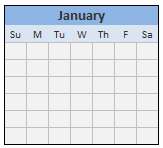
- Show blanks until we reach the first date’s weekday.
- Start showing numbers in increasing order.
- Once you reach the number of days in that month, show blanks again.
- Repeat this process for all the 12 months. Neatly arrange the grids so they look like a calendar.
- That is all!
Go ahead and download the free calendar template. The file is unlocked. So poke around the formulas and see how it works.


12 Responses to “29 Excel Formula Tips for all Occasions [and proof that PHD readers truly rock]”
Some great contributions here.
Gotta love the Friday 13th formula 😀
Great tips from you all! Thanks a lot for sharing! bsamson, particularly you helped me on a terribly annoying task. 🙂
(BTW, Chandoo, it's not exactly "Find if a range is normally distributed" what my suggestion does. It checks if two proportions are statistically different. I probably gave you a bad explanation on twitter, but it'd be probably better if you fix it here... 🙂 )
Great compilation Chandoo
For the "Clean your text before you lookup"
=VLOOKUP(CLEAN(TRIM(E20)),F5:G18,2,0)
I would like to share a method to convert a number-stored-as-text before you lookup:
=VLOOKUP(E20+0,F5:G18,2,0)
@Peder, yeah, I loved that formula
@Aires: Sorry, I misunderstood your formula. Corrected the heading now.
@John.. that is a cool tip.
Hey Chandoo,
That p-value formula is really great for a statistics person like me.
What a p-value essentially is, is the probability that the results obtained from a statistical test aren't valid. So for example, if my p value is .05, there's a 5% probability that my results are wrong.
You can play with this if you install the Data Analysis Toolpak (which will perform some statistical tests for you AND provide the P Value.)
Let's say for example I've got two weeks of data (separated into columns) with the number of hours worked per day. I want to find out if the total number of hours I worked in week two were really all the different than week one.
Week1 Week2
10 11
12 9
9 10
7 8
5 8
Go to Data > Data Analysis > T-Test Assuming Unequal Variances > OK
In the Variable 1 Box, select the range of data for week 1.
In the Variable 2 Box, select the range of data for week 2.
Check "Labels"
In the Alpha box, select a value (in percentage terms) for how tolerant you are of error.
.05 is the general standard; that is to say I am willing to accept a 95% level of confidence that my result is accuarate.
Select a range output.
Excel calculates a number of results: Average (mean) for each week's data, etc.
You'll notice however that there are two P Values; one-tail and two-tail. (one tail tests are for > or .05), the number of hours I worked in week two is statistically equivalent to the number of hours I worked in week one.
So here’s a way you might want to use this. You put up a new entry on your blog. You think it’s the best entry ever! So you pull your webstats for this week and compare it to last week. You gather data for each week on the length of time a visitor spends on your website. The question you’re trying to prove statistically is whether there’s an average increase in the amount of time spent on your website this week as compared to last week (as a result of your fancy new blog post). You can run the same statistical test I illustrated above to find out. Incidentally, it matters very little to the stat test whether the quantity of visitors differs or not.
Anyhow, the Data Analysis toolpack doesn't perform a lot of stat tests that folks like me would like to have access to. In those cases I have to either use different software, or write some very complicated mathematical formulas. Having this p-value formula makes my life a LOT easier!
Thanks!
Eric~
Fantastic stuf..One line explanation is cool.
Thanks to all the contributors
OS
Take FirstName, MI, LastName in access (you can fix it to work in excel) capitalize first letter of each and lowercase the rest and add ". " if MI exists then same for last name:
Full Name: Format(Left([FirstName],1),">") & Format(Right([FirstName]),Len([FirstName])-1),"") & ". ","") & Format(Left([LastName],1),">") & Format(Right([LastName],Len([LastName])-1),"<")
I teach excel, access, etc etc for a living and i have my access students build this formula one step at a time from the inside out to show how formulas can be made even if it looks complicated. Yes I know I could just do IsNull([MI]) and reverse the order in the Iif() function but the point here is to nest as many functions as possible one by one (also I illustrate how it will fail without the Not() as it is)
Extract the month from a date
The easiest formula for this is =MONTH(a1)
It will return a 1 for January, 2 for February etc.
if in a column we write the value of total person for eg. 10 if we spent 1.33 paise each person then how we get total amount in next column and the result will in round form plzzzzz solve my problem sir................... thank u
@Anjali
If the value 10 is in B2 and 1.33 paise is in C2 the formula in D2 could be =B2*C2
If the values are a column of values you can copy the formula down by copy/paste or drag the small black handle at the bottom right corner of cell D2
kindly share with me new forumulas.
How to convert a figure like 870.70 into 870 but 871.70 into 880 using excel formula ? Please help.