

Most of us use chart formatting options to change the way grid-lines, data series, labels, axis, titles, plot areas look. Chart formatting is one of the areas where people spend most time.
Today I want to teach you a quick productivity hack to speed up chart formatting.
In excel 2007 and above, when you click on a chart item (for eg. grid lines) and open the format dialog, you need not close the dialog to format another item like axis. You can just click on the axis and the formatting dialog changes automatically.
See the below illustration.
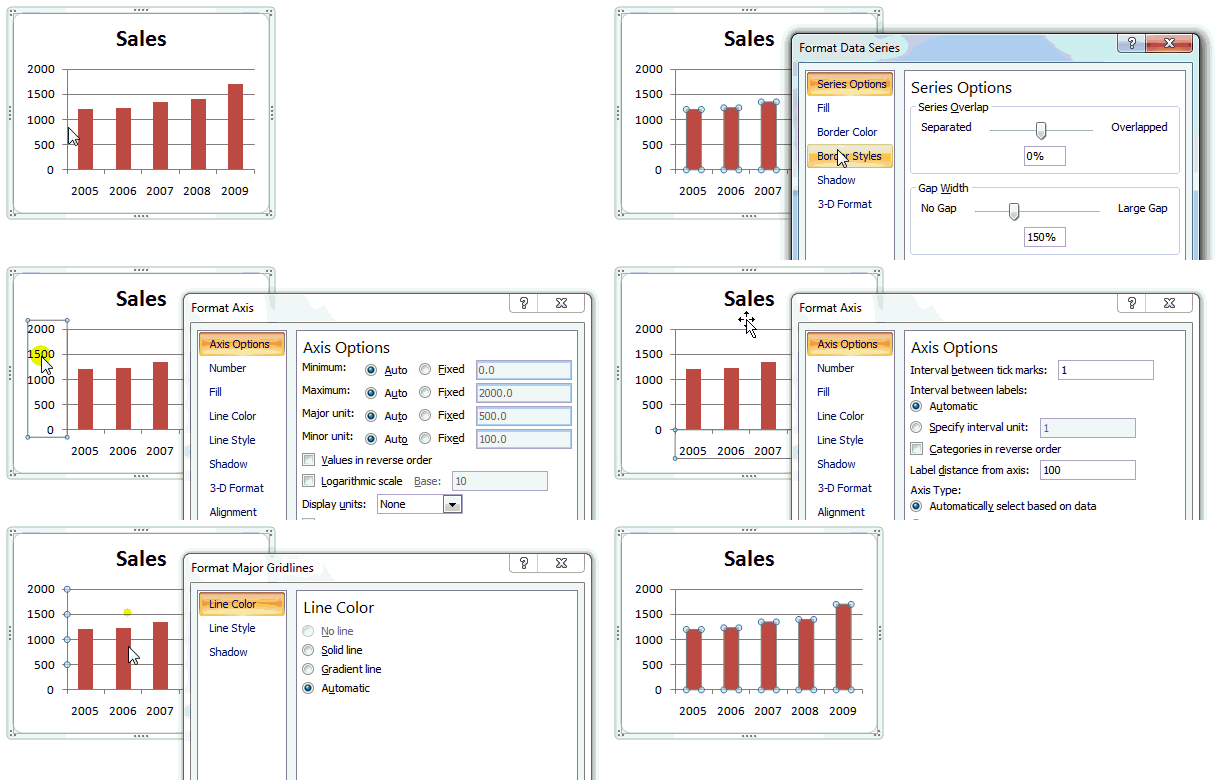
I have launched the formatting dialog from “data series”, but see how I can instantly switch to formatting grid-lines, axes, titles.
Bonus tip: You can launch the chart formatting dialog by pressing CTRL+1.


7 Responses
Nice trick Chandoo..Thanks for sharing it..
Too bad this trick doesn’t make up for the loss of F4 (Repeat Last Action).
Jon,
Why on Earth did MS eliminate F4?! It kills me.
It also stays open when you switch between separate charts. Still looking forward to the double click coming back in 2010..
I use 2007, and I find it closes when you switch between charts. But if I click into a spare cell, and *then* on to another chart, it stays open.
I spend so much time changing formatting on graphs, I could really use some VBA advice on making it all quicker
Charts are wonderfully rich objects; they are caable of amazing tricks, and of course that makes them complex.
Understanding someone else’s carefully develope chart is a nightmare; even returning to one of our own can be a challenge; I am developing VBA tools to help. I have dabbled with ones to set consistent options and I’ve one that attempts to report everything about alll the charts on a document; a picture, the source data, the seies foumulas, etc. It’s not perfect or complete yet but it does
* help document what I’ve done for other to follow
* help me recover when I mess up with an edit (cahrats are so fragile…)
I could hsare some of this is it’s of interest.
sorry about the typos in the above; te text in the edit box is very small and I’ve not got my glasses. Is there an option to edit one’s mistakes?