

We all know that legend can be added to a chart to provide useful information, color codes etc.
Today we will learn how to make the chart legends smarter so that they provide more meaning and context to the chart, like this:

To make your chart legends legendary, just follow these simple steps:
Step 1: Make a regular chart
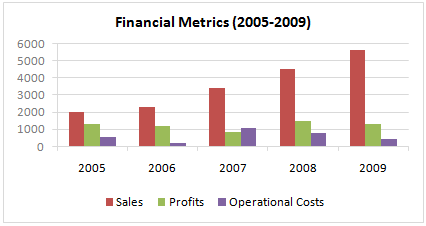
Step 2: Create legend messages in separate cells
Now, for the above chart, there are 3 series. So, we need 3 legend messages. Let us say we want to show how much the % change has been since 2005 in each of the three series. The message pattern can be like this:
[arrow symbol] [label] by [% change]
We can find up and down arrow symbols from Insert > Symbol menu.
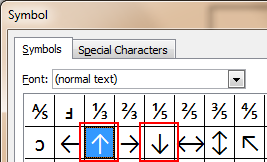
Let us write a simple formula like this to create the message.
(assuming data is in table B1:D5)
=IF(B5>B1,"up arrow symbol","down arrow symbol")&" Sales by "&TEXT(B5/B1-1,"0%")
Now repeat similar formulas for other 2 series as well.
Step 3: Add three text boxes to the chart area.
This is simple. Select the chart. Now go to Insert > Textbox (ALT+NX in Excel 2007+). Type anything in it.
Now, color the text boxes in such a way that the background colors match chart series fill colors.
Step 4: Assign legend message cells to text boxes
Select first text box. Go to formula bar, press = and then select the first legend message cell. See this screencast to understand.
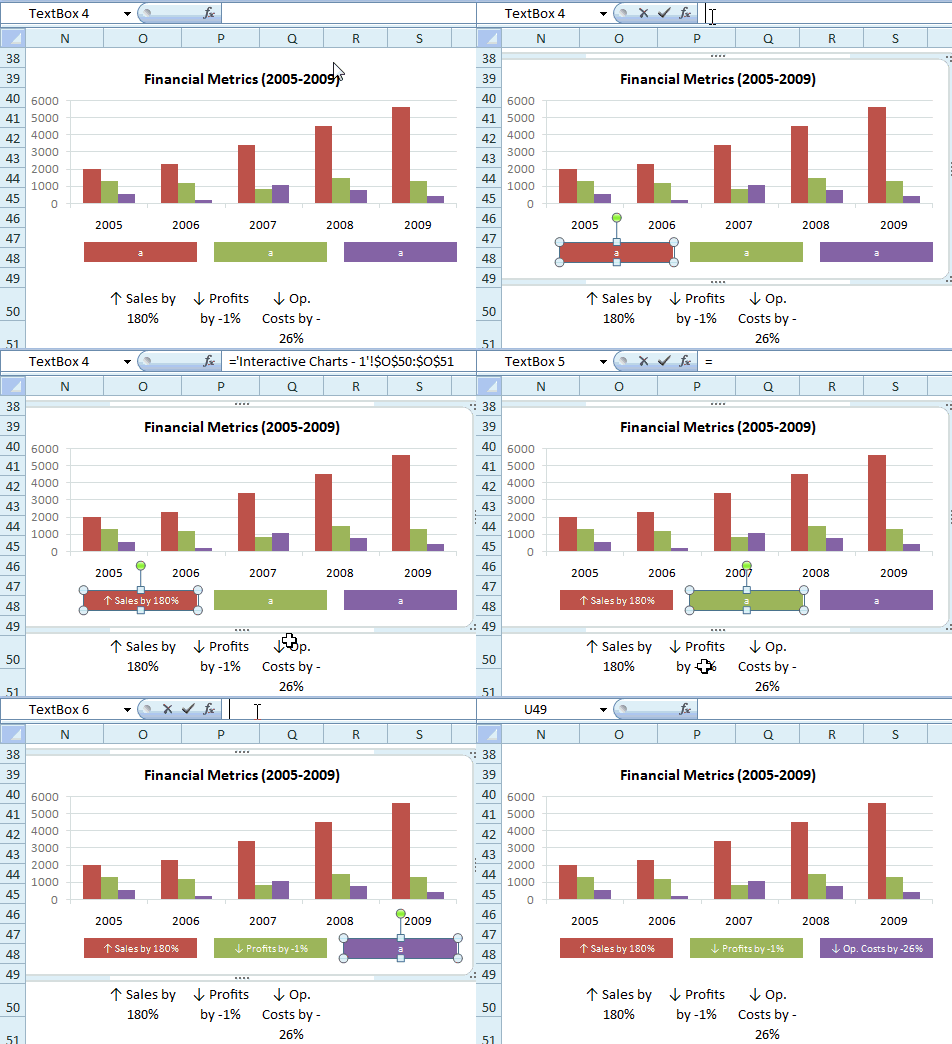
Repeat the same step for other 2 text boxes
Step 5: Show off your chart
That is all. Now your chart legends are legendary. Go ahead and show off.
Download the example chart and play with it
Click here to download the excel file containing this example. Play with it to understand this trick.
Related Charting Tricks & Ideas:
> Show colors in Chart Labels, Axis Labels
> Show symbols in Chart Labels, Axis
> 5 Chart Formatting Tricks
> More charting tutorials and tips


15 Responses to “Christmas Gift List – Set your budget and track gifts using Excel”
[...] Christmas Gift List – Set your budget and track gifts using Excel … [...]
I'm confused: if you spend $10, and your budget is $40, shouldn't the amount in the "Within Budget?" column stay black, since you didn't go over budget?
In other words, since we overspent on the electronic photo frame, shouldn't the $8 cell turn red?
@JP.. maybe Steven is encouraging consumerism... ?
I havent realized it earlier, but now I see it. If you unprotect the sheet, you can change the formula in Column I to =IF(G13=0;" ";F13-G13) from =IF(G13=0;" ";G13-F13), that should correct the behavior.
Thanks Chandoo. I thought of making a shopping list spreadsheet for Christmas, but this is neat so I think I'll use this instead.
Chandoo & Steven thanks for this spreadsheet. But for the sake of a person who has been staring at this megaformula in vain for the last 40 mins and not afraid to ask, would it be possible for you to walk us through the logic used here?
=SUM(SUMPRODUCT(SUBTOTAL(3,OFFSET($K$13:$K$62,ROW($K$13:$K$62)-MIN(ROW($K$13:$K$62)),0,1)),--($K$13:$K$62="-"))+SUMPRODUCT(SUBTOTAL(3,OFFSET($K$13:$K$62,ROW($K$13:$K$62)-MIN(ROW($K$13:$K$62)),0,1)),--($K$13:$K$62="0")))&" / "&SUBTOTAL(2,$G$13:$G$62)
Thanks Chandoo.. This is one of the best budget spreadsheets I've ever seen.. The Arrays are out of this world!! And it's FREE!!
Chandoo, can you tell us more about Steven? Does he have his own site?
JP, I think Chandoo changed it when he changed the currency formatting from £ to $, a negative figure is a good thing in this case. But don't change the formulas, the overbudget and under budget won't work properly if you do. Also Chandoo I think you've accidentally broke the conditional formatting for the alternating row colouring the formula is different to the version I sent you. As for the megaformula chrisham, it gave me a headache trying to get it all working, so I will let Chandoo talk you through it.
Hi,
In cells I6 and I7, I understand that subtotal together with offset function returns an array of ones after which, the sumproduct function gives the desired result.
But I’m not able to figure out the reason for using an array in I8 to return the most expensive gift.
Can’t the formula be just
“=VLOOKUP(SUBTOTAL(4,$G$13:$G$62),$G$13:$J$62,4,0)”
Savithri, Cell I8 needs the array, if the formula was “=VLOOKUP(SUBTOTAL(4,$G$13:$G$62),$G$13:$J$62,4,0)” it would find the highest price from the filtered range (i.e. highest actual in filtered range is $50) BUT then return the first person with that actual, not looking in just the filtered range (so first person on the list with a $50 actual.)
To see what I mean, change the formula, then change all the actuals to $50 then filter for baby, it lists the first name on the list.
But a good question 🙂
Thank you. I now realise that the array is used to get the ‘filtered range’ instead of the entire range, as table array for look up value.
[...] Download This Template [...]
this looks like an awesome excel sheet!! is there anyway i can get it emailed to me unprotected? for some reason, i am unable to download it 🙁 help!!
Hi I also can not download to a mac as the sheet is protected any help would be great
[...] to send her a pricey present. Rather, send a card with a picture of your child. Here’s a cool Excel sheet that will help you estimate your budget per person and let you track [...]
[...] husband and I pour/poor over the Christmas spreadsheet (yes, I do know how dorky that sounds, but we’re not the only ones!), figuring out who should give what to whom. We live at a distance from most of our family, so it [...]