Today, we will learn an interesting array formula trick to test if a list is sorted or not.
During last one week, I got 2 requests from different clients for some excel related work. Both of them had one thing in common. To test whether a list is sorted or not. So I got thinking, how do I know if a list is sorted or not without visually scanning it.
Of course, the answer is in a formula.
Let us say you have a list of values (text, numbers or mixed) like this:
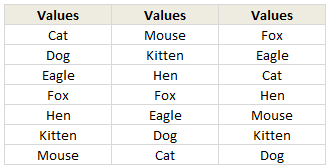
Assuming your values are in the range B2:B8
Write the formula =AND(B2:B7<=B3:B8) and press CTRL+Shift+Enter to make it an array formula.
The result will be true if the list in B2:B8 is sorted in ascending order, false otherwise.
How does this formula work?
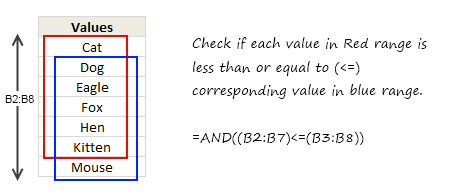
Very simple. Assuming your list has n values, it check first n-1 values with their next values to see if each value is less than or equal to its next value. If all of them are true, the AND formula returns TRUE. See this illustration:
Download Example Workbook
I have made a simple example file to illustrate this technique. Go ahead and play with it.
Click here to download example workbook – Excel Array Formula to check if a list is sorted or not.
How would you write formula for this?
As fun homework, go ahead and figure out an alternative formula for this. Then come back and post it comments. Let us see how many different ways we can get the same result.
Go!


12 Responses to “Analyzing Search Keywords using Excel : Array Formulas in Real Life”
Very interesting Chandoo, as always. Personally I find endless uses for formulae such as {=sum(if(B$2:B$5=$A2,$C$2$C$5))}, just the flexibility in absolute and relative relative referencing and multiple conditions gives it the edge over dsum and others methods.
I've added to my blog a piece on SQL in VBA that I think might be of interest to you http://aviatormonkey.wordpress.com/2009/02/10/lesson-one-sql-in-vba/ . It's a bit techie, but I think you might like it.
Keep up the good work, aviatormonkey
Hi Chandoo,
You might find this coded solution I posted on a forum interesting.
http://www.excelforum.com/excel-programming/680810-create-tag-cloud-in-vba-possible.html
[...] under certain circumstances. One of the tips involved arranging search keywords in excel using Array Forumlas. Basically, if you need to know how frequent a word or group of keywords appear, you can use this [...]
@Aviatormonkey: Thanks for sharing the url. I found it a bit technical.. but very interesting.
@Andy: Looks like Jarad, the person who emailed me this problem has posted the same in excelforum too. Very good solution btw...
Realy great article
"You can take this basic model and extend it to include parameters like number of searches each key phrase has, how long the users stay on the site etc. to enhance the way tag cloud is generated and colored."
How would you go about doing this? I think it would need some VB
Hi,
I found the usage very interesting, but is giving me hard time because the LENs formula that use ranges are not considering the full range, in other words, the LEN formula is only bringing results from the respective "line" cell.
Using the example, when I place the formula to calculate the frequency for "windows" brings me only 1 result, not 11 as displayed in the example. It seems that the LEN formula using ranges is considering the respective line within the range, not the full range.
Any hint?
@Thiago
You have to enter the formula as an Array Formula
Enter the Formula and press Ctrl+Shift+Enter
Not just Enter
Thank you, Hui! I couldn't work out how this didn't work
is there a limit to the number of lines it can analyse.
Ie i am trying to get this to work on a list of sentances 1500 long.
@Gary
In Excel 2010/2013 Excel is only limited by available memory,
So just give it a go
As always try on a copy of the file first if you have any doubts
Apologies if I am missing something, but coudn't getting frequency be easier with Countif formula. Something like this - COUNTIF(Range with text,"*"&_cell with keyword_&"*")
Apologies if I missed, but what is the Array Formula to:
1. Analyze a list of URL's or a list of word phrases to understand frequency;
2. List in a nearby column from most used words to least used words;
3. Next to the list of words the count of occurrences.