

Excel 2013, the newest version of Excel as of writing this has many great features like data modeling, improved pivot tables, power view, flash fill etc. But one thing that I find very annoying is the Open & Save experience. Any time we open a file or save a workbook (which happens a lot everyday), we must navigate the painful backstage screen to select our favorite folders. You see, Excel 2013 supports cloud saving. So that means, by default it will show your Office 365 or OneDrive or SkyDrive or whatever fancy new name Microsoft has for these things. But I am not so much in to clouding. Heck, I see a passing cloud in the sky and I almost run into my house. So what to do?
Simple. We can turn off these features.
We can save & open files faster by using below trick (I am cursing myself for not learning this earlier).
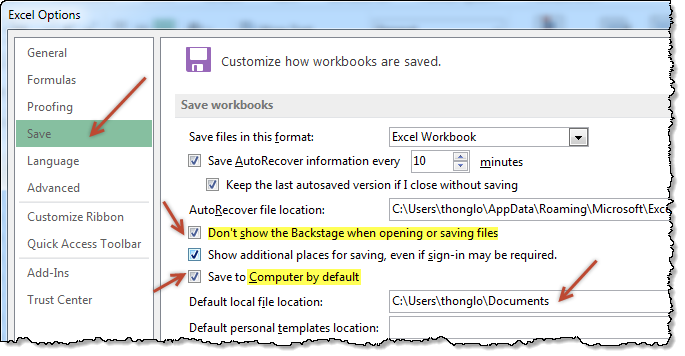
- Go to Excel options (this will be visible only once you open any file, even a new one) from File menu.
- Click on Save
- Enable “Dont show backstage when opening or saving files”
- Enable “Save to computer by default”
- Optional: Add a default save location for your workbooks
- You are done.
Now that I have turned on these features, I no longer pay the extra click tax to Microsoft whenever I save my files.
What about you?
More on working with Excel faster
- Customize Excel to maximize your productivity
- Learn a few shortcuts, you will become superhero at work


One Response to “How to compare two Excel sheets using VLOOKUP? [FREE Template]”
Maybe I missed it, but this method doesn't include data from James that isn't contained in Sara's data.
I added a new sheet, and named the ranges for Sara and James.
Maybe something like:
B2: =SORT(UNIQUE(VSTACK(SaraCust, JamesCust)))
C2: =XLOOKUP(B2#,SaraCust,SaraPaid,"Missing")
D2: =XLOOKUP(B2#,JamesCust, JamesPaid,"Missing")
E2: =IF(ISERROR(C2#+D2#),"Missing",IF(C2#=D2#,"Yes","No"))
Then we can still do similar conditional formatting. But this will pull in data missing from Sara's sheet as well.