

Imagine you are a carpenter and you are tasked with laying wooden floor at Gill Bates’ house. Now Gill B has a very big house and he wants to make sure you do a good job. So instead of asking you to lay the floor for entire house, he asks you to finish flooring in the guest bedroom first. Here are the dimensions of that guest bedroom.
- Width: 6ft 3inches
- Length: 24ft 9inches
- Size of individual wooden floor board: 2ft x 4inches
And here is the big question you are facing.
What?!? the guest bedroom width is only 6ft 3inches?
But over the years of chiseling and polishing you have learned to keep quiet and do your work.
So the real question you have is, How many wooden floor boards should you buy?
Of course, you want to find the answer using Excel. Why else would a carpenter read this blog?
Multiplying Feet & Inches using Excel
If the metric system became an universal standard for measuring things, we all can stop worrying and go to that wooden tile store to place order now. Alas, we still have to deal with feet, inches, miles, pounds, ounces and gallons (not to mention irrational numbers like pi, e and eleventeen).
Fortunately, Excel has 2 powerful features to support calculations like this.
Method 1: Using CONVERT()
CONVERT() as the name suggests is an Excel function that can convert values from one base to another, like feet to inches, square meters to square feet, centigrade to fahrenheit, grape juice to wine. Well, not the last one, but it shines in all other scenarios.
So we can use CONVERT() to first convert all the numbers to a common base like meters or inches or feet. Then perform the arithmetic. Once done, convert back to Feet & Inches.
Pretty simple eh?
See this model:
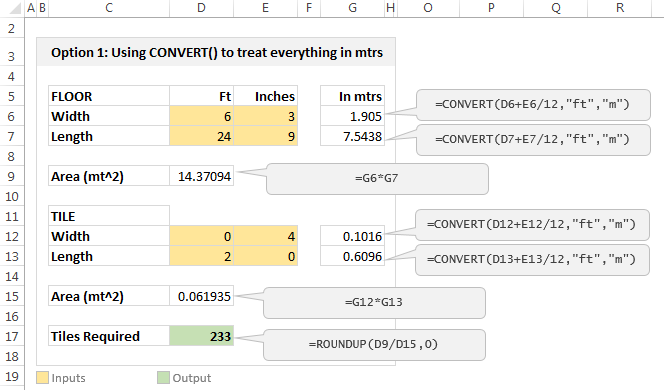
The process is simple:
- First we convert all feet & inch values to meters
- This is done with =CONVERT( feet value + inch value / 12, “ft”, “m”)
- Once we have values in meters, we perform the arithmetic by simple multiplication & division.
Method 2: Using Fraction Cell Format
If you don’t feel so hot for the CONVERT(), then this method works for you. You can use fraction cell formatting to enter fractions like 6 3/12 and 24 9/12 in to cells and let Excel treat them as regular numbers when multiplying, adding or dividing.
See this model:
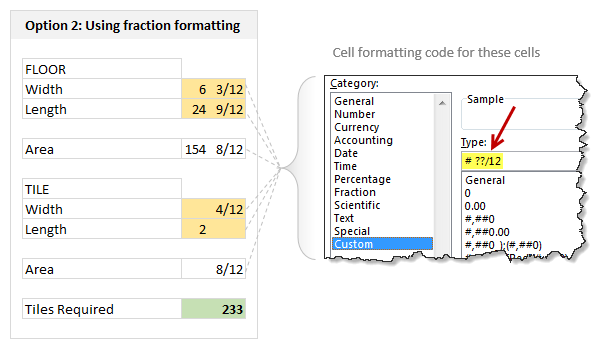
How to set it up?
- Select all the cells where you need values to be shown in feet inches fraction format
- Press CTRL + 1 (or right click and format cells)
- Select Custom and enter the formatting code as
- # ??/12
- This ensures that when you type a fraction like 6 3/12, Excel treats that as number (6.25)
- Rest of the arithmetic is simple.
Related: Custom Cell Formatting in Excel – Tips, more tips, even more tips
Bonus Tricks
Here are few more scenarios where you can use either CONVERT() or fraction formatting.
- If varnishing 1 square feet takes 2 minutes 30 seconds, how much times does it take to finish a 20 ft 6 in x 12 ft 9 in room?
- If average customer call lasts 3 minutes 10 seconds and Cynthia took 400 calls in last week, how many hours did she work?
- If Mr. Gill Bates earns $1000 per every 1 minute 4 seconds, how many days does it take for him to earn $10 million?
- How many teaspoons of honey per gallon?
Download example workbook:
Click here to download example workbook. It shows 3 methods for solving this problem. Examine the formulas and format settings to learn more.
Do you use Excel for these kind of problems?
I am not much of a carpenter. Few years ago, I decided to add a door to my office desk so that my kids (they learned how to crawl around that time) wouldn’t poke the reset button of my CPU. After buying necessary material (a wooden plank, nails, hinges, magnetic door locks) and wasting a day hammering nails in to my fingers, bending one of the hinges, almost breaking the wooden plank in to two, I gave up and closed the shelf-space completely instead (here is a pic of my carpentering disaster). So it suffices to say I do not use Excel for modeling my carpentry jobs.
But I am sure many of our readers are better carpenters, masons, plumbers, knitters or cooks than me. So tell me. Do you use Excel for modeling these kind of problems? What formulas, techniques and tips do you use? Please share using comments.
Now if you excuse me, I have to go look at the leaky faucet my wife is complaining about. I am sure I can ruin it with a pipe wrench.


41 Responses
I created an Excel app to help remodeling my home. Enter room measures and the app draws a floor plan. Enter counter dimensions and counter shapes are added. Click on a room’s floor and the app displays measures in feet, inches and fractions (using the fraction format discussed) of an inch. It also displays square feet. Click on a counter top and instantly know how much granite is needed. This is great when talking with contractors as well as determining “how many wooden floor boards I should buy.”
If anyone wants a copy of the app, just ask here and I’ll provide a link. Requires XL 2010 or later.
Hi Craig, we are busy doing our kitchen and an app like the one you mentioned would be great. Much appreciated.
Regards
Colin
Hi Colin, See reply to Rudra. Good luck 🙂
Oh, I almost forgot. I’m using Google Sketchup for the 3D viewing. It’s free. Takes about 4 hours of work to really learn it using Google’s excellent video training along with practice. If you don’t have 3D software, I highly recommend it.
I have both the XL App and Sketchup running in different monitors. When I need to add a room to Sketchup, I click the room in the XL app, get the dimensions, and create the 3D shape. The two working together worked well for me.
Hi Craig, thank you for the links / files and recommendation for Google Sketchup which I did not know about and will give a go. Much appreciated. Colin
Dear Craig,
Your link is broken, please send me your kitchen app to my mail id jandu86@gmail.com
Thankyou
Dear Craig,
please send me your kitchen app to my mail id jandu86@gmail.com
Thankyou
@Cherry
I have spoken to Craig and he has re-established a link
Here is the link: https://www.dropbox.com/s/vvrkgsl0mboqxam/Kitchen.zip?dl=0
Please send me your app.
@Alexandra
I have spoken to Craig and he has re-established a link
Here is the link: https://www.dropbox.com/s/vvrkgsl0mboqxam/Kitchen.zip?dl=0
Hi Craig,
pl send link.
Thanks
@Arun
I have spoken to Craig and he has re-established a link
Here is the link: https://www.dropbox.com/s/vvrkgsl0mboqxam/Kitchen.zip?dl=0
Hi Craig Hatmaker,
Would you mind to upload your ‘Tool’?
With Regards
Rudra
Hi Craig,
Do you still have that excel app? I have been looking for something that does just that. I’ve tried all these different excel formulas and can’t get them to work. Thank you
Hi Rudra,
Here is the link to my app. Please note, this is something I did for myself. It has not been battle tested and it is still being revised. It uses VBA so macros must be enabled. All VBA code is open for view and revision.
https://dl.dropboxusercontent.com/u/13737137/Kitchen/Kitchen.xls
An optional component is a graphic that should be loaded in the same directory as Excel workbook.
https://dl.dropboxusercontent.com/u/13737137/Kitchen/Skin.jpg
And yes – the sample data is my current home remodeling project. So the included data is real world stuff 🙂
I know it has been a long time but do you still have his App? The link is broken?
The tiles calculation does not work this way if cut tiles cannot be used elsewhere or even if you can, the remaining piece should be more than 50% of the tile size (W or L as appropriate). So you essentially have to divide room width by width/ length of tile depending on layout and length by the other dimension. And then multiply. We have some layouts where we need to tile the rooms in staggered layout and then the number of tiles per odd and even rows could be different.
@Hemant… Of course, no one wants a room full of broken tiles. In such cases, you can use below calculation.
=roundup(room.length/tile.length, 0) * roundup(room.width/tile.width, 0)
You can flip the tile dimensions to see if that is going to save you a few tiles.
Thanks for another nice article. Although the CONVERT function is really cool, I think not many people use it very often. It really depends on job nature, I believe. ;p
Look forward to seeing more out-of-the-box usages of CONVERT.
CONVERT is a nice function but the example of flooring is not a good one – because, as has been mentioned there is more to coming up with the right answer than just comparing the areas. A better example, without this issue, would be painting the four walls, of varying dimensions, with space subtracted for windows and doorways and knowing the yield for a given measure of paint.
@ Craig Hatmaker,
Hi Craig,
Thanks for the macro, unfortunately it is showing error as
“Compile Error:
The code in this project must be updated for use on 64-bit systems.
Please review and update Declar statements and then mark them with the PtrSafe attribute.”
I am using 64 bit OS and my macros are enabled(security @ the lowest level).
With Regards
Rudra
@Rudra
You need to add the PtrSafe into the Function lines
eg:
Old: Public Declare Function …..
New: Public Declare Ptrsafe Function …..
You have to do that with All Functions in All modules I think there is 9 from memory
Hi Rudra,
This is an opportunity to help each other. I’ve added the PtrSafe to the API declarations. I don’t have a copy of 64 bit office so I can’t test it. Please test it and let me know the results.
I’ve also made some improvements to the app. So if anyone downloaded it yesterday, download it again for the newer version.
@Craig
The revised model works fine in Excel 64 bit versions of Excel 2010 and 2013 both under Win 7
Hui…
Thanks 🙂
What about using the fraction format to enter the numbers and then you don’t have to convert them, e.g. 6 3/12 and 24 9/12… but I guess the solution is in sq feet which you then don’t want as you’d probably be quoted a price in sq yards… so you would then have to convert your solution by convert(convert(value,”ft”,”yd”),”ft”,”yd”) as its area and the convert function only works with distance (1D) or volume (3D)…
“I’d have got away with it if it wasn’t for those pesky kids”
Hi Scooby,
You can use CONVERT to convert Sq Ft to Sq Yards like this:
=convert(value, “ft2”, “yd2”)
We could have the option to publish your tips in LinkedIn, Twitter and Facebook at least…
Hi Chandoo,
Love the excel worksheet for number of tiles required.
I’m not sure I understand the purpose of converting from feet+inches to feet to meters. If you changed your “In mtrs” cells to “in feet” and just had the formula + /12, would not the rest of the sheet work the exact same way?
Uh whoops, that formula should be {feet} + {inches}/12
Hi chandoo ,I have drafted a sample of a spreadsheet (next to semifinal)which i would like to use for my calcutions .which would make solutions a bit easier when (point of sale is down and power) ,I would like to ask if you could help me out a bit ,can i email you my spreadsheet and maybe we can work things out together,
Any help is very much appreciated
Kind Regards
I use the method 2. its really convenient and the data can be represented in feet and inches and calculations done in sq ft without much convertions and other confusions
Thanks for the posts. Not sure if there have been other, “simpler” methods shared, but I find this quite effective for my general contracting.
I agree with the easiest formatting to be “# ??/12” for all cells, whether the input is feet, inches or both
First column Input “Feet”; Sum at top or bottom
Second Column Input “Inches”; ditto – sum at top or bottom
Third Column; Convert Inches in Second Column, you may choose to only convert the sum of inches, but I run it down the entire column, i.e. to will convert “10” to “10/12”.
Forth Column Sum First and Third Columns
Could not paste a pic to show example, if you like and want example, email me and I’ll send it that way. Best of luck.
This is a great help. Thanks Chandoo! This is so easy and it was so entertaining to read. You are a great comedian. I wish I had a funny teacher like you to make Excel loads of fun. you have a subscriber.
My people used to enter decimal values instead of in feet g inches.
Like 8 feet 6 inches they enter 8.6. now i want that when they enter 8.6 or 8 6, cell convert it to 8′ 6″.
Can you suggest me that how can i do this?
Hi Chandoo and friends
Question
Really need to find way
is there any way to formulate PMS that I use in my project , wbs – msp
Thank you
how can calculate in excel format this
1 pipe 19.5 feet price 20478 Rs , Amount foe 3.4 Feet pipe price
pls thnx