

Few days ago, I have asked you, Do you want to learn Excel VBA online? and many of you said YES.
So we are starting the program, on next Monday – 9th of May.
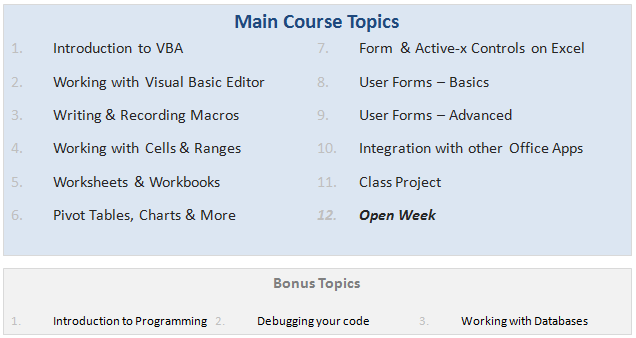
VBA Classes is a 12 week online training program that will explain various Excel VBA concepts to you in an easy to understand format. Just like Excel School, we will keep this fun, exciting, interactive and useful. We will learn from each other as much as we learn from this course.
When I announced about this program, a lot of you asked me questions like what topics you will cover, when does it start, how long, how much, how does it work etc. etc. I have answers for all these, but putting them in a post will make insanely large. So I made a small video (18 minutes) explaining how the whole program works. Please watch the video to learn about our VBA Classes.
If you are in a hurry, here is the gist of it.
- The course will cover all topics relevant for a VBA beginner or intermediate user.
- You can take the lessons anytime you want (no live classes, everything is online).
- It is for 12 weeks + 3 bonus weeks (The bonus weeks are run in parallel, so the course duration remains 12 weeks)
- We will have a class project at week 11. We will build something fun, useful & complicated using Excel & VBA.
- Enrollment starts on 9th of May (Monday) and closes on 20th May (Friday).
- Classes begin on 23rd of May and continue till 3rd week of September.
- You can access all the lessons, download material, ask questions etc. until November 30th, 2011.
- The program will be conducted by Vijay, Hui and Myself.
- The program comes in 3 flavors:
- Online Option – $67: View all lessons online, download Excel workbooks.
- Download Option – $97: View lessons online, download HD quality lesson videos & Excel workbooks etc.
- Excel School + VBA Classes Option – $167: View & Download all lessons from Excel School & VBA Classes
If you like this concept, please do these 2 things:
1. Download Course Brochure
We have put together a course brochure to help you understand various aspects of this program. Go ahead and download it [PDF].
Also, Visit the VBA Classes page for details on the course. This is where you can enroll for the program on 9th.
2. Tell us your Name & E-mail ID to get updates about the course
Please take a few seconds and tell me your name & email ID so that we can update you about the course during next few weeks. Also, we will be sharing handy tips, ideas & links on VBA with you.
If you do not see the form below, please click here.
Any questions or suggestions?
I am all ears. Please drop your questions or suggestions using comments. If you have any specific questions or doubts, drop me an email at chandoo.d @ gmail.com or call me at +1 206 792 9480 or +91 814 262 1090. I would be glad to help you out.
Thank you.
PS: We are still cool if you do not want to join this.


10 Responses to “Online VBA Classes by Chandoo.org – Details & Dates”
Chandoo,
This is awesome. I felt a great need to have a structured course on VBA (especially in a video mode). You did it. I know the content will be just awesome like the rest of your work.
I wish you the best with new course.
Regards,
Ravi.
2nd to post. First to sign up. Please let me know where and how to sign up, payment, etc? Thanks! 😉
Course content seems to be very basic. I would prefer Daniel Ferry as my VBA tutor @ Excel Hero Academy. It is one brilliant VBA course with great learning!!!
Good luck!
Cheers - DV
@Ravi.. thank you 🙂
@Fred. You can visit this page - http://chandoo.org/wp/vba-classes/ and join the program from 9th of May. All the details will be available by then.
Hi Chandoo,
How much for indian students, any is there any discount for your old students lik fin modelling students/ excel school students...
@DV... Our objective is to teach VBA to beginners and intermediate level users so that they can automate large parts of their work using macros. We avoided topics like class modules, add-in development and windows API etc. because we did not want to deal with those for the time being.
I agree that EHA is a fine course.
@Maha... the pricing will be similar to Excel School INR pricing. Here are the tentative details:
Online Option: 2200 INR
Download Option: 3500 INR
Excel School + VBA Classes: 6000 INR
Excel School + Dashboards + VBA Classes: 10000 INR
I will be putting these details on the VBA Classes page by this weekend.
Hi, Chandoo,
I'm excited that the vba school is open. Glad to see that the basics are all covered and that the pricing is just.
Btw, the fee is $67 for online option as i see in other pages. In the comments, you give it as 2200 INR. If I have an Indian credit card, what should i do?
Looking forward to meeting you in the school.
Murugaraj
Hi Chandoo,
Thank you so much for offering vba school. I'm looking forward to it. I signed up last week (pay through paypal) but I still haven't received any login information or additional details - what should I do? Thank you so much!
Hi Annie,
please check your email-id you specified at the time of purchase.
You can also send us the same email id to chandoo.d@gmail.com or purna.duggirala.va@gmail.com, so that we can retrive your details and can send you again.
Thank you
Hi Sir,
I want to join in VBA a classes.
but the classes were started in the month of May
May I know when is the next sessin starts?
Please let me know the date so that i can join