Displaying & Selecting a Scenario using VBA [Modeling in Excel]

Share

Facebook
Twitter
LinkedIn

If you are building financial models or any other type of excel based decision models, chances are, there will be multiple scenarios in your model. Whenever you have multiple scenarios, you may want an easy, intuitive way to select one of them. In this post, I will present an interesting scenario display & selection technique that I received by email from our reader Itay Maor.

First see the scenario selection in action:

Excel Scenarios - Select and Display one Scenario using VBA - Demo

Download the sample workbook with scenario selection macro

Click here to download the workbook (.xlsm file) that Itay emailed me.

How does this work?

In order to understand how this works, first you must know the limitations of this file. It  can only support up to 5 scenarios.

The workbook has a bunch of macros – ChangeScenario, AddTab, RemoveTab, RenameTab etc.
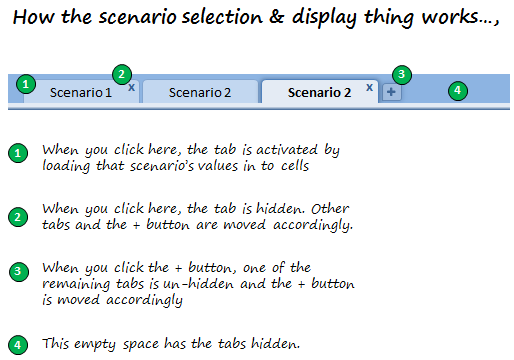
Excel Scenario Selection - How the macro works

Here is how the magic behind this macro is cast:

  1. When you click any tab, that particular scenario’s input values are loaded by running ChangeScenario macro
  2. When you click the ‘x’ button, that particular scenario’s tab is hidden and other tabs are moved accordingly by running the macro RemoveTab.
  3. When you click the ‘+’ button, a new scenario tab is displayed by un-hiding one of the remaining tabs. This uses the macro AddTab.
  4. When you close the workbook, the tab order, scenario values are all preserved automatically.

The workbook uses very simple but clever macros to hide / un-hide tabs and display and select scenarios. I encourage you to dissect the macros and play with the file to understand it better. Go here to download the file.

Financial Modeling using Excel - Online Classes by Chandoo.org & Pristine

Thank you Itay,

Thank you so much for sharing your work with us Itay. I have learned some valuable macro tricks exploring your code. I am sure our readers will be able to learn something from it. Thank you.

How do you handle multiple scenarios?

I never used a technique like Itay’s. Usually I prefer a scenario selection sheet with data validation and conditional formatting (more on this later in a post). I would like to know how you handle multiple scenarios. Please share using comments.

Share your workbooks, example files with us

I am always looking for new and interesting ways to solve problems using Excel. If you have something fun, exciting or useful to share, please email me your workbook / tip / article to at chandoo.d @ gmail.com. I would love to learn from you and share your ideas with others here.

Facebook
Twitter
LinkedIn

Share this tip with your colleagues

Excel and Power BI tips - Chandoo.org Newsletter

Get FREE Excel + Power BI Tips

Simple, fun and useful emails, once per week.

Learn & be awesome.

Welcome to Chandoo.org

Thank you so much for visiting. My aim is to make you awesome in Excel & Power BI. I do this by sharing videos, tips, examples and downloads on this website. There are more than 1,000 pages with all things Excel, Power BI, Dashboards & VBA here. Go ahead and spend few minutes to be AWESOME.

Read my storyFREE Excel tips book

Overall I learned a lot and I thought you did a great job of explaining how to do things. This will definitely elevate my reporting in the future.
Rebekah S
Reporting Analyst
Excel formula list - 100+ examples and howto guide for you

From simple to complex, there is a formula for every occasion. Check out the list now.

Calendars, invoices, trackers and much more. All free, fun and fantastic.

Advanced Pivot Table tricks

Power Query, Data model, DAX, Filters, Slicers, Conditional formats and beautiful charts. It's all here.

Still on fence about Power BI? In this getting started guide, learn what is Power BI, how to get it and how to create your first report from scratch.

49 Responses to “Introduction to Slicers – What are they, how to use them, tips, advanced techniques & interactive reports using Excel Slicers”

  1. Great article!
    If you want to learn a bit more about using slicers in VBA, head over here:
    http://jkp-ads.com/articles/slicers03.asp

  2. XLarium says:

    Hi

    I downloaded cube-formula-slicer-selection.xlsx.
    Why is 'Report Connections' grayed out?

  3. Carlos Gonzalez says:

    Great article!! Thank you very much... This post is one of the most helpful for my job!

  4. TKSSKT says:

    Great Introduction. Thanks very much.

  5. Mando says:

    Wow! trying to use this on the reports that I have now. I really liked that Quantity and Amount Bar graph used on the pivot-multi tab, but for the life of me, I can't seem to replicate it from scratch. Help please?

  6. Abhilash VK says:

    This is awesome! I will favorite this page in my blog, http://www.exceltoxl.com

  7. MrXInDowntown says:

    Since I've known slicers about 2-3 yrs ago, I've pretty much used them in every damn report I do. Everyone that sees it for the first time is like "This is the best thing ever. Did you do that using excel or something else?" 😀 My bosses are so used it that when they see a report from someone else that doesn't have slicers they send it to me to redo it :).

  8. MrXInDowntown says:

    Couple of tips:-
    Tip 1:
    If for lack of space or say you want ability to search within a filter due to numerous values being present but still want it to connect to multiple pivot tables or charts then
    1. Setup a pivot table with just the report filter
    2. Create a slicer with the same field and tie that to all the pivot tables/charts that you want.
    3. Just place it some out of sight.
    Now you have a dropdown with all your values with search option plsu it is also connected to all your charts and pivot tables.

    TIP 2:
    In Excel 2013, slicers can be used with just plain tables as well. Not limited to pivot tables.

  9. Paulo says:

    Congrats!

    Nice content : )

  10. indzara says:

    Very comprehensive. Explained in an extremely simple way. I have been using Slicers for a while, but still learnt new things from this post. Thanks for sharing. Best wishes.

  11. excel says:

    Awesome Explanation !!

  12. Raj says:

    I have joined this blog recently. Brilliant tools are available that I started using in my day to day work. Brilliant site. Thanks heaps.

  13. […] Read the full article here: Introduction to Slicers – What are they, how to use them, tips, advanced techniques & interact… […]

  14. Kim says:

    Oh wow. I've only just started using Excel 2010 and had no idea this even existed. It makes dynamic charts so much easier!

  15. Clare says:

    You are my Hero! I am working with PowerPivot due to the huge amount of data I have and could not use my usual tricks to get the scatter chart title to change. For some reason the CUBE function wouldn't work (who knows why, I don't have time to dig into it now) but your "dummy" solution did.
    thankyouthankyouthankyou!
    Clare

  16. Stevie D says:

    On a normal PivotTable filter, you can choose whether to allow multiple items to be selected or not. Is that possible with slicers (in Excel 2010)? I've had a look through the options and not found a way to do it yet!

    • Chandoo says:

      Hi Stevie... this is not possible with slicers.

      • Jo says:

        Just hold down control when you're choosing them...can then either click another (without control) and it will show only the new one, or click the filter with the red 'x' to revert back to all options.

        Not a limitation that can be placed on the slicer but still a potential workaround depending on your needs.

  17. Rushabh Gala says:

    Very comprehensive note on slicer. I haven't yet used ms excel 2010, but learnt Slicer tool very well

  18. Arif says:

    How should I apply Slicer in excel 2010 version, not able find options
    as directed, could you please tell me that step by step

  19. Mary Ellen says:

    I have a longitudinal line graph with the count of exams scored at each level(1-4). I need a longitudinal line graph that shows the percentage for each level. I made my pivot with the count in the field settings with a calculation of % of row total. This works great until you add a slicer fo that you can look at one level at a time. When I do this, it shows as 100% because it seems to lose the rest of the row calculations. How can I set it up to show the percent. I do not have the option of adding it to my data table. I am using straight Pivot, not PowerPivot.

  20. Carla says:

    Hi, thanks for these tips. Is it possible to link a slicer to *different data sets*? All my data sets have a "year_opened" and "month_opened" fields, and I'd like do a single filter and update everything at once. Is that possible?

  21. Rafael says:

    Hi,
    Can someone tell me how to format a date field in a slicer to tell July 2016 instead of 07/31/2016?

    Thanks in advance.

  22. blk says:

    Great post - easily explainable for non excel whiz.

  23. Artieboy says:

    Thanks for the slicers post. I'm knew to this feature so don't be to harsh on me 🙂

    In the example bar chart graph: "Quantity breakup by Customer Profession and & Product category" you get a different picture depending on which area is chosen "East, Middle, North, South, West". That part I get. But the graph itself doesn't specify which region you are in.

    Is it possible to put the filtered criteria into the Chart title. For example if I chose West, the title would read "Quantity breakup by Customer Profession and & Product category - West".

    Is that possible? Just curious. Thanks

    • Jo says:

      It is possible...I have this on a number of my reports.
      1) create a pivot table with just the column your slicer is set on
      2) assign the slicer to that pivot table
      3) create a string in cell B3 (or wherever):
      ="Quantity breakup by Customer Profession & Product Category- "&A3
      (assuming that A3 is the cell that the chosen region appears in)
      4) click (once) on the graph title, then in the formula bar type =B3
      As you change the slicers, B3 will update as will the chart title.

      Couple of tips:
      1) if you need to have a new line for the title, use CHAR(10) e.g.
      ="Quantity breakup by Customer Profession & Product Category"&CHAR(10)&A3
      (this will have the region on a new line)
      2) if multiple regions will be chosen, I've added in an IF statement
      =IF(COUNTA(A3:A10)>1,"Multiple Regions",A3)
      (I'm sure there are ways to concatenate the strings but for mine it could get up to 20 and that just gets ridiculous for the graph heading)

  24. Sumit says:

    Just Wow

  25. Teri says:

    I am trying to create a duplicate dashboard using data in one workbook and creating a new workbook to place in a shared file for my coworkers. I have created a separate worksheet in the original workbook for the new pivot charts and slicers I want to use in the new workbook/dashboard. I don't want all of the source data in the new workbook, as it is very large. I am having trouble making new slicers work. They work in the original workbook, but when I copy them to the new workbook they don't work. Am I going about this the right way or is there an easier way?

  26. mikael says:

    Very good post! Helped a lot. Keep up the good work!

  27. Anthony says:

    how can you prevent multiple selection in a slicer box? In short, in any slicer box, only one entry is allowed and not multiple entries.

  28. Sheikh Mishuk says:

    I have 2 files. (1. .xlsx 2. .xlsm)
    1 file contains all the pivot tables and charts. its also macro enabled.
    2nd file contains the source data which is a .xlsx file.

    but I am unable to run slicer on my 1st file.
    can anybody help me out?

  29. Philip Hinton says:

    chandoo.org: one of my favourite Excel sites for years.
    Slicers tutorial: excellent as usual.
    Animated gifs: sorry, but REALLY distracting!! Especially with two on the same screen. Is there any way they can be activated only when we click on them, or something?

  30. Virupaksha says:

    Hi Team,

    I have inserted a slicer to a pivot table with 4 fields...I need to add another field for the same slicer...help me with this..

  31. Candida says:

    First of all I would like to say terrific blog!
    I had a quick questio in whiich I'd like to ask if you don't
    mind. I was intereested to know how you center yourself and clear your head
    before writing. I've had a hard time clearing my mind in getting my ideas out there.
    I do enjoy writing however it just seems like the first 10 to 15 minutes are generally lost simply just tryying to figure out how
    to begin. Any recommendations oor tips? Many thanks!

  32. H says:

    Hi All

    Im trying to connect a slicer to 2 pivot tables with different sources

    Both data tables have been sorted and have duplicates

    ie

    Table 1

    Name Week FTe
    A 1 7.2
    A 2 7.3
    B 1 7.3
    B 2 7.3

    Table 2

    Name Month Fte
    A Jan 2.6
    A Feb 3.2
    A Mar 4.4
    B Jan 2.2
    B Feb 6.4
    B Mar 2.2

    etc

    I have created 2 pivot tables and have sorted it out the way i want with charts etc

    Now all i want is to connect the Name Slicer to be connected to both of those pivot tables but problem is they have duplicates and are from different tables/sources

    how can i connect/add this to a data model and connect to my name slicer?

    Im sure it maybe something simple but minds not with it

    So in short 1 to connect 1 slicer to 2 different pivots from different sources but not all pivots (There are dups in both) - as shown in the example

    Thank You

    • Chandoo says:

      Hi H
      This is how you can do it. Create a third table with all slicer options (in this case it would be Name column) with one row per unique value. Now add this table to your source list. Then link all two tables via this third table thru Data ribbon > Manage relationships feature. Finally add a slicer on this third table column and link the slicer to both pivot charts.

      Please note that you need to construct the tables and charts after data model is created.

      See this page for more explanation on how to use relationships - https://chandoo.org/wp/introduction-to-excel-2013-data-model-relationships/

  33. Cyleste says:

    Hi,

    Using Cube Value with Slicers is great. I am new to cube value, but it is so powerful. I am stuck on an issue where I want to filter on a slicer for all values except 1 and the slicer has thousands of values. I get #N/A in the results, when trying to do this. Any ideas on how to do an exception calc or how to get around this with the multi select slicer functionality?

    Thanks in advance.

    Cyleste

    • Chandoo says:

      @Cyleste... thanks for your comments and welcome to Chandoo.org. You can use DAX to calculate such things as Excel pivot tables alone cannot function like the way you want. You can use DAX formula EXCEPT() to achieve this. For example,
      =CALCULATE(SUM(data[sales]), EXCEPT(ALL(data[filter_column]), VALUES(data[filter_column]))) can tell you the sum of [sales] column in the data table by ignoring slicer selected values.

      Hope that helps.

      • Cyleste says:

        Hi Chandoo,

        Thank you for your quick reply. I am not familiar with DAX but it sounds like I won't be able to apply the calculation you provided after converting the power pivot to excel formulas via OLAP.

        Cyleste

  34. José Manuel Agundis says:

    Thanks Chandoo, I like yours tricks & always I use slicers. Regards from México.

  35. Girish says:

    Hi Chandoo,

    I have a lot of text in the slices (Pivot table). The text is not completely visible. What should I do?

    Please Help

    Thanks

  36. Chris Brown says:

    Thanks so much for this, it's brilliant! I think it's almost there - I've actually followed the steps on the example linked in my post. I just can't get it to filter properly; it just returns 0 when I add a date into Cell O2. Should I be doing it differently?

  37. ??? says:

    slicers dont work with non-admin roles in OLAP Pivot Tables

Leave a Reply