Some charts try to make you an April fool all the time (or why 3d pie charts are evil)

Share

Facebook
Twitter
LinkedIn

Recently I saw a big screaming ad that said “the chartbuster rules”. Of course, I know that chartbusters rule. Not just because I was one of them 🙂

So I got curious and read on. And I realized the ‘chartbuster’ is actually a car, not some cool, spreadsheet waving, goatee sporting dude like Jon Peltier. What a bummer!

And then to my horror of horrors, I saw the exploding 3d pie chart, with reflection effects & glossy colors. And the sole purpose of the chart is to create an impression that Verna sells better than any car in India.

First take a look at the chart:

Rotating exploded 3d pie charts are (mildly) evil

Now for criticism

Obviously there is no denying that Verna sells better. If you look at the number of units sold, Verna’s 56,486 is better than any other numbers.

But is that the impression the chart gives?

If you just look at slicers and colors (which is what you would do), you feel that Verna has 40-45% market share.

What is the reality? It is 31.4%

Why such a distortion in our perception?!?

This is because, the ad uses a mildly evil magic called 3d pie charts, to distort what you perceive.

Then the chart maker sprinkled this 3d pie chart with assorted poisonous sprouts called as ‘customized rotation of slices’ and ‘exploding the pie for Verna, to make it look big’.

Now, the chart means one thing, but says another. Its like my wife when she wants new shoes.

Can chart rotation impact your perception – here is the proof!

Now, you might be wondering, “Oh Chandoo, come on my man. Why would I be dumb enough to fall for this.”.

So I have made a proof. I made a similar 3d pie chart from these exact numbers. Then I rotated it from 0 to 360 degrees. And you can see how the slices of pie play with your eye.

So what is a better alternative for this chart?

In this case a column chart is better. It clearly shows the leadership position of Verna without resorting to sneaky tricks.
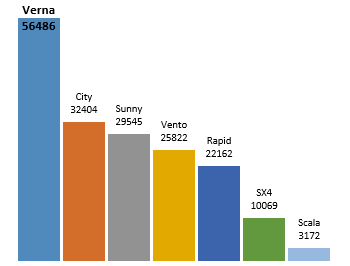
Use a regular column chart for data like this so that truth stands out clearly

What more, you can format the column chart so that it has all the bling! (not that I recommend such over formatting)
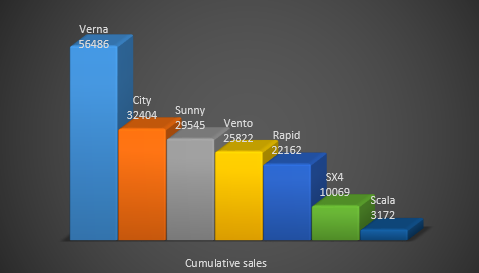
What more, you can format the column charts so that they can look more advertisementy.

PS: A newer version of this ad features column chart, albeit with convoluted staircase representation.

What do you think about rotated, exploded 3d pie charts

The only time I want to rotate a pie is when it is too big and the portion I want to eat is on the other side.

What about you? do you make 3d pies? Are they tasty or sneaky (like the Verna pie)?

Share your thoughts using comments.

Take our 3d pie pledge

As a fun exercise, why don’t you take our 3d Pie pledge. Here it is.

I promise to never make a 3d pie chart. If I ever see one, I promise to not rotate or explode it. I also promise to create alternative charts (usually column, bar, line or scatter plots) so that my audience can see the truth better.

And oh yeah, I promise to bake & eat pies whenever possible. Apart from cakes, pastries, ice creams, biscuits and other assorted fun foods that is.

signed…

Go ahead and take the pledge

PS: Chartbuster series of articles & more charting principles.

Facebook
Twitter
LinkedIn

Share this tip with your colleagues

Excel and Power BI tips - Chandoo.org Newsletter

Get FREE Excel + Power BI Tips

Simple, fun and useful emails, once per week.

Learn & be awesome.

Welcome to Chandoo.org

Thank you so much for visiting. My aim is to make you awesome in Excel & Power BI. I do this by sharing videos, tips, examples and downloads on this website. There are more than 1,000 pages with all things Excel, Power BI, Dashboards & VBA here. Go ahead and spend few minutes to be AWESOME.

Read my storyFREE Excel tips book

Overall I learned a lot and I thought you did a great job of explaining how to do things. This will definitely elevate my reporting in the future.
Rebekah S
Reporting Analyst
Excel formula list - 100+ examples and howto guide for you

From simple to complex, there is a formula for every occasion. Check out the list now.

Calendars, invoices, trackers and much more. All free, fun and fantastic.

Advanced Pivot Table tricks

Power Query, Data model, DAX, Filters, Slicers, Conditional formats and beautiful charts. It's all here.

Still on fence about Power BI? In this getting started guide, learn what is Power BI, how to get it and how to create your first report from scratch.

87 Responses to “Printing Excel Reports via a Word Document”

  1. [...] This post was mentioned on Twitter by Chandoo.org and Stray__Cat, Excel Insider. Excel Insider said: Printing Excel Reports via a Word Document: Printing Excel Reports via a Word Document Using Microsoft Excel & W... http://bit.ly/hOtMkA [...]

    • Som Dutt Thapliyal says:

      Hi Chandoo,

      Excellent post. I have word in my PC but I don't have words to praise you. A big thanks to you to push us one step deep in the ocean of VBA automation.

      Thanks is not enough...
      Som D Thapliyal

  2. Andras Ujszaszy says:

    Chandoo, Thank you for this great idea, however I think the word's built in mail merge function offers enough possibilites for almost all mail merging task without having an Excel macro in the background.

    KIndest Regards
    Andras Ujszaszy

  3. Manish says:

    Hello Chandoo,

    This post is excellent and a real time saver. We have the detailed data on SQL. The aggregated data is transferred on to MS-Excel sheet. The data on Excel is further manipulated based on volume/price criteria to arrive at individual invoice values. About 60% of the invoices generated have customized formats. I have been grappling with this issue of invoice generation all along - how to standardize the process and make it automated and less time consuming.

    You post came as a real solution and problem-killer. It is awesome!

    Thank you once again for making our lives enjoyable with Excel!!

  4. Pulkit Singhai says:

    Hi Chandoo,

    I was thinking of thing in these lines and there you are! Although I wanted much more simpler. I typically have work with various client related word templates in which I have to make some reports. If at all you tweak a bit, the whole template in MS word goes for a toss and its super mess to clean this mess. So can it be like this - I will input some data in Excel and I want the data to get exported to MS word under their respective Heading. For Example: If I write "Chandoo is a good boy" in excel and when I export this to MS word, I want it to be reflected as "Chandoo" as the name of the Heading 1 and "is a good boy" under this Heading 1. OR it can be "Chandoo" under Heading 1 (whatever be the name of that heading) and "is a good boy" under Heading 2 (whatever be the name of that heading). Can you please help me in this? Or pass me a hint?

  5. Hui... says:

    @Pulkit
    Use a data transfer sheet to re-arrange your data to 2 seperate fields before exporting
    So if
    A1: Full Name
    A2: Chandoo is a good boy
    Make 2 new fields
    B1: Name
    B2: =LEFT(A2,FIND(" ",A2))
    C1: Salutation
    C2: =RIGHT(A2,LEN(A2)-LEN(B2)+1)
    Use Name and Salutation as appropriate as Fields in your word template

  6. Chandoo says:

    @All.. this post is written by Hui. So please direct your love to him 🙂

  7. Kamesh says:

    Our organization has 150+ employees. Every year our finance department has to issue Tax certificates (F-16) before July and the finance heads invariably burnt midnight oil to issue them manually-filled/typed out docs. In 2007 I approached them with a simple solution of mail merge and they wanted to test it out. And it was all finished in 1 day, what used to take them months. In that regard I agree with Andraas, even without the macro Word gives full control over printing the excel database - right from printing a single record to all or multiple records in a range. However, the above macro-based approach I believe is more elegant tool, especially if we want to print a single record. Thanks!

  8. Prem Beejan says:

    Hi Chandoo

    First of all thank you very much to bring this technique to so many people. I have been using this for the last 8-10 years for contract writing etc. I have two suggestions to make.
    One is to use a 3-row merge sheet. the 1st row is the header-row. The 3rd one is the data row and the 2nd row is a text converted row for numbers and dates. for example we can convert 2/3/2011 into text such as "3 February, 2011". This would look nicer in a letter. In contracts, we have to use numbers in word and figures. the numbers can be converted as required. This have saved my staff a lot of time and is error free (human error).
    The 2nd point is to provide to the user on the control sheet cells to insert names and folder path. For each word document, a unique name can be generated with a date stamp in the file name.
    Prem

  9. Paul W says:

    Thanks so much for this, I've been looking for something like this for ages. I'll be playing with this now to make it fit my evil purposes!

  10. bill says:

    thank you Hui! real insight. i cannot thank you enough for this post.

  11. bill says:

    @Hui....just out of curiosity, how would you transfer a chart (as a bitmap) from Excel to Word within the context of the same VBA program and to a specific field in Word?

  12. Istiyak says:

    @Post : Amazing post chandoo / Hui and team...

    This is one of my thought

    Keep it up

  13. Kathryn says:

    Thanks so much! I learn so much from this blog. I teach classes and keep track of student registration with a spreadsheet. I have wanted to print receipts for some time and this post has help tremendously. Of course I do have a question. I separate first and last names into their own columns so I can sort by either, so when on the control sheet I am looking up a student name I can only lookup by first name or last name and I anticipate this causing problems because I will have multiple students with the same first name and even the same last name. Is there a way to concatenate those fields during the data validation? Thanks.

  14. Hui... says:

    @Kathryn, Glad you liked the post.
    you can use a number of techniques to lookup based on multiple criteria
    Have a read of http://chandoo.org/wp/2010/11/02/multi-condition-lookup/ for some ideas

  15. Hui... says:

    @Bill, Istiyak, Paul, Prem, Kamesh, Pulkit & Manish
    Thankyou for your positive feedback and ideas

    @Bill, No idea how to transfer a picture, I will investigate one day.

  16. [...] RSS feed for comments on this post. TrackBack URI [...]

  17. syam says:

    hi chandoo,

    first of all, thank you for this example,really helpful. but i got an error when run it.
    error appear on ".Destination = _________"

  18. Hui... says:

    @Syam
    This won't work on a Mac version of Excel/Word
    What version of Excel/Word are you using ?
    .
    Did you change the 2 lines in the Macro as listed above?
    Const WTempName = “Shipping Template.docx“ ‘This is the Word Templates name, Change as req’d
    Const NewFileName = “New Certificate.docx” ‘This is the New Word Documents File Name, Change

  19. scurnow says:

    No comment, just want to subscribe to new comments.

  20. Sihab says:

    Dear All, I want to print after one record as like 1,3,5,7,------------.
    how to it possible, please give easy way.

  21. Hui... says:

    @Sihab
    The technique presented here is for printing/transferring 1 record, of a number of fields, at a time to Word.
    When you say like 1,3,5,7,---

    Can you please elaborate ?

  22. Suma says:

    This is amazing!!! I have task which requires me to take screenshots from a web page and save it in PDF's. This task takes a good 15-20 days for me. The same data is available for me in excel now, this post has given me a wonderful idea of doing the mail merge from excel to word however saving them as a PDF is a challange. Hopefully I should be able to figure it out after I finish my VBA Classes.
    Thanks Hui

  23. Suma says:

    Hi Hui, Thanks for the response. My case is a little complicated, I have close to 4000 records which needs to be put in a form and saved as PDF. I tried word but the form keeps changing to fit data and the output is not uniform as a work around I have created the form template in excel, I have looped it to take data 1 row at a time, my challange is in saving each of this form as a PDF file through VBA. I am not able to find any options to do the same with the Xlfileformat enumeration. Is there a way? appreciate if you could guide me.

  24. Hui... says:

    @Suma
    Do you want to email me a sample of the data, say 20 records and a Template your trying to use
    Email at bottom of: http://chandoo.org/wp/about-hui/

  25. bill says:

    This snippet of code might help you print ot pdf from within Excel. Just reorganize for your needs.

    Let vPrtOutputDir = [prtnghbr_outputdir]
    Let vPrtOutputFile = [prt_nbhdlst_code]

    'print analysis to printer (needs 8.5" x 14" legal size paper)
    If Range("prtnghbr_prthard") = True Then
    ExecuteExcel4Macro "PRINT(1,,,1,,,,,,,,2,,,TRUE,,FALSE)"
    Else
    End If

    'print to pdf file
    If Range("prtnghbr_prtpdf") = True Then
    ActiveSheet.ExportAsFixedFormat _
    Type:=xlTypePDF, _
    Filename:=vPrtOutputDir & vPrtOutputFile, _
    Quality:=xlQualityStandard, _
    IncludeDocProperties:=True, _
    IgnorePrintAreas:=False, _
    OpenAfterPublish:=False
    Else
    End If

  26. Stephen says:

    This is fantastic, but I can't get it to work with my own file (I am fairly new to VBA), I suspect i am not understanding, the Run the Report section. When I run it I get an error saying 'Can't find project or library'. Can you help?

  27. hari kumar prekke says:

    Hi
    I need to copy an word file into excel, i am able to copy into excel
    by using
    1. word as application ( ref -microsoft 11.0 word)
    2.Copying the active window details from word into excel

    i want to know can we copy and paste as html format

  28. Dave says:

    Chandoo,

    Thanks for posting this very helpful tutorial and example files.

    Regarding future enhancement: "+ Sourcing the New Word File name from the Control sheet"

    The easiest fix I found for this was to:
    1. Dim NewFileName As String
    2. comment out 'Const NewFileName = "New Certificate.docx"
    3. replace with: NewFileName = ActiveSheet.Range("D7").Text

    Thanks again!

    p.s. Code modification courtesy of a macro I grabbed from a discussion thread by Leith Ross on Excel Forum, 2008.

  29. Vivian says:

    @Stephen - open up VBE, go to Reference, uncheck "Missing Microsoft Word 12.0 Object Library". And check "Microsoft Word 12.0 Object Library". Your library references may be higher or lower than 12.0.

  30. Joey says:

    I have tried this macro "1997/03 Sample" on a computer that works with Windows XP and Office 2000 and doesn't work. After 1 minute comes up a windows which says: "Microsoft is waiting that other aplication finish an OLE action". and can't cancel this.

    Can someone help me?.
    I am a novice with macros. Please explain with detaill.
    Thanks. Joey.

  31. Wil says:

    How can I use this for charts and data without data validation or drop menu?

  32. Hui... says:

    @Wil
    You don't need to use a drop menu, but it just simplifies the choice of values in this example
    You can manually type values as well in the example

    The Macro requires a trigger to start and this is achieved via the button, although it could be done by a change in the cells value, although if you type a wrong value the macro will still run.

    A few people have asked about transferring charts and graphics and to be honest I haven't investigated this possibility.

  33. shantanu says:

    Hi Chandoo and Hui,
    Reading all the information and applying it is a real fun!!... u made Excel very simple to understand and easy to use!..
    Would like to have your advice on below :-
    I generate a MIs report of client and its transaction from a web template to an excel. Now we need to generate Tax advices for these transactions. Now the tax will be generated only for those trn where we have currency conversion. we have a formulae placed which calculates the tax amount. i want to link this (or merge) this excel data to a word file, which will generate an advice with individual client transaction data and the tax amount. Also i wish to produce one summary report for a day.
    Please help me on this.
    Thanks in advance ,
    Regards
    shantanu.

  34. Namir says:

    Hi Chandoo and Hui

    I tested the 2010 samples yesterday and they worked perfectly. Today, I tried it again (I even downloaded the original docs again).

    It comes up with, "Error has occurred: External table is not in expected format."

    Please assist?

    I need step-by-step instructions. I'm not a developer.

  35. [...] heb te snel gereageerd, Dit zou iets kunnen zijn: Printing Excel data via a Word Document | Chandoo.org - Learn Microsoft Excel Online [...]

    Google Translate: I reacted too quickly, this would be something: Printing Excel data via a Word Document | Chandoo.org - Learn Microsoft Excel Online

  36. JR says:

    Hi Hui, any idea how this could work with multiple merge records? ie. several lines of product on a single order.

  37. Benki says:

    Hi Chandoo,

    This was very helpfull for me.

    Can you sugesst me any method if there is multiple rows for particular shipment number then how mail merge those data to word document.

    looking forward for your response.

  38. Matt says:

    Great tutorial!!!

    Let's suppose we needed the country (UK in this case) to be printed on a gray background and CAN to be printed on a red background...if my excel data source has this formatting already in place, can we do the same in Word?

  39. NikosP says:

    Thanks for your efforts and support.
    I have the following question.
     
    If I have a graph in the excel worksheet that I want to include in the word file along with the other data how can I do that?
    How can I give the graph as a "field" in order to transfer it also in the word template?
     
    Thanks in advance and keep going quys.
    Nikos

  40. Jason says:

    Hi Hui, thanks for the info - it is really informative.

    However, although everything worked fine when I used your practise documents, when I tried to create my own, the macro will not work.

    The error msg says: Compile Error: User defined type  not defined.

    When I hit OK, It goes to the code and highlights: objWord As Word.Application 

    The only thing i changed in the code was the filenames as directed. I have put my excel file and associated word templates and documents in a separate folder. I see the line of code that will read from the path of the workbook, so i guess this should not be a problem.

    I am a VBA newbie. Can you help?             

    • Hui... says:

      @Jason
      What version of Excel are you using?\
      Make sure the two files are in the same directory and make sure the path variable is set correctly in the VBA Code

      You can email me the files if you want
      Email is at the bottom of the page http://chandoo.org/wp/about-hui/

    • Douglas says:

      I had the same issue, I needed to reference the Word Object library in VBA...
      Hit alt-F11 to open VBA window
      Tool menu, References, add a check next to Microsoft Office xx.x Object Library

      No compile error for the line objWord as Word.Application line after this was added.

  41. niranjan says:

    chandoo ,, you are awesome man. Excellent Solutions for each every excel problem

  42. Kevin says:

    Hi Hui,
    I really like this excel to word macro. It is saving me so much time. To take it a step further, how could I modify it so that, as well or even instead of saving it to a folder; I could send the new word doc generated to myself or to a particular email address?
    Thanks
    Kevin

  43. Hema says:

    Hi Hui,

    Thank you so much for this sheet, it really saved my time and days in life :-). Mean while really excited to see and learn about the "Future Extensions" that were stated above.

    Can we know if these are implemented.

    Thank you so much for every knowledge.

    Regards,
    Hema Sapasetty

  44. Eitan says:

    Hi Chandoo and Hui,
    this is looking grate, exactly what I needed, but I'm having a problem with the merge.
    I'm copying the data I need to the transfer sheet, on the first try, I get the correct data in the word document, but when I run it the second time, I'm getting the same data again.
    In the "transfer" sheet I see the new Data, in word, I see the old (previous) data.

    Any Ideas?

    Thanks,
    Eitan

    • Hui... says:

      @Eitan
      the model doesn't increment the data automatically
      Are you updating the data/filter in the workbook
      That is what is transferred.

      If that doesn't help can you post your files

      Hui...

  45. Eitan says:

    Hi Hui,
    Thank you for your quick respond
    Uploading my files is impossible as it has both lots of Hebrew in it and the entire excel has many user form that are non related to the task...
    I can try to upload just the 2 forms that are related along with the word document, again, it's in Hebrew...
    Just to make sure I got your answer, I have a range of data that I display in a user form using a combo box, and the combo box displays only relevant data (filtered), once I select an object from the combo box, I display the data in labels, when I need to do the merge, I Identify the corresponding row from the relevant sheet, and copy that row to a new sheet (transfer).
    next I run your code to create the report using my "template" word doc.
    so, in my main worksheet I have all the data, in my transfer sheet i hanve the data I need to create a report from, so far it is working.
    when the report is created, I get a data that is not the one in the transfer sheet,
    closing and reopening both word and excel is not helping.
    I'm trying log-of and log on and maybe later, restart to see if the data is saved in a cash somewhere.

  46. Hema says:

    Hi Hui,

    I am using this macro for letters, however I really need your input on one aspect.

    Can you help me with writing the vba code to save the merged output file a different folder.

    now the output document from the auto merge is getting saved where the master file is located, where I need the output to save in a specific folder. Kindly help me how to define the destination Folder (Output folder name) within the vba code.

    Thanks in advance.

    Regards,
    Hema Sapasetty

  47. Kevin says:

    Hi,
    having created the desired word document, how do we set it so that the new word doc will open automatically as soon as we've run the macro?

    • Hui... says:

      @Kevin

      In the Excel file goto the line in VBA
      Find the two lines that start with Const

      Const WTempName = “Shipping Template.docx“ ‘This is the Word Templates name, Change as req’d
      Const NewFileName = “New Certificate.docx” ‘This is the New Word Documents File Name, Change as req’d

      Adjust as appropriate

      • Kevin says:

        @Hui,
        okay thanks but I would like the New Certificate doc to open at the end because I need to print them every time.
        I want them to open then I will print.
        How do I adjust the macro for this to happen?

  48. Asif says:

    Showing compiler error

  49. mano says:

    thankfully from you, chandoo dear

  50. Chano says:

    Hi Hui,

    Thanks a lot for this post. But i noticed that this is just applicable if i only want to appear a single record in my report, but what if i want to appear numerous record in my record for a certain DATE for example?

  51. Graham says:

    Hui, Good Afternoon!

    Firstly, I am a member of VBA Classes and I have been trying to achieve this myself before coming across this and downloading.
    However, I find that trying to run you example xlsm and docx files, I get the same issue that I was coming across before! I get the message
    ...can't open or wrote to file, it is already opened exclusively by another user or you need permission...etc, so I'm now back to the beginning.
    In summary what I'm trying to do, is call the Word Template from Excel to produce Labels, Print, Close Labels, refresh Excel data and repeat process.
    I would appreciate your advice as to where I am going wrong please.
    Thank you in anticipation

    • Hui... says:

      @Graham
      Can you pls email me the two files
      Click on Hui... above
      Email address is at bottom of Page
      What version of Office are you using ?

  52. Hema says:

    Hello All and Hui,

    Thank you for all the knowledge, this more helpful.

    But I have a requirement to print thousands of records at a time and saving the output in PDF or docx, did anyone thought of automating the mailmerge and saving the output as PDF or Docx.

    Please require your help if you guys know anything about it.

    Thank you in Advance.

    Regards,
    Hema

  53. Chris says:

    Hi Hui

    Thank you very much for making this VBA solution available.

    I am using this setup to produced Word-based hospital discharge summaries from an Excel database.

    I have changed the Control Sheet so that it uses the patient's medical record number rather than the original SH data. That then puts data in the Transfer sheet which is sent to the mail merge.

    My problem arises with multiple hospital admissions for the same patient. The instruction in the Transfer sheet pulls the FIRST instance that it finds the relevant medical record number. But I need it to pull the LAST entry.

    I have set out the admission data in Column G of the Data tab - so I would to amend the Sheet instruction so that it finds the medical record number AND THEN puts the most recent set of data from the latest admission.

    Here is the Sheet instruction set that I am using:

    =INDEX(Data!B2:AB2500,MATCH('Control Sheet'!$D$7,Data!$B$2:$B$2500,0),MATCH(A$1,Data!B$1:AA$1,0))

    Any help in amending this instruction so that it pulls the most recent admission would be greatly appreciated!

  54. Edwin says:

    hi Hui, First of all, thank you for this post! it realy is what I was looking for.

    I got some problem though (word file doesn't update anymore) when I "share" the workbook. When it is unshared, it works fine.

    I have to share the workbook since there are several (3-4 people) that must use it at the same time.

    Do you know any solution for this?

    I am using MS Excel 2013, while I stick with the MS Word version on your sample file.

    Regards,
    Edwin

  55. s_yellow says:

    Hi,

    Can you help me with changing the macro, so that instead of a new word document, it saves a new pdf document?

    Thank you

  56. Sunir M Shafi says:

    Hi Folks

    This article is great. But does anyone know how to update check boxes on a word document from an excel cell entry such as "Yes" or "No"?

  57. Shovan Lal Saha says:

    The report learning is nice. But I have another question. If in the sheet1, A1=Current Date, B1=Apple, guava, banana (from drop down menu), C1=Price, D1=Seller. When I shall input data in sheet1 (Only in B1, C1, D1) and those will be replaced but stored in Sheet2 (for Apple), Sheet3 (for guava), Sheet4 (for banana) according to date. Is it possible?

  58. Angel says:

    Hi,

    Take a look at https://document-merge.com/
    It's exactly what you are looking for.

    Cheers,

  59. Indira says:

    Hi,
    I am new to VBA. while running the code, 1st i am getting a msg box as Header Record Delimiters , which is asking me to enter some Delimiters... if I select None, it is saying Invalid Merge Field.

    Then I am getting that the error Microsoft Excel is waiting for another application to complete an OLE action.

    Then I am getting the error with the below lines of code.

    It says

    'Merge the data
    With objMMMD
    .MailMerge.OpenDataSource Name:=cDir + ThisFileName, sqlstatement:="SELECT * FROM `Transfer$`" ' Set this as required

    Not sure where it is going wrong. Please help

  60. enkhzaya says:

    debug!!!! help me.
    Set objMMMD = objWord.Documents.Open(cDir + WTempName)

    • Hui... says:

      @Enkhzaya

      Check that cDir has a \ at the end because
      (cDir + WTempName) should be like c:\mydirectory\filename.docx
      with a \ between the directory and filename

  61. click here says:

    Wow! After all I got a website from where I
    be capable of in fact obtain useful data concerning my study and knowledge.

  62. Anil says:

    Your assistance is very motivating. I am having an issue. I have an excel file which contains multiple records for a key. How can I put multiple records for a single key in word document (i.e. printing some letter) and use this repetitively for other records.

  63. visit here says:

    Hurrah! At last I got a webpage from where I can actually
    obtain helpful facts concerning my study and knowledge.

  64. Gareth says:

    Is it possible to include a mailmerge field in the file name?

    e.g Document For [Jeff]

    Jeff being the name of the person the letter is being drafted for. So in my destination folder I can just generate as many as I want without fear of the file being over written.

  65. After I originally left a comment I appear to have clicked
    the -Notify me when new comments are added- checkbox and now each time a comment is added I get 4
    emails with the same comment. Perhaps there is a means you
    are able to remove me from that service? Thanks!

  66. Asif Khan says:

    Hi, Good evening
    I have multiple records in data sheet with same key. I want to transfer all those multiple same rows from data sheet to transfer sheet and then mail merged them to a word document as a report.
    Thank you

Leave a Reply