We are a big advocate of keyboard shortcuts. I think learning a handful of keyboard shortcuts can improve your productivity tremendously, whether you are using Excel or Firefox.
But using only keyboard shortcuts is like using only right hand. You can only do so much with one hand.
So, we have compiled 5 incredible ways mouse can help you be productive while using MS Excel.
Adjust Column Widths
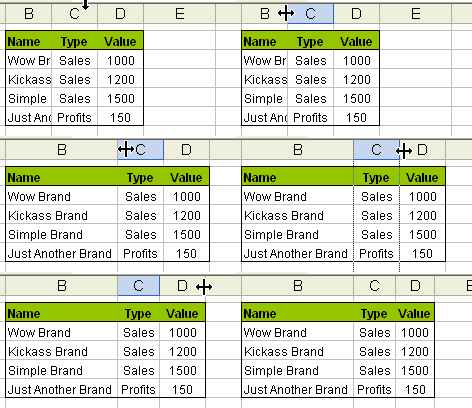
This is my favorite. Select the columns you want to adjust width for. Double click on the column number separator line. The column width is adjusted automatically. This is a very useful way to format your tables. See the screencast aside:
You can use the same technique to adjust row heights.
Select Non-Contiguous Ranges using Ctrl+click
Ctrl+Click to select non-contiguous cells. Useful when you need to format cells matching a particular criteria or paste only few cells.
One click stock quotes with Alt+click
To get stock quotes in excel, enter a company stock symbol in the cell, alt+click on it to launch research pane. (works excel 2003 and above). Find out more.
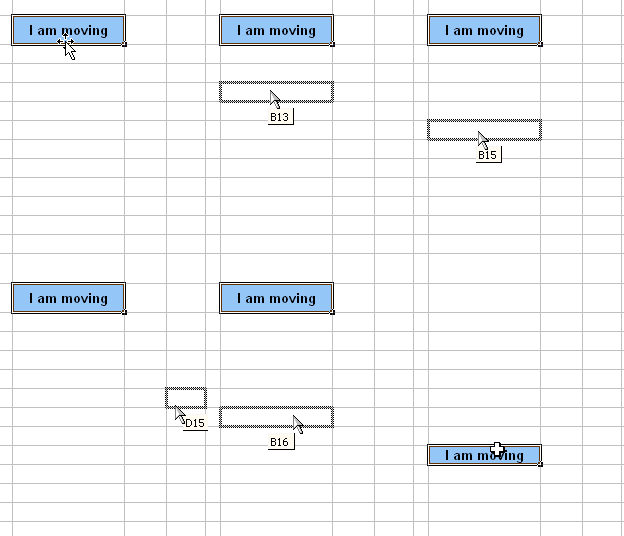
Move selected cells by dragging the thick black line
First select a bunch of cells, now drag the thick boundary line to move the cells. Better and faster that ctrl+x, ctrl+v.
Auto fill by dragging cells
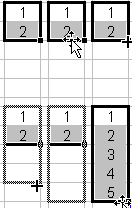
Ok, this is well known, but just in case you don’t know: You can auto fill a range with sequential numbers, dates, days of week, months etc. by entering first few values and then selecting them and dragging the range by clicking & holding the bottom right corner. When you do this excel will automatically fill the rest of cells with data based on what you are entering.
You can also customize excel lists so that you can auto-fill, lets say bank holidays in your country or types of beer in your pub. One more auto fill trick.
What is your favorite mouse based productivity hack?
Share with everyone using comments. Teach me a new trick and show that mice can indeed kick butt.
This is part of our Spreadcheats series, a 30 day online excel training series for office goers and spreadsheet users. Join today.


21 Responses to “How to Filter Odd or Even Rows only? [Quick Tips]”
Infact, instead of using =ISEVEN(B3), how about to use =ISEVEN(ROW())
So it takes away any chance of wrong referencing.
I like Daily Dose of Excel
I like it.
Just a heads up, you do need to have the Analysis ToolPak add-in activated to use the ISEVEN / ISODD functions. An alternative to ISEVEN would be:
=MOD(ROW(),2)=0
rather than use a formula, couldn't you enter "true" in first cell and "false" in the second and drag it down and than filter on true or false.
Just for clarification, is Ashish looking to filter by even or odd Characters or rows?
so many functions to learn!
Nice support by chandoo and team as a helpdesk. Give us more to learn and make us awesome. Always be helpful.......
In case you want to delete instead of filter,
IF your data is in Sheet1 column A
Put this in Sheet2 column A and drag down
=OFFSET(Sheet1!A$1,(ROWS($1:1)-1)*2,,)
(This is to delete even rows)
To delete odd rows :
=OFFSET(Sheet1!A$2,(ROWS($1:1)-1)*2,,)
If your numbered cells did not correspond to rows, the answer would be even simpler:
=MOD([cell address],2), then filter by 0 to see evens or 1 to see odds.
I sometimes do this using an even simpler method. I add a new column called "Sign" and put the value of 1 in the first row, say cell C2 if C1 contains the header. Then in C3 I put the formula =-1 * C2, which I copy and paste into the rest of the rows (so C4 has =-1 * C3 and so forth). Now I can just apply a filter and pick either +1 or -1 to see half the rows.
Another way, which works if I want three possibilities: in C2 I put the value 1, in C3 I put the value 2, in C4 I put the value 3, then in C5 I put the formula =C2 then I copy C5 and paste into all the remaining rows (so C6 gets =C3, C7 gets =C4, etc.). Now I can apply a filter and pick the value 1, 2, or 3 to see a third of the rows.
Extending this approach to more than 3 cases is left as an exercise for the reader.
Another way =MOD(ROW();2). In this case, must to choose betwen 1 and 0.
[...] How to Filter Even or Odd rows only [...]
very different style Odd or Even Rows very easy way to visit this site
http://www.handycss.com/tips/odd-or-even-rows/
Thanks for the tip, it worked like magic, saved having to delete row by row in my database.
Thanks!
Thankssssssssssssssss
Hi Chandoo- First of all thanks for the trick. It helped me a lot. Here I have one more challenge. Having filtered the data based on odd. I want to paste data in another sheet adjacent to it. How can I do that?
For Example-
A 1 odd
B 3 odd
C 4 even
D 6 even
I have fileted the above data for odd and want to copy the "This is odd number" text in adjacent/next sheet here. How can I do that. After doing this my data should look like this
A 1 odd This is odd number
B 3 odd This is odd number
C 4 even
D 6 even
Hi! Could you please help me find a formula to filter by language?
Thank you!
Chandoo SIR,
I HAVE A DATA IN EXCEL ROWS LIKE BELOW IS THERE ANY FORMULA OR A WAY WHERE I CAN INSTRUCT I CAN MAKE CHANGES , MEANS I WANT TO WRITE ONLY , THE FIG IS FRESH, BUT IN BELOW ROW IT WILL AUTOMATICALLY TAKE THE SOME WORDS FROM FIGS AND MAKE IN PLURAL FORM , WHILE USING '' ARE'' LIKE BELOW
The fig is fresh - row 1
Figs are fresh - row 2
The Pomegranate is red - row 3
Pomegranates are red - row 4
=IF(EVEN(A1)=A1,"EVEN - do something","ODD - do something else") with iferron (for blank Cell)