Quickly Remove Data Validation Rules using Paste Special

Share

Facebook
Twitter
LinkedIn

Excel Data Validation Rules - Example

Here is a quick tip on removing data validation rules.

We all know that data validation is a powerful feature in Excel to control what data is entered. But, sometimes, you may want to remove the rules from a set of cells. How would you do it?

The normal approach is,

  1. Select the cells with data validation rules
  2. Go to Data > Data Validation
  3. Select rule as “any value’
  4. Press OK

In short, you have to move your mouse alot. It would make sense if we accumulate frequent flier miles on the mouse travel too.

Shouldn’t there be a shorter, quicker way?!? Well, of course, there is a way.

We use Paste Special.

What ?!? Paste Special?!?

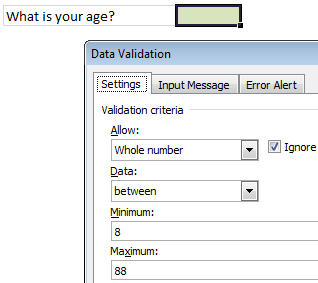
Remove Data Validation Rules with Paste SpecialThat is right. A simple paste special can remove the data validation rules for us quickly. Here is how.

  1. Select an empty cell without any data validation on it. Press CTRL+C
  2. Now, go back to the cell(s) from which you want to remove data validation rules
  3. Press ALT+E S N (In other words, Paste Special > Data Validation)
  4. Press OK and you are done.

How does it work?

Simple, we took the data validation rules from empty cell in (1) and then pasted them over our original cell(s) using Paste Special option.

What next?

Nothing, Its almost weekend here. We are taking a train to go to a place 400 kilometers away to see a classmate and close friend getting married. Lots of fun and partying awaits. When I am back on Monday, I will surprise you with more Excel awesomeness.

Go ahead and enjoy your weekend…

PS: Paramdeep reminds me that Financial Modeling School enrollments close on March 8th – just 4 more days. Sign-up already.

Facebook
Twitter
LinkedIn

Share this tip with your colleagues

Excel and Power BI tips - Chandoo.org Newsletter

Get FREE Excel + Power BI Tips

Simple, fun and useful emails, once per week.

Learn & be awesome.

Welcome to Chandoo.org

Thank you so much for visiting. My aim is to make you awesome in Excel & Power BI. I do this by sharing videos, tips, examples and downloads on this website. There are more than 1,000 pages with all things Excel, Power BI, Dashboards & VBA here. Go ahead and spend few minutes to be AWESOME.

Read my storyFREE Excel tips book

Overall I learned a lot and I thought you did a great job of explaining how to do things. This will definitely elevate my reporting in the future.
Rebekah S
Reporting Analyst
Excel formula list - 100+ examples and howto guide for you

From simple to complex, there is a formula for every occasion. Check out the list now.

Calendars, invoices, trackers and much more. All free, fun and fantastic.

Advanced Pivot Table tricks

Power Query, Data model, DAX, Filters, Slicers, Conditional formats and beautiful charts. It's all here.

Still on fence about Power BI? In this getting started guide, learn what is Power BI, how to get it and how to create your first report from scratch.

5 Responses to “Show more of your workbook on screens [quick tip]”

  1. Bda75 says:

    In 2013 you can also add to the QAT the hidden command "Toggle Full Screen View".

  2. Chris Newman says:

    Instead of using the shortcut CTRL+F1, I prefer just to double-click one of the tab names (ie double-click the "Home" text on the Home tab) to enable the Ribbon Outline view. To return to the normal Ribbon state, just double-click your mouse again!

  3. liu says:

    press Ctrl+Shift+F1, you will get a full screen

  4. efand says:

    Instead of Ctrl + F1, I use Ctrl + Shift + F1 (Excel 2016)

  5. Jay says:

    Alt W E sequence for full screen
    ESC to get back

Leave a Reply