

As the gentleman at immigration counter stamped my passport & said, “Welcome to Australia”, I could barely contain my excitement. You see, Australia has been on my list of places to visit as far back as I can remember. It finally happened on On Sunday, 29th of April 2012.
After collecting my baggage, I walked out of Sydney Kingsford Smith Airport. My friend Danielle (from Plum Solutions) is waiting for me there. Thus began my Australian adventure and it was fantastic. (Aussies so fondly use this word).
Grab a fine cup of coffee, sit back and read to know how the whole experience went.
Back story: How the opportunity came
I am not sure how the fascination with Australia began. But as I grew up the desire to visit land down under grew up too. So much that during my MBA placement season, I even applied for Macquarie Bank to work as an analyst in Sydney. Despite not knowing how to balance a balance sheet. It was a good thing they did not hire me, or else I would have been blamed for the global financial mess.
When I quit my job to work on Chandoo.org full time, I pushed the Australian trip further in to future, as I wanted to focus on running business.
Almost one year ago, on 30th June, a brilliant idea crossed my mind, “why not conduct a set of classes in Australia. That would give me an excuse to visit the place while not paying for the trip out of my pocket.”
Danielle’s name immediate came to my mind. So I emailed her “Excel workshops in Australia …?” and we got talking.
In March this year I have applied for Australian Visa & announced about the session on Chandoo.org. We got tremendous response for the session with many early sing-ups.
Initially I have planned to travel with Jo & kids. But after discussing about it, we realized that it may not be a good idea to travel with kids given that I would have to visit a new city every week to conduct the trainings. So I left for Australia alone with mixed feelings. Sad to leave kids & Jo behind, excited to visit it finally.
Response for our Excel & Dashboards Masterclasses
We conducted 4 Masterclasses – 1 each in Sydney & Brisbane and 2 in Melbourne. A total of 64 people attended the sessions. We also conducted 3 masterclasses for KPMG for their offices in Sydney, Perth & Melbourne. Around 30 people from financial modeling, risk management, auditing teams of KPMG attended these. And we did a 1 day training program (shorter version of masterclass) for SEEK.COM.AU in their Melbourne office.
I received very positive & happy feedback from delegates everywhere. This shows the generosity of Aussies. I felt fortunate to have eager, enthusiastic & excellent participants for all the classes. Few testimonials from the attendees,
Chandoo’s personality makes learning advanced excel techniques actually _fun_. I think that says a lot. You don’t often say to yourself “Wow, I had fun playing with Excel today!”, do you?
– Tom Hubbard, Manufacturing (Sydney)
Great useful content focused on real world examples. Emphasis on planning aswell as actual excel examples which means content can be applied to any dashboards e.g. BI or other software.
… very knowledgeable both about excel and business scenarios. Clear simple instructions with excellent knowledge across all versions of excel.
– Sinead Starrs, Marketing (Sydney)
chandoo is like a ‘drug’, that keep you want to get even more for excel 🙂 no wonder why he’s a CEO for this. I think from professional point of view .. Chandoo is helping us to get into the skill sets where the reporting level should be more straight forward, lively, and help the decision maker to make a good decision. I strongly recommend this training for any excel savvy just to enhance knowledge and found a ‘new love’ to excel.
– Chandra Jong, Financial Services (Sydney)
Chandoo was fantastic. He was very easy to understand and made everyone feel comfortable to any raise questions. Chandoo’s knowledge about Excel is unbelievable – I wish I had his brain! I would recommend this course to everyone who works with Excel to prepare data/reports. Excel is forever changing and unless you keep up to date it’s hard to know about new techniques. Chandoo also gave some useful tips on keeping our Excel knowledge up to date. I was never a big fan of Excel but after this course I absolutely love it!! It’s amazing what we can use Excel for.
– Anonymous, Mining (Brisbane)
Presenter very knowledgeable and ran through alot of topics. I have been on other excel courses, and they always teach to the lowest common denominator. This was very fast paced, so I was never bored.
– Anonymous, Telecommunications (Brisbane)
Business-oriented. In our country, there are many PC schools, but the instructor has little business backgrounds and presentation skill.
– Anonymous, Teaching (Melbourne) – Flew from Japan to attend this.
Just wanted to say thank you for the fantastic course you conducted at KPMG in Melbourne. Some of the ideas you presented were fantastic and I will definitely incorporate them into client work in the future.
The course exceeded my expectations. The method and format you presented the course in was absolutely brilliant. I especially loved the help function you created by using a SHOW/HIDE macro on text-boxes and bubble-boxes. So simple but so powerful! I hope we can get you back out here again and teach us some more cool tricks and ideas that will impress our clients!
– Adam, Consulting (Melbourne)
I have managed to collect few video testimonials too. I will share them some other time.
I was a little worried before starting my first class, mainly because,
- I never charged $1000 per class, so I am not sure if the participants would be happy with what they get.
- Most of them had very high expectations as they have been reading Chandoo.org for a while and wanted to learn even more.
But I felt happy knowing that majority liked the course and immensely benefited from it.
What I learned by conducting the classes
Many things. Training 100 people from different industries, experience levels & skills in a short span of 6 weeks proved to be both a challenge & an excellent opportunity. The best things I learned are,
- Slow down during my explanations: Because we had a steep task of designing powerful dashboards in 2 days, I had to rush thru some concepts like INDEX+MATCH combination, SUMIFS, Conditional formats etc. While this worked well for many, there are a few people in each class who felt lost. I modified my style and pace for each session to make sure delegates get the best out of it. Next time when we plan a public training, I will make sure we cover fewer topics so that everyone can enjoy it.
- Most of my explanations work alright: Since I do very few live classes every year, this trip gave me confidence as almost every one told me they liked the explanations & examples.
- Add some printable material to the course: Quite a few people asked for print outs to take back home. I will be including several documents & detailed tutorials in my next courses so that delegates can carry the instructions back.
I have also learned various simple things & tips during this trip. I will be implementing them to make my future training programs even more awesome.
About Australia
Now what do I say. It certainly was worth the wait.
In Sydney, I loved the long walks on harbor bridge, excellent food & coffee near rocks, flowers & greenery in Royal botanical gardens, the magic of opera house, the bustling shops & arcades at Pitt & Hay streets. I loved the warm, smiling people. Everyone I met welcomed me to Sydney.
In Perth, I loved meeting Hui after all the time, loved their family (Eva, Lovely, Jhuvy & Leonard), enjoyed the majestic views from kings park, liked running next to Swan river, savored delicious fish & chips at Fremantle beach cafes. Perth was sunny & blue all the while I was there.
In Brisbane, I loved meeting Kurt (from Plum Solutions), enjoyed excellent food & coffee, Sprawling views from Roma street gardens, bustling shopping malls in down town, walking besides Brisbane river. It was a pity that I stayed only 2 days in Brisbane.
In Melbourne, I loved the vibrant culture, the criss-crossing trams, amazing national gallery of Victoria, walking on Bourke & Swanston streets amidst a sea of humanity, having coffee at Federation square. I spent a whole day exploring MCG, Rod Laver arena. I learned the rules of Australian Rules Football. Even though it rained, remained cold, Melbourne felt like a lovely place all along.
I felt bad not bringing Jo & kids to enjoy all this. But I know for sure that I will be in Australia next year. And we will fly together.
Thank you
I could not have done any of this on my own. Many thanks to,
- Danielle for planning these masterclasses & relentlessly pushing it so that I could fly there.
- Kurt & Susan from Plum Solutions who helped me conduct the classes
- Hui & family for showing me good time while I am in Perth
- KPMG & SEEK for having me at their offices so that I could share some of my knowledge with their teams.
- All the 64 (+1 who paid, but missed) delegates who attended my Masterclass and took time to learn. You are fabulous.
- Special thanks to people who flew in from different places to attend – from Hobart, from Adelaide, from Canberra, from Tokyo – Your eagerness to learn makes you awesome.
- Hugs & lots of love to all the people who spared an evening to have drinks with me in Sydney, Perth, Brisbane, Melbourne.
- Special thanks to Crystal, who bought me lovely breakfast in Sydney.
- Thanks also to Saxons training institute for taking care of all the arrangements for our public classes.
- Ravindra, Sameer & Vijay for holding the fort at Chandoo.org while I am away
- Last but not least – thanks to you. Because you take time to read Chandoo.org, I find the confidence & support to dream something like this and achieve. Thank you.
Few Pics
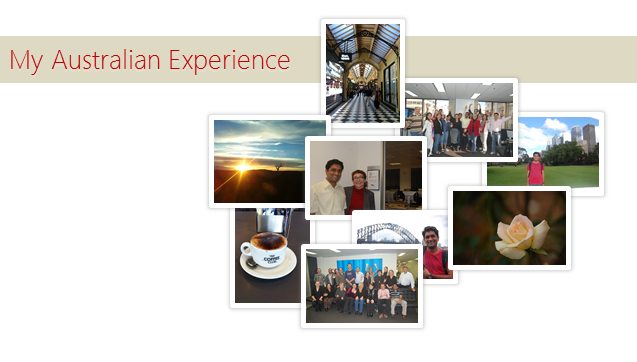
Here are some pics from the last 6 weeks.
Have a good weekend.


25 Responses to “Shift Calendar Template – FREE Download”
Hi Chandoo,
your recent postings include only Excel 2007 templates. Unfortunately the company I work at still runs Excel 2003. Is it possible to get your awesome files in other excel version as well?
Thanks so much for your great excel stuff!
Is it possible to do this for shifts with hours instead of days? To organise a three shift day?
Thanks in advance,
Stelios
In my organization there are 45 employees i need split then into three shifts ex:A shift:14,B shift:14,C shift:14 and week off:3 kindly help me on this.
@Masthan
You need to understand what rules your company has for the various shifts / roster combinations
Chandoo, I once did a shift control spreadsheet for my team. I put one person in each line, the columns were the days. I put a shift code in each cell indicating in which shift that person should work, or if the person were out that day. I have two codes for being out. One is for vacations and one is to compensate days worked in weekends. This way I was able to count how many persons I have in each shift, how many were on vacations and how many were out compensating (that's the term we use here) weekend worked hours.
Later I included the possibility of a person be in two lines one for normal hours other for overtime. This is mainly used for planning purposes. If you would like I can send you an example. The only problem of this spreadsheet is that we don't have a person view, only this consolidated view.
Hi George, I would like to have a copy of your spreadsheet if you can share it.
Thanks in advance, Chuck
Hi Chandoo,
Where is the code located ? is it VBA ? If so , how do you hide it ? Or it is .NET ?
Thx
@Idan
.
No VBA or code, it is all done with Mirrors.
Only Joking,
.
But there is no VBA or code,
It is all done with Named Formulas and Lookups.
Have alook at the cells in the calander area and Named Formulas in the Formulas, Name Manager Tab.
How can i calculate between two or more different workbooks? Please, reply me as early as possible.
@Anand
Open the workbooks you want to link to
Start a formula = and click and change between workbooks as required.
You can use the View, Switch window menu to change workbooks mid formula
The format for using workbooks is
=[Workbook.xlsm]Sheet1!$A$1
or
=SUM('[Book2.xls]Sheet1'!$A$1:$D$10)
etc
Hi Chandoo,
I am working with a call centre wherein i ned to update at the month end 20 to 30 employees login hours which are defict to track it at the month end is very difficult is there any template which can be made to track that why on a particular day a guy who needs to be on calls was why not on calls.
Thank you so much Chandoo. This is really helping me. As usual, you rock.
What's FortyTwoDays and Calendar in Name manager?
Both are unused and FortyTwoDays doesn't make any sense.
I have a SQL db that contains records of events scheduled/completed on a particular date. Can this method ous building a calendar be used to display those events on the respective day?
Positively awesome!
I'm attempting to help a friend create a schedule for adult classes - and of course its not"paid help". Here is the scenario:
20 classes, instructor, room#, student class size, start date, number of class days (need to subtract weekends)
class
instructor
room
students
start
#days
PATH
karen
201
21
01/01/13
11
BILLING
jane
401
15
01/12/13
13
MEDISOFT
mike
301
11
01/25/13
9
he'd like to see these classes show up in different colors within the same month's calendar chart. He can draw it, but I'd like to see it done automatically through data, and I just can't visualize it, but I KNOW this will work - can you help?
Jan 🙂
Dear chandoo,
Try many way to download still can't access. Any way we want to try out 3 shifts with 3 guys in a group .eg Group A Morn, Group B Night and Group C Rest. And every each group must work on sunday to take turns. In fact we are security teams so that's why sunday is required to work. Pls guide and show how to put in the working calendar. Thank you in advance.
I've been trying to copy and/or recreate this to use in a workbook I'm doing for the transportation department I'm working for. I need to have the calendar on the first sheet in my document (it has graph's from data on another sheet). I'm trying to use it to track (with the conditional formatting) accidents and injuries. I've redone the conditional formatting to do 4 different accident types (no injury, near miss, OSHA recordable injury and work loss injury), but when I enter the formula's you have in the calendar portion where it says "DateOfFirst-FirstWeekDay" I can't figure out how you did that. Are you able to help?
I would like to use Excel to solve the following problem for a community work. I want to create a Driver schedule for a given month from a pool of volunteers for a community service. Each of these volunteers can drive only on specific days in a week. I would like to populate the driving schedule for each weekday with primary, secondary and tertiary drivers in a random fashion so that I do not overburden one person. I would greatly any help you can provide.
Hi chandoo,
Thanks for your valuable effort for create this template and let me know how to add multiple employees in the the Roaster.
Hi Chandoo,
This article on shift roaster is very helpful. Could you please let me know how i can use the same for n number of resources who work 24/7, considering their leaves and holidays?
Thanks,
Savitha
Hi Chandoo,
This article on shift roaster is very helpful to all. Could you please let me know how i can use the same if I want to add for some more shifts, since the color is not getting change if I add more shifts like 4,5 etc.,
Thanks,
Murali
nice post
How can I change the date to 2017 under Shift Data worksheet.
solution 1:
mydata=B2:C16
stoplist=E2:E8
=LET(RNG,A2:A16,SMR,C2:C16, F,(RNG=E2)+(RNG=E3)+(RNG=E4)+(RNG=E5)+(RNG=E6)+(RNG=E7)+(RNG=E8),SUM(SMR)-SUM(SMR*F))
=LET(RNG,A2:A16,SMR,C2:C16,RH,N(B2:B16=B2), F,(RNG=E2)+(RNG=E3)+(RNG=E4)+(RNG=E5)+(RNG=E6)+(RNG=E7)+(RNG=E8),TOT,SUM(SMR)-SUM(SMR*RH*F),SUM(SMR*RH)-SUM(SMR* RH*F))
ALTERNATE SOLUTION
=SUM(C2:C16)-SUM(FILTER(C2:C16,ISNUMBER(BYROW(A2:A16,LAMBDA(a,TOROW(SEARCH(a,E2:E8),2))))))
=SUM((B2:B16=B2)*(C2:C16))-SUM((ISNUMBER(BYROW(A2:A16,LAMBDA(a,TOROW(SEARCH(a,E2:E8),2))))*(B2:B16=B2)*(C2:C16)))
let
Source = Excel.CurrentWorkbook(){[Name="Table1"]}[Content],
#"Replaced Value" = Table.ReplaceValue(Source,null,";",Replacer.ReplaceValue,{"Column1"}),
#"Transposed Table" = Table.Transpose(#"Replaced Value"),
#"Removed Other Columns" = Table.SelectColumns(#"Transposed Table",{"Column1", "Column2", "Column3", "Column4", "Column5", "Column6", "Column7", "Column8", "Column9", "Column10", "Column11", "Column12", "Column13", "Column14", "Column15", "Column16", "Column17", "Column18", "Column19", "Column20", "Column21", "Column22", "Column23", "Column24", "Column25", "Column26", "Column27", "Column28", "Column29", "Column30", "Column31", "Column32", "Column33", "Column34", "Column35", "Column36", "Column37", "Column38", "Column39", "Column40", "Column41", "Column42", "Column43", "Column44", "Column45", "Column46", "Column47", "Column48", "Column49", "Column50", "Column51", "Column52", "Column53", "Column54", "Column55", "Column56", "Column57", "Column58", "Column59", "Column60", "Column61", "Column62", "Column63", "Column64", "Column65", "Column66", "Column67", "Column68", "Column69", "Column70", "Column71", "Column72", "Column73", "Column74", "Column75", "Column76", "Column77", "Column78", "Column79", "Column80", "Column81", "Column82", "Column83", "Column84", "Column85", "Column86", "Column87"}),
#"Merged Columns" = Table.CombineColumns(#"Removed Other Columns",{"Column1", "Column2", "Column3", "Column4", "Column5", "Column6", "Column7", "Column8", "Column9", "Column10", "Column11", "Column12", "Column13", "Column14", "Column15", "Column16", "Column17", "Column18", "Column19", "Column20", "Column21", "Column22", "Column23", "Column24", "Column25", "Column26", "Column27", "Column28", "Column29", "Column30", "Column31", "Column32", "Column33", "Column34", "Column35", "Column36", "Column37", "Column38", "Column39", "Column40", "Column41", "Column42", "Column43", "Column44", "Column45", "Column46", "Column47", "Column48", "Column49", "Column50", "Column51", "Column52", "Column53", "Column54", "Column55", "Column56", "Column57", "Column58", "Column59", "Column60", "Column61", "Column62", "Column63", "Column64", "Column65", "Column66", "Column67", "Column68", "Column69", "Column70", "Column71", "Column72", "Column73", "Column74", "Column75", "Column76", "Column77", "Column78", "Column79", "Column80", "Column81", "Column82", "Column83", "Column84", "Column85", "Column86", "Column87"},Combiner.CombineTextByDelimiter("|", QuoteStyle.None),"Merged"),
#"Split Column by Delimiter" = Table.ExpandListColumn(Table.TransformColumns(#"Merged Columns", {{"Merged", Splitter.SplitTextByDelimiter(";", QuoteStyle.Csv), let itemType = (type nullable text) meta [Serialized.Text = true] in type {itemType}}}), "Merged"),
#"Added Prefix" = Table.TransformColumns(#"Split Column by Delimiter", {{"Merged", each "|" & _, type text}}),
#"Replaced Value1" = Table.ReplaceValue(#"Added Prefix","||","|",Replacer.ReplaceText,{"Merged"}),
#"Split Column by Delimiter1" = Table.SplitColumn(#"Replaced Value1", "Merged", Splitter.SplitTextByDelimiter("|", QuoteStyle.Csv), {"Merged.1", "Merged.2", "Merged.3", "Merged.4", "Merged.5", "Merged.6", "Merged.7", "Merged.8"}),
#"Removed Columns" = Table.RemoveColumns(#"Split Column by Delimiter1",{"Merged.1"}),
#"Removed Duplicates" = Table.Distinct(#"Removed Columns")
in
#"Removed Duplicates"