


Hello Friends & readers of Chandoo.org, I am very happy to announce that my new crash course on Excel formulas is ready for your consideration. Please read this short page to understand the benefits of this program & sign-up.
Who is this course for?
If you use MS Excel to do data analysis, reporting, day to day tracking or project management then this is the right course for you. If you struggle with formulas or not sure which formula to use for any given occasion, then this is the perfect course for you. We will be introducing more than 40 different formulas with 100s of examples in this course. As we will be using realistic data & examples, you can very quickly apply the same to your day to day work and do so much more with ease & confidence.
What are the topics of this course?
This course has 6 topics or modules. See below:
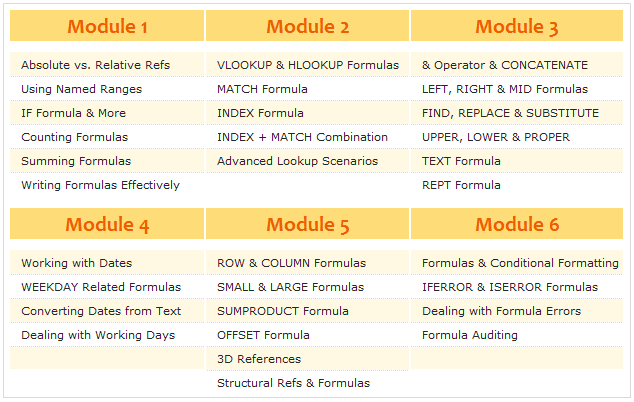
Click here to download Course Brochure
What do you get when you join this course?
You get the following benefits,
- Weekly 1 module of lessons for next 6 weeks: From the date you join, you will start getting these emails
- Example Workbooks & Homework: Each lesson comes with an Example workbook & every week we have some homework to test your skills. You can view the solutions in a different file.
- Ability to download HD version of the lesson videos: Every week, you can download all the lessons in HD format for later viewing & reference.
- 1 Year Online Access to the lessons: You can access all the lessons for one year from the date you join.
- 30 Days Money-back Guarantee: You have no-questions-asked money-back guarantee. If you do not like this course for any reason, just let me know and I will issue your money back.
Join Excel Formula Crash Course
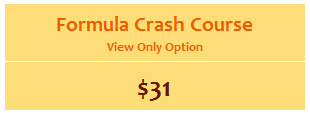 |
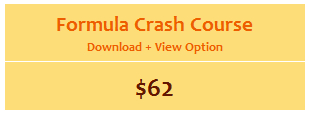 |
What you get?
|
What you get?
|
 Alternative Payment Link |

How does the purchase work?
Simple. Once you make the payment, you will receive an email with Module 1 lessons. Then, every week, we will be sending you a new module for 6 weeks from the date you join.
Have questions?
Call me at +1 206 792 9480 or +91 814 262 1090 or E-mail me at chandoo.d@gmail.com. I will be able to help you right away.
More Details
Visit Excel Formula Crash Course Sales Page.
See how the crash course works – Video
Thank you
Thank you so much for your support to Chandoo.org over the years. You motivate me to learn and share. I am hoping to see many of you in the formula crash course. Thanks once again 🙂


One Response
Hello Purna,
So basically am a big fan of your fun interactive excel baby steps.
Now I need to apply for an internal job as a reporting specialist & am not using excel at all, I thought about studying the baby steps from beggining to end, then study the excel formula crash course, please give me your advice as you are an expert & master of excel.
Will the baby steps be enough to prepare me for the crash course (will the crash course be what I need to be prepared ?), or what would you recommend, (am a very hard worker).
Thank you very much in advance Chandoo,