

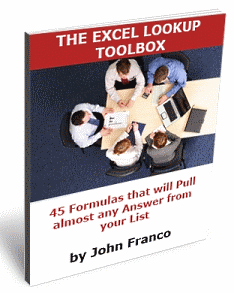
 Anyone working on the data using excel will know the importance of lookup formulas. They are vital for making almost any spreadsheet or dashboard. That is why when my friend John Franco, who maintains Excel-Spreadsheet-Authors.com, wrote to me about his new book Excel lookup toolbox I was truly excited.
What is in this book?
The Excel lookup toolbox has 120 pages of very useful information on writing lookup formulas (VLOOKUP, INDEX, MATCH) and associated excel formulas like SUMPRODUCT, COUNTIF, SUMIF, Array Formulas etc.
The book starts with a detailed overview of the formulas vlookup, index, match, countif, countifs, sumif, sumifs, sumproduct, averageif, averageifs and array formulas.
Then the book moves to describe 8 familiar lookup scenarios,
- Looking up a number/date/text equal to
- Looking up text that begins with/ ends with / contains
- Looking up case-sensitive text
-
 Looking up two index columns and other advanced lookup formulas
 - Looking up the max/min number, newest/oldest date etc.
- Looking up the exact or lower approximate text/number/date
- Looking up the exact or lower/greater approximate text/number/date
- Looking up the amount of a category

For each of these lookup scenarios, John explains how to write lookup formulas, gives a handful of practical examples (with illustrations) and highlights common mistakes and errors.
Read a sample page of the book.
Benefits of using Excel lookup toolbox
Anyone reading this blog for more than a week would appreciate the important role excel formulas play in building better excel worksheets / models / reports / dashboards. I think there are several benefits of really learning excel lookup formulas.
In my opinion, this book will help you,
- become better at understanding the structure of your data(base)
- write smarter and accurate lookup formulas, thus saving time and effort
- not rush to Google or ask in forums on how to fetch the “x” from “y”
- know exactly why an error is occurring when you see a #N/A or something equally annoying.
- learn how to fix errors in lookup formulas and better still, know how to avoid such errors
What you get when you buy the toolbox?
When you purchase the Excel lookup toolbox you get,
- A 120 page e-book on Excel Lookup Formulas (PDF)
- 45 Excel files with detailed examples of lookup formulas
- A fact-sheet detailing various errors that occur when writing lookup formulas and the remedies
How Much is the Excel Lookup Toolbox?
For a limited time John is selling the toolbox for $19.85. Believe me when I say this toolbox is a steal.
My Review & Opinion
John uses his prior experience in system development to give us several real world scenarios and how the lookup formulas can be written for these. I really liked the way the John presented the content. See the sample page above.
I recommend the excel lookup toolbox for anyone working on excel to manage and report data. The book can teach you some really awesome tricks and help you become better at writing lookup formulas. That, my dear reader is the easiest way to impress everyone at work and get things done.
Any questions?
Do you have any questions about this product? Please drop a comment, John has agreed to reply to your queries directly here. If you bought the product, please feel free share your review here because it will help others.
Disclosure
John is a friend of mine. I have reviewed this ebook even before release (you can read my testimonial in the book as well). I get small commission when you buy the excel lookup toolbox. But I am 100% sure you get much more value out of the toolbox than what John or I make from the sale. Go ahead and get the excel lookup toolbox today.


4 Responses to “Product Recommendation – Excel Lookup Toolbox”
Does the book deal with the OFFSET function? I've got a couple of dynamic spreadsheets and I use a formula with OFFSET and COUNTIF or COUNTA.
However, since Excel can make a range dynamic using List(2003) or Table(2007), I'm wondering why would I need this type of forumula instead of a standard Lookup formula?
Hi Art,
Thanks for your question!
The function OFFSET(reference,rows,cols,height,width)
returns a reference (A2, C6, etc) or an array (A2:A5, B3:B9, etc) that you can use in any formula that requires such argument.
For example: you can feed the formula =SUM() this way =SUM(A2:A6) or this way =SUM(OFFSET(A1,1,0,5,1)) with the same results.
Of course, you will use the OFFSET function with some condition that changes. Generally speaking, this function only feeds other formulas.
Well...
In brief, you need the lookup formulas to do the search and summary job, and eventually, if you have dynamic spreadsheets use the OFFSET function to specify arrays and cell references dynamically.
For example, this array formula from the "Excel Lookup Toolbox" ebook searches two index columns (order number and quantity) and returns the sum based on the specified column...
{=INDEX(Haystack!$A$2:$C$5,MATCH(1,(Haystack!$A$2:$A$5=A2)*(Haystack!$B$2:$B$5<=B2),0),3)}
and it is the same that this other one using the OFFSET function as the lookup_array for the MATCH function
{=INDEX(Haystack!$A$2:$C$5,MATCH(1,(OFFSET(Haystack!A1,1,0,4,1)=A2)*(Haystack!$B$2:$B$5<=B2),0),3)}
Conclusion:
The book provides the lookup building blocks (45 lookup scenarios); you can feed any of these formulas with your dynamic range (OFFSET)
Art,
The most explicit answer to your inquiry is NO, the book does not include the OFFSET function.
I hope it helps you to decide and order!
Dear Mr John
I would like to buy your book
for lookup table
please send me detail about where to make payment
Regards
Prakash B Bajaj