

We love to compare. The instinct to compare leaves no one. Even my two year old twins compare their toys with each other (and fight).
It would make Excel hugely popular if Microsoft builds a handy data comparison tool right in to it. Alas, they have customizable ribbon, 3d effects & equation editor…
Since comparison is one of the main uses of Excel, we have written extensively about it here.
[Read: Compare 2 lists quickly, Compare 2 lists – detailed tutorial]
But there is always one more interesting comparison problem. Today, I want to share one such problem, based on a comment left by N-Man.
The Problem – Compare 2 lists with another 2 lists
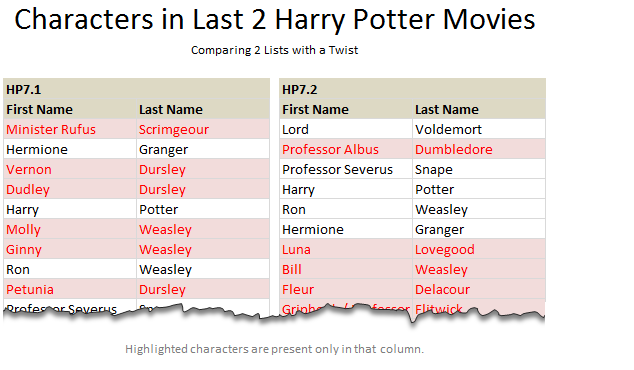
I have to do a comparison between to sets of staff lists, where name that are highlighting in the first list who do not appear in the second list have left the firm, and people highlighting in the second list who do not appear in the first are new arrivals.
To further muddy the issue, when I say ‘list’, what I actually have is one column for 1st names and another for surnames in both instances.
Assuming N-Man managed the cast of Harry Potter movies, may be he was talking about something like this:
The Solution – SUMPRODUCT, Conditional Formatting & Coffee
Lets bring our most important ingredient for this problem first – coffee.
Once you pour yourself a strong cup of this, the solution for our problem should become apparent.
- The first step is to give names to all the four lists. While this is not mandatory, it simplifies our solution and reduces our blood pressure.
- So lets call them list1, list 2, list 3 & list4.
- Now, we need to highlight all items in list1 & list2, whenever they do not appear in list3 & list4. (and vice-versa)
- This is where SUMPRODUCT comes in to picture.
- Assuming the lists are in columns B,C, E,F and starting from row 6,
- =SUMPRODUCT(–(list3&list4=$B6&$C6))=0 will be TRUE if the fist item Minister Rufus Scrimgeour does not appear in second set of lists.
- As you can see, we are exploiting the power of SUMPRODUCT to concatenate both lists (list3, list4) dynamically and check in that for the name in B6&C6.
- So the portion (list3&list4=$B6&$C6) gives us a bunch of TRUE, FALSE values based on the comparison of B6&C6 with in list3&list4.
- The double negative sign — is used to convert a set of logical (boolean) results to numbers (1s and 0s) as SUMPRODUCT is meant to work with numbers, not boolean values.
- Then, we see if the result is 0 (SUMPRODUCT(–(list3&list4=$B6&$C6))=0), to see if there were no matches. Had there been at least one match, the SUMPRODUCT would return a positive number.
But wait, We need to highlight
Since we want to highlight the missing items in each list, we need to use Conditional Formatting and feed this SUMPRODUCT formula to it.
So, select the first 2 lists (list1, list2), go to Conditional Formatting > Add rule.
Select the rule type as use a formula to determine which cells to format
Now, type the formula =SUMPRODUCT(–(list3&list4=$B6&$C6))=0

And set the formatting to whatever you want.
Click OK and we are done!
Apply the same formatting rules for List3 & List 4, but this time the rule becomes =SUMPRODUCT(–(list1&list2=$E6&$F6))=0
That is all.
Download Example Workbook
Click here to download the example workbook to understand this technique better. Examine the CF rules to learn more.
How would you compare?
The problem posed by N-Man mimics many real world comparison problems. You want to compare 2 lists, but subject to some condition. For example you want to see which customer product combinations are new in a particular month (compared to previous month, say). While we can use helper columns & then write simple COUNTIF formula to do the same, using SUMPRODUCT allows us to extend this model in many more ways.
What about you? Do you face similar comparison problems at work? How do you solve them? Please share your techniques and ideas using comments.
Learn More ways to Compare
If your work involves fair bit of comparison & related data analysis, check out these articles to learn more.
- Compare 2 lists quickly using Conditional Formatting
- Compare 2 lists – detailed tutorial
- Compare 2 lists – a special scenario
- Learn how to use Excel Conditional Formatting for comparison and more
- Introduction to Excel SUMPRODUCT formula
- More on comparison, SUMPRODUCT & Conditional Formatting
Want to Learn More Formulas? Join Our Crash Course
If you want to learn SUMPRODUCT and 40 other day to day formulas, and how to use them in situations like this, then consider my Excel Formula Crash Course. It has 31 lessons split in to 6 modules and makes you awesome in Excel formulas.

Now, if you excuse me, I have a comparison problem to solve. My daughter is comparing her hello kitty toy with my son’s scooter and now they are fighting!


10 Responses
As always: simple, elegant, brilliant.
You are a genius. Eloquently put as always
I am not a big fan of concatenation for multiple criteria. The problem is concatenated criteria like “PadmaPatil” for the name Padma Patil appear the same to Excel as “PadMapatil” (Pad Mapatil) and any other delineation between the names/criteria. If concatenation is still the best option for a problem, you can include a field separator that will never exist in your data; e.g. (list3&”,”&list4=$B6&”,”&$C6). Concatenation takes time and is more error-prone due to the field delineation issue. When there are alternatives, you may as well use them.
Since conditional formats are treated as array formulae, it is possible to use SUM instead of SUMPRODUCT (for readability but not speed benefit). In this case, I would prefer:
=SUM((list3=$B6)*(list4=$C6))=0 and
=SUM((list1=$E6)*(list2=$F6))=0 for the conditional format rules, with a more exacting result. Or in Excel 2007+, COUNTIFS (faster):
=COUNTIFS(list3,$B6,list4,$C6)=0 and
=COUNTIFS(list1,$E6,list2,$F6)=0.
Another method that could be compared for speed uses MATCH. With MATCH, Excel will stop searching at the first match it finds. SUM/SUMPRODUCT and COUNTIFS will always check the whole list. The downside is that MATCH requires concatenation for multiple criteria.
=ISERROR(MATCH($B6&”,”&$C6,list3&”,”&list4,0))
Asa
Very good points Asa… I agree that using a delimiter is a good idea.
Also I think using COUNTIFS is a better choice. Somehow I missed it when looking for a solution.
Thank you for the valuable articles day in and day out,. You’re a very good teacher. And thank you for being such a gentleman, Chandoo.
I loved this post! Excellent way of comparison.
I also agree with Asa that we should add “,” in the concatenation.
@Mike, James, F106dart: Thank you so much. I am happy you liked it.
Chandoo, everything you do is great! However, I am still not seeing a way to compare two lists so that
A) duplicates that may exist in list 2 are not highlighted (e.g., List 2 has 47 lines with Finger Shoes, but Finger Shoes does not appear in List 1 and should not be highlighted)
B) every instance of an item in list 1 that appears in list 2 is highlighted (e.g., Flower Bombs appears in List 1 and so all 23 instances in List 2 should be highlighted.
Am I missing something? (Beside that ability to spell Harry Potter names?)
Okay so this is close to what I am looking for. What I have is a list of services with individual clients and begin and end times of the services they receive. Some of these services may overlap and I want the IF statement to isolate those. So IF Client equals Another Client AND DOS equals DOS, then look at the begin and end times in both services and if there is an overlap return a result.
Any thoughts would be appreciated.
Hi Teresa, check out these other two articles:
http://chandoo.org/wp/2010/06/01/date-overlap-formulas/
http://chandoo.org/wp/2012/01/17/formula-forensics-no-009-2/