

 Lets start the week with a quick tip.
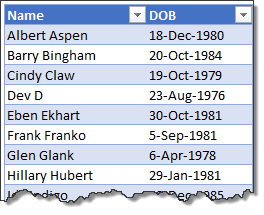
Lets say you have a list of employees and their birthdays. Now you want to sort this list, based on their birthday, not age. How would you do it?
Sorting by day and month alone:
- Add a column next to original dates. Lets call this Birthday.
- Then, calculate birthday in current year for everyone.
- Assuming DOB is in B1, Formula for birthday (in current year) would be,
=DATE(YEAR(TODAY()),MONTH(B2),DAY(B2)) - This formula gives you a date which has same year as TODAY(), same month & day as original date.
- Then, fill down the formula for all rows.
- Now sort this new column (Birthday) in chronological order.
- You are done!
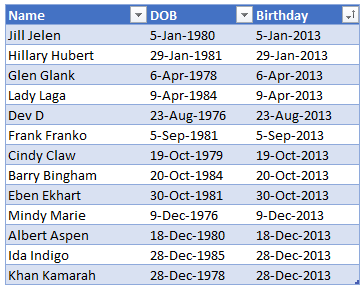
Note: if you are using tables, then use this formula.
(Assuming original date is in DOB column),
=DATE(YEAR(TODAY()), MONTH([@DOB]),DAY([@DOB]))
Related: Introduction to Tables & Structural References.
More Sorting Examples:
- Sorting sideways
- Sorting in Olympic medals table style, Formula 1 racing style
- Rounding and sorting data
- Checking if a list is sorted using formulas
- Sorting text values using formulas
Homework for you:
If you think sorting by birthdays is easier than eating a birthday cake, then I have a challenge for you. Assuming a list of data of births is in the range A1:A100, write a formula to find how many birthdays are in this month?
Go ahead and post your answers in comments.


