

Sometimes you want to turnoff decimal points if the value after point is 0. Mireya, Chandoo.org member had one such situation. She writes:
I am a complete beginner in excel, how can I keep the zeros when I am working with decimals and remove them when are not required, ie
Thanks for your kind help.
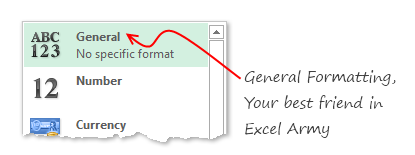
Easy way: Use General Formatting
The default cell formatting in Excel is General. When you set a cell’s formatting to General, you are telling Excel,
Don’t bother me. Just figure it out.
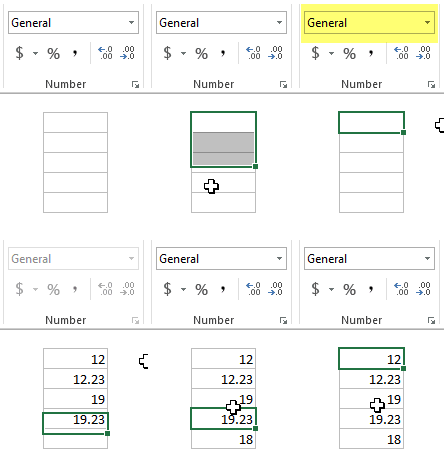
And being a good Samaritan, Excel shows decimal point if there is something after it, else omits it.
See the demo aside to understand this.
What if your numbers are results of a calculation?
It doesn’t matter. General formatting takes good care of the cells. It shows and hides decimal point depending on the result of your formulas.
What if you want something fancy like accounting format, but turn off decimal values
Now you are talking. The General Formatting option shows numbers as typed (or calculated). So 124578395 would look like 124578395 instead of $ 12,45,78,395.
So how do you show $1,245 and $1,246.34?
Aside: You should always show decimal points if some values have them and others don’t. The below technique is useful when data is a result of calculation. For example: In a dynamic KPI report, for certain KPIs you may want to show decimal points, and omit for others.

To show decimal point if there is something after it
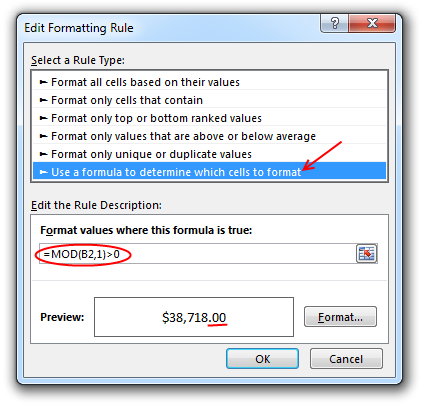
Just follow below steps:
- Select the cell(s) where you want this formatting.
- Go to Conditional Formatting > New rule from home ribbon.
- Select rule type as “Use a formula…”
- Check if there is a value after decimal point using a formula like =Mod(A1,1)>0
- Click the format button
- Go to “Number” tab and Apply formatting with 2 decimal places.
- Click OK & You are done!
Now, if the cell has a decimal value, it shows, otherwise the decimal point is omitted.
Related: Conditional formatting Basics
Do you deal with such situations when formatting numbers?
Often when making reports (or dashboards), I have a cell where any data can go, based on user selection. In such cases, I use conditional formatting to define how it looks based on the data. Sometimes, I also use TEXT formula to format the data. This is more suitable when data is displayed in a text box rather than a cell.
What about you? Do you face situations like this? How often you rely on General formatting? Please share your experience and tips using comments.
More on Number formatting in Excel
Understanding how Excel formats numbers (and other values) can save you lots of time when you are designing dashboards, reports or workbooks that need to presented. Check out below articles to get few more tips.
- Introduction to number formatting in Excel and 10 tips
- Preserving leading zeros in a number using formatting
- Display decimals only if the value is less than 1
- How to hide “0” in chart axis labels?
- How to hide cell’s contents using format codes?
- Adding colors to your chart labels using custom format
- Showing Indian Currency Format in Excel [and more on this]
- Develop & understand custom number formats
- Chart Axis formatting – Part 1 & Part 2


22 Responses to “Master Excel 2007 Ribbon with this Free Learning Guide”
Thank you, kind sir. Well done with the baby making.
I cannot get signed up for your newsletter. I tied both this email address and churchill2001@hotmail.com. never a response.
I cannot get signed up for your newsletter. I tied both this email address and churchill2001_at_hotmail_dot_com. never a response for either attempt.
@Doug, it shows that your email address is pending verification. Can you check your inbox (and may be spam folder too) for an email from me? The subject will be "Activate Subscription to Get your Free Excel Tips E-book"
[...] PPS: If you are struggling with ribbon, you should check out ribbon learning guide. [...]
Very Useful Info..Keep it up..
@Ajay.. you are welcome 🙂
how do u download microsoft excel for free?
http://www.microsoft.com/en-us/default.aspx
Select Office
Free Trial
[...] Excel 2010 UI looks considerably better and less stressful than 2007. The colors are dull and subtle. The icons don’t call for attention unless you want to do something. The menus / ribbons feel smoother and slicker. [Learn to use Excel Ribbon with this Free e-Book] [...]
I can't open this pdf. I get the error message:
You do not have the required license to open this file.
Please request a license from the creator of the file, and add it using the license manager and they try opening it again.
What gives??
I downloaded the file again and it worked this time. Strange. (First file was 116 KB, second was 1644 KB... ???)
[...] More ribbon goodness | Free e-book to learn Excel Ribbon [...]
Hi Chandoo,
thanks for sharing your Excel 2007 learning experience with us; unfortunately the link to the pdf of the free Excel 2007 learning guide seems broken: my Acrobate Readers flags: "Unkown file type or corrupte data".
Have a nice day
Michael
well done this is great
Can somebody just provide a link the classic TAB exportedUI files for MS Office 2003 for us to use in office 2007/2010?. searching online, everybody just wnats to make a buck online with silly Classic Tab installers which do nothing more than inport exportedUI files for you.
Don't give me a ribbon how to guide, just give me free exportedUI files. I should not have to pay anyone for this, it is free XML, MS should have included this to begin with.
thanks
Dear.
There are a set of debit values and a set ot credit values in a column. I want a vba code by whcich the debit value plus a single / multiple credit value is zero that needs to be marked .
finally i will come to know out of the avaibale debits which cannot be used the with avilable credits either single or multiple values.
If multiple matching sets are available let it take the 1st or the 2nd one its not an issue.
Column A Ref
-1000 A
-5000 B
-8000 C
800 A
100 A
100 A
2000 B
3000 B
13000
15000
hi...
how to make this add-ins and display in ribbon... check this sample : http://www.cprsoft.com/GCDemo01.htm
thank you sir...
Please tell me format painter short cut key In excel ?
Thanks In Advance
thankfully.likeeeeeeeeeeeeeeeeeeeeeeeeeeeeeee
I am very much happy for such a great opportunity given to excel learners to advance their skills for the betterment of the future. I am a great user of this site and feel proud to have come across this web site.
I appreciate this, because I didn't do much works in my project management studies using gantt chart. As of now are have now learned some advancement.