

Each new sheet in MS Excel comes up with a 1,048,576 rows and 16,384 columns. While it has a certain binary romantic ring to it (2^20 rows & 2^14 columns), I am yet to meet anyone using even half the number of rows & columns Excel has to offer.
So why leave all those empty rows & columns hanging in your reports?
Would it not look cool if your reports showed only few rows & columns as needed, like this:
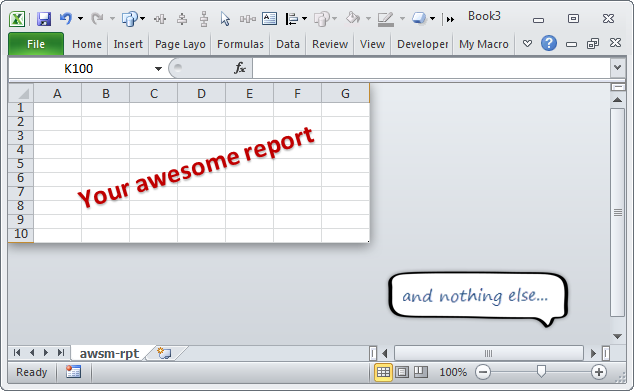
Today, lets learn how to do this.
Showing only few rows & columns in Excel
Step 1: Select the column from which you want to hide.
Step 2: Press CTRL+Shift+Right Arrow to select all the columns till XFD.
Step 3: Right click and hide
Step 4: Select the row from which you want to hide.
Step 5: Press CTRL+Shift+Down Arrow to select all rows until 2^20
Step 6: Hide the rows too. And you are done!
See this demo:
Bonus tips: Learn how to make better Excel sheets


99 Responses
thaaaaaaaaaaaannnnnnnnnnnkssssssss
🙂
Umm, video says ctrl + shift and left arrow… thats a right arrow 😉
On cells where there are no formula, will removing the displayed cells improve performance? Will not displaying a few million cells each time have a performance perk, similar to the boost VBA application.screenupdating gives or does it still process the cells despite not being displayed?
Excellent Tip! Thank you –
Is there a way to prevent scrolling after you have hidden all of the unnecessary rows and columns?
@David R
Select Cell A1
Goto the View Tab, Freeze Panes,
Select FreezePanes
How do I unhide now?
Just Add raws as usual. I couldn’t find any other way
I use these all the time. Have them set on the Quick Access Toolbar. Note: just have the bottom right cell you wish to show selected at the time of invoking the VBA code.
Sub Hide_ColumnsandRows()
Dim Answer As VbMsgBoxResult
Dim lastCol As Integer, lastRow As Integer
Answer = MsgBox(“Please make sure that your current ACTIVE CELL is the cell that you want to be the last visible cell. “, vbOKCancel, “CAUTION!”)
If Answer = vbCancel Then Exit Sub
If Answer = vbOK Then
lastCol = ActiveCell.Column + 1
lastRow = ActiveCell.Row + 1
Range(Cells(1, lastCol), Cells(Rows.Count, Columns.Count)).EntireColumn.Hidden = True
Range(Cells(lastRow, 1), Cells(Rows.Count, Columns.Count)).EntireRow.Hidden = True
End If
End Sub
Sub Reveal_ColumnsandRows()
Cells.EntireColumn.Hidden = False
Cells.EntireRow.Hidden = False
End Sub
Hi Nelson
Thanks for sharing the code. I am getting compile error in the line
Answer = MsgBox(“Please make sure that your current ACTIVE CELL is the cell that you want to be the last visible cell. “, vbOKCancel, “CAUTION!”)
Please help to resolve
@Viswa
Try:
Answer = MsgBox("Please make sure that your current ACTIVE CELL is the cell that you want to be the last visible cell. ", vbOKCancel, "Caution")You may/will have to retype the ” marks manually if you copy from here as WordPress converts them to something that looks like a ” but isn’t
Awesome, thanks Nelson
Excellent tip
Will this also work to eliminate blank fields when I am working with my own or (more often) imported data files that seem to include all rows and columns ………..
This is a great tip. It’s funny how few people do this and leave all the blank rows and columns when there is no way they are going to need them.
There’s one tip I REALLY wish someone could help me with, also has something to do with endless columns and rows.
Sometimes it happens that you accidently edit all the cells in a certain row\column, causing you scrollbar to become really small and scrolling becomes very sensitive.
Is there a way to undo this?
Thanks
You can select the all the rows and go to home > clean > clean formats
(the icon looks like an eraser)
Oops.. you need to clean all as there may be some blank values too.
Do you mean when Excel suddenly increases the size of the active sheet, and the scroll bar shrinks to reflect how much more space it is required to control? Pressing Ctrl-End takes you to row 1048576, everything suddenly becomes slow and the file size balloons to gigantic proportions…
In this case you have to select all the rows below where you want the scrollbar to “stop” and delete them (then repeat with all the columns to the right of where you want to stop, delete them too). *Then save the file* and your scroll bars are back to their old size
(I have no idea why Microsoft thought it’d be a good idea to allow Excel to show spreadsheets that are so large they crash the whole computer, sounds like a triumph of marketing over sense to me)
Right click your page tab and select properties. Set the scrolling limit to whatever you’d like!!
I don’t see a “Properties” option when right clicking on a tab. Where else might we find this Scrolling Limit option?
In Excel 2010 (and 2007 I think), you can use ALT-F11 to open your VBA window. Select the sheet you want in the Project window and use F4 for the Properties sheet. In there you can set the scroll area to whatever you want.
As a side bonus – the last parameter in the Properties sheet is Visible. If you want to really HIDE your sheet – you can set the property to VeryHidden. For lesser experienced Excel users, they will not know the sheet exists even if they right click on the sheet tabs to see Unhide Sheets.
Not a foolproof way to hide sheets from experienced users but it can keep your more inexperienced users out of trouble.
Hope that helps!
Cheers,
Gino
That’s awesome tip Gino
Hi Gino,
Thanks for the tip, I can think of several ways of applying it.
However, it still doesn’t make the scroll bar “normal” size again [chandoo, neither did the “clear all”].
This is an issue I find many people in my office asking me about and has yet to be solved. Any other suggestions?
Thanks again,
Oren
@Gino
When you say it doesn’t make the scroll bar the normal size again
Is all your data for the worksheet visible on your screen?
If the answer is Yes, then the large scroll bar is actually the correct size.
You can reset it by say going to cell A10000 and type a value
Go back to A1
The Scroll bar should be reset
Go back to A10000 and delete the cell
I had tryed that many times and with no success.
As you scroll further down in the sheet the the scroll tab (for lack of a better name, not sure that’s what it’s called) gets smaller and smaller.
If you don’t do anything and go back to A1 the tab becomes big again. If you do edit the cell the tab remains small.
After going back to the cell and deleting or “clear all”ing 😉 it and then going back to A1 nothing changes and the tab remains small.
As far as I know, this is also the case with my team memebers.
@Marninei
Here’s the method I use to reset my scroll bars.
1. Go to last cell I actually am using.
2. Select all rows/columns below/to the right of where I am.
3. Right-click, delete.
4. Save the workbook.
Hallelujah!
Thank you very much for the help.
The secret ingredient was in fact the SAVE…
Hope this magic works for all my other sheets as well.
Thanks again,
Oren
Hi Gino,
Thanks for your valuable tip.
Thanks a lot
That was an awesome tip. Very interesting
Excellent tip, how do you unhide those rows, if you need to.
Thanks, this is excellent.
Thanks Chandoo, i was also wondering.
That is SO simple and so effective, I feel like an idiot that it’s never occurred to me before. Not an utter and complete idiot, for at least I’m smart enough to subscribe to Chandoo.org!
Thank you for the tip.
Simple and easy to apply. i will try it right now. thank you for your tips.
Chandoo, this is a great tip. I used to just remove the gridlines and make reports thinking thats the best way. This is a step ahead and gives a clean look. Thanks.
how to hide Row & col lables?
In Excel 2007, choose the View tab on the ribbon and unclick “Headings”.
In Excel 2003 it’s Tools menu, Options, View, turn off Row & Column headers in the Windows Options section (Not sure re later versions)
A small correction to the steps written in the tutorial above:
Step 1: Select the column from which you want to hide.
Step 2: Press CTRL+Shift+Right Arrow to select all the columns till XFD.
Step 3: KEEP HOLDING THE SHIFT KEY and Right click on the column headers and select hide
Do the same for the rows !
Why do we need to keep holding the shift key? Hide is one of the normal choice in the right-click menu.
Does this increase the size of the file?
It wouldn’t affect the size or if it did it would be very insignificant.
Wow that was a simple one! But something I didn’t know! Thanks 😀
Hey
You can also set the column and rows width to 0
Regards Stef@n
i was searching for this for many months. Atlast i found it
But disappointed after using it
My file size is less than 1 MB and has 10 sheets
If I am hiding rows and columns, in all 10 sheets, from U in column and from 40 in rows then size of file is increasing to 10+MB .
Size increases if hiding row/columns
is there any problem in my file or this is usual/common ?
girdhar:
The file size depends on what excel need to store in it.
Since you are not actually removing anything from the sheet, but simply not showing it, the file size does not shrink.
On the other hand, excel now have to remember which rows & columns that are hidden, so that extra information increases the file size…
Chandoo: Thank you very much for this treasure trove! It has become the first place I go when I need to find info on anything excel-related.
/Lasse
Thank you Lasse
thanx chandoo sir again an excellent tip for excel
Hi Chandoo! Thanks so much! I have often wondered how some Excel files that I’ve downloaded from the web have this clean look–with no extra rows and columns. Now I know, thanks to your tip! This is awesome. I have already begun using this on my spreadsheets at work!
what if it is the other way, column A-W is hidden, how to unhide all column instead ofcolumn by column.
This was helpful in getting rid of unnecessary columns, but im typing a spreadsheet and when i get to the end of one row and push “tab” to start the next row, it will not tab down to the begging of the next row.. is there a way to adjust this?
Hi Annie.. can you press Enter in the last column. This should bring you back to first column next row.
This is a great tool. I use borders on my spreadsheets. I noticed that after hiding all the rows and columns, the last columns in my spreadsheet lost its border and now the spreadsheet looks odd with no right-hand border. Is there a way to fix this or protect the border when hiding the unnecessary columns? Thanks!
format a right hand border on your last column – not a left hand border on the first hidden column – it should show nicely.
Thanx a lot its so easy i was think it s by mecro
Thanks was very easy
Thanks for the help.
Hi. I have a question:
I have created a data base with more than 350 columns. When trying to open the file again, only the first 256 columns showed and everything else was gone/hidden. I’ve tried with any unhide option and nothing worked so far. Any suggestion?
Thanks in advanced!
Hello,
Thanks for this tip.
Shokran !
Thanks!!!!! 🙂
hi.
want to learn vba .
how i need to get started….?
It should not be permitted to be so efficient ! 🙂
Thanks. Your post helped me a lot.
Julien
http://www.ajobilove.net/
20 websites later, I should’ve looked at yours first. THANK YOU!
Ahhhhhh Why was this so hard to find?
Thank you
OHMYGOD YOU can’t imagine the HUGE knot you’ve just outdone in my brain. all these columns…i don’t need them, please go away…how how HOW DEAR LORD????
these measly appreciative words are not enough. THANK YOU!!!
Thanks Chandoo….You are too good
Very Good.Thanks.
Thanks
This is cool but I want to do exactly the same on the left hand side of the report. I want to have a A4 page like report in the centre/middle of the screen. So while your solution does it beautifuly for the right hand side of the report and for the section underneath it too, how to do it on the left hand side? Hidding columns won’t work there. is there any other way?
OK! Thanks! I got the point! Thanks for the tips!
Restoring the display
If you need to unhide the rows and columns, first select the entire sheet. Then, in Excel 2003, choose Row or Column from the Format menu and select Unhide. In Excel 2007, click Format in the Cells group on the Home tab, choose Hide & Unhide, and select Unhide Rows (or Unhide Columns).
Thanks a looooot..
how many rows and columns on 2013?
I have 300 columns.
How would I quickly hide all the columns EXCEPT: 5, 123, 287?
@Patty
Try:
Range(“A:D,F:DR,DT:JZ,KB:XFD”).EntireColumn.Hidden = True
Oh thank god I found you. Do you know how many websites I went through for this simple little fix? How is the search engine not figuring out when I say “I only want to see Page 1 in Excel” that I only want to see Page 1? You’re a lifesaver!
Thanks. Very helpful 🙂
On my version of excel the background color of the hidden area is white, not grey… so no difference between the hidden area and the work space… is there a fix? Cheers.
Did you get a solution, I also have a white background?
How to do this in Office 2016 for Mac, any tips?
Thank you sooooooooooooo much
thanks alot
You solve my big problem as sir given a task
thanks again
Thank you! A clear, simple answer to surely a common problem for the amateur excel user. Couldn’t find it elsewhere. Appreciated.
Is there a way to make “Tab” work when going from the end of a row to tab to the beginning of the next? For example: I now only have through column H shown but when I am in H1 and want to tab to A2 it won’t do it. Thanks for the help 🙂
@April
If you pre-select A2:H100
The press Tab instead of Enter as you enter data
Excel will go from H1 to A2, H2 to A3 etc when you press Tab instead of Enter
But there is no way to make the form do this automatically without having to select the fields each time?
WELL BUTTER MY BISCUIT
Wonderful! Thank you!
Fantastic, made me look good to my boss. Thank you so much
Thanks for the marvelous posting! I seriously enjoyed reading it, you will
be a great author.I will ensure that I bookmark your blog and may come back later on. I want to encourage you continue your great work, have a nice weekend!
Great. Thanks a lot. I was searching for this from 1 month.
thanks, its working
many many thanks
Wow, Chandoo! This is the most awesome fix, and also I learned some fascinating information regarding the numbers of rows and columns in Excel. You are a wonderful teacher and guide!
Nice