

Spreadsheet modeling or scenario modeling is one of the common uses of Microsoft Excel. People, especially in financial sector use MS Excel to do a lot of modeling. While excel has such powerful features like goal seek and scenarios, it also has a very useful feature called “cell styles” that you can exploit to make your spreadsheet models more user friendly.
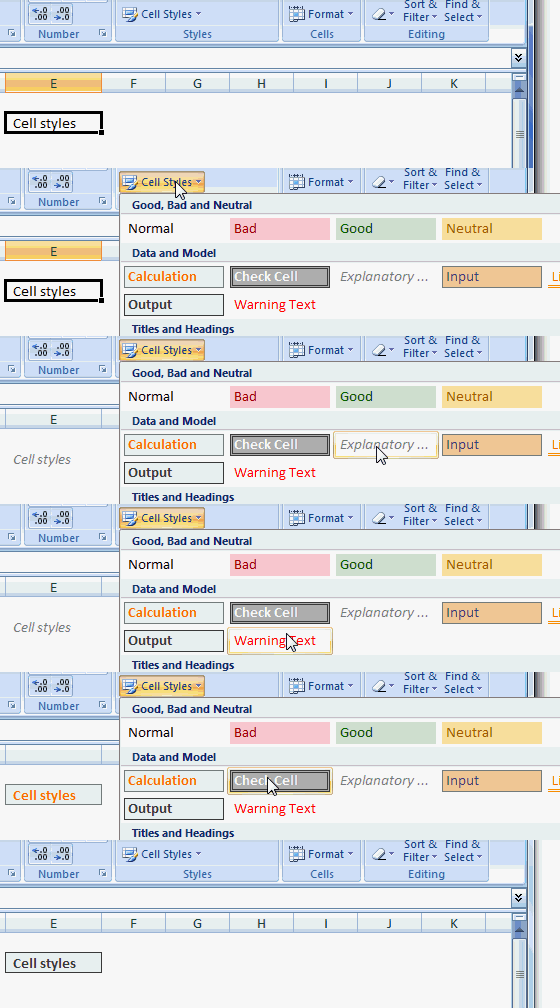
Here is a small screencast to get you started. Excel 2007 comes with some great styles to mark various types of cells in the model, viz, input, output, calculation, warning, explanation etc.
What is your experience with cell styles?
I think they are easy to use and add consistent (and professional) look to the workbooks. What do you think?
Browse more quick tips and learn something fun before you take a sip.


11 Responses
I think it’s great that M$ removed the 400 style limitations that existed upto Excel 2003.
Not that anybody deliberately tried to break it, but it was a pain to fix once breached.
I recently came across a file with a style that begins with =C:\Windows\…
I tried to delete is manually, via VBA etc but no luck.
I finally found a way..by going in to the XML part of the file and deleting it there.
@Hui… I didnt know there was a 400 style limitation in 2003. Good that you pointed it out.
@Sam… hmm, styles and hardcoded worksheet references can be a pain in the a$$. I once spent 2 hours finding a reference that was pointing to another workbook on another computer.
This was present in 2003 as well, but has been enhanced in newer versions.
I never used this in 2003
Is this present as default in 2007 ribbons?
I saw in 2007 but did not see as default in 2010, and was wondering were has it gone.
Thanks to this post for highlighting it
Amazing stuff for financial modeling….
Dear Sir, I have some data in excel sheet and I want to auto copy few selected data into another sheet… please help me…..
How can I set the “cell style” options on my excell without having to drill down….. My other co-workers have it on the home tab and do not need to do any drilling down, they just click the style they want from home tab…. hope this makes sense