

Today lets rescue John Doe from John_doe@email.com.
Extract first & last name from email address
As you may know, we have an article on how to extract names from email addresses. 2 days ago, Joana commented on it saying,
Not to brag but I created a [complex] formula that extracts the names from emails in a much more interesting way. See the examples:
john_doe@email.com >> my extract >> John Doe
john.doe@email.com >> my extract >> John Doe
john321doe@email.com >> my extract >> John Doe
I asked Joana how she did it. And here is the formula she shared (#),
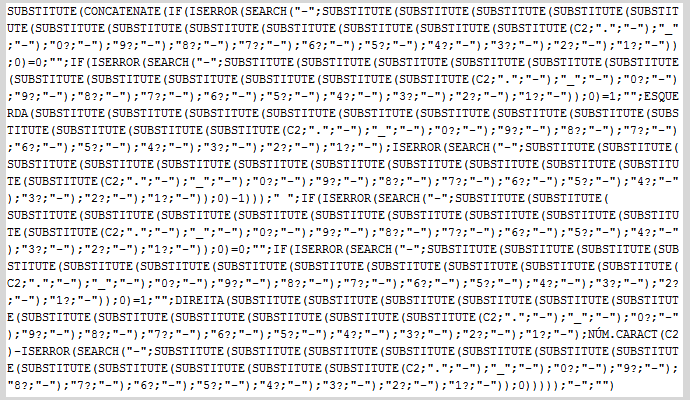
Yes, it is long. It must have taken a lot of concentration, ninja-level skills to come up with this.
(Note: The formula is in Portuguese or Spanish version of Excel. So do not try it in English version)
Here is your challenge.
Given an email address in the format
firstnameany_non-alphabet.characterslastname@email.com
You need to extract first name & last name using formulas.
Things to keep in mind:
- Assume only English alphabet in names. That means no letters like áèó etc.
- The email address contains only firstname_separator_lastname. No middle name or other prefix or suffix etc.
- The email address is in A1
- Assume B1 contains just the name portion of email (ie john_doe in B1 if A1 contains john_doe@email.com)
- In C1 & D1 you need to extract first name & last name.
Example email addresses:
- john_doe@email.com -> john doe
- john.doe@email.com -> john doe
- john123doe@email.com -> john doe
- john-doe@email.com -> john doe
- john1964doe@email.com -> john doe
Sample file
Download the sample file containing email addresses and expected results. Use it to write your formulas.
How to post your answers?
Simple. Just comment on this post with your answers. Tell us how you arrived at the formula, what it does. It will help rest of us understand and use your formulas.
Special note: If your formula contains < or > symbols when posting it, use < and > instead. Our commenting system eats up < and > symbols.
Go ahead and liberate John Doe from john4doe@email.com. We are waiting…
Want more Excel challenges?
Try this – more than 25 challenges and problems in Excel.


133 Responses
Okay, first try:
First name:
=LEFT(C4,MIN(IF((CODE(MID(C4,ROW(INDIRECT(“1:”&LEN(C4))),1))91)*(CODE(MID(C4,ROW(INDIRECT(“1:”&LEN(C4))),1))122),ROW(INDIRECT(“1:”&LEN(C4)))))-1)
Last name:
=RIGHT(C4,LEN(C4)-MAX(IF((CODE(MID(C4,ROW(INDIRECT(“1:”&LEN(C4))),1))91)*(CODE(MID(C4,ROW(INDIRECT(“1:”&LEN(C4))),1))122),ROW(INDIRECT(“1:”&LEN(C4))))))
(array entered!)
Key is the CODE(MID(C4,ROW(INDIRECT(“1:”&LEN(C4))),1)) part, which does the following:
MID(C4,ROW(INDIRECT(“1:”&LEN(C4))),1) splits the text to 1 character string texts
CODE(x) converts all text strings to ASCII codes
The logical test checks all ASCII codes, if they are not between 65 and 90 or between 97 and 122 then it is a nontext character.
The formula uses the first and last nontext character position in the LEFT and RIGHT statements.
I’m not sure if there are any optimisations possible, or perhaps even a totally different approach?
Nice challenge by the way 🙂
on the fly …
B1=LEFT(A1,FIND(“@”,A1)-1)
C1=LEFT(B1,MIN(IF(ISERROR(FIND(MID(B1,ROW($1:$99),1),”qwertyuiopasdfghjklzxcvbnm”)),ROW($1:$99)))-1)
D1=RIGHT(B1,LEN(B1)-MAX(IF(ISERROR(FIND(MID(B1&REPT(“a”,100),ROW($1:$99),1),”qwertyuiopasdfghjklzxcvbnm”)),ROW($1:$99))))
regards
r
ops … find is case-sensitive … replace with SEARCH
C1=LEFT(B1,MIN(IF(ISERROR(SEARCH(MID(B1,ROW($1:$99),1),”qwertyuiopasdfghjklzxcvbnm”)),ROW($1:$99)))-1)
D1=RIGHT(B1,LEN(B1)-MAX(IF(ISERROR(SEARCH(MID(B1&REPT(“a”,100),ROW($1:$99),1),”qwertyuiopasdfghjklzxcvbnm”)),ROW($1:$99))))
shorten the formula in D1
=MID(B1,MAX(IF(ISERROR(SEARCH(MID(B1&REPT(“a”,99),ROW($1:$99),1),”qwertyuiopasdfghjklzxcvbnm”)),ROW($1:$99)))+1,99)
@ Roberto Mensa
your lastname formula gives both first name and last name.
With Regards
Rudra
Hi Rudra,
I forgot to mention that the formulas must be confirmed with Ctrl + Shift + Enter
however, to avoid misunderstandings here a sample file with my formulas:
https://sites.google.com/site/e90e50/scambio-file/mail1.xlsx
regards
r
You are awesome, the file with the formulas for extracting first name, last name and full name are tremendous!!
First Name
=MID(C4,1,MIN(IFERROR(FIND(CHAR(ROW($1:$95)),C4),FALSE))-1)
Last Name
=MID(C4,MAX(IFERROR(FIND(CHAR(ROW($1:$95)),C4),FALSE))+1,LEN(C4))
C4 – having the formula
=LOWER(LEFT(B4,FIND(“@”,B4)-1))
Sorry the Last Name needs to be changed
Note sure if this was open to everybody, so just trying my luck. I would have used followed suit and used
B1=LEFT(A1,FIND(“@”,A1)-1), but just for posterity, I’ll use the one below
B1=REPLACE(A1,FIND(“@”,A1),255,””)
C1=LEFT(UPPER(B1),MATCH(1,(CODE(MID(UPPER(B1),ROW(OFFSET(A$1,,,LEN(B1))),1))90),)-1) {array}
D1=RIGHT(UPPER(B1),MATCH(1,(CODE(MID(UPPER(B1),LEN(B1&” “)-ROW(OFFSET(A$1,,,LEN(B1))),1))90),)-1){array}
Something’s wrong with the posting Chandoo. Some text is being replaced / truncated. My solution is only showing half the formula!!
Hi
I made this exercise for Google Spreadsheet
=split(index(split(A1;”@”);1;1);REGEXEXTRACT(index(split(A1;”@”);1;1);”[0-9_.-]+”))
For french reader : http://justdocsit.blogspot.com/2014/02/extraire-le-prenom-et-le-nom-dun-email.html
Stéphane
I’ll try again. Hope this one works.
‘=LEFT(A1,FIND(“@”,A1)-1)
‘=LEFT(UPPER(B1),MATCH(1,(CODE(MID(UPPER(B1),ROW(OFFSET(A$1,,,LEN(B1))),1))<90),)-1)
‘=RIGHT(UPPER(B1),MATCH(1,(CODE(MID(UPPER(B1),LEN(B1&” “)-ROW(OFFSET(A$1,,,LEN(B1))),1))<90),)-1)
Nope! something wrong. text getting removed…. probably has something to do with the +, >, < characters… not sure
@Sam
Always put a space before and after a GE or LT sign
Sam,
Try to take a snapshot from your worksheet where you will show the formulas as text and/or comments.
Upload the picture to some file hosting site and present’ us’ the link.
SHUSHU
@Sam,
Take a snapshot of your sheet after presenting the formula(s) as TEXT + put the formulas into their cell comments.
Then, upload the picture to a file hosting site and return to present the link to that picture
Michael
as Joana’s formula this one return first & last name separated by a space … however it is a bit shorter 🙂
mail address in A1:
=REPLACE(LEFT(A1,FIND(“@”,A1)-1),MIN(IF(ISERROR(SEARCH(MID(A1,ROW($1:$99),1),”qwertyuiopasdfghjklzxcvbnm”)),ROW($1:$99))),SUM(–ISERROR(SEARCH(MID(LEFT(A1,FIND(“@”,A1)-1),ROW($1:$99),1),”qwertyuiopasdfghjklzxcvbnm”))),” “)
OK, trying Hui’s suggestion
=LEFT(UPPER(B1),MATCH(1,(CODE(MID(UPPER(B1),ROW(OFFSET(A$1,,,LEN(B1))),1)) 90),)-1)
=RIGHT(UPPER(B1),MATCH(1,(CODE(MID(UPPER(B1),LEN(B1&” “)-ROW(OFFSET(A$1,,,LEN(B1))),1)) 90),)-1)
Hi
My humble contribution.
In C1:
{=LEFT(B1,MATCH(0,COUNTIF($Z$1:$Z$26,MID(B1,COLUMN(1:1),1)),0)-1)}
In D1:
{=MID(B1,LEN(C1)+MATCH(1,COUNTIF($Z$1:$Z$26,MID(SUBSTITUTE(B1,C1,””),COLUMN(1:1),1)),0),999)}
Z1:Z26 house the valid characters A..Z.
=LEFT(B1,SEARCH(“_”,B1)-1)
=RIGHT(B1,LEN(B1)-SEARCH(“_”,B1,1))
Looks like others may have come up with similar:
=LEFT(C4,MIN(IF(((CODE(MID(LOWER(C4),ROW(INDIRECT(“1:”&LEN(C4))),1))<97)+(CODE(MID(LOWER(C4),ROW(INDIRECT(“1:”&LEN(C4))),1))>122)),ROW(INDIRECT(“1:”&LEN(C4)))))-1)
=MID(C4,MAX(IF(((CODE(MID(LOWER(C4),ROW(INDIRECT(“1:”&LEN(C4))),1))<97)+(CODE(MID(LOWER(C4),ROW(INDIRECT(“1:”&LEN(C4))),1))>122)),ROW(INDIRECT(“1:”&LEN(C4)))))+1,999)
Bah, missed the semicolon. And to clarify, these are array formulas:
=LEFT(C4,MIN(IF(((CODE(MID(LOWER(C4),ROW(INDIRECT(“1:”&LEN(C4))),1))<97)+(CODE(MID(LOWER(C4),ROW(INDIRECT(“1:”&LEN(C4))),1))>122)),ROW(INDIRECT(“1:”&LEN(C4)))))-1)
=MID(C4,MAX(IF(((CODE(MID(LOWER(C4),ROW(INDIRECT(“1:”&LEN(C4))),1))<97)+(CODE(MID(LOWER(C4),ROW(INDIRECT(“1:”&LEN(C4))),1))>122)),ROW(INDIRECT(“1:”&LEN(C4)))))+1,999)
Nice One..:)
Really healpfull
First Name:
{=LEFT(C4,MATCH(1,–(CODE(MID(C4,ROW($1:$99),1)) lt; 96),)-1)}
Last Name:
=MID(C5,LOOKUP(1,1/(CODE(MID(C5,ROW($1:$99),1)) lt; 96),ROW($1:$99))+1,99)
First Name:
{=LEFT(C4,MATCH(1,–(CODE(MID(C4,ROW($1:$99),1)) <96),)-1)}
Last Name:
=MID(C5,LOOKUP(1,1/(CODE(MID(C4,ROW($1:$99),1)) <96),ROW($1:$99))+1,99)
OK. Last attempt to get past the comment parser…
First Name:
{=LEFT(C4,MATCH(1,- -(CODE(MID(C4,ROW($1:$99),1)) <96),)-1)}
Last Name:
=MID(C4,LOOKUP(1,1/(CODE(MID(C4,ROW($1:$99),1)) <96),ROW($1:$99))+1,99)
Ciao Daniel,
good to see you!
your formula is brilliant, as always … I think we can still remove some characters
{=LEFT(B2,MATCH(1=1,MID(B2,ROW($1:$99),1) < "a",)-1)}
what do you think?
and for lastname:
=RIGHT(B2,MATCH(1=1,MID(B2,LEN(B2)-ROW($1:$99),1)<"a",))
🙂
ops …
I forgot it is array formula too:
{=RIGHT(B2,MATCH(1=1,MID(B2,LEN(B2)-ROW($1:$99),1)<"a",))}
here the new file:
https://sites.google.com/site/e90e50/scambio-file/mail2.xlsx
Hi Roberto.
Both very good. I should have thought of eliminating the CODE() function by comparing to the literals!
As for the Last Name, I was seduced by the LOOKUP() function’s ability to find the last match in an unsorted list without array-formula confirmation while at the same time ignoring error values. But no doubt, your approach is more succinct.
Great job.
@Daniel thanks!
what I like is that the formulas are very similar … just working in a specular way 🙂
This last formula:
http://goo.gl/LpFoog
returns name and last name separated by a space. It work directly from the email address (without support) … it is assumed that the email address is a real address and then uses only the allowed characters
I did them separately:
john_doe@eamile.com: =CONCATENATE(LEFT(B2,4),” “,(MID(B2,6,3)))
john.doe@email.com: =CONCATENATE(LEFT(B3,4),” “,(MID(B3,6,3)))
Hope you get the picture.
Fun to do – thanks.
your formula is hardcoded, it will not work in the longer/shorter names…
Correct, but that was not the assignment. 🙂
nope.. that was the assignment.
D4:
=LEFT(C4,MATCH(TRUE,LOOKUP(CODE(MID(C4,ROW(INDIRECT(“1:”&LEN(C4))),1)),{0;65;91;97;123},{“nontext”;”text”;”nontext”;”text”;”nontext”})=”nontext”,0)-1)
CTRL SHIFT ENTER
E4:
=RIGHT(C4,LEN(C4)-MAX(IF(LOOKUP(CODE(MID(C4,ROW(INDIRECT(“1:”&LEN(C4))),1)),{0;65;91;97;123},{“nontext”;”text”;”nontext”;”text”;”nontext”})=”nontext”,ROW(INDIRECT(“1:”&LEN(C4))))))
CTRL SHIFT ENTER
One more attempt to escape from the parser
`C1=LEFT(B6,MATCH(1,–(ISNA(MATCH(CODE(MID(UPPER(B6),ROW($1:$99),1)),ROW($65:$90),))),)-1)
`D1=RIGHT(B6,MATCH(1,–(ISNA(MATCH(CODE(MID(UPPER(B6),LEN(B6&0)-ROW(OFFSET(A$1,,,LEN(B6))),1)),ROW($65:$90),))),)-1)
Is there any solution for below
Johndoe@gmail.com
Regards,
Istiyak
C1: John
D1: Doe
;p
@MF
First name: =MID(A1,FIND(“: “,A1)+2,FIND(” “,A1,FIND(“: “,A1)+2)-FIND(“: “,A1)-2)
Second Name: =MID(A1,FIND(“: “,A1,FIND(” “,A1,FIND(“: “,A1)+2)-FIND(“: “,A1))+2,FIND(“;”,A1)-(FIND(“: “,A1,FIND(” “,A1,FIND(“: “,A1)+2)-FIND(“: “,A1))+3))
Getting Error;
Incorrect Formula.
Regards
Istiyak
@Hui,
Have I lost something? I couldn’t FIND anything… 🙂
Hello Everyone,
While I’m impressd with some of the answers given, it is always my preference to keep things simple and “elegant”. It is unlikely that I would have to work with a data set containing so many different iterations of an email address; more likely one or two. I humbly submit my answers below. They are constructed from my Chandoo Excel Lessons, which are helping me become AWSOME in Excel. Thank you.
john_doe@email.com =CONCATENATE(LEFT(B2,4),” “,MID(B2,6,3))
john.doe@email.com =CONCATENATE(LEFT(B3,4),” “,MID(B3,6,3))
john123doe@email.com =CONCATENATE(LEFT(B4,4),” “,MID(B4,8,3))
john-doe@email.com =CONCATENATE(LEFT(B5,4),” “,MID(B5,6,3))
john1964doe@email.com CONCATENATE(LEFT(B6,4),” “,MID(B6,9,3))
Hi Mike.
It is with respect that I mention this. Please try to accept challenges such as this one as an opportunity to learn by pushing your understanding.
Elegant solutions are concise but at the same time work over a generalized problem domain. Perhaps you will never have such a dataset to work on, but the solutions shown here work in an infinite number of scenarios that have nothing to do with email addresses.
Hardcoding splice points to a string is anything but generalized as your small sampling of formulas demonstrate. It is extremely unlikely that all of your addresses have John for the first name, or even a four-letter first name.
The challenge here is to create ONE formula that will work with first and last names of any length and that ONE formula can simply be copied down a column adjacent to the addresses. This is actually pretty simple, but this particular challenge is a little more interesting as the type of non-alpha characters and the number of them used within any give address is unknown, so the formula must manage that as well.
Again, the tactics used to solve this can be used in an infinite number of Excel scenarios that have nothing to do with email addresses.
You will become exponentially more productive when you learn how to wield advanced Excel techniques.
.
I looked around and found a solution for this somewhere.
I tried this;
First name: =MID(A1,FIND(“john”,A1),LEN(A1)-FIND(“l.com”,A1))
Last name: =MID(A1,FIND(“doe”,A1),LEN(A1)-FIND(“.com”,A1))
Seems to work. Don’t know why though (I’m a newbie).
Just need to remember the “FIND” is case sensitive.
Can someone tell me why nobody is considering the characters {, |, }
MF did.
But building on Roberto’s solutions should handle the pipe character and anything else you might wish to throw at it:
First Name:
{=LEFT(C4,MATCH(1,(MID(C4,ROW($1:$99),1) < “a”)+(MID(C4,ROW($1:$99),1) > “z”),)-1)}
Last Name:
{=RIGHT(C4,MATCH(1,(MID(C4,LEN(C4)-ROW($1:$99),1) < “a”)+(MID(C4,LEN(C4)-ROW($1:$99),1) > “z”),))}
nice
However, if I’m not mistaken, the characters you can use in an e-mail address are:
[a-z]
[A-Z]
[0-9]
–
_
.
so that the formulas with 122]1,[122]1,[122]1,[<97]1," for non-English versions …
here the file:
https://sites.google.com/site/e90e50/scambio-file/mail3.xlsx
ummm bad Editor for the formulas … these are what I posted above
https://sites.google.com/site/e90e50/scambio-file/formule.png
Very cool, Roberto.
Number formatting uses semicolons in the English language version of Excel as well, so the Italian version of the formula is the correct one for us as well.
@Daniel
oh, really? this is a good news for me. Thanks
Innovative Roberto. I was trying something similar with MID(B2,ROW($1:$99),1)={” < a>z”}, but you’ve beat me to it.
Also, was wondering if I can modify your formula slightly to cover capital letters also
`=MATCH(1,–TEXT(CODE(MID(UPPER(B2),ROW($1:$99),1)),”[>90]1;[<65]1"),)
‘=MID(B2,ROW($1:$99),1)={“< a>z”} (what I was trying to post above)
Awesome formula Roberto…
Well I never though my formula would cause such an impact…lol
I have to say I’m not an Excel expert, very far from it and I see that there are already much better ways to do what I needed to do, which was to locale and extract names from emails.
Let me just say that this came up when a company I work for needed to email their 20k email list and I suggested they would personalize each email. Guess who got to extract the names. I said to my boss, well this will take me all week, but, 2 hours latter it was done 🙂 (not getting a raise though…lol)
Glad to see so much people involved in this, keep it up 🙂
The code below is a bit long, but it creates a full index array of all available text characters to compare vs. the non text characters. Then it uses the smallest indexed to extract the first name, and the 2nd and 3rd kth largest to extract the last name. Works well for all variants of the email addresses given.
LEFT(B10;MIN(IF((N(ISERROR(MATCH(CODE(MID(B10;ROW(OFFSET($A$1;;;LEN(B10)));1));IF(ROW(OFFSET($A$1;64;;52))>90;0;ROW(OFFSET($A$1;64;;52)))+IF(ROW(OFFSET($A$1;70;;52))0;N(ISERROR(MATCH(CODE(MID(B10;ROW(OFFSET($A$1;;;LEN(B10)));1));IF(ROW(OFFSET($A$1;64;;52))>90;0;ROW(OFFSET($A$1;64;;52)))+IF(ROW(OFFSET($A$1;70;;52))90;0;ROW(OFFSET($A$1;64;;52)))+IF(ROW(OFFSET($A$1;70;;52))90;0;ROW(OFFSET($A$1;64;;52)))+IF(ROW(OFFSET($A$1;70;;52))90;0;ROW(OFFSET($A$1;64;;52)))+IF(ROW(OFFSET($A$1;70;;52))<97;0;ROW(OFFSET($A$1;70;;52)));0)))*ROW(OFFSET($A$1;;;LEN(B10)));3)+1))
I tried to break the monster formula below due to the missing parts above. Learning how to post here :). When you see it broken down below, you can see the main context of the formula repeats. I just use SMALL and LARGE to find the indexes for the LEFT and MID formulas.
EXTRACT THE FIRST NAME USING THE LEFT FORMULA
=LEFT(B4;
FIND THE MINIMUM INDEXED NON CHARACTER
MIN(IF((N(ISERROR(MATCH(CODE(MID(B4;ROW(OFFSET($A$1;;;LEN(B4)));1));
IF(ROW(OFFSET($A$1;64;;52))>90;0;ROW(OFFSET($A$1;64;;52)))+
IF(ROW(OFFSET($A$1;70;;52))0;
N(ISERROR(MATCH(CODE(MID(B4;ROW(OFFSET($A$1;;;LEN(B4)));1));
IF(ROW(OFFSET($A$1;64;;52))>90;0;ROW(OFFSET($A$1;64;;52)))+
IF(ROW(OFFSET($A$1;70;;52))90;0;ROW(OFFSET($A$1;64;;52)))+
IF(ROW(OFFSET($A$1;70;;52))90;0;ROW(OFFSET($A$1;64;;52)))+
IF(ROW(OFFSET($A$1;70;;52))90;0;ROW(OFFSET($A$1;64;;52)))+
IF(ROW(OFFSET($A$1;70;;52))<97;0;ROW(OFFSET($A$1;70;;52)));0)))
*ROW(OFFSET($A$1;;;LEN(B4)));3)+1))
Ok, i can not post my glorious monster formula, so I will just add a link to the workbook in dropbox
https://dl.dropboxusercontent.com/u/2950543/extract-name-from-email-challenge-Aaron.xlsx
1) Extract all string characters to array (range X)
MID(B4;ROW(OFFSET($A$1;;;LEN(B4)));1)
2) convert all array characters to unicode
CODE(X)
3) Create array of unicode text for comparison
ROW(OFFSET($A$1;64;;52))
ROW(OFFSET($A$1;70;;52))
4) Use IF to remove unicode out of range and combine arrays with addition (range Y)
IF(ROW(OFFSET($A$1;64;;52))>90;0;ROW(OFFSET($A$1;64;;52)))+
IF(ROW(OFFSET($A$1;70;;52))0; Z))-1)
7) For the last name, use the same procedure but remove the right text from the string after “@”.
LEFT(B4;SEARCH(“@”;B4)-1);
8) Find the number of characters in the right side of the string by subtracting the MAX non-text indexed position from the length of the string. Replace all string length references with the adjustment in step 7.
RIGHT(“Step 7”; LEN(“Step 7”) – MAX(IF(Z>0;Z)))
=LEFT(A1,MATCH(TRUE,INDEX(ABS(110-CODE(MID(A1,ROW($1:$99),1)))>13.5,,),0)-1)
Regards
Correction, for symmetry:
=LEFT(A1,MATCH(TRUE,INDEX(ABS(109.5-CODE(MID(A1,ROW($1:$99),1)))>12.5,,),0)-1)
Regards
Sorry. but I think that you are working too hard. Save it to text file, replace separator between first name and last name with @, open the file from Excel with Delimited option and @ as separator.
To follow Stéphane’s example on regular expressions (but using Excel):
First name : ExtractSentence(RC3;”^([a-z]*).*$”)
Last name : =ExtractSentence(RC3;”^[a-z]*[^a-z]*([a-z)]*).*$”)
The ExtractSentence function just activates the Microsoft VBScript Regular Expressions Reference 5.5.
The first argument is the reference of the data
The second argument is the “pattern” identifying the substring (in parentheses) within a string of characters.
It can be read like :
“First Name: from the beginning, fetch any consecutive alphabetical character [a-z] and forget the remaining characters starting with a non-alphabetical character”;
“Last Name : from the beginning, skip any consecutive alphabetical character followed by any consecutive non-alphabetical character, then fetch any consecutive alphabetical character (the name) and skip the remaining characters (starting with the non-alphabetical character @)”.
Link: https://drive.google.com/file/d/0ByQ7-BavxWcNYVNaSmNKdWNISmc/edit?usp=sharing
A bit longwinded, but if column C is
=LOWER(LEFT(B2, FIND(“@”, B2)-1)
and column b is the email addresses
then I made an 80 character equivalent of the “name” part in column d by using
=REPT(“_”, 80-len(c2))&c2
in column e I calculate the number of non-alpha characters
{=SUM(–(CODE(MID(D24,ROW($A$1:$A$80),1)) <97))}
And in column F I find the last non-alpha character
{=MAX(–(CODE(MID(d23,ROW($A$1:$A$80),1)) <97)*ROW($A$1:$A$80))}
Then the last name in column H is just
=right(d2, 80-f2)
And the first name in column G is just
=left(c2, f2-e2)
This was a tricky one and had me stumped for days.
This will extract the first name. Havnt even tried to work out the second name yet….
B6 = cell with the email
Formula is entered as an array
Originally i was missing the parenthesis for the individual expressions causing excel to evaluate an unintended result. After adding the brackets it worked!
=LEFT(B6,MIN(IF((CODE(MID(B6,ROW(INDIRECT(“1:”&LEN(B6))),1))122),ROW(INDIRECT(“1:”&LEN(B6))),””))-1)
I love it how everyone thinks so differently, great to see so many different ways of arriving at the same result.
Here was my working to extract the second name, not pretty but it works 🙂
=RIGHT(LEFT(B10,SEARCH(“@”,B10)-1),(SEARCH(“@”,B10)-1)-MAX(IF((CODE(MID(B10,ROW(INDIRECT(“1:”&(SEARCH(“@”,B10)-1))),1))122),ROW(INDIRECT(“1:”&(SEARCH(“@”,B10)-1))),””)))
Would prefer using “Text-to-column” approach.
Ex : John.doe@email.com
1st Step in delimiters , use “@” :
Hence, you would get John.Doe and email.com as separate
2nd Step for first name / last name , use “.” as a delimiter
Hence, You would get John and Doe as separate.
Instant results.
So we start with fred.bloggs@stink.com
if the cell is F5 then fred is:
=LEFT(F5,FIND(“.”,F5)-1) and
bloggs is:
=MID(F5,FIND(“.”,F5)+1,FIND(“@”,F5)-FIND(“.”,F5)-1)
a colleague showed me this and it beats everything above
@Athar,
This was not the task.
The task was to return the first & Last name from VARIOUS E-Mail combinations (with one formula that fits all) – such as:
john_doe@email.com
john.doe@email.com
john123doe@email.com
john-doe@email.com
john1964doe@email.com
@Athar
Nope. Your colleague’s formulas do not even come close to solving this challenge.
I’m interested in what you meant by “beats everything above?” Were you referring to how short the formulas are?
Here is a shorter one that is precisely as useful:
=LEFT(F5,4)
.
(I cant claim credit)
Hi Atar,
Your formula only works where there is a single “.” In the email address. What if the email have 2 dots or 3 dots or any other combination of non text characters? Try you formula on the test examples given and you will see that it doesn’t work.
Keep trying;)
Mark
you could just use extractmails.com to process complex scenarios, it’s faster.
This should work with iterative calculations turned on and will work with capitalisation and any character you can throw at it I believe.
Assumes email is in cell A1.
First name in cell C1:
=IFERROR(IF(C1<100,IF(OR(AND(CODE(MID($A1,C1,1))>=97,CODE(MID($A1,C1,1))<=122),AND(CODE(MID($A1,C1,1))>=65,CODE(MID($A1,C1,1))<=90)),C1+1,LEFT($A1,C1-1)),C1+1),1)
Last name in cell D1:
=IFERROR(IF(D1<100,IF(OR(AND(CODE(MID($A1,FIND(“@”,$A1)-D1,1))>=97,CODE(MID($A1,FIND(“@”,$A1)-D1,1))<=122),AND(CODE(MID($A1,FIND(“@”,$A1)-D1,1))>=65,CODE(MID($A1,FIND(“@”,$A1)-D1,1))<=90)),D1+1,MID($A1,FIND(“@”,$A1)-D1+1,D1-1)),D1+1),1)
Apologies if this has already been posted, I wanted to work it out before checking the other submissions.
If I place your formulas in cells you specified it shows error (Circular Reference error).
If I place them to someother cell then they just give result as 1.
With Regards
Rudra
Hi Rudra,
If you go into Options then formulas and then tick ‘Enable iterative calculation’. Once you have done this, paste the formula back in and it should work. I have also noticed that you have to change the quotation marks from “ & ” to ” to make it work.
the formula I used was:
=left(cell,find(“@”,cell)-1) – seems to work, but I have a bit of a block retrieving the domain name
=LEFT(B4;FIND(“_”;B4)-1)=Jhon
=RIGHT(LEFT(B4;FIND(“@”;B4)-1);3)=doe
=MID(B7,1,4) = John
=RIGHT(LEFT(B7,(FIND(“@”,B7)-1)),3) = doe
=LEFT(D4,4) = John
=RIGHT(LEFT(D4,FIND(“@”,D4)-1),3) = doe
=LEFT(cell,FIND(“@”,cell)-1)
=LEFT(D23,4) for first name
=RIGHT(LEFT(D23,(FIND(“@”,D23))-1),3) to find last name
The LEFT formulation works only if you assume that the first name in question is always John, as per the actual examples. But if you want to prepare an expression that could glean ANY first name the problem gets considerably trickier.
1)=LEFT(A1,FIND(“@”,A1,1)-1)
2)=LEFT(D1,FIND(“_”,D1,1)-1)
3)=RIGHT(D1,LEN(D1)-FIND(“_”,D1,1))
Some great formulas, especially liking Roberto’s version, which I amended to be able to find the last name from the whole email (instead of having to split out first/last names initially)
=MID(A3,FIND(RIGHT(B3,MATCH(1=1,MID(B3,LEN(B3)-ROW($1:$99),1)<"a",)),B3),(FIND("@",A3)-FIND(RIGHT(B3,MATCH(1=1,MID(B3,LEN(B3)-ROW($1:$99),1)<"a",)),B3)))
I used the ‘Text to Columns’ functionality. First separate text on the basis of @ and then _ and we will have just the first name and last name in two columns.
i used this for the question.
For Name portion
=LEFT(D31,SEARCH(“@”,D31)-1)
For First Name
=LEFT(LEFT(D31,SEARCH(“@”,D31)-1),4)
For Last Name
=RIGHT(LEFT(D31,SEARCH(“@”,D31)-1),3)
this formula works only when the names are same, but it will not work in case of different-different names. For that we have to use different formula
C1 = an email text ( John_2342_4353doe@gmail.com )
Character (to identify middle)
A1:A13 fill with ( _ – , . 0 1 2 3 4 5 6 7 8 9 )
Character (to identify last name)
B1:B26 fill with ( a b c d e f g h i j k l m n o p q r s t u v w x y z )
Name of Portion
D1 : =LEFT(C1;SEARCH(“@”;C1;1)-1)
First Name
E1 : =LEFT(D1;MIN(IFERROR(SEARCH(A1:A13;D1;1);”x”))-1) Then Ctrl + Enter
Last Name
F1 : =MID(D1;LEN(E1)+MIN(IFERROR(SEARCH(B1:B26;RIGHT(D1;LEN(D1)-LEN(E1));1);”x”));LEN(D1)-LEN(E1)-1) Then Ctrl + Enter
Best Regard,
Naruto
It is very simple with Excel 2013 version. It is having new function Flash fill. Just start typing required output in top cell. Press enter for next cell and start typing … Excel will show all required output in faint letters Just press enter and Done. Try this.
Thanks.
=LEFT(A2,FIND(“@email.com”,A2,1)-1) to extract the name from the email addresses
=LEFT(C2,4) to extract the first name
=RIGHT(C2,3) to extract the last name
why write complex formular when it can be done easily?
Dear Alexie,
Do your formula applicable to Alexie_123_Nepeh@mail.com?
This is the question talking about.
How to deal with hundred customers?
I went back to the simpler process of breaking things down into steps, after making sure that for valid email addresses the only special characters that are permissable are hyphen (-), underscore (_) , period (.), plus (+) and I added comma (,) and hash (#) just for fun. The steps:
1. retrive the name portion
2. replace the characters we don’t want with spaces
3. trim the results of step 2 and use a Proper function to make them look right (they are names after all)
4. capture the first and last names from the result of step 3
Then I put the first 3 steps into a single formula and used a simple parse to capture the names.
So for the combined steps 1-3, I ended up with:
=PROPER(TRIM(SUBSTITUTE(SUBSTITUTE(SUBSTITUTE(SUBSTITUTE(SUBSTITUTE(SUBSTITUTE(SUBSTITUTE(SUBSTITUTE(SUBSTITUTE(SUBSTITUTE(SUBSTITUTE(SUBSTITUTE(SUBSTITUTE(SUBSTITUTE(SUBSTITUTE(SUBSTITUTE(LEFT(A1,FIND(“@”,A1)-1),”.”,” “),”(“,” “),”-“,” “),”_”,” “),”#”,” “),”+”,” “),”1″,” “),”2″,” “),”3″,” “),”4″,” “),”5″,” “),”6″,” “),”7″,” “),”8″,” “),”9″,” “),”0″,” “)))
Then, with those results in column B, looked for the first name for col C:
=LEFT(B1,FIND(” “,B1)-1))
and the last name in col D:
=MID(B1,FIND(” “,B1)+1,LEN(B1))
Seems to work for all the combinations mentiond in the requirements.
LEFT(LEFT(B4,FIND(“@”,$B4,1)-1),4)
RIGHT(LEFT(B4,FIND(“@”,$B4,1)-1),3)
Could you just:
Search the list for the rarest # in the emails addys (say it’s #8)
Cut & paste those few addys to a new column
Original data, replace @ with 8
Use 8 as separating value
Manually separate the few in the new column
We can use Left and right formula
for ex.
john999doe to extract John “=left(john999doe,4) as from left only 4 characters we need”
and for
“=right(john999doe,3) as from right only 3 characters we need”
b1:=LEFT(A1,FIND(“@”,A1)-1)
c1:=LEFT(B1,FIND(“_”,B1)-1)
d1:=RIGHT(B1,FIND(“_”,B1)-1)
I decided to make a function to do this:
The code is below this works by entering =NameFromEmail in a cell with the cell and then either 1 or 2 as parameter. So in the example worksheet the email address is in column b so if you enter in cell d4
=NameFromEmail(b4,1) then it will return the first name and if in cell e4 you enter =NameFromEmail(b4,2) it will return the 2nd name.
Function NameFromEmail(ByVal rngEmail As Range, ByVal lngFirstOrLastName)
Dim strEmail As String
strEmail = rngEmail.Value
Dim lngStringLength As Long
lngStringLength = Len(strEmail)
‘Loop through string
For I = 1 To lngStringLength
Dim lngAscNumber As Long, lngCountNonChar As Long, lngEndOfFirstName As Long, lngEndOfName As Long
‘Get the Ascii number of the email string
lngAscNumber = Asc(Mid(strEmail, I, 1))
‘Check for non text symbol
If lngAscNumber < 97 Then '''Note there should be at LT symbol in case it doesn't show on the websit
'look for @ symbol
If lngAscNumber = 64 Then
lngEndOfName = I
'If the @ symbol has been encountered increment I s we quit the loop
I = lngStringLength
Else
If lngCountNonChar = o Then
lngEndOfFirstName = I
Else
End If
'Count non consequitive letters for use later on in the string formulas
lngCountNonChar = lngCountNonChar + 1
End If
Else
End If
Next I
Dim strName As String
'identify what name is required and get appropriatte string
If lngFirstOrLastName = 1 Then
strName = Left(strEmail, lngEndOfFirstName – 1)
Else
strName = Mid(strEmail, lngEndOfFirstName + lngCountNonChar, lngEndOfName – (lngEndOfFirstName + lngCountNonChar))
End If
NameFromEmail = strName
End Function
I tried following and got output, but I am not satisfied. I have taken output of first formula in a C column then used second formula to get final output in column D.
Friends, I am sure you will guide me, how to get output of first formula in to second without using C column.
Thanks in advance.
=CONCATENATE(LEFT(B3,4),” “,RIGHT(B3,13))
=LEFT(C3,8)
Write these formulas and drag.
john_doe@email.com john doe@email.com john doe
john.doe@email.com john doe@email.com john doe
john321doe@email.com john doe@email.com john doe
john___doe@email.com john doe@email.com john doe
john-doe@email.com john doe@email.com john doe
john999doe@email.com john doe@email.com john doe
john0doe@email.com john doe@email.com john doe
Hi there,
I will break my answer in its parts for easier explanation. The assume the emails are positioned on the sheet as in the sample file I downloaded here where the name portion are in col C4:C10.
First, I get the position of the first non-alphabetic character in the name before the @email.com by (in cell D4):
{=MATCH(96,CODE((MID(C4,ROW(INDIRECT(“A1:C”&LEN(C4))),1))),-1)}
The number 96 is the the ASCII code of “a” minus 1.
I convert the string in an array of ASCII symbols and use simple MATCH on it.
Then it is extremely easy to extract the first name (in cell E4):
=LEFT(C4,D4)
The I find the last occurrence of a non-alpha character in the string that results from the original name portion stripped with the first name (in cell F4):
{=MATCH(96,CODE((MID(MID(C4,D4+1,100),ROW(INDIRECT(“A1:C”&LEN(C4))),1))),1)}
The second MID function strips the full name part from the the fist name. The other part is same as with extraction of first name with only difference of the last parameter for MATCH to be -1 as I am looking for the first occurrence of alpa-character.
The last name then is again easy (cell G4):
=MID(C4,D4+F4+1,100)
I could then put everything together in two scary formulas:
First Name (in H4):
{=LEFT(C4,MATCH(96,CODE((MID(C4,ROW(INDIRECT(“A1:C”&LEN(C4))),1))),-1))}
Last Name (I4) (extremely scary):
{=MID(C4,MATCH(96,CODE((MID(C4,ROW(INDIRECT(“A1:C”&LEN(C4))),1))),-1)+MATCH(96,CODE((MID(MID(C4,MATCH(96,CODE((MID(C4,ROW(INDIRECT(“A1:C”&LEN(C4))),1))),-1)+1,100),ROW(INDIRECT(“A1:C”&LEN(C4))),1))),1)+1,100)}
How do you find my approach?
Danail
=LEFT(A5,4)&” “&MID(A5,SEARCH(“@”,A5)-3,3)
I think mine is super formula, can apply use for all the emails.
@Lee Thang Yen,
What happens with your formula when the first name is not exactly four characters long, or when the last name is not exactly three characters long?
@Peter Thompson
Working with byte arrays in more efficient than working with strings.
The following UDF should be array-entered over two adjacent cells, the first cell will display the First Name and the second will display the Last Name:
Function EmailNames(r As Range) As Variant
Dim b() As Byte
Dim vOut(0, 1) As Variant
Dim i As Long, p1 As Long, p2 As Long, p3 As Long
b = LCase$(r)
For i = 0 To UBound(b) Step 2
If b(i) > 96 And b(i) < 123 Then
If p1 And p2 = 0 Then p2 = i + 1
Else
If p1 = 0 Then p1 = i – 1
If p2 Then p3 = i – 1: Exit For
End If
Next
vOut(0, 0) = LeftB(b, p1): vOut(0, 1) = MidB(b, p2, p3 – p2 + 1)
EmailNames = vOut
End Function
Daniel,
Thanks for the feedback.
When I try and run this code it gives errors around the second group of if statements. Also the vOut statement at the end errors.
Can I also ask why the step 2 is used I understand what it does, but I would like to understand why it is used in this context.
Peter
@Peter
Hmm. Are you in a locale other than US English?
The line that assigns the range text (r) to the byte array (b) converts VBA’s BSTR representation of the string to the byte array. This creates a byte array with two bytes per character in the text string.
This is why we step by two. The array is base ZERO so the character code values that we are interested in are at the byte array indexes of 0, 2, 6, 8, 10, etc.
However, if you are in a locale that uses both bytes to represent your characters, then this WILL NOT WORK.
Daniel,
My PC is on English (United Kingdom) would this stop it from working?
Thanks,
Peter
@Peter.
No, it would not.
But I found the problem. I just noticed that when a reader copies my UDF from this blog post the minus signs get translated into another character that looks like a minus sign, but is not.
Specifically, the minus signs in my code should be ASCII character number 45, but this blog post is displaying them as ASCII character 150.
So, when you paste my UDF into the VBE in Excel, simply delete the three minus signs and replace them by typing them from your keyboard.
That should do it.
Please remember that the UDF returns an array of one cell high and two cells wide. This means it should be array-entered over two adjacent cells and confirmed simultaneously for those two cells.
Daniel
Using the formulas GetFirst & GetLast
Option Explicit
Function GetFirst(r As String) As String
Dim arr As Variant
With CreateObject(“vbscript.regexp”)
.Pattern = “[_]{1,8}”
If .Test(r) Then GetFirst = .Execute(r)(0)
.Pattern = “[.]”
If .Test(r) Then GetFirst = GetFirst & .Execute(r)(0)
.Pattern = “[0-9]{1,8}”
If .Test(r) Then GetFirst = GetFirst & .Execute(r)(0)
.Pattern = “[-]”
If .Test(r) Then GetFirst = GetFirst & .Execute(r)(0)
End With
arr = Split(r, GetFirst)
GetFirst = arr(0)
End Function
Function GetLast(r As String) As String
Dim arr As Variant
With CreateObject(“vbscript.regexp”)
.Pattern = “[_]{1,8}”
If .Test(r) Then GetLast = .Execute(r)(0)
.Pattern = “[.]”
If .Test(r) Then GetLast = GetLast & .Execute(r)(0)
.Pattern = “[0-9]{1,8}”
If .Test(r) Then GetLast = GetLast & .Execute(r)(0)
.Pattern = “[-]”
If .Test(r) Then GetLast = GetLast & .Execute(r)(0)
End With
arr = Split(r, GetLast)
GetLast = arr(1)
End Function
Somewhat time consuming formulas, where i have done a separate
formulas in each row,sent file by email.
Email name Portion
john_doe@email.com =LEFT(A2,FIND(“@”,A2)-1)
john.doe@email.com =LEFT(A3,FIND(“@”,A3)-1)
john321doe@email.com =LEFT(A4,FIND(“@”,A4)-1)
john___doe@email.com =LEFT(A5,FIND(“@”,A5)-1)
john-doe@email.com =LEFT(A6,FIND(“@”,A6)-1)
john999doe@email.com =LEFT(A27,FIND(“@”,A7)-1)
john0doe@email.com =LEFT(A8,FIND(“@”,A8)-1)
First Name
=SUBSTITUTE(LEFT(B2,SEARCH(“_”,B2)),”_”,””,1)
=SUBSTITUTE(LEFT(B3,SEARCH(“.”,B3)),”.”,””,1)
=SUBSTITUTE(LEFT(B4,SEARCH(“321″,B4)-1),321,””,1) etc etc
Last Name
=SUBSTITUTE(RIGHT(B2,SEARCH(“_”,B2)-1),”_”,””,1)
=SUBSTITUTE(RIGHT(B3,SEARCH(“.”,B3)-1),”.”,””,1)
=SUBSTITUTE(RIGHT(B4,SEARCH(“321″,B4)-2),”321″,””,1) etc etc
hope i answered the question
Formula: =Left(B4,4)&” “&Left(Right(B4,13),3)
This formula will apply to all rows giving you same answer = john doe
What does match(1=1,….) signifies.
I mean 1=1, means?
@Maloo
1=1 means TRUE.
1=0 means FALSE.
This convention is often employed by formula crafters that try to make formulas as concise as possible, when suggesting a solution to a formula challenge.
The convention saves a couple of characters in formula length.
I think there happened a problem while I was sending my respond so it is not published.
In my solution only the columns D & E are used. Column D is the output for First Names where the first letter starts with capital while the Column E is output for Last Names. Last name is completely written in uppercase. Column B contains the e-mail address.
The formula in the cell in Column D is as follows:
=PROPER(LEFT(SUBSTITUTE(TRIM(SUBSTITUTE(SUBSTITUTE(SUBSTITUTE(SUBSTITUTE(SUBSTITUTE(SUBSTITUTE(SUBSTITUTE(SUBSTITUTE(SUBSTITUTE(SUBSTITUTE(SUBSTITUTE(SUBSTITUTE(SUBSTITUTE(SUBSTITUTE(SUBSTITUTE(LOWER(LEFT(B4,FIND(“@”,B4)-1)),”_”,”.”),”-“,”.”),”9″,”.”),”8″,”.”),”7″,”.”),”6″,”.”),”5″,”.”),”4″,”.”),”3″,”.”),”2″,”.”),”1″,”.”),”0″,”.”),”/”,”.”),”..”,”. “),” .”,” “)),”. “,”.”),FIND(“.”,SUBSTITUTE(TRIM(SUBSTITUTE(SUBSTITUTE(SUBSTITUTE(SUBSTITUTE(SUBSTITUTE(SUBSTITUTE(SUBSTITUTE(SUBSTITUTE(SUBSTITUTE(SUBSTITUTE(SUBSTITUTE(SUBSTITUTE(SUBSTITUTE(SUBSTITUTE(SUBSTITUTE(LOWER(LEFT(B4,FIND(“@”,B4)-1)),”_”,”.”),”-“,”.”),”9″,”.”),”8″,”.”),”7″,”.”),”6″,”.”),”5″,”.”),”4″,”.”),”3″,”.”),”2″,”.”),”1″,”.”),”0″,”.”),”/”,”.”),”..”,”. “),” .”,” “)),”. “,”.”))-1))
The formula in the cell in Column E is as follows:
=UPPER(RIGHT(SUBSTITUTE(TRIM(SUBSTITUTE(SUBSTITUTE(SUBSTITUTE(SUBSTITUTE(SUBSTITUTE(SUBSTITUTE(SUBSTITUTE(SUBSTITUTE(SUBSTITUTE(SUBSTITUTE(SUBSTITUTE(SUBSTITUTE(SUBSTITUTE(SUBSTITUTE(SUBSTITUTE(LOWER(LEFT(B4,FIND(“@”,B4)-1)),”_”,”.”),”-“,”.”),”9″,”.”),”8″,”.”),”7″,”.”),”6″,”.”),”5″,”.”),”4″,”.”),”3″,”.”),”2″,”.”),”1″,”.”),”0″,”.”),”/”,”.”),”..”,”. “),” .”,” “)),”. “,”.”),LEN(SUBSTITUTE(TRIM(SUBSTITUTE(SUBSTITUTE(SUBSTITUTE(SUBSTITUTE(SUBSTITUTE(SUBSTITUTE(SUBSTITUTE(SUBSTITUTE(SUBSTITUTE(SUBSTITUTE(SUBSTITUTE(SUBSTITUTE(SUBSTITUTE(SUBSTITUTE(SUBSTITUTE(LOWER(LEFT(B4,FIND(“@”,B4)-1)),”_”,”.”),”-“,”.”),”9″,”.”),”8″,”.”),”7″,”.”),”6″,”.”),”5″,”.”),”4″,”.”),”3″,”.”),”2″,”.”),”1″,”.”),”0″,”.”),”/”,”.”),”..”,”. “),” .”,” “)),”. “,”.”))-FIND(“.”,SUBSTITUTE(TRIM(SUBSTITUTE(SUBSTITUTE(SUBSTITUTE(SUBSTITUTE(SUBSTITUTE(SUBSTITUTE(SUBSTITUTE(SUBSTITUTE(SUBSTITUTE(SUBSTITUTE(SUBSTITUTE(SUBSTITUTE(SUBSTITUTE(SUBSTITUTE(SUBSTITUTE(LOWER(LEFT(B4,FIND(“@”,B4)-1)),”_”,”.”),”-“,”.”),”9″,”.”),”8″,”.”),”7″,”.”),”6″,”.”),”5″,”.”),”4″,”.”),”3″,”.”),”2″,”.”),”1″,”.”),”0″,”.”),”/”,”.”),”..”,”. “),” .”,” “)),”. “,”.”))))
Answers:
1 ‘=REPLACE(LEFT(B4,FIND(“@”,B4)-1),FIND(“_”,B4),1,” “)
2 ‘=REPLACE(LEFT(B5,FIND(“@”,B5)-1),FIND(“.”,B5),1,” “)
3 ‘=SUBSTITUTE(LEFT(B6,FIND(“@”,B6)-1),”321″,” “)
4 ‘=SUBSTITUTE(LEFT(B7,FIND(“@”,B7)-1),”___”,” “)
5 ‘=REPLACE(LEFT(B8,FIND(“@”,B8)-1),FIND(“-“,B8),1,” “)
6 ‘=SUBSTITUTE(LEFT(B9,FIND(“@”,B9)-1),”999″,” “)
7 ‘=REPLACE(LEFT(B10,FIND(“@”,B10)-1),FIND(“0″,B10),1,” “)
A1= Email Address B1= First Name
A2= John_doe@email.com
B2 =LEFT(A2,SEARCH(CHAR(H2),A2)-1) =John
A3 = John.doe@email.com
B3 = LEFT(A3,SEARCH(CHAR(H3),A3)-1) =John
A4 = John321doe@email.com
B4 =LEFT(A4,SEARCH(CHAR(H4),A4)-1) =John
D1 = FirstName+email
D2 =REPLACE(A2,1,SEARCH(“doe”,A2)-1,””)=doe@email.com
D3 =REPLACE(A3,1,SEARCH(“doe”,A3)-1,””)=doe@email.com
D4=REPLACE(A4,1,SEARCH(“doe”,A4)-1,””)=doe@email.com
H2 = 95, H3 = 46, H4 = 51, H5 = 64
C1 = Last Name
C2 =LEFT(D2,SEARCH(CHAR($H$5),D2)-1) = doe
C3 ==LEFT(D3,SEARCH(CHAR($H$5),D3)-1)= doe
C4 ==LEFT(D4,SEARCH(CHAR($H$5),D4)-1)= doe
Hope this helps.
B1: =left(A1,find(“@”,A1)-1)
C1: =left(A1,4)
D1: =mid(A1,find(“@”,A1)-3,3)
Given below are the macro codes to extract the name portion, first name and last name based on the given emails :-
Sub NameExtractionFromEmail()
Dim cell As Range
Dim tempVal As String, NamePortion() As String
Dim Num As Integer
Dim Firstname As String, LastName As String
Dim LastRow As Long
Dim tempName As Long
Sheets(1).Select
LastRow = Cells(Rows.Count, 2).End(xlUp).Row
For Each cell In Range(Cells(4, 2), Cells(LastRow, 2))
tempVal = cell.Value
NamePortion() = Split(tempVal, “@”)
cell.Offset(0, 1).Value = NamePortion(LBound(NamePortion))
For Num = 1 To 96
tempName = InStr(cell.Offset(0, 1).Value, Chr(Num))
If tempName > 0 Then
Firstname = Left(cell.Offset(0, 1).Value, tempName – 1)
cell.Offset(0, 2).Value = Firstname
LastName = Right(cell.Offset(0, 1).Value, tempName – 2)
cell.Offset(0, 3).Value = LastName
End If
Next
Next
End Sub
For the given example name sample:
First Name: =REPLACE(B2, 5, 9, ” “)
Last Name: =RIGHT(B2, 3)
I kept it simple, however, I am still working on how to get ONE formula for any name length.
A B C
1-Email Name Portion CODE
2-john_doe@email.com john_doe 95
3-john.doe@email.com john.doe 46
4-john321doe@email.com john321doe 51
5-john___doe@email.com John___doe 95
6-john-doe@email.com john-doe 45
7-john999doe@email.com john999doe 57
8-john0doe@email.com john0doe 48
First Name
=LEFT(SUBSTITUTE(B2,CHAR(C2),” “),SEARCH(CHAR(C2),B2))
Last Name
=RIGHT(SUBSTITUTE(B2,CHAR($C2),” “),SEARCH(CHAR(C2),B2)-2)
Change B2 and C2 to B3,B4,etc,and C3,C4,etc.
Anwar
C4
=LEFT(B4,FIND(“@”,B4)-1)
Enter
D4
=LEFT(C4,MATCH(1,1/((CODE(MID(C4,ROW(INDIRECT(“A1:A”&LEN(C4))),1))122)),0)-1)
{array}
E4
=MID(C4,MATCH(2,1/((CODE(MID(C4,ROW(INDIRECT(“A1:A”&LEN(C4))),1))122)))+1,255)
{array}
It’s too long. Sorry, I’m just starter. Thank you for your useful website and for your quiz.
Why my answers are changed? I want to type
D4
=LEFT(C4,MATCH(1,1/((CODE(MID(C4,ROW(INDIRECT(“A1:A”&LEN(C4))),1))122)),0)-1)
and
E4
=MID(C4,MATCH(2,1/((CODE(MID(C4,ROW(INDIRECT(“A1:A”&LEN(C4))),1))122)))+1,255)
Best regards,
Dhiti T.
It has changed again.
This is my file.
https://drive.google.com/file/d/0Bz3ZrPpxvdlXU1BVZ3V6dGRJXzQ/view?usp=sharing
Best Regards,
Dhiti T.
why ppl making it too complicated
for ex. john_doe@email.com
1st step extract “john_doe”=LEFT(B4,(FIND(“@”,B4)-1))
2nd step extract john= =LEFT(F4,FIND(“n”,F4))
3rd step extract doe= =RIGHT(F4,3)
You may refer this also.
=++LEFT(B3,4)&” “&LEFT(RIGHT(B3,13),3)
=++LEFT(B4,4)&” “&LEFT(RIGHT(B4,13),3)
=++LEFT(B5,4)&” “&LEFT(RIGHT(B5,13),3)
*B3=john_doe@email.com
*B4=john.doe@email.com
*B5=john321doe@email.com
First Name: =LEFT(LOWER(LEFT(B4,FIND(“@”,B4)-1)),MIN(IFERROR(FIND(CHAR(ROW($A$1:$A$95)),LOWER(LEFT(B4,FIND(“@”,B4)-1))),FALSE))-1)
[control+shift+enter]
Last Name: =RIGHT(LOWER(LEFT(B4,FIND(“@”,B4)-1)),LEN(LOWER(LEFT(B4,FIND(“@”,B4)-1)))-MIN(IFERROR(FIND(CHAR(ROW($A$97:$A$122)),LOWER(LEFT(B4,FIND(“@”,B4)-1)),MIN(IFERROR(FIND(CHAR(ROW($A$1:$A$95)),LOWER(LEFT(B4,FIND(“@”,B4)-1))),FALSE))),FALSE))+1)
[control+shift+enter]
Date Particulars Voucher No. Voucher Ref. & Date Narration Quantity Rate Value Gross Total SALES RETURN Carrige Outward Sales Return Gst 5% Output Cgst 2.5% Output Sgst 2.5%
01-May-2019 Haribhau Ramkisan Gadgule 825 spcod-0363 / 1-5-2019 4 Unit Fodder Grass Gopi Krishna 50 gm Rs. 385-Santosh Bhosale CLUSTER2 4.00 pkt 1540.00 1540.00 1540.00
Fodder Grass – Gopikrishna – 50 Gm – Amar Seed 4.00 pkt 385.00/pkt 1540.00
01-May-2019 Vitthal Raisingh Daberao 826 spcod-0411 / 1-5-2019 4 Unit Fodder Grass Gopi Krishna 50 gm Rs. 385-Anjali Barge CLUSTER2 4.00 pkt 1540.00 1540.00 1540.00
Fodder Grass – Gopikrishna – 50 Gm – Amar Seed 4.00 pkt 385.00/pkt 1540.00
01-May-2019 Chandrakant Tukaram Borate 827 spcod-0330 / 1-5-2019 2 Unit Fodder Grass Gopi Krishna 50 gm Rs. 385-Shridhar Dhembare CLUSTER2 2.00 pkt 770.00 770.00 770.00
Fodder Grass – Gopikrishna – 50 Gm – Amar Seed 2.00 pkt 385.00/pkt 770.00
01-May-2019 Vaibhav Ram Kadam 828 SPCOD-0681 / 1-5-2019 1 Unit Fodder Grass Bajra No 1 1 kg Rs. 495+30-Nayana Hule CLUSTER2 1.00 pkt 495.00 525.00 495.00 30.00
FODDER BAJRA No.1-Maxim Seed-1kg 1.00 pkt 495.00/pkt 495.00
01-May-2019 Ujjawal Dhanpal Ladhe 829 SPCOD-0587 / 1-5-2019 1 Unit PGR Induce G 500 ml Rs. 525+30-Urmila Sawant CLUSTER2 1.00 NOS 500.00 555.00 30.00 500.00 12.50 12.50
above is sample i want to row no 2 in front of row no1
then narration contents name also should be in separate colu
pls suggest
Thank you so much!
Copy a list of names from Excel into the Name Parser Web App and it will split the full name into the first and last name. Additionally it will validate the names, tell you the gender and predict the nationality of the name.