

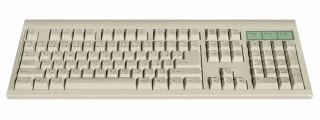
Okay, this is a cop-out, but I have been busy and not-in-a-mood-for-writing in the last 2 days. (I don’t know, but I feel a bit low, may be it is all the snow around and constant work due to excel school and day job).
So, let us have an open thread on Excel Shortcuts. I will start by listing down all the excel keyboard shortcuts I use regularly,
- CTRL+1: open format dialog. I use this to set borders, fills, cell-formats, alignment etc.
- F4: while editing formulas, to change the type of cell reference from relative to absolute or semi-absolute.
- F4: to repeat last action, like adding rows or adjusting formats.
- ALT+ESV : Paste Special > Values only. I use this to paste values alone. Helps me remove formulas, formatting etc.
- CTRL+Arrow Keys: To navigate to last cell in a row, column, first cell in a row, column. These let me go where I want.
- F2: Edit a cell, places cursor at the end. Very easy to edit.
- ALT+Down arrow: Shows a small in-cell drop down with previously entered values, Useful when I am typing some data.
- CTRL+D: fills down.
- F9: When debugging formulas, I can select a portion of the formula and press F9 to see the result of that. VERY VERY Useful..
- SHIFT+F2: Add a comment or Edit comment. Useful to add cell-comments so that my colleagues can take note of certain cells.
- CTRL+B: Bold a cell’s content. Useful to add emphasis.
- ALT+EST: Works like format painter
Now your turn…
Please use comments and share the shortcuts you use on regular basis. Let us make this the biggest thread (and page) on excel short cuts…
Previously on keyboard shortcuts & mouse shortcuts.


94 Responses
I think you meant Ctrl+D instead of Alt+D for fill down.
I use Ctrl+SpaceBar and Shift+SpaceBar for selecting whole column/row and many more!
Can I add the Absolute Reference $ to a Formula string with a keyboard shortcut?
@Tig
Whilst editing a formula you can change a cell reference by sing F4
Keep using F4 to toggle between the 4 possibilities
You have to do each end of a range reference separately
@Vipul.. yes, I meant CTRL+D (will correct the post later in the day)
Alt+DPF : Create a Pivot table in new sheet (ofcourse after selecting the range)…seems to be pretty quick to me.
Alt +DPN : Create a Pivot table in the same sheet.
here are the shortcuts you haven’t mentioned that I use the most:
Shift + F11: insert new sheet
Alt + F11: show Visual Basic Editor
Ctrl + Page Up/Down: previous/next sheet
These are my most used shortcuts for manipulating large data tables.
Shift + Space bar – Select Row
Ctrl + Space bar – Select Column
shift + ctrl + space bar – select table
ctrl + num pad ‘+’ – insert row
ctrl + num pad “-” – delete row
F12 – Save as
Ctrl + s – save (use these all the time.)
Ctrl + 1 – Format Cell or selection
Alt + ‘=’ – Sum range
Ctrl + shift + 1 – Format as number with 2 dp
Ctrl + shift + 4 – Format as local currency
Ctrl + shift + 5 – Format as percentage with 0 dp
f5 – go to box, then special for selecting blank cells etc. Or, go to a cell reference in a large sheet.
Another tip I’d give for shortcuts is for Excel 2007, is to add shortcuts to the quick access bar. When functions are added to the quick access bar then you can use alt + 1, alt +2 etc to quickly use the shortcutted functions. I have auto filter up there, paste values, pivot table and advanced options (I sometimes use precision as displayed).
is there a short cut for copying visible cells only?
F5
Special
Visible cells only
Ctrl + C
Alt + ;
It is the shortcut to select visible cells.
very very useful
Select the data region first then press Alt + ; and then copy and paste anywhere you want.
I have a localised version of Excel07 , so shortcuts based on menu names work differently. So I cannot reproduce “ALT+ESV”. How do you find the proper key sequence?
Ctrl+F1 in XL2007 & XL2010 is crucial to expand the work area eaten by the Thick Ribbon
eliavs,
Keyboard shortcut is Alt+; for copying visible cells only
Ctrl+A to mark region
Ctrl+A again to mark all
Ctrl + C Copy
Ctrl + V Paste
Ctrl + X Cut
Ctrl + Z Undo
Ctrl + Home – Go to top left (nb will go to top left of freezed pane if set)
Shift + Home – Select range from start cell to far left
Shift + End + arrow – Select range from start cell to end in direction of arrow
thank you vipul
I use:
Shift+F11: Insert new worksheet
Alt+F11: Open Visual Basic IDE
Use CTRL+’*’ to mark a continuous array of data (e.g. all data for pivot) – no matter where your cursour stands in the array
I use Alt + Intro, to give a line break when I’m editing a cell.
Ps: The keyboard shorcuts can change if you use the application in english or spanish, in my case; for example: Ctrl + A is use to open a file, Ctrl + E to select a region, Ctrl + O to open a workbook, Ctrl + 1 never found and I don’t know how is the spañish combination.
I use…
F2 – Edit
Ctrl + Shift + Enter – Enter array formula
Ctrl + / – select array formula range
Ctrl + Space – Select the column
Shift + Space – Select the row
Ctrl + (-) – Delete the Selection
Ctrl + home – Select the first non-blank cell
Ctrl + end – Select the last non-blank cell
Ctrl + PgUp – Select the previous sheet
Ctrl + PgDn – Select the next sheet
F2 – Change Enter/Edit Cell mode
Alt + Enter – Enter a new line in cell
Alt + F8 – Macro Dialog
Alt + D,F,F – Apply/Remove Filter
Shift + F2 – Enter/Edit Cell Comment
Ctrl + 1 – Format Dialog
Ctrl + ; – Enter Current Date
Ctrl + : – Enter Current Time
Alt + E,A,A – Clear All Contents
I use
Ctrl + insert – Copy
Shift + Insert – Paste
Hope I’m not repeating but I didn’t see it on the list.
I use F3 to display range names – useful when using them in formulas
ALT+; to select visible cells. Very useful when filtering large ranges…
thx vipul for the “Alt + ;”
here the other usual ones i use:
ctrl F2 for print preview
ctrl p for print (cause we’re still living in papers world)
ctrl 9 or ctrl 0 for hiding selected row or column (ctrl shift 9 or 0 for unhide them)
F5 + alt s + k = select blank
F11 to make chart/pivot chart
I am a extreme keyboard person, so besides the regular shortcuts posted here, I use ALT + TUF to evalute formulas. Its easy to remember when you working with some “TUF” formulas!
Quick tip for mac users: Ctrl-U is the F2, edit cell, equivalent.
I called up this Shortcut only by chance….i was trying to type “)” when by mistake pressed ctrl instead of shift…..
…..Shortcut is
Ctrl + 0
It hides the column containing the cell selected.
Shortcut to hide a row containing the cell selected is
Ctrl + 9
Ctrl + Down arrow: To select from a drop box
CTRL Z – Undo
CTRL Y – Redo
One that is more usefull than just in Excel:
ALT-Space_X
This maximize the window, quick and neat.
copy the value from the cell above the active cell into the cell or the formula bar
Ctrl + Shift+ ” (Quotation Mark)
copy a formula from the cell above the active cell into the cell or the formula bar
Ctrl + ‘ (Apostrophe)
display the formula palette after you type a valid function name in a formula
Ctrl + A
display the Style command Format menu
Alt + ‘ (Apostrophe)
alternate between displaying cell values and displaying cell formulas
Ctrl +`(Single Left Quotation Mark)
select all cells with comments
Ctrl + Shift + O (letter O)
select all cells that are directly or indirectly referred to by formulas in the selection
Ctrl + Shift + {
select all cells with formulas that refer directly or indirectly to the active cell
Ctrl + Shift + }
Surely the most useful shortcut of all is
Alt+tab
and
Alt+shift+tab
I use it countless times each day.
Someone on a Linked In Excel group mentioned Ctrl + R . It copies whatever is in the cell to the left of it. I’m really starting to use this one quite a bit.
I rather like CTRL+SHIT+HOME followed by CTRL+SHIFT+Arrow.
The first moves to Cell A1
The second selects all contiguous cells in the direction your arrow points.
To select all contiguous cells in a range:
CTRL+SHIFT+RIGHT then CTRL+SHIFT+DOWN (This can be done in either order.)
This is a great way to name ranges if you like doing that.
Incidentally, you can also hold the SHIFT key and press an arrow to extend or reduce the size of the range.
This is very handy if you only want to include 8 out of 10 contiguous columns of data for example.
Ctrl+Tab to toggle between workbooks in a given session of Excel. I use it a lot.
CTRL+5 – sets/removes strikeout in current cell strikeout!
I use
crtl + F4 to close an Excel workbook (not the application)
crtl + Shift + 6 for Borders
Crtl + Shift + – for No Border
Crtl + Home to go to A1
F9 to calculate
Crtl + 8 to show/hide the top bar when you have a Group
Strike Through Text – CTRL + 5
doh … obviously I wasn’t paying attention. 🙂
Keep filter on columns – but show all rows – ALT + DFS
CTRL-R to fill right
Hey, any tips on how to remember shortcuts? Do people paste list to their PC?
Ctrl+shift+7 for single border around selected cells
Ctrl+G to access ‘go to’ and also access paste special menu
While this will work with a selection composed of multiple cells (either contiguous or non-contiguous), I think it is most useful when a single cell is selected…
Ctrl + [ Select all precedent cells
Ctrl + ] Select all dependent cells
For those unfamiliar with these terms…
The precedent cells are those mentioned in the formula contained in the selected cell. For example, if the selected cell contained this formula…
=SUM(B19:B21,C25,E20:F22)
then B19, B20, B21, C25, E20, E21, E22, F20, F21 and F22 would all be precedent cells and Ctrl+[ would select all of them.
The dependent cells are those which contain a reference to (that is, are dependent on) the selected cell or cells. So, if these cells contained the indicated formulas…
H3: =A1&B2
K5: =E4&A1&K8
then, with A1 selected, Ctrl+] would select both H3 and K5.
@Rick: Nice Addition.
Alt + DS: Sort
Alt + DFF: Apply Filter
Alt + DFS: Remove any filter selections
Alt + ED: delete box (cell, row, column)
Alt + IE: insert box (cell, row, column)
Ctrl + K: insert hyperlink
Alt + NVT: insert pivot table
Alt + WFF: freeze panes
Alt + WVG (2007): remove grid lines
@Vishal… You can also toggle the grid lines on and off via the keyboard in XL2003 (and earlier I presume)…
(Alt+T)OV(Alt+G)[Enter]
I use
Ctrl + Shift + L to turn filter on or off
Does anyone know the shortcut for wrapping text in a cell?
@All.. Superb stuff… keep them coming. I am going to compile all these (and more) shortcuts in a bumper post later this month…
@AK.. try ALT+HW in Excel 2007 to wrap lines. In earlier versions you have to use key sequence CTRL+1 followed by CTRL+TAB then ALT+W and ENTER
I used Alt +HW and my entire workbook literally disappeared.! Maybe 8-10 worksheets long full of data. Cannot find it or figure out how to retrieve it.
By mistake, you typed in excel alt w h instead of alt h w
alt w h works as hiding entire workbook
so go to the view tab and click on unhide button over there
@Chandoo and AK: In Chandoo’s recommendation for wrapping lines in versions earlier than Excel 2007, after his Ctrl+1 keystroke, he advises to use Ctrl+Tab to move among the dialogbox’s tabs… you can also use the right and left arrow keys to do the same thing (I find this easier to do than the two-handed keystroke Chandoo posted).
@ Chandoo and Rick
Thanks for your comments. I am using Excel 2007 and hence found the Alt + HW option very useful.
If you work with a lot of dates and times (especially if you are the one entering them!) I love the fact that you can save a couple keystrokes on the time values if they are on the hour.
For example, if you needed to enter ten o’clock you could type:
10:00
That’s 5 keystrokes.
Alternatively, you could type:
10:
And after hitting ENTER, Excel automatically changes it to:
10:00
That’s 3 keystrokes, a 40% reduction.
Not bad if you have hundreds of time values to deal with.
Daniel Ferry
excelhero.com/blog
@Daniel Ferry
You can also save a keystroke if the minutes part of your time is less than 10. To enter 10:07, you can just type 10:7 and Excel will convert it to 10:07 for you. Also, to make it clear for people reading your original tip, as well as this one, these times entries are for a 24-hour clock, so 10pm would be entered 22: and 10:07pm would be entered 22:7 in order to get times after 12 noon.
I use Ctrl+W a lot frequently to close workbooks 🙂
I use (Alt+W+S) for split screens
Good stuff dear all,
Need to know what is the short cut for renaming sheet name?
@Jignesh it is Alt+OHR
Ctrl+Shift+3(Num Pad) — Next Sheet of Excel File,
Ctrl+Shift+9(Num Pad) — Previous Sheet of Excel File.
Ctrl+H — Replace value
@robin: there a much simpler shortcut for changing sheets
Ctrl + PageUp, Ctrl + PageDown
Thank you so much for your fentastic work. Really it is very useful tome. Congrats.
Thanks Vipul & Chandoo for this stuff.
Is there any short cut is available to change the status bar value as sum,count etc..
Jignesh,
I doubt is there is any; not sure. However if you switch to Excel 2007 you will see all the stats in the status bar and will not have a need for changing or toggling between various stats.
Greetings,
Here is an old short cut that I used to use very often when troubleshooting workbooks in EXCEL.
Hold CTRL and ~ (tilde) and the worksheet will show all formulas in the current workbook. This is an excellent tool for a quick eyeball at a worksheet when looking for an obvious error or just reviewing the formulas formatting.
What keyboard keys are EST and ESV ?
EST and ESV are key sequences. You need to press E then S then T (need not hold the key E down while pressing the next ones).
Oh wow… I’ve always used the mouse to click on the menu then keyboard through it. never knew it was possible to hold down the alt and press keys in sequence. Thanks Chandoo.
i don’t want to use ctl-home, to go a1 cell
do you know any other macro (one stroke that is) to do the above, as i have multiple tabs in my file…
thanks,
ty
@Ty Con
You won’t find anything easier or more intuitive than Ctrl Home to do what you want
Do you want a macro that takes you to A1 ever time you change to a new page?
Hi Guys,
Are there any quick key sequences in the filter dialog section for 2010???
I am very used to the 2003 menu and for me using custom menus was a breeze…. Although the 2007/2010 ribbon is very intuitive, I havent yet found a quick key sequence to type in the search box inside the filter drop down of 2010….
Appreciate any feedback.
I use “ALT + DE ” to use Text to column function.
Really an easy was to separate data using spaces,commas,or other special characters
I am use to older versions of Excel and recently purchased 2010 Home and Student version. I am use to using function keys and am totally baffled. When I try to make a cell reference absolute by selected F4 a pop up screen comes up with 4 options
Computer Only
Duplicate
extend
Projector only
Usually I am pretty computer literate but I am baffled. Any hints?
@Janet
I can assure you that F4 still works as it always has
Often on laptops they have Fn key which with F4 toggles the screen output to different devices
It sounds like you have a stuck Fn key
@Janet you will need to change it from the BIOS settings.. This links should be of help
http://www.gadgetcage.com/how-to-change-function-key-behaviour-in-laptop/9223/
pl excel calculation format. for ex:= vlookup,=sum()
Hello, how I can “press right mouse button” on a keyboard? For example, after Ctrl + C, I would like to paste it as formulas. By arrow, I find where, I move to mouse to click, press Z. As well, it exist on regular keyboard the button between right ctrl and alt, but on laptops? Thanks a lot.
There is usually a ‘Menu’ key between the right set of alt & ctrl keys which has a symbol looking like a menu with a pointer over it.. This performs the ‘press right mouse button’ in Windows… I’m not sure if this is standard across keyboards…
Exactly. Most of the notebook do not have this button. On standart key-board, it is – with 80 % probability. So I am searching for other possibility how to “press” it.
Petr/Rajat,
You can use “Shift+F10”.. I too had this problem with my new laptop 😉
Hey, that is great. Thanks for it. It works 🙂
Hi Chandoo,
i joined today and while scrolling through the hundreds of useful shortcuts, i guess i did not see the Ctrl+R, which is the shortcut for copy to the right, just like Ctrl+D is for Copy to down.
Dayrect filtar kaise lagay
[Google translate] How Direct Filters Work?
Use Shift + F10